
 Community
 Video Library
 Agent Training
 Freshservice
 Freshdesk
 Freshchat
 Freshcaller
 Freshsales
 Freshteam
 Freshworks Neo
 Freshsurvey
 Freshservice for MSP
 Freshservice lets you deploy AI agents directly on Microsoft Teams so employees can get help in the workspace they already use for everyday conversations. Once deployed, employees can chat with the AI agent in their direct messages or in selected channels to resolve common requests, track ticket updates, and trigger workflows without leaving Microsoft Teams.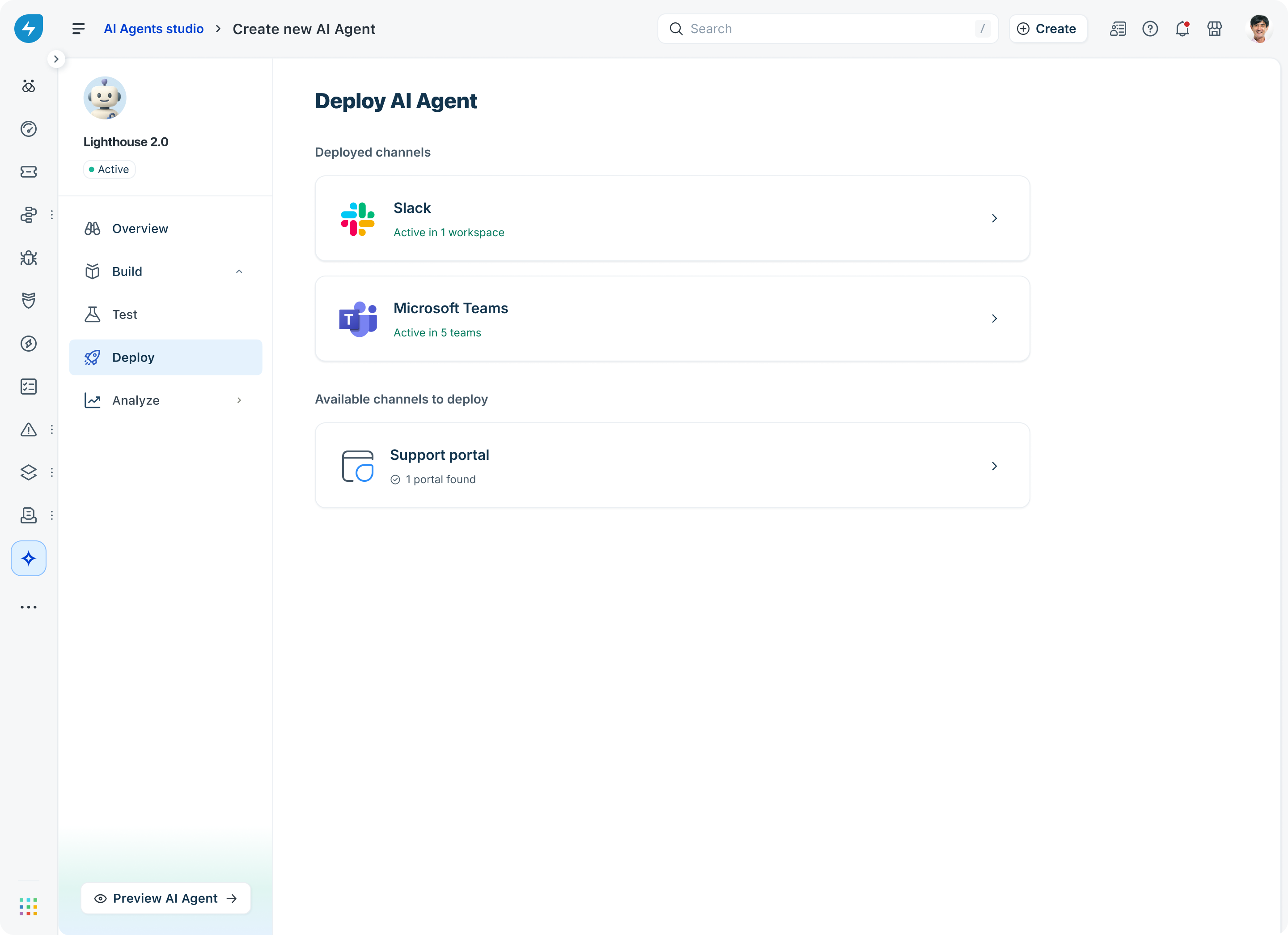
Prerequisites
Before you deploy an AI agent on Microsoft Teams, ensure that the following prerequisites are met:
Admin access to AI Agent Studio in Freshservice.
A built and tested AI agent in the AI Agent Studio.
A Microsoft Teams organization connected to Freshservice. If your organization is not yet connected, set up the connection from the Deploy section before continuing.
Permission to install Teams apps in your organization. If your organization restricts Teams app installation, ask your Microsoft Teams admin to allow the Freshservice AI agent app.
Recommended
Complete preview and batch testing of the AI agent before deployment.
Define a small test group of users who will try out the AI agent first.
Identify the team and channel that will host the test group, and the broader teams and channels where the AI agent should be available after the test phase.
Deploy the AI agent on Microsoft Teams
After your AI agent is ready, deploy it from the AI Agent Studio. You can choose to deploy it to a small test group first or to everyone in your organization.
The Microsoft Teams integration uses a single Teams app, Servicebot, to support AI Agent, ticket collaboration, surveys, and on-call notifications. For more information about access permission, refer to AI Agent permissions for Microsoft Teams integration.
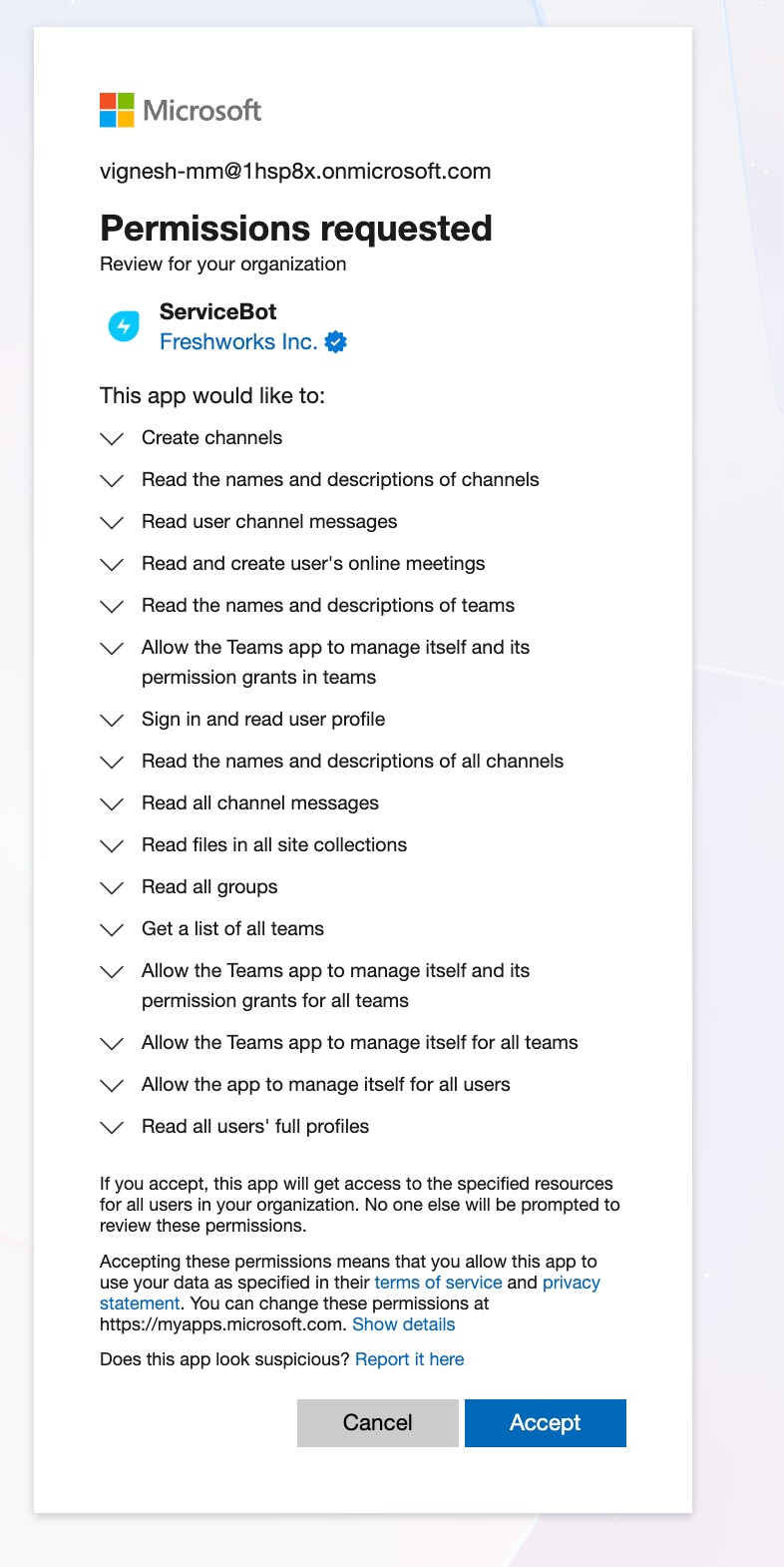
To open the Microsoft Teams deployment settings
Log in to Freshservice and go to AI Agent Studio.
Open the AI agent you want to deploy.
In the left navigation, select Deploy.
Under Available channels to deploy, select Microsoft Teams.
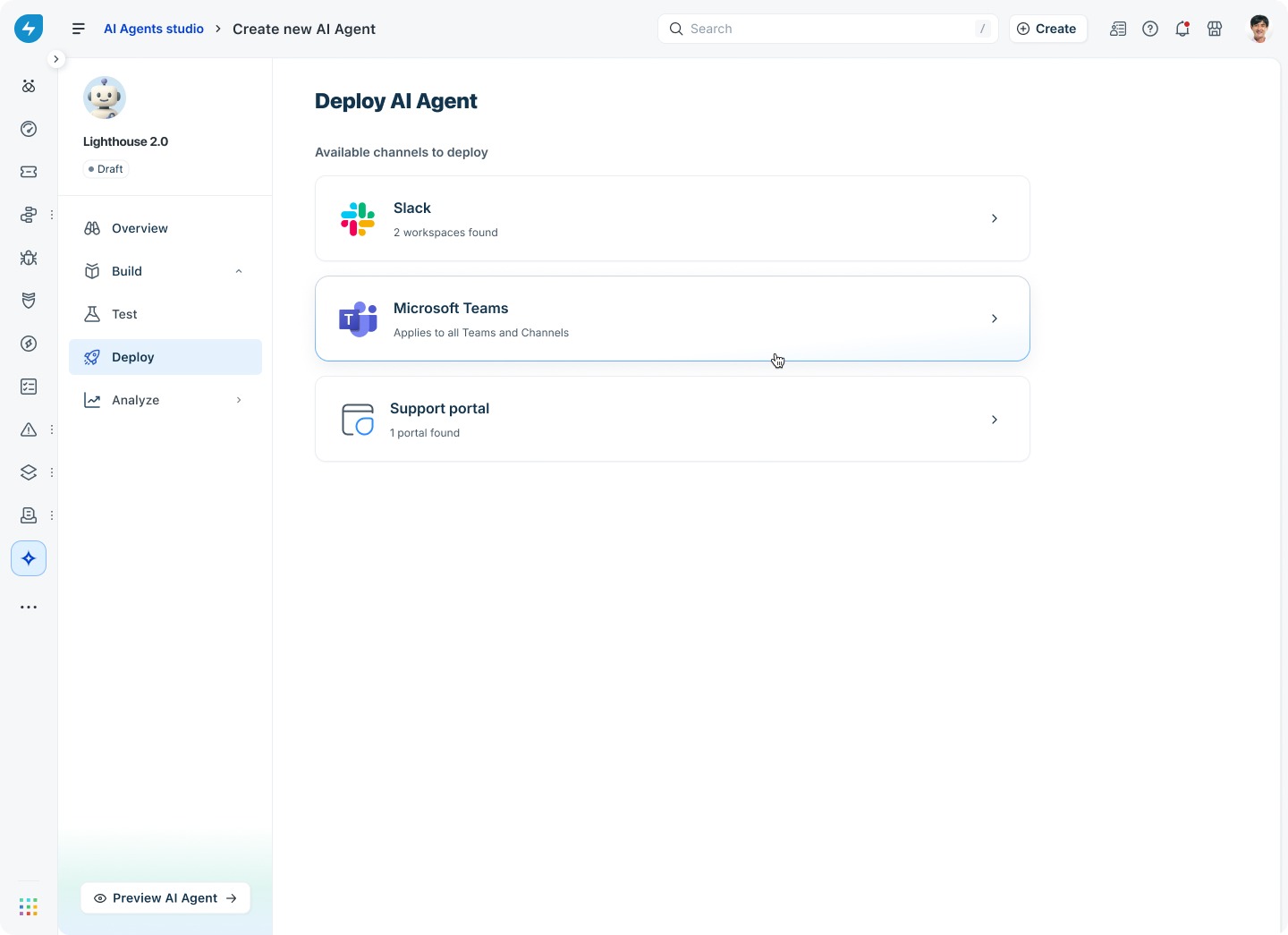
Freshservice displays the Microsoft Teams deployment page, where you can choose how to roll out the AI agent across your organization.
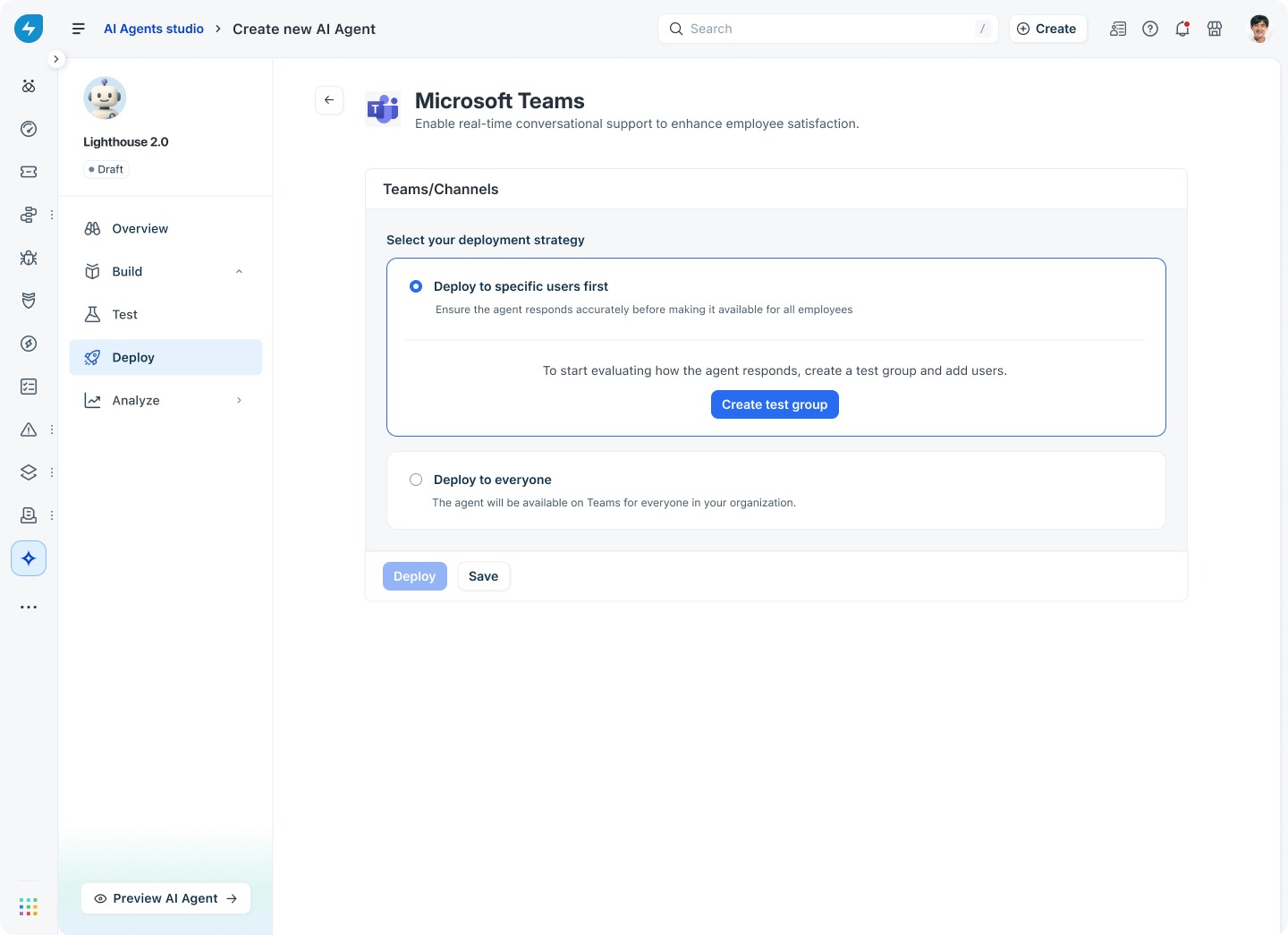
Select a deployment strategy
On the Microsoft Teams deployment page, choose one of the following deployment strategies:
Tip: We recommend that you start with Deploy to specific users first. This lets you observe how the AI agent responds to real questions and refine it before a wider rollout.
Roll out the AI agent to a test group
Use this option to make the AI agent available to a small group of users in your Microsoft Teams organization. Test users can chat with the AI agent in their DMs and, if you create one, in a dedicated Microsoft Teams channel.
To create a test group
On the Microsoft Teams deployment page, select Deploy to specific users first.
Select Create test group.
In the Create test group panel, select the users from your Microsoft Teams organization who should have access to the AI agent during the test phase.
Under Choose how users will access your agent, select one of the following options:
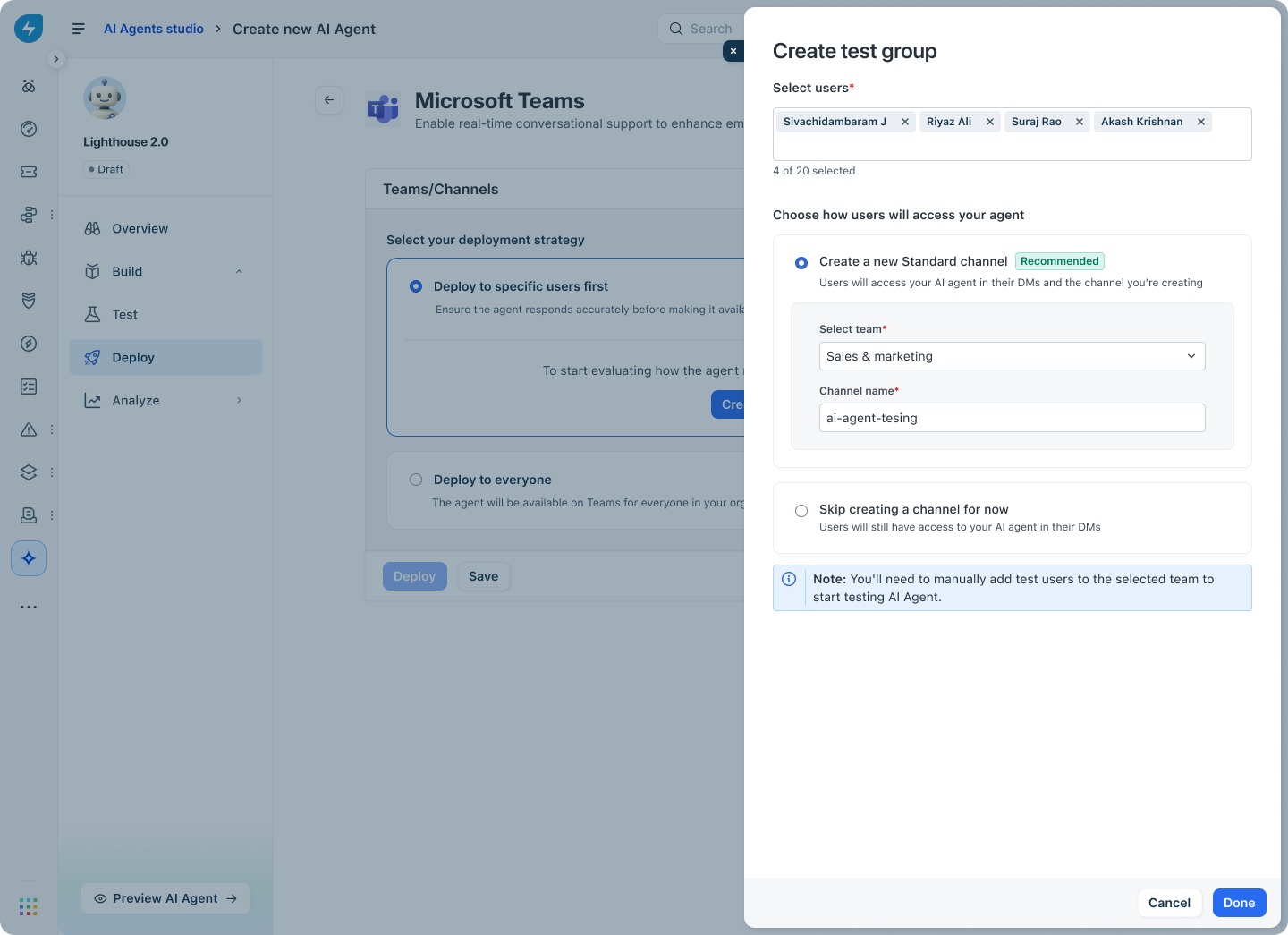
Create a new Standard channel (recommended): Freshservice creates a new Standard channel within the team you select and makes the AI agent available in that channel and in test users’ DMs. Select the team from the Select team list, and enter a name for the channel in the Channel name field.
Skip creating a channel for now: Test users can chat with the AI agent only in their DMs.
Select Done to save the test group.
Note: After the channel is created, you’ll need to manually add the selected test users to the team that hosts the channel so they can access the AI agent there.
To deploy to the test group
Review the test users and the testing team and channel on the Microsoft Teams deployment page.
In the Deploy to test group confirmation dialog, select Deploy.
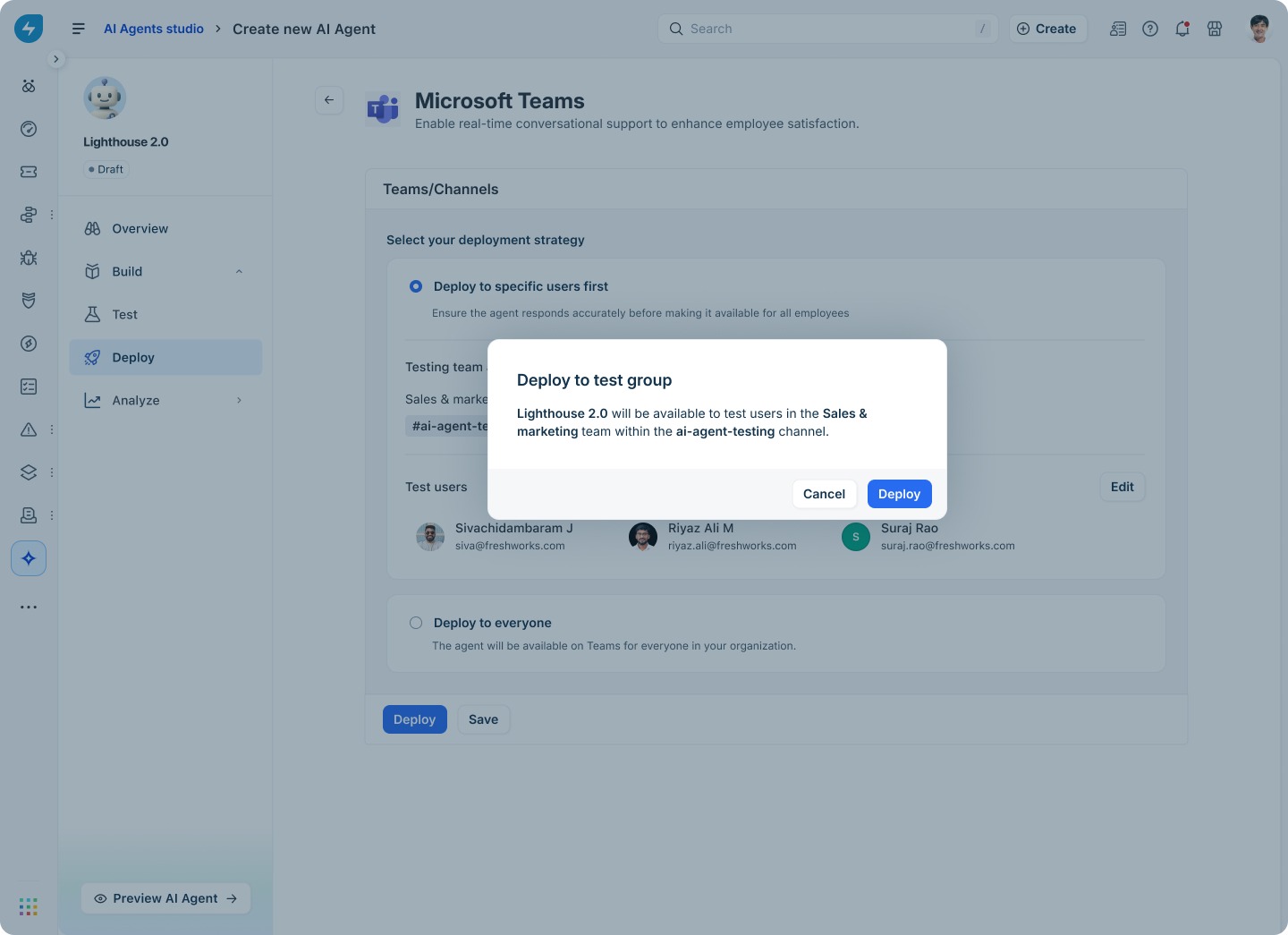
After deployment, the AI agent status changes to Active, and the workspace is marked as In testing period.
Roll out the AI agent to everyone
After you are satisfied with the AI agent’s responses during the test phase, you can make it available to everyone in your Microsoft Teams organization. You can roll it out directly, without going through a test phase, by selecting Deploy to everyone.
To roll out the AI agent to everyone
On the Microsoft Teams deployment page, select Deploy to everyone.
Select Update & deploy.
In the Deploy to everyone confirmation dialog, review the message and select Deploy.
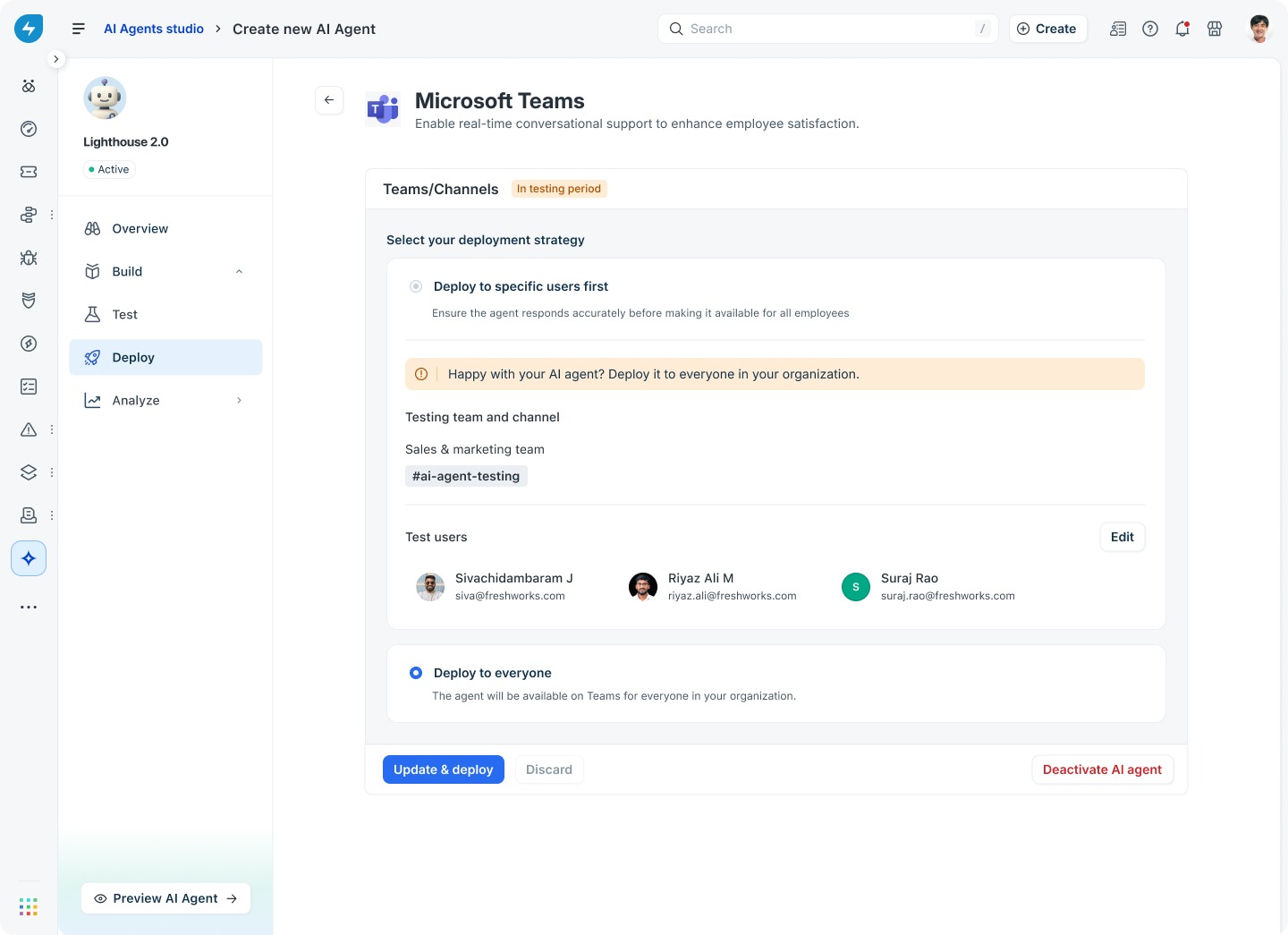
After deployment, all users in your Microsoft Teams organization can chat with the AI agent in their DMs. You can also add the AI agent to specific teams and channels so that it can respond when mentioned.
Manage a deployed AI agent
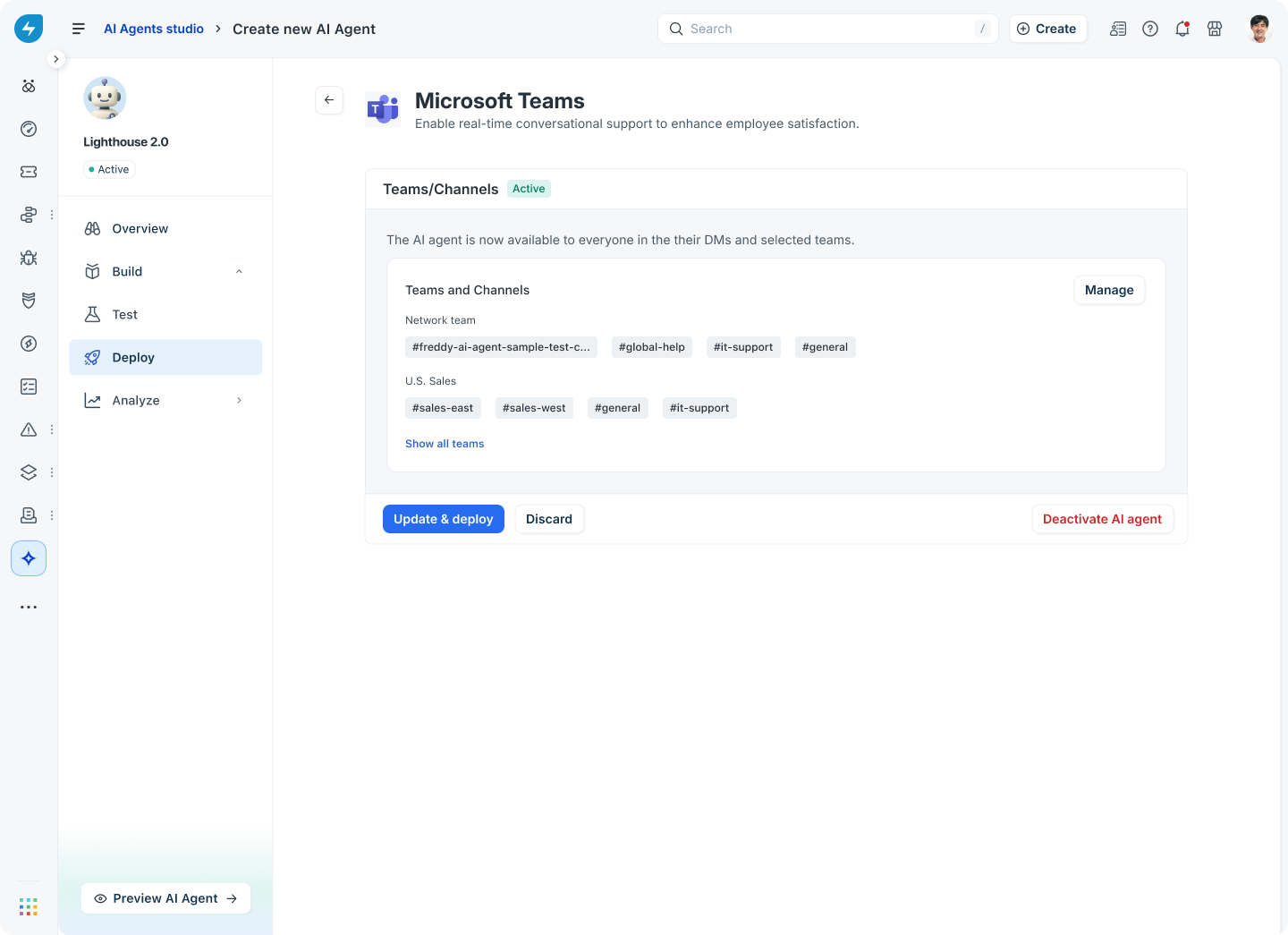
After deployment, you can view the AI agent’s status, manage the teams and channels it is available in, or deactivate it from the Microsoft Teams deployment page.
Manage teams and channels
Go to the Microsoft Teams deployment page.
Under Teams and channels, select Manage.
In the Manage channels panel, select a team from the Select teams list, and then select the channels where the AI agent should respond.
Select Save.
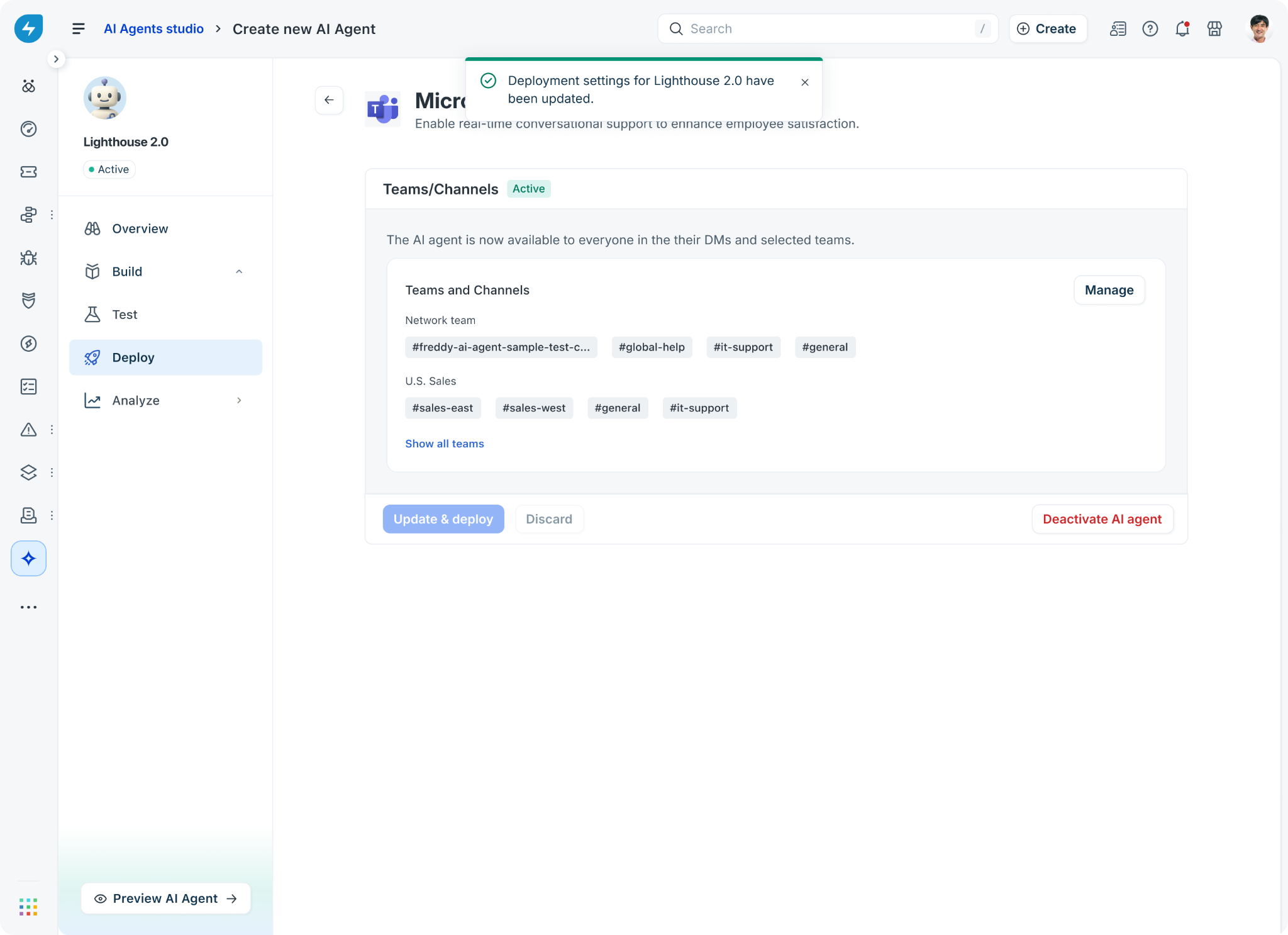
On the deployment page, select Update & deploy to apply the changes.
In the Update & deploy changes confirmation dialog, select Confirm.
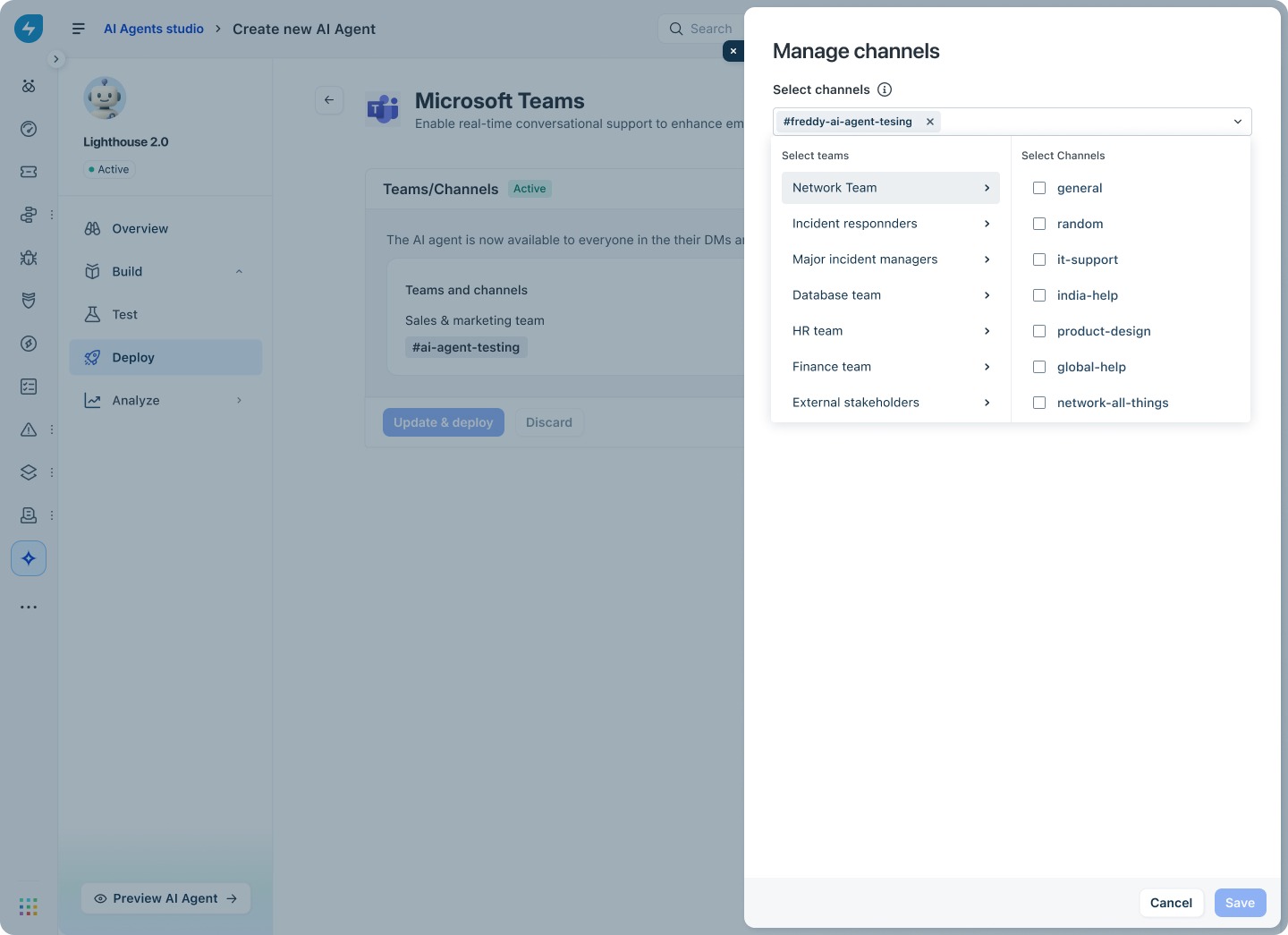
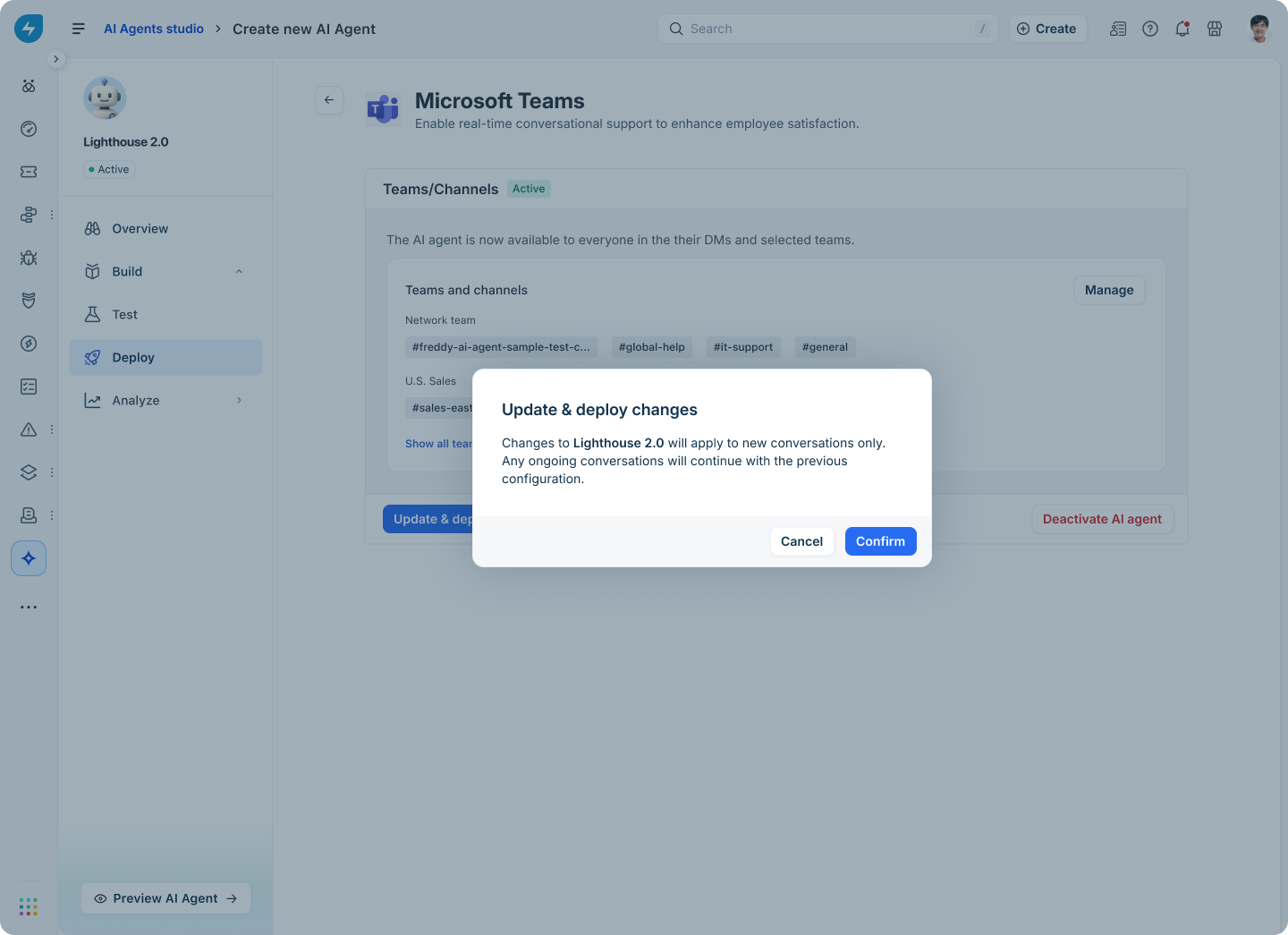
Note: Changes apply to new conversations only. Any ongoing conversations will continue with the previous configuration.
Deactivate the AI agent
Deactivating the AI agent stops it from responding to users in Microsoft Teams. The deployment configuration is retained, so you can reactivate the AI agent later without setting it up again.
Go to the Microsoft Teams deployment page.
Select Deactivate AI agent.
Confirm the deactivation when prompted.
Frequently asked questions
1. Can I deploy the AI agent to specific teams within my organization?
Yes. After you roll out the AI agent to everyone, use the Manage option under Teams and channels to choose the specific teams and channels where the AI agent should respond when mentioned.
2. Can I move from a test rollout to a full rollout later?
Yes. After a test phase, switch the deployment strategy to Deploy to everyone and select Update & deploy to make the AI agent available to all users in your organization.
3. Do test users keep access after I roll out the AI agent to everyone?
Yes. Test users retain access through their DMs and through the testing channel, if you created one. When you roll out to everyone, all other users in the organization also get access.
4. How does the AI agent respond in a Microsoft Teams channel?
The AI agent responds in a Microsoft Teams channel only when it is added to that channel and mentioned in a message. In DMs, the AI agent responds to every message it receives.
5. What happens if I deactivate the AI agent?
The AI agent stops responding in Microsoft Teams DMs and channels. The deployment configuration, including test users and channels, is retained, so you can reactivate the AI agent later without reconfiguring it.
6. Can I edit the test group after deployment?
Yes. On the Microsoft Teams deployment page, select Edit next to Test users to add or remove users from the test group.
7. Why do I need to manually add test users to the selected team?
Freshservice creates the channel for testing but does not automatically add users to the parent team in Microsoft Teams. To let test users access the AI agent in the testing channel, add them to the team that hosts the channel from Microsoft Teams. Test users can still chat with the AI agent in their DMs even before they are added to the team.
8. What channels does Freshservice support for AI agent deployment?
In addition to Microsoft Teams, you can deploy AI agents on the Freshservice support portal and on Slack. Each channel is configured independently from the Deploy section of the AI agent.