
 Community
 Video Library
 Agent Training
 Freshservice
 Freshdesk
 Freshchat
 Freshcaller
 Freshsales
 Freshteam
 Freshworks Neo
 Freshsurvey
 Freshservice for MSP
 TABLE OF CONTENTS
- Key concepts to know before you start
- Where to find the service catalog setting
- Enable service catalog access
- Choose a catalog scope
- Save your settings
- Discard unsaved changes
- Turn off service catalog access
- Best practices
- Frequently asked questions
The service catalog lists the IT and business services your organization offers to employees, such as hardware provisioning, software installation, and travel desk requests. When you connect the service catalog to your AI agent, the agent understands what services are available, guides users to the right ones, and helps them raise requests accurately without navigating a portal.
This article explains how the service catalog connection works, how to turn it on, and how to choose which categories the agent can access.
Key concepts to know before you start
The following terms come up throughout this article.
Where to find the service catalog setting
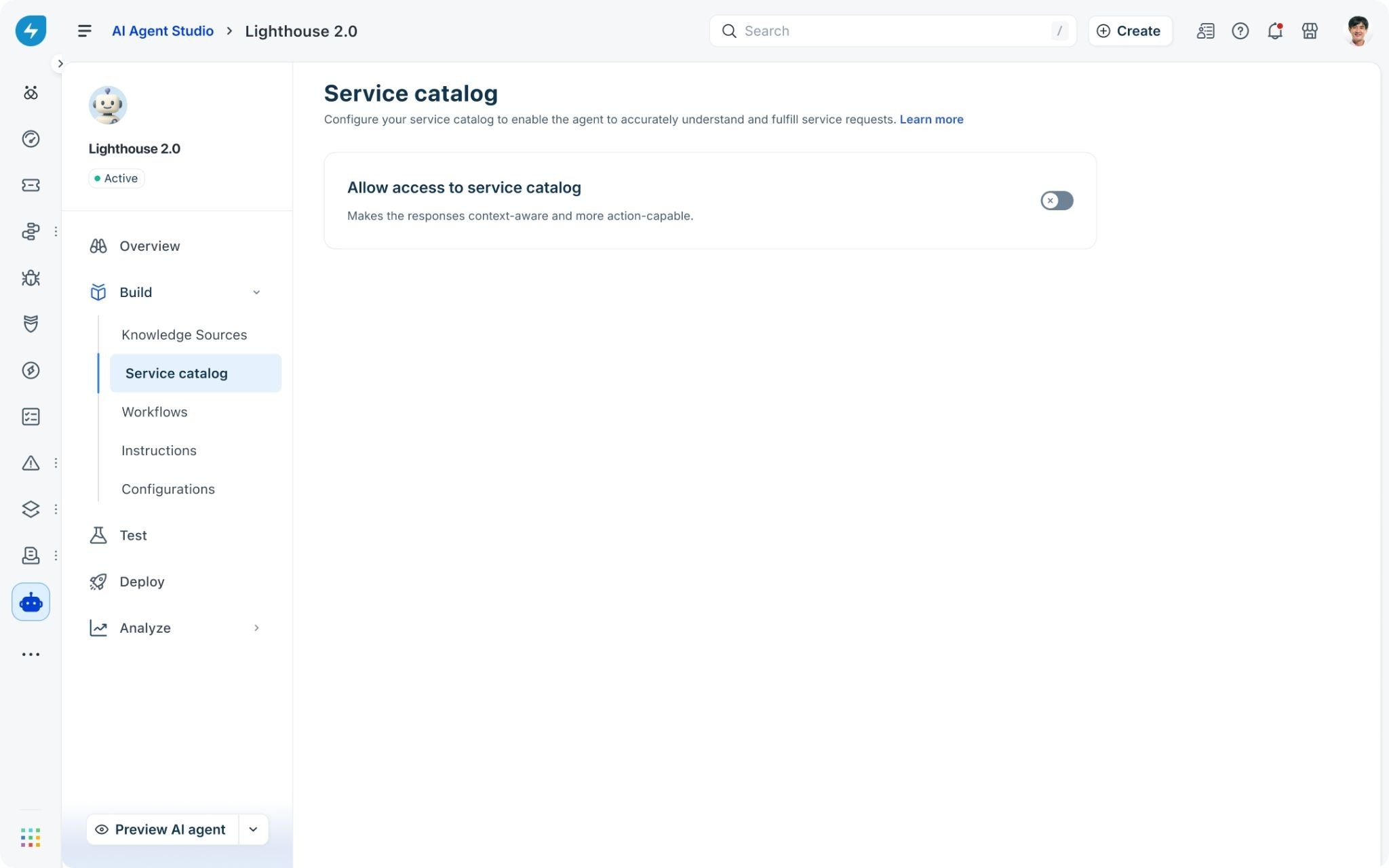
The service catalog setting lives under the Build section of your agent, alongside Knowledge Sources, Workflows, and Instructions. To get there:
Open AI Agent Studio and select the agent you want to configure.
In the left navigation, expand Build and click Service catalog.
Enable service catalog access
By default, the Allow access to service catalog toggle is off. The page subtitle explains the effect when you turn it on: the agent's responses become more context-aware and more action-capable.
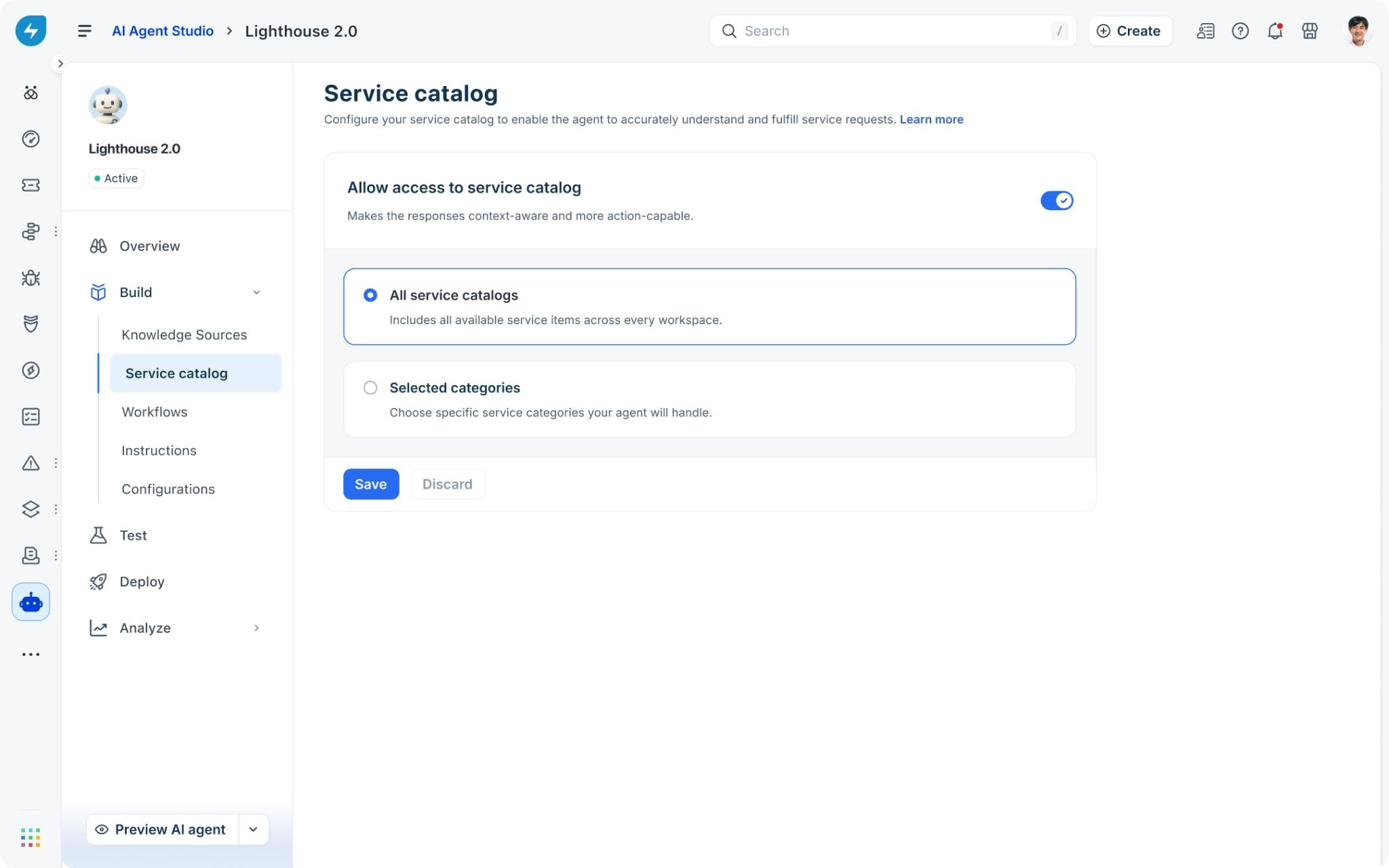
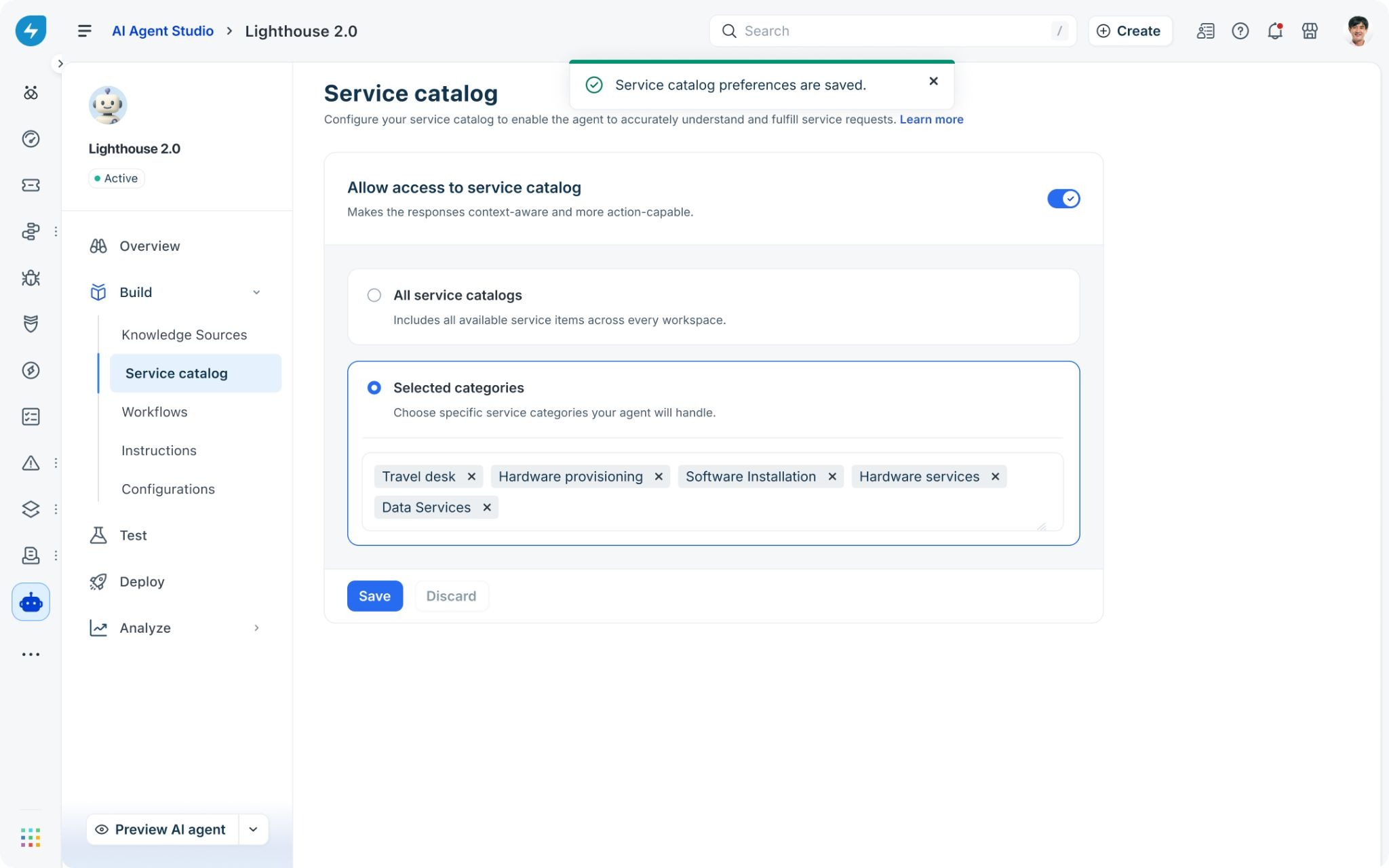
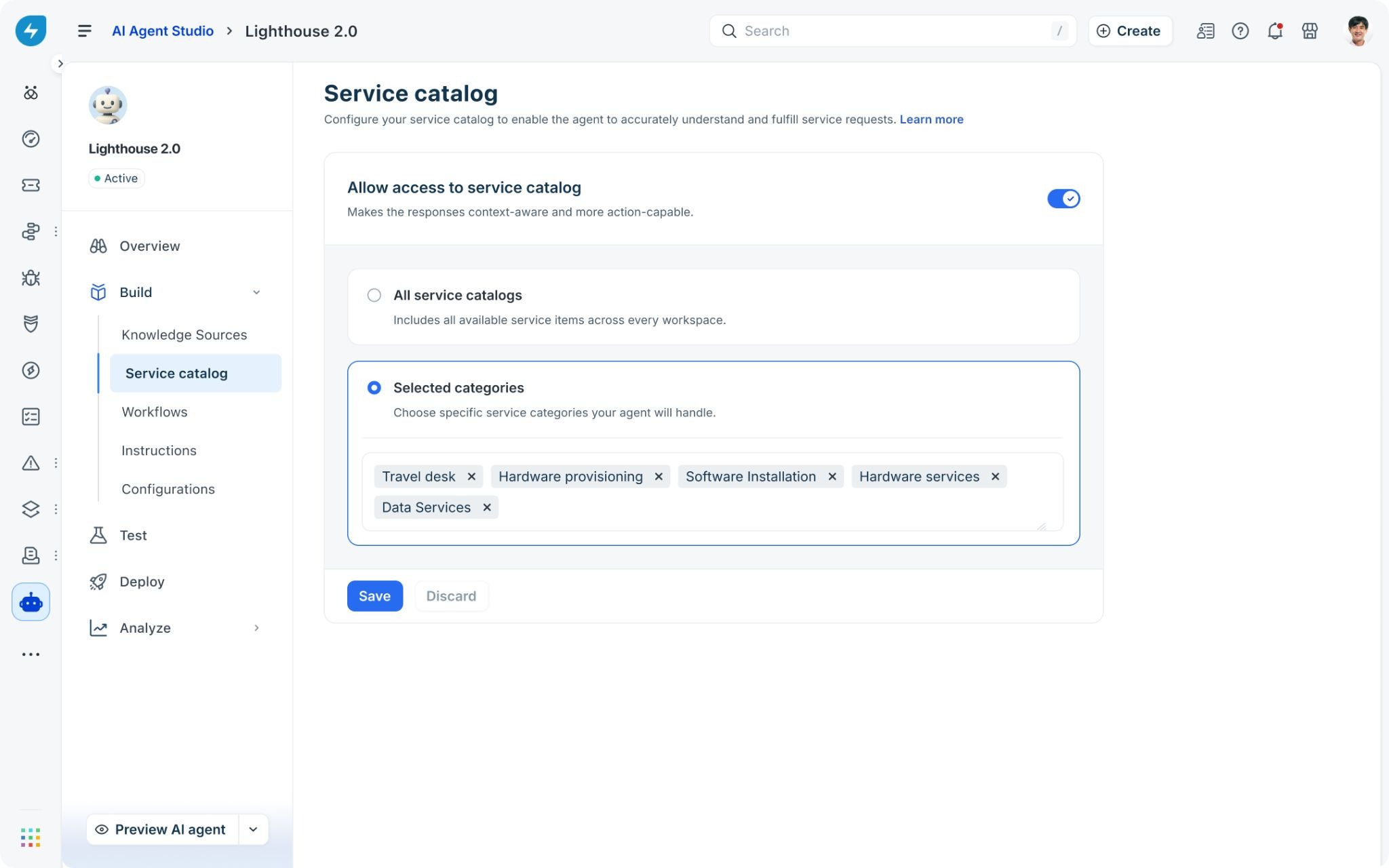
Click the toggle to enable access. The toggle turns blue to confirm it is on, and the catalog scope options appear immediately below.
Choose a catalog scope
The scope setting controls which parts of your catalog the agent can see. There are two options.
All service catalogs
Select All service catalogs to give the agent access to every service item across every category and workspace. This is the default selection when you first enable access. Use it when your catalog is well-curated end to end, and you want the agent to handle any service request a user raises.
Selected categories
Select Selected categories to limit the agent to a specific set of categories. This is useful when you want to roll out the service catalog integration gradually, or when the agent is scoped to a particular function such as IT support only.
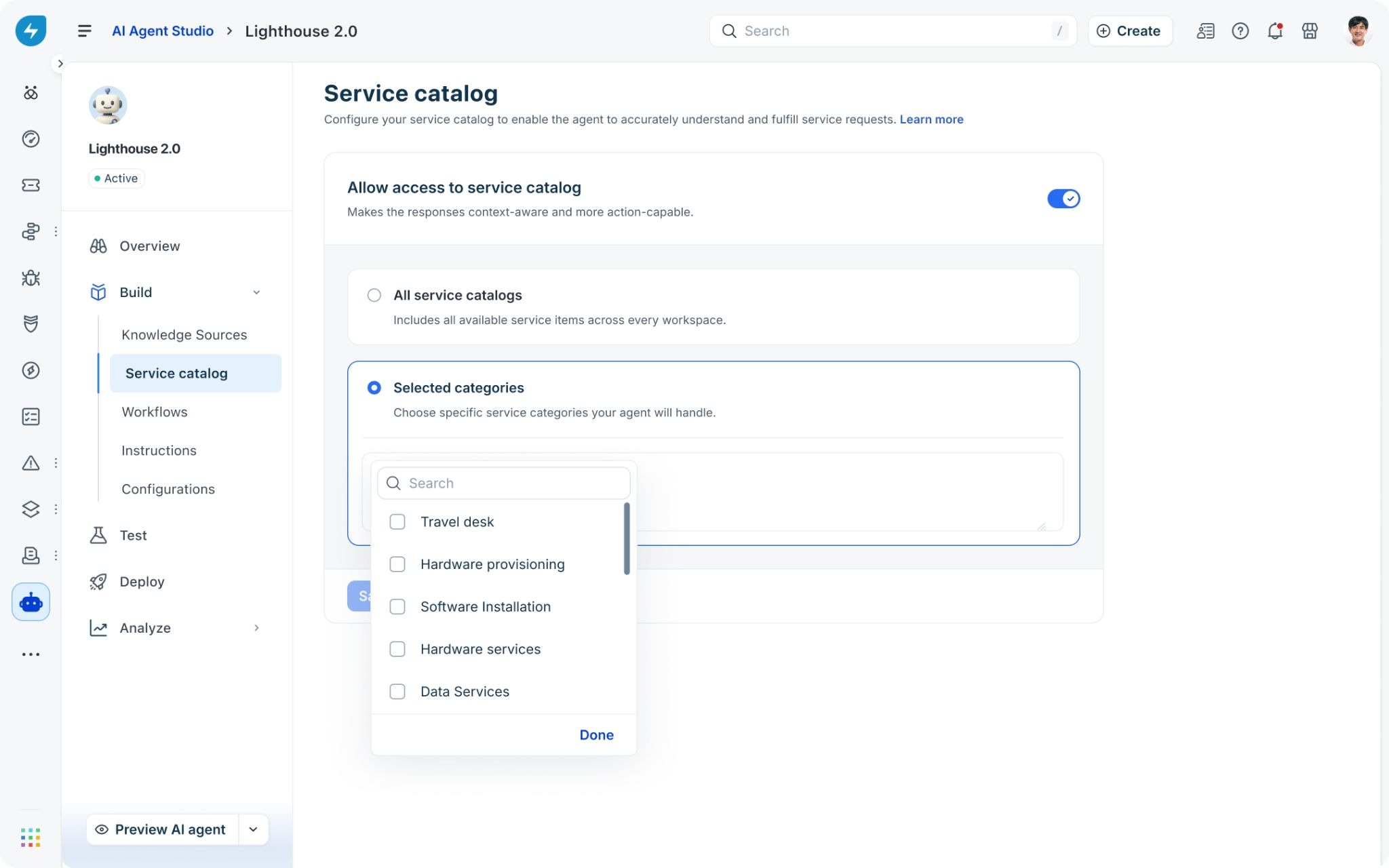
When you select this option, a search field appears inside the option card. Click inside it to open the category picker.
To select categories:
Click inside the Selected categories field. The category picker opens with a Search box and a list of available categories.
Use the Search box to find a specific category, or scroll through the list.
Check the box next to each category you want to include.
Click Done to close the picker.
The categories you selected appear as tags inside the field. Each tag has an X that you can click to remove that category from the selection.
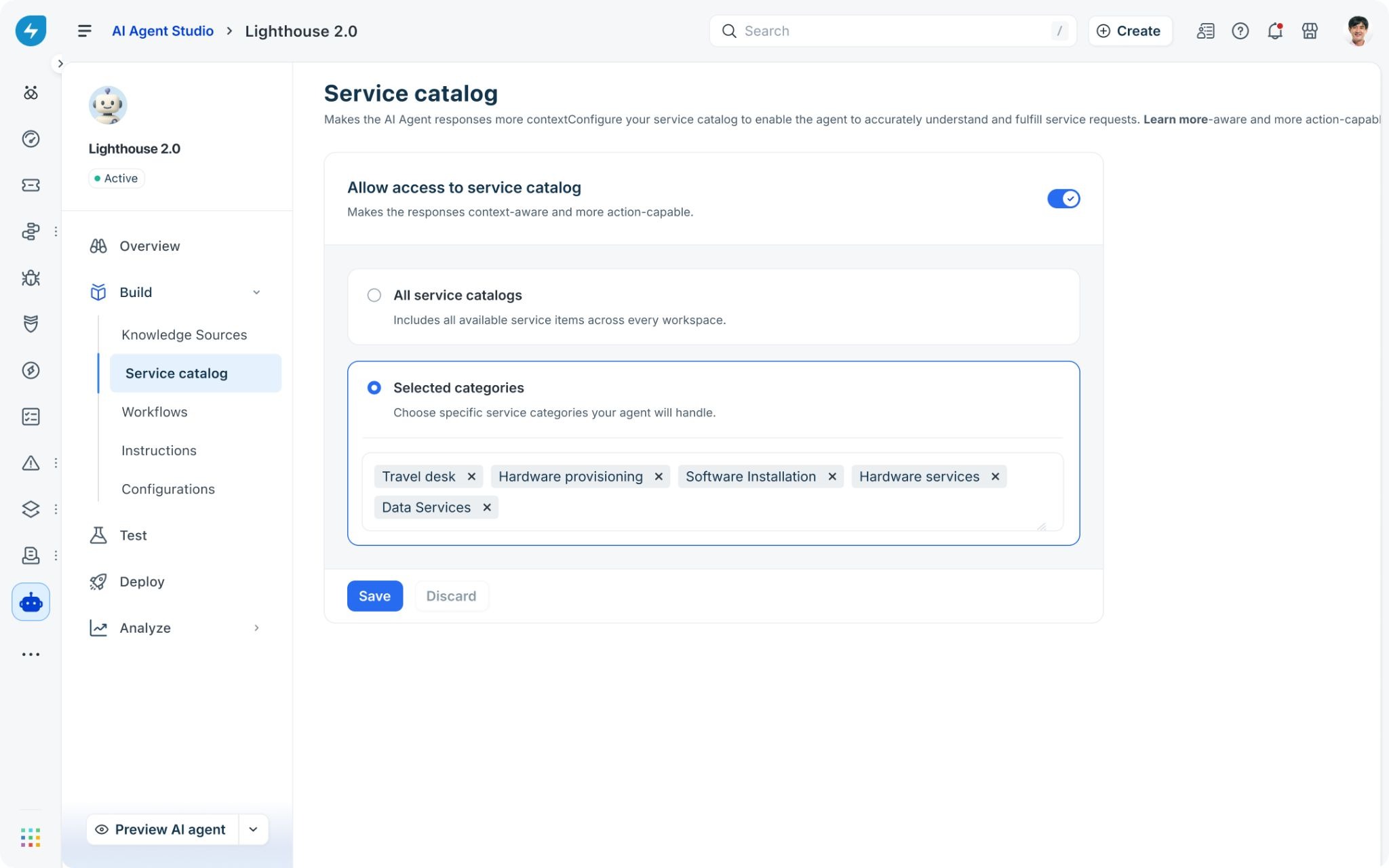
Tip: Start with the categories that receive the most service requests. You can expand the selection later as you validate the agent's responses.
Save your settings
After choosing a scope, click Save. A confirmation notification appears at the top of the page to confirm that the service catalog preferences were saved successfully.
Discard unsaved changes
If you want to undo changes you have not yet saved, click Discard. A confirmation dialog appears with the message: Your unsaved changes will be lost and the agent's previous configurations will be restored.
Click Discard in the dialog to revert to the last saved configuration. Click Cancel to close the dialog and continue editing.
Turn off service catalog access
To disconnect the service catalog from the agent, click the Allow access to service catalog toggle to turn it off. The scope options are hidden, and the agent can no longer access catalog data. Your saved scope settings are retained, so they will be in place if you turn access back on later.
Best practices
Match the scope to the agent's purpose. If the agent handles only IT requests, limit it to IT-related categories. Giving the agent access to services outside its scope can produce unexpected responses.
Expand scope in stages. Start with your most frequently requested categories. Once the agent handles those reliably, add more categories over time.
Keep your catalog current. The agent reads catalog data as it exists in Freshservice. If a category or item is outdated, users may receive inaccurate guidance. Review your catalog regularly.
Test after every scope change. After saving new category selections, use Preview AI agent to test requests in each category and confirm the agent responds correctly.
Use Selected categories for phased rollouts. If you are introducing the AI agent to a new team or department, limit catalog access to their relevant categories until you are confident in the agent's performance.
Frequently asked questions
Does turning off service catalog access affect existing workflows?
No. Workflows already added to the agent continue to run. Turning off catalog access means the agent can no longer retrieve catalog data in real time, but any workflow logic already configured is not removed.
Can I connect more than one service catalog to an agent?
The All service catalogs scope gives the agent access to every catalog across all workspaces in your Freshservice instance. If you need to limit access to a subset, use Selected categories to define exactly which categories the agent should handle.
What happens if I remove a category that is used in an active workflow?
The workflow continues to run, but the agent will no longer have catalog context for that category when handling requests conversationally. Review any workflows that depend on catalog data before narrowing the scope.
Will the agent automatically pick up new catalog items added to a connected category?
Yes. The agent reads catalog data live from Freshservice, so new items published within an already-connected category are available to the agent without any reconfiguration.
Can I use both All service catalogs and Selected categories at the same time?
No. The two options are mutually exclusive. Select the scope that fits your deployment, and change it at any time by returning to the Service catalog page.