Community
 Video Library
 Agent Training
 Freshservice
 Freshdesk
 Freshchat
 Freshcaller
 Freshsales
 Freshteam
 Freshworks Neo
 Freshsurvey
 Freshservice for MSP
 Note: Available only for new signups after the 31 March, 2026 release. If you signed up earlier, refer to the existing ITAM documentation.
Configuring the correct time zone is a critical initial step to ensure that autodiscovery scheduling and log history function correctly. While the appliance pulls the clock from the virtual host, setting up an NTP time source ensures the time remains accurate over time.
This article provides instructions on how to set the time zone at the operating system (OS) level, as well as how to configure Network Time Protocol (NTP) settings.
Prerequisites
You need the following before the installation:
Administrative privileges for the Freshservice application.
Access to the virtual machine (VM) console.
The IP address or Fully Qualified Domain Name (FQDN) of your NTP server.
Ensure the virtual host clock is correct, as the virtual appliance synchronized with the host.
Configure OS-level time settings
After applying a new time zone in the application, you must update the settings at the OS level via the VM console. To do so, follow these steps:
Log in to the VM console.
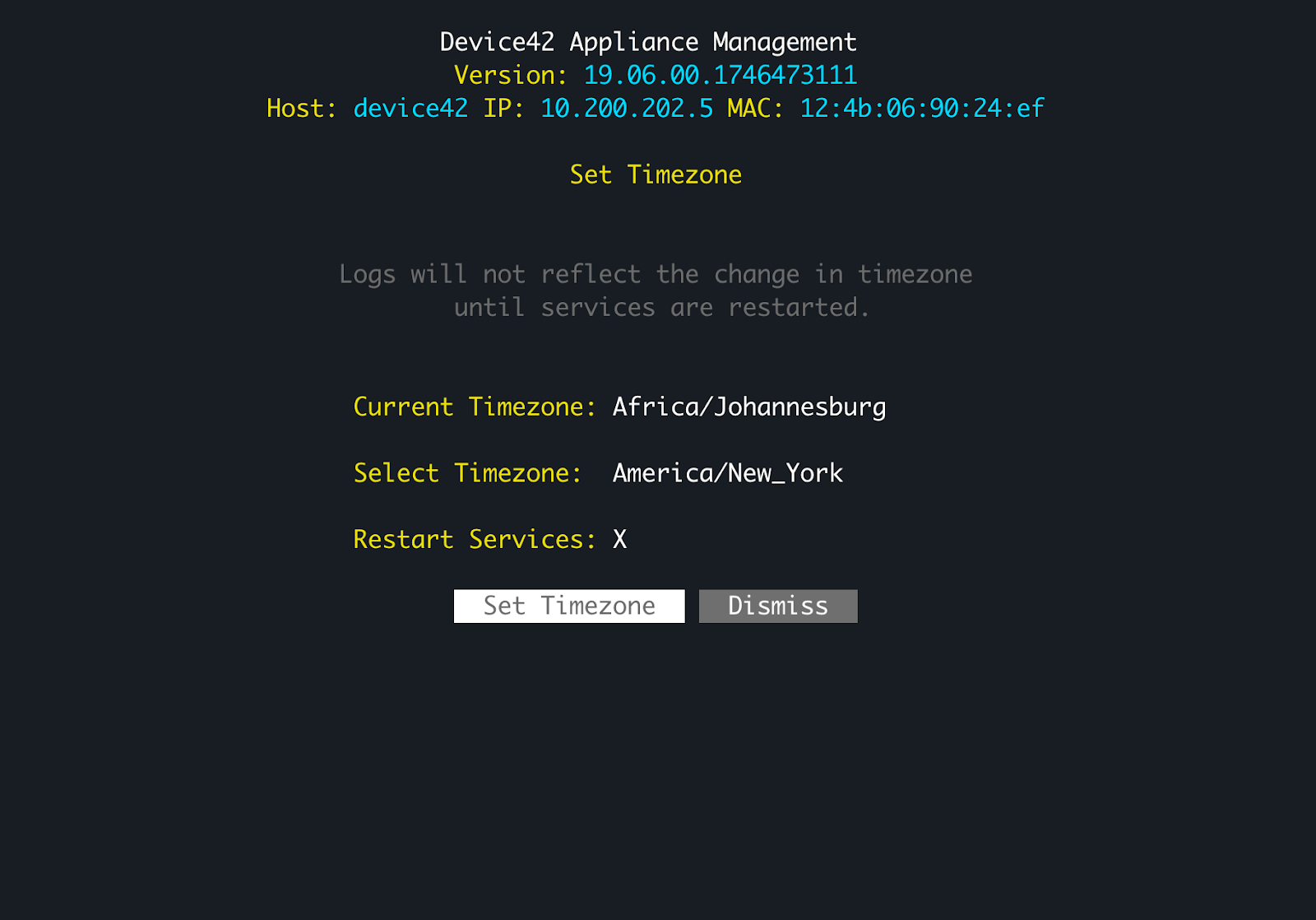
Select (z) Restart Services to restart the application. Once it restarts, the console menu displays the new time zone.
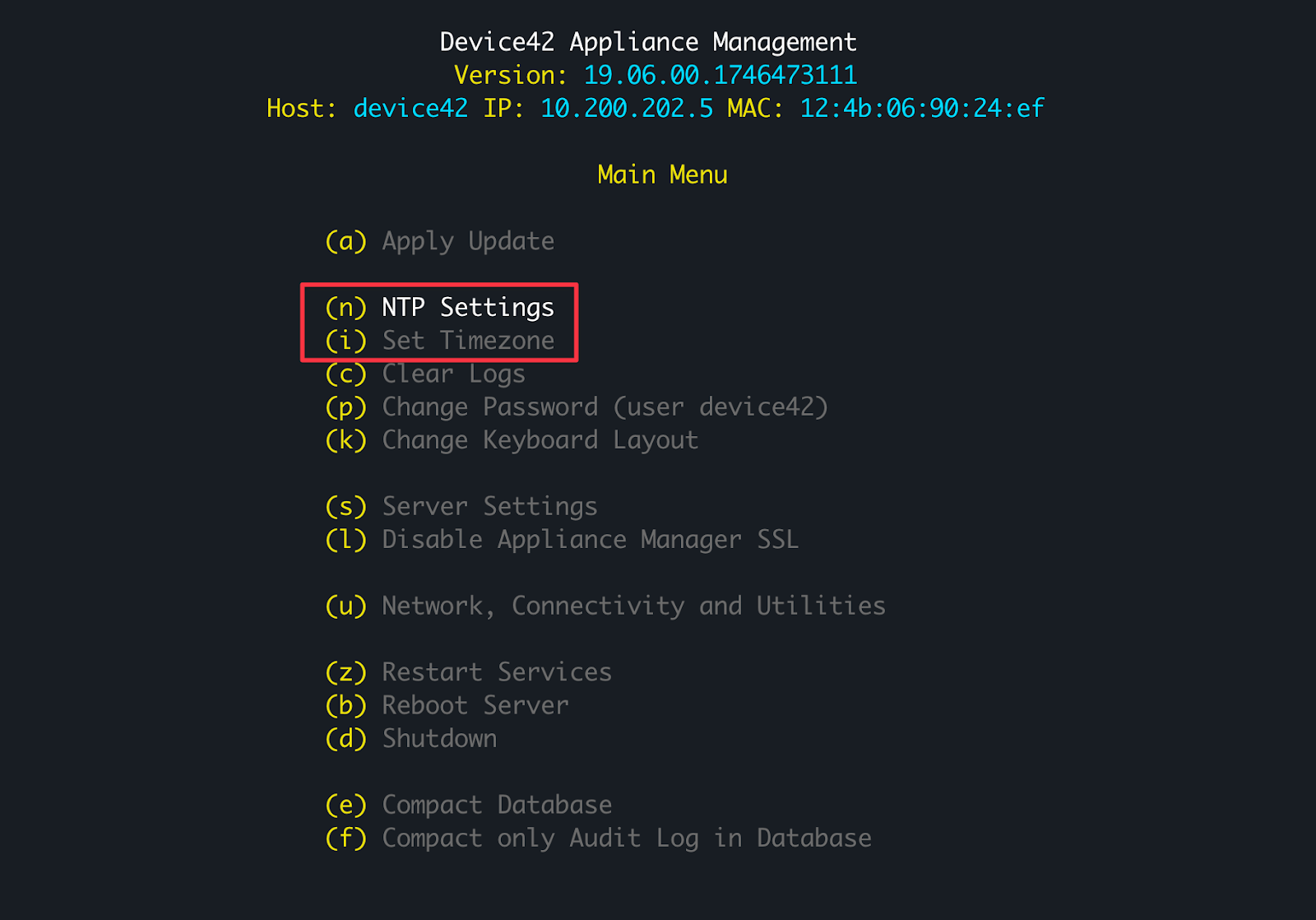
To set the time at the OS level, select (n) NTP Settings from the main menu.
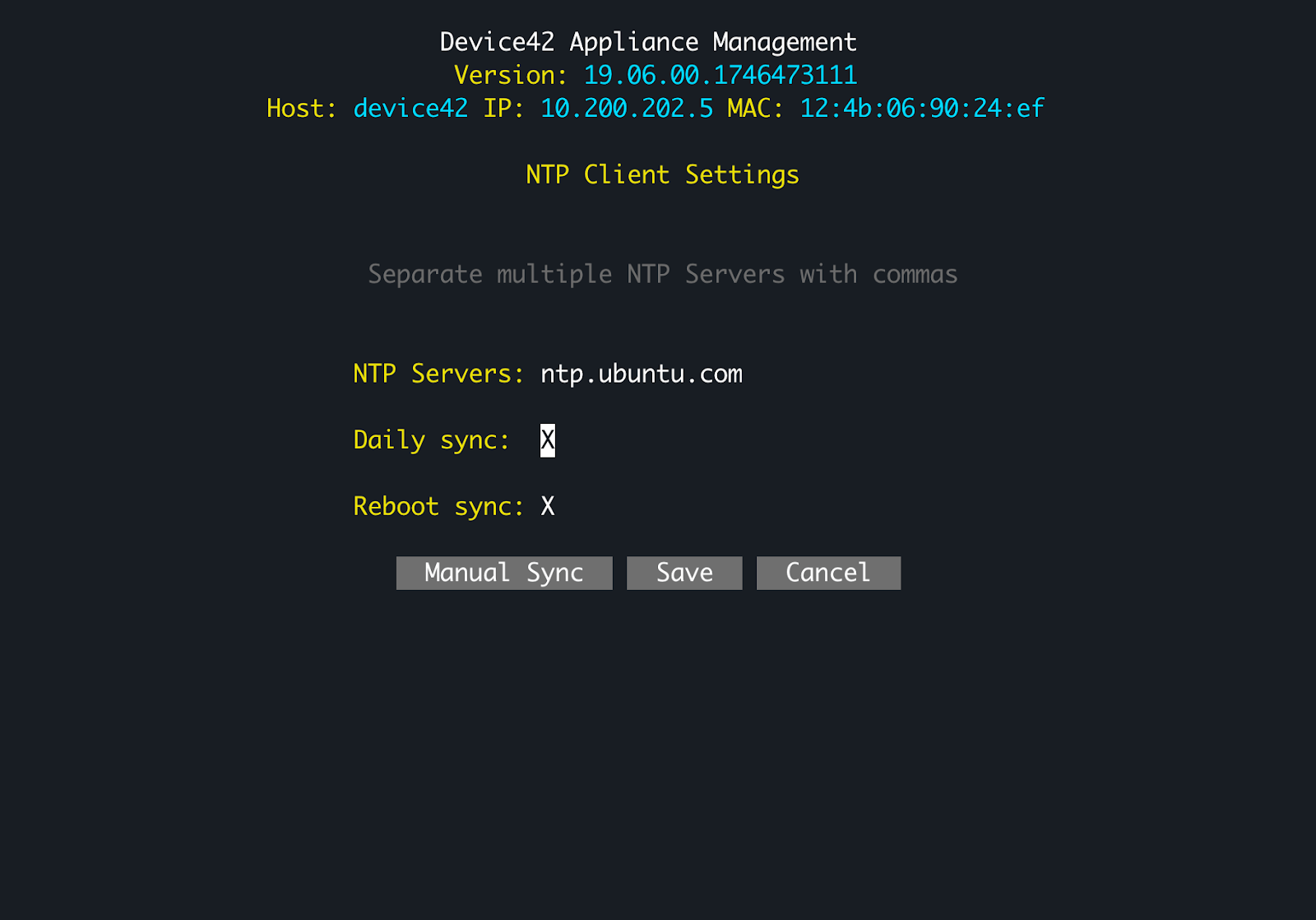
Enter the IP address or FQDN of the NTP server.
Toggle the Daily sync option to On to include the NTP server in the daily scheduled jobs.
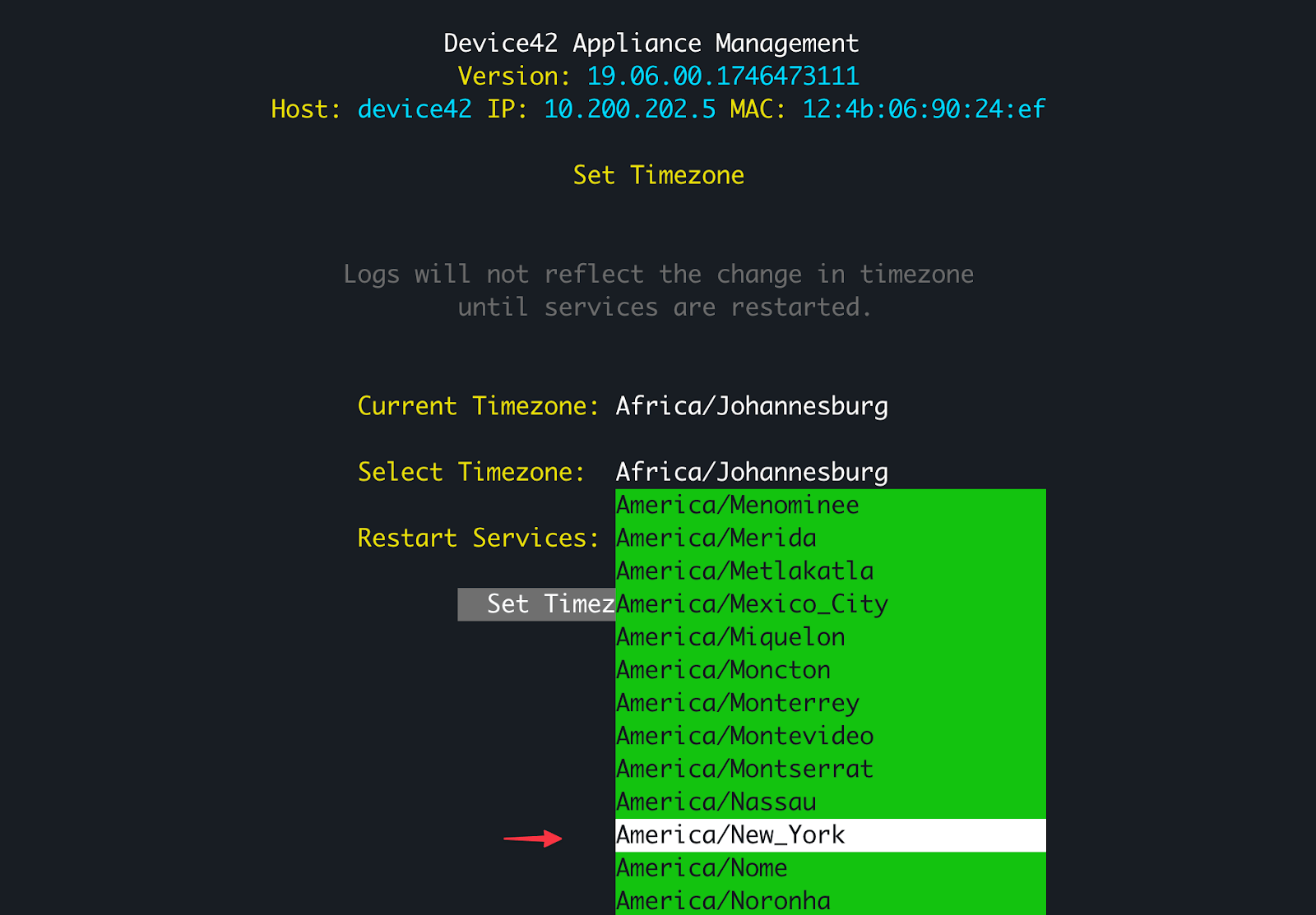
Return to the main menu and select (i) Set Timezone.
Note: If you do not see your exact location, choose the closest available location.Select (z) Restart Services for the new settings to take effect immediately.