
 Community
 Video Library
 Agent Training
 Freshservice
 Freshdesk
 Freshchat
 Freshcaller
 Freshsales
 Freshteam
 Freshworks Neo
 Freshsurvey
 Freshservice for MSP
 Service communications represent the identified exchange of data between a client process and a listening service. This article provides an overview of service communications and instructions on how to track interactions between client and listener devices, as well as how to analyze connection-related statistics.
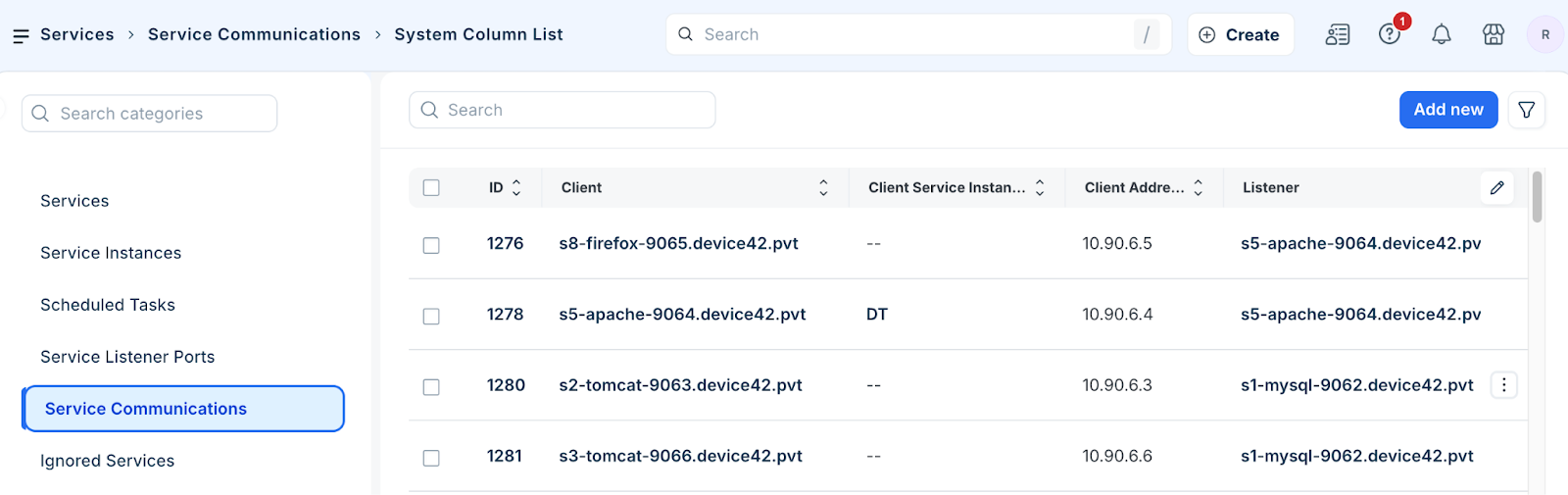
View service communications
Access the centralized list of all identified communication paths between devices.
Go to Applications > Services > Service Communications to open the list.
Review the connections, including the client and listener IP addresses and ports.
Click a Client device name to edit an existing service communication record.
Perform bulk actions
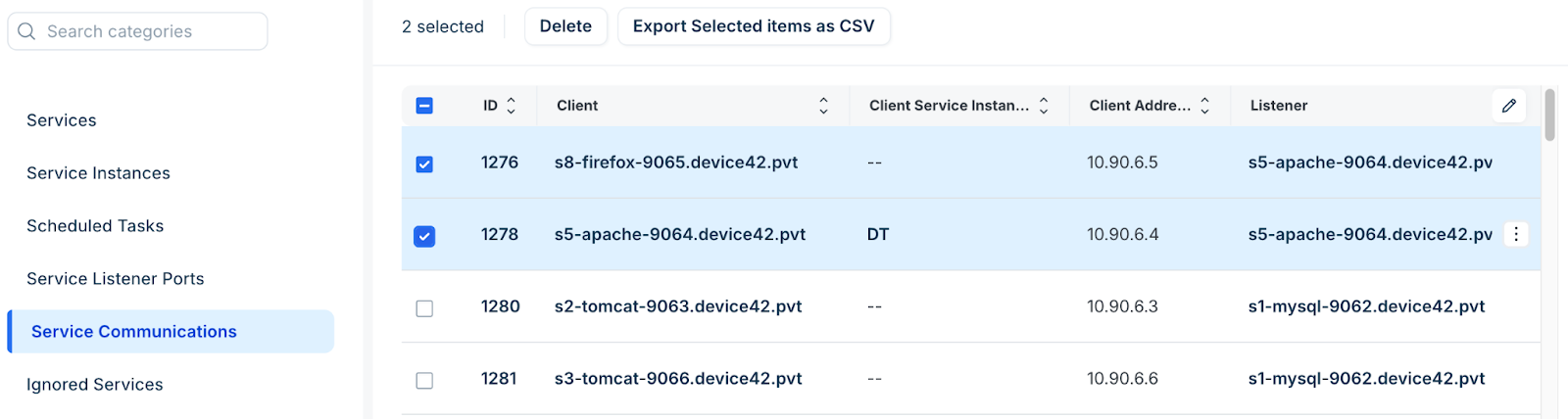
To apply changes to multiple communication records simultaneously, follow these steps:
Select one or more entries from the Service Communications list page.
Select the relevant action you want to perform, such as; delete or export records.
Add a service communication
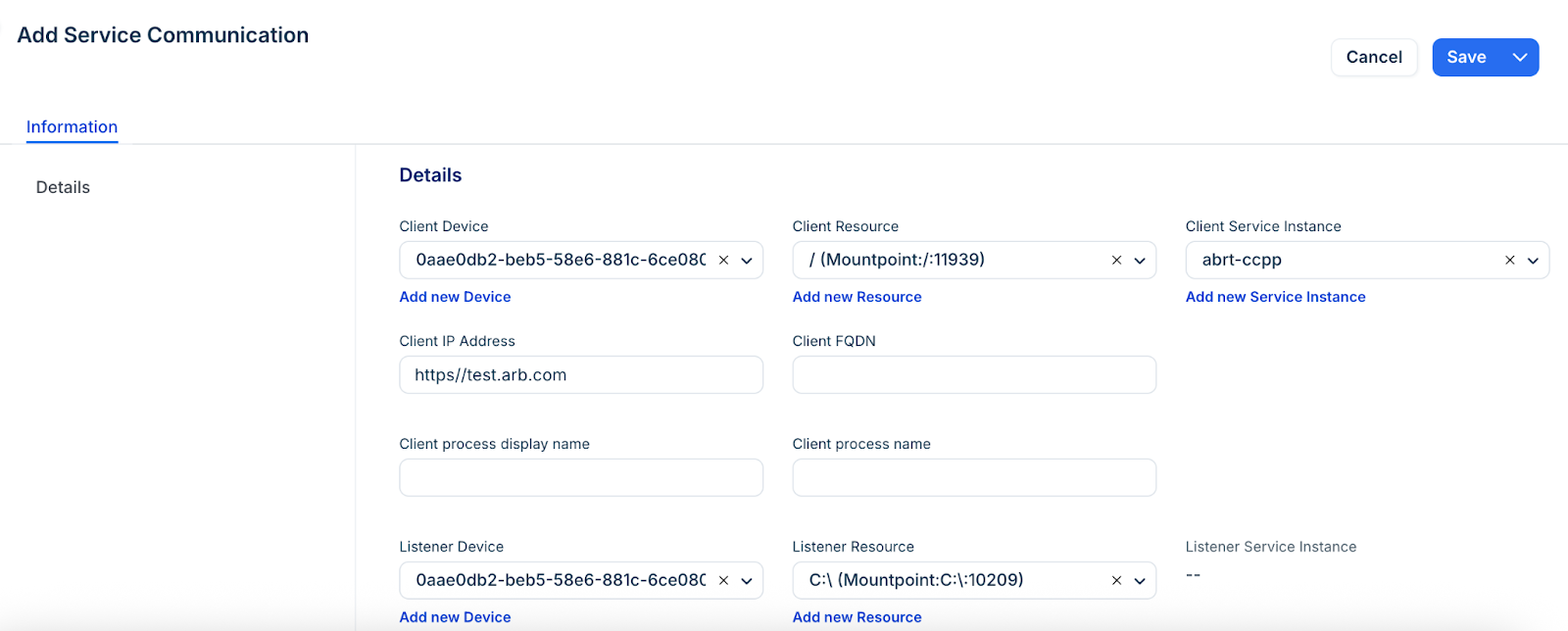
To create a new communication record to track interactions that were not captured automatically, follow these steps:
Click Add new to create a service communication.
Enter the Client IP Address, Listener IP Address, Port, and Protocol.
Optionally, select the Client Device, Listener Device, and specify the client process names.
Click Save.
Service port IP statistics
Analyze the granular data collected through Netstat and Netflow to understand connection health and frequency.
To view these statistics, navigate to Applications > Services > Service Communications and click on a record ID.
Netstat statistics
These metrics are derived from standard network utility scans performed during discovery.
Netflow statistics
These metrics provide a more continuous view of traffic events and time spans.
Note: Time spans are heavily affected by your sample interval. If you sample every 60 seconds, a connection is considered active if two communications are seen within that minute. If the time between two communications exceeds the sample interval, the system records a Gap Span.