Community
 Video Library
 Agent Training
 Freshservice
 Freshdesk
 Freshchat
 Freshcaller
 Freshsales
 Freshteam
 Freshworks Neo
 Freshsurvey
 Freshservice for MSP
 Note: Available only for new signups after the 31 March, 2026 release. If you signed up earlier, refer to the existing ITAM documentation.
The Blade Systems autodiscovery discovers HP and IBM blade systems, including the IBM BladeCenter. Blade server discovery collects the following information:
Enclosure or chassis: Name, Hardware Make and Model, Serial Number(s), MAC Address(es), IP Address(es), and Interface Name.
Blade: Name, location within the chassis, Hardware Make and Model, Serial Numbers.
This article provides instructions on how to set up and manage autodiscovery for blade systems. It details the specific information collected during discovery, such as chassis and blade metadata, and provides a step by step guide to configuring SNMP jobs and scheduling.
Add a Blade System Autodiscovery Job
To create a blade system autodiscovery job and set its execution frequency, follow these steps:
Step 1: Add SNMP Discovery details
Go to Admin > Asset Management > Scan and discover > click the Discovery Jobs tab.
Select SNMP from the list of discovery jobs and click Add new or Import based on your requirement.
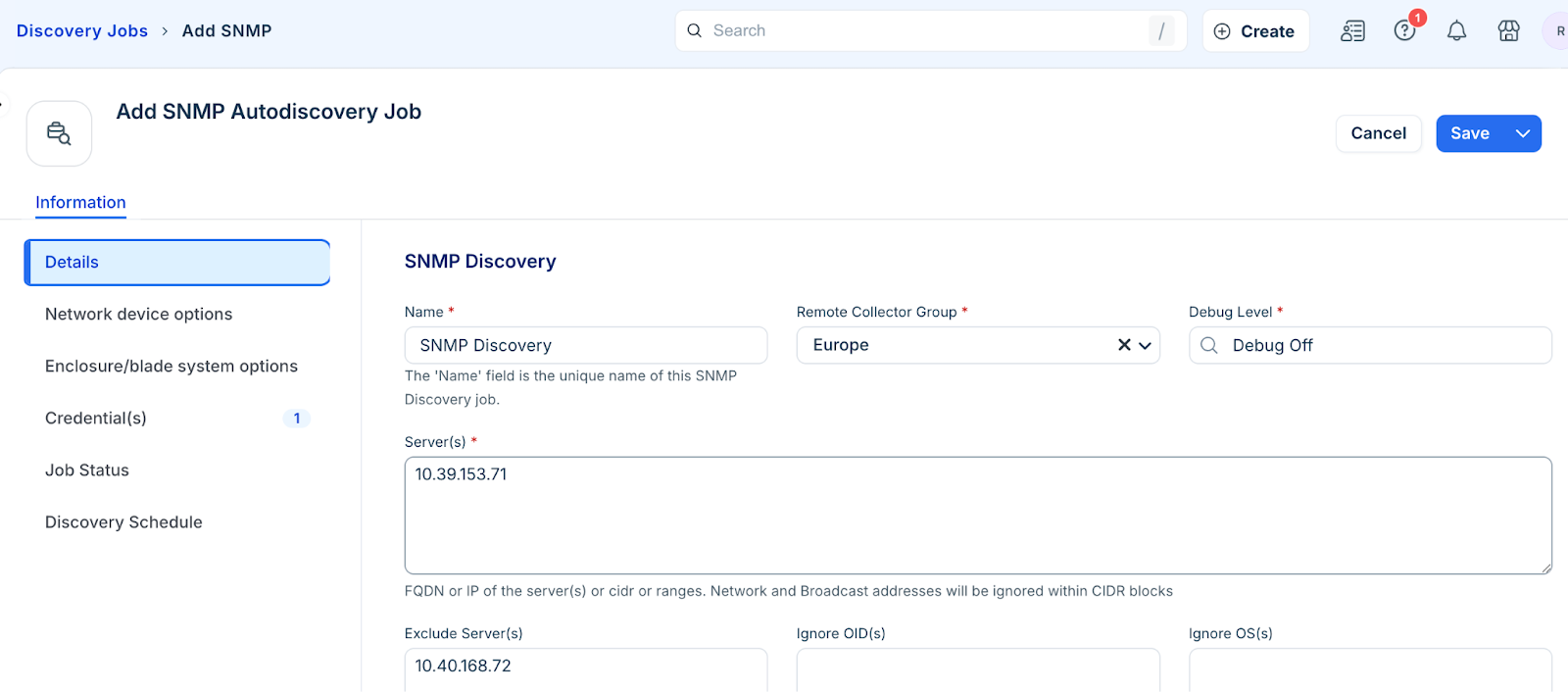
Fill in the following job details:
Server(s): Add the server, or range of servers to target.
Port: The default is 161.
Give Precedence to hostname: Enable this toggle to overwrite the existing name, if one exists.
Strip domain name: Enable this toggle to strip domain suffix from discovered device name.
Step 2: Blade System Options
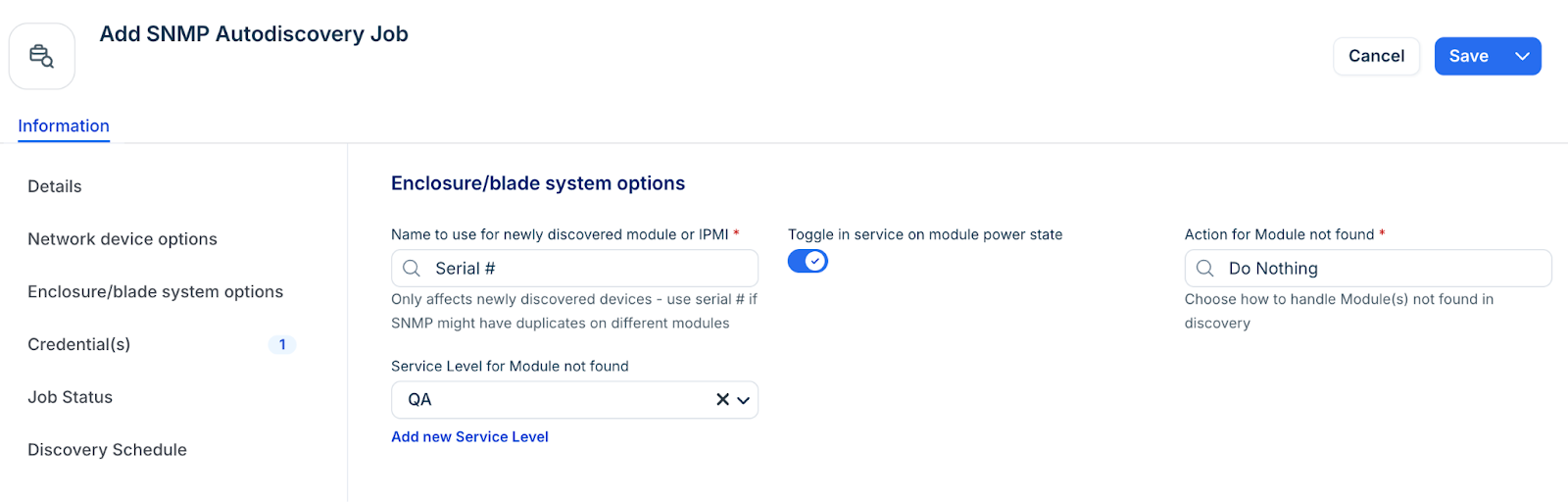
In the Enclosure/blade system options section, select Serial # from the Name to use for newly discovered module or IPMI fields to avoid creating duplicate names for newly discovered items.
Deselect Toggle in service on module power state to prevent the system from automatically changing the service status of the module based on its power state.
Select a value for Action for Module not found. For example, Remove Host Association, Change Service Level, Delete Module, or Do Nothing.
Select a Service Level for Module not found from the dropdown or add a new one.
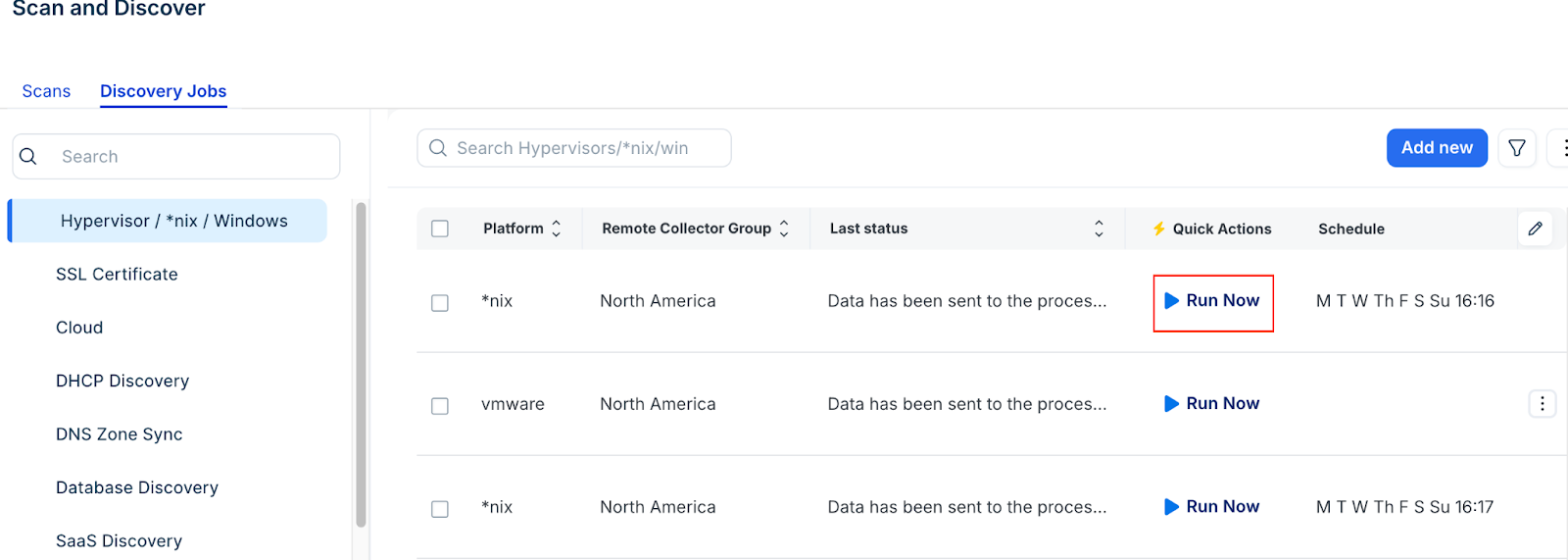
Note: Newly created jobs do not run on the day they are created. This prevents an unintentionally large number of jobs from running simultaneously during initial setup. To run a job immediately after creation, click Run Now on the job details page or the SNMP Autodiscovery list page.
Step 3: Schedule the Job
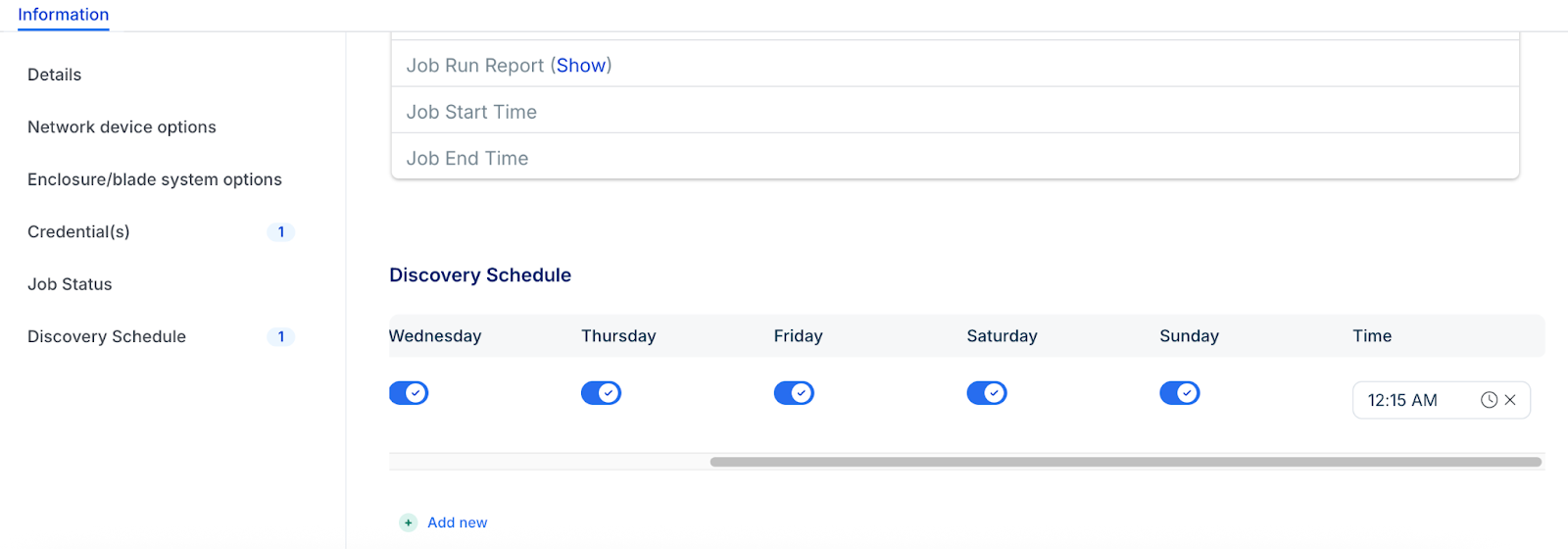
Create a run schedule for the job. Additionally, you can create multiple schedules for the job using + Add new.
Click Save.