
 Community
 Video Library
 Agent Training
 Freshservice
 Freshdesk
 Freshchat
 Freshcaller
 Freshsales
 Freshteam
 Freshworks Neo
 Freshsurvey
 Freshservice for MSP
 In the Data Validation phase you will verify the quality and reliability of the discovered data. You will compare discovered data against existing reliable data sources in order to confirm the discovered data is accurate, complete, and consistent. If you find data that is missing (for example, missing devices), blank (for example, missing Model Name), or incorrect (for example, incorrect hostname), we recommend you can contact the Support team.
Data Validation Methods
There are three primary methods for reviewing discovered data, so that it can be compared against other data sources, viewing individual records, exporting data in bulk, and generating reports.
View individual records
To view individual records, perform the following steps:
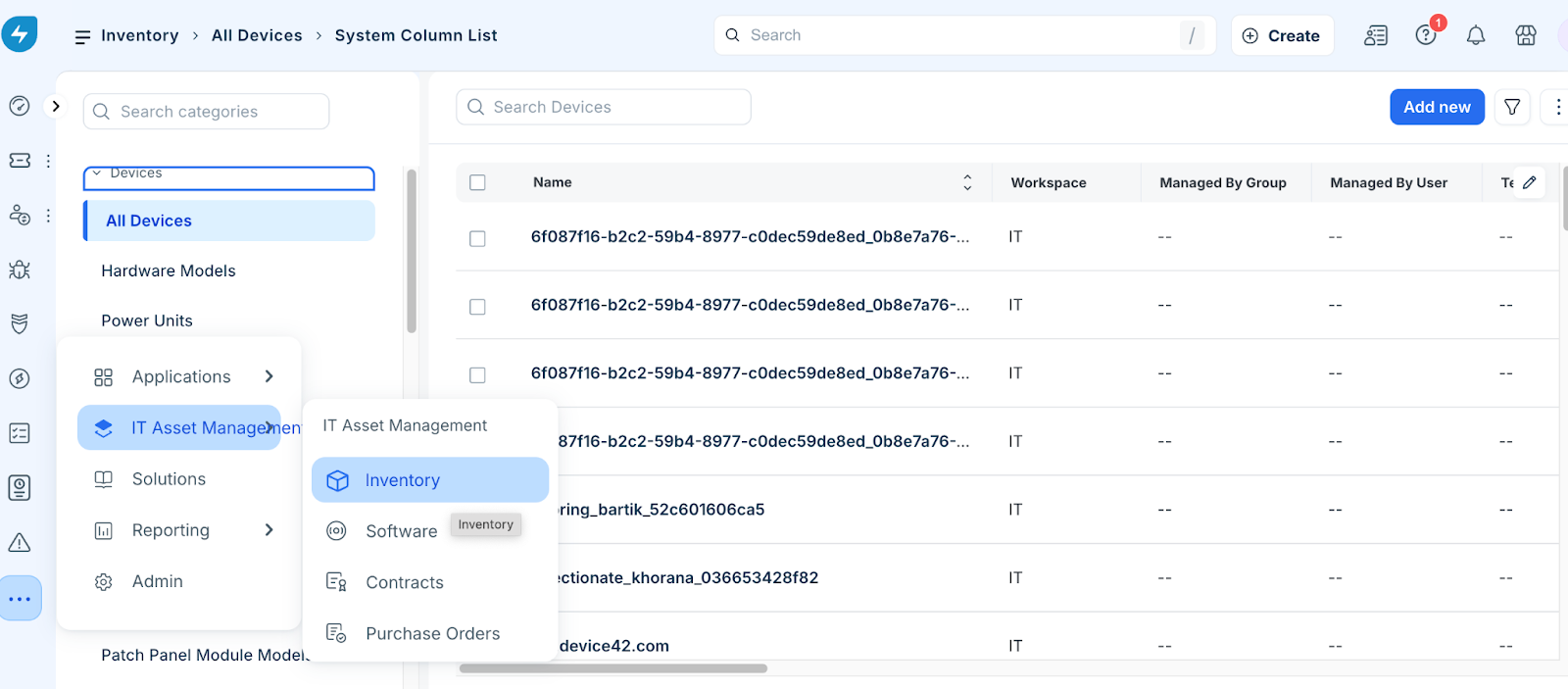
Go to more options > IT Asset Management > Inventory > click the item you wish to view. For example, All Devices, Resources.
Export Data in Bulk
To export data in bulk that can later be reviewed, perform the following steps:
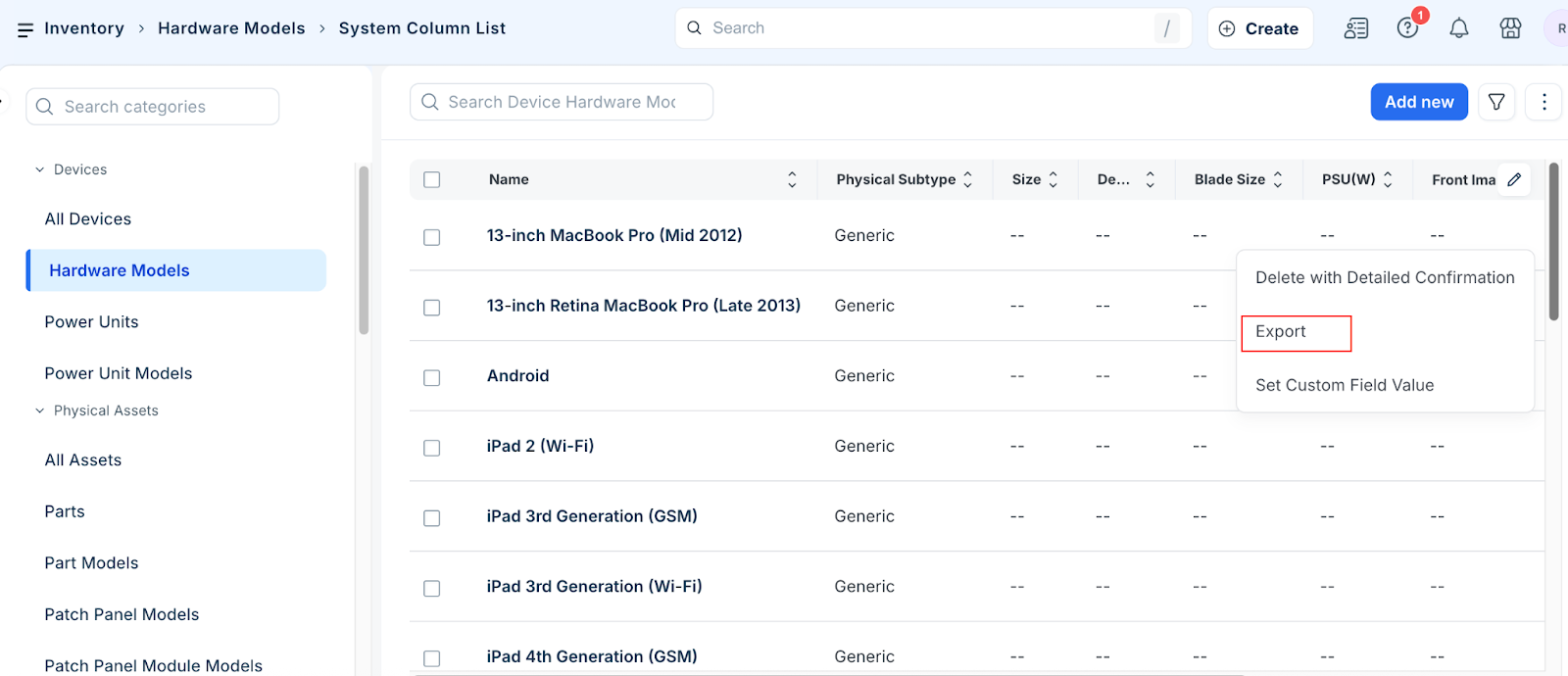
Go to inventory > click the name of the item whose data you want to export. For example, Devices.
Click more options > then click Export.
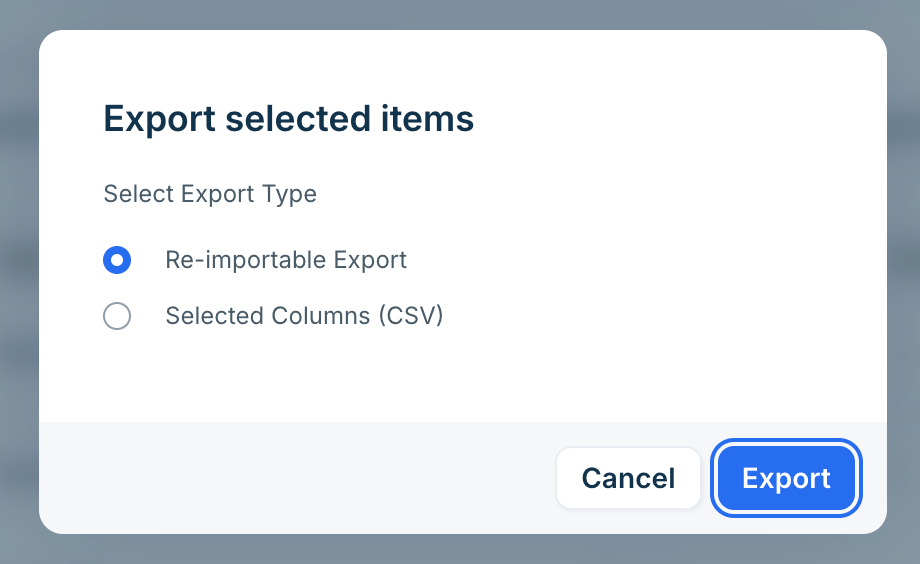
Select the export type and click Export.
Generating reports
The following curated reports are available to validate discovered data.
Device Analysis
Software Analysis
OS Analysis
Resource Analysis
To access these reports, in the side bar click more options > Reporting > Analytics > Curated Reports.
Data Validation and Data Import
While Device42's CMDB is primarily updated through discovery jobs, it can also be updated by way of manual entry, data import, or via API.
Manual Entry
To add or update data manually, perform the following steps:
Hover over Resources, click on the category of items you want to update (for example, All Devices).
Click the item you want to update.
Click the Edit button.
Enter the information.
Click the Save button.
Data Import
To bulk import data, perform the following steps:
Go to IT Asset Management > Inventory > All Devices.
On the All Devices page, click the More Options (three vertical dots) icon and select Import.
In the Import Devices window, click Download under the Sample file step to save the import template to your system.
Note: You can also bulk import your existing data from different spreadsheet formats by mapping columns to Freshservice ITAM fields using the tool linked here.
API Import
Restful APIs are one of the primary methods of entering, editing and retrieving data. Refer to the API documentation for more information.
Data Validation Phase Checklist
The Data Validation phase is considered complete when:
You have reviewed the discovered data by reviewing individual records, by exporting data in bulk and reviewing this data, and/or by running reports
You have compared the discovered data against existing, trusted data sources in an effort to confirm all data instances were discovered and that all data field values are as expected
You have investigated and resolved any inconsistencies between the discovered data and your existing, trusted data sources
You have imported any data you want in Device42 that was not able to be discovered.
Data Validation Phase Support
At the conclusion of Phase 3 you should have confirmed the accuracy of your discovered data.