
 Community
 Video Library
 Agent Training
 Freshservice
 Freshdesk
 Freshchat
 Freshcaller
 Freshsales
 Freshteam
 Freshworks Neo
 Freshsurvey
 Freshservice for MSP
 TABLE OF CONTENTS
Overview
A workspace is a dedicated environment where a team can collaboratively manage employee requests while maintaining security. Each team can have its own workspace, configure its administrative settings at the workspace level, and manage access to its tickets and other related data.
Workspaces offer tailored configurations for each team, including distinct form fields, workflows, and access permissions. This enables teams to operate on a unified platform without compromising their operational integrity and exclusivity.
Freshservice allows admins to create multiple workspaces within a single account.
Prerequisites
Ensure you have administrator privileges to create a workspace.
Create a workspace
To create a workspace:
Log in to your Freshservice account.
Go to Admin.
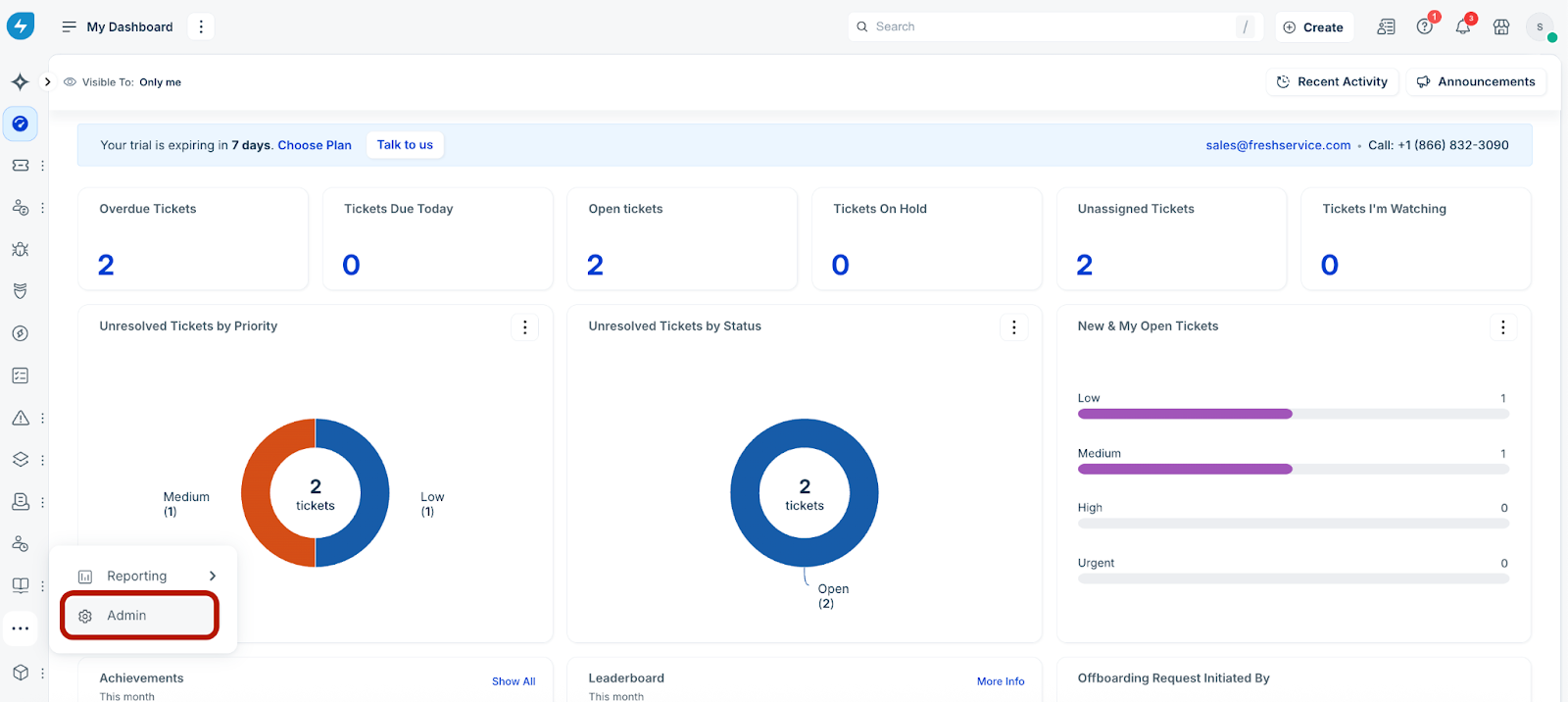
Click the ellipses icon at the top-left corner next to Global Settings. The Global Settings and Workspace Settings slider opens.
Click the ellipses icon next to Workspace Settings, and select Create Workspace.
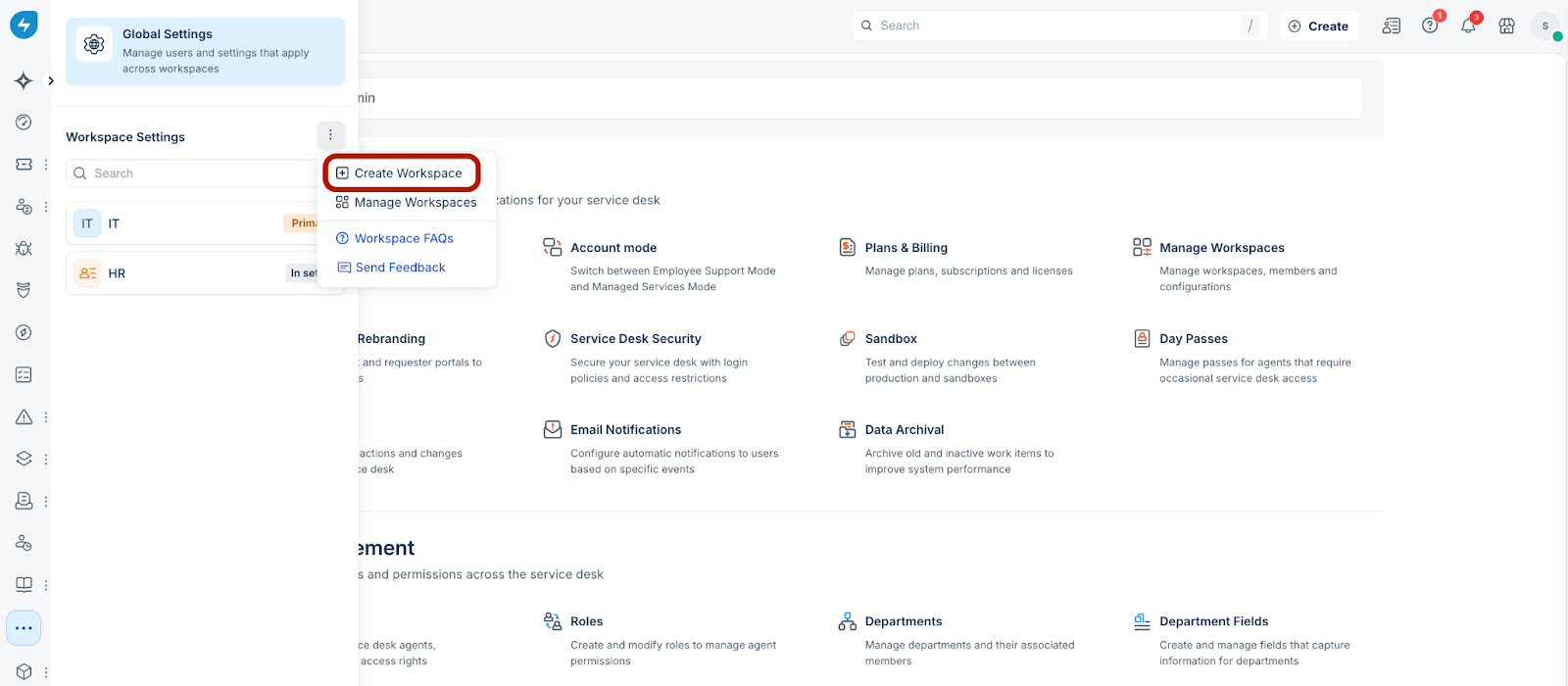
The Create Workspace slider opens displaying a list of ready-to-use templates.
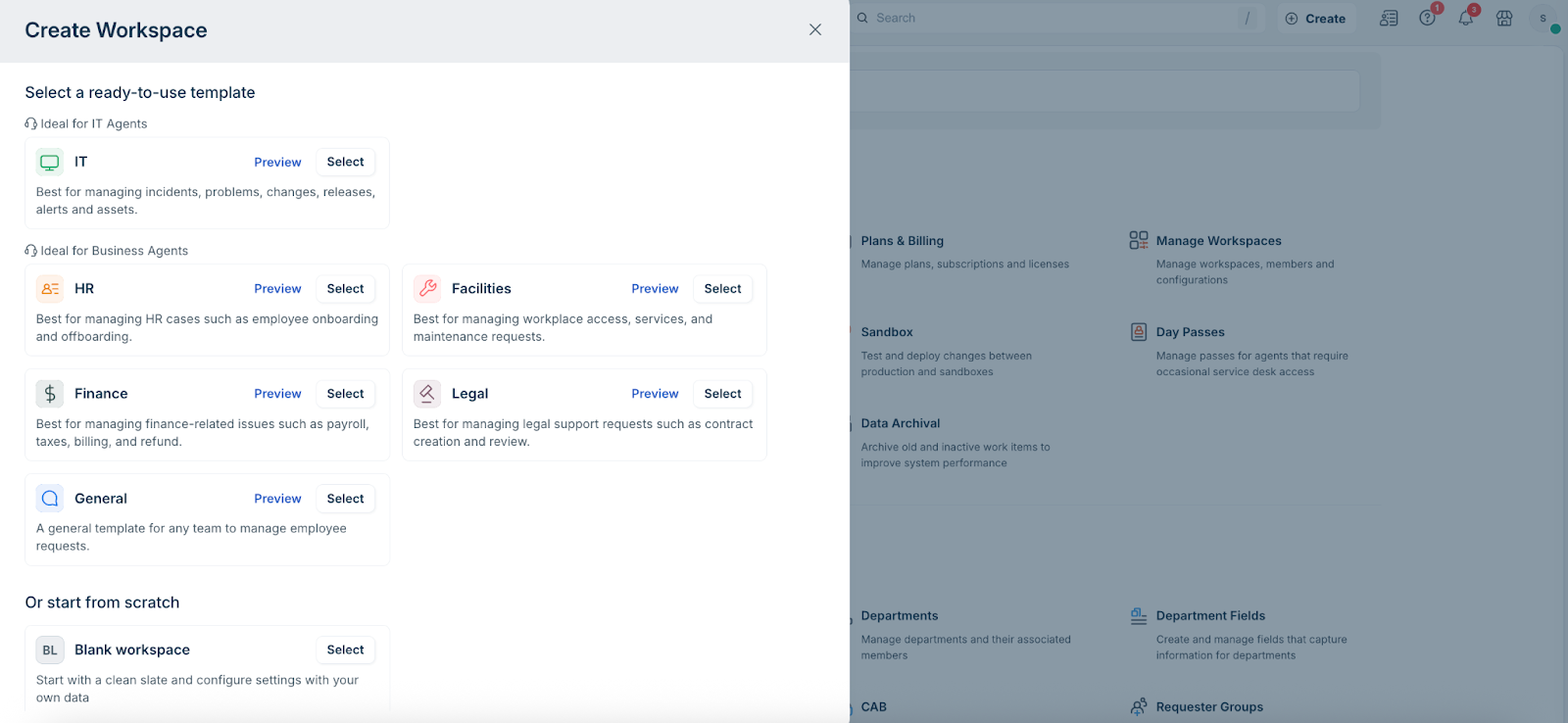
Select Preview next to a template to preview brief details of the workspace offerings (for example, Finance). The Preview slider opens.
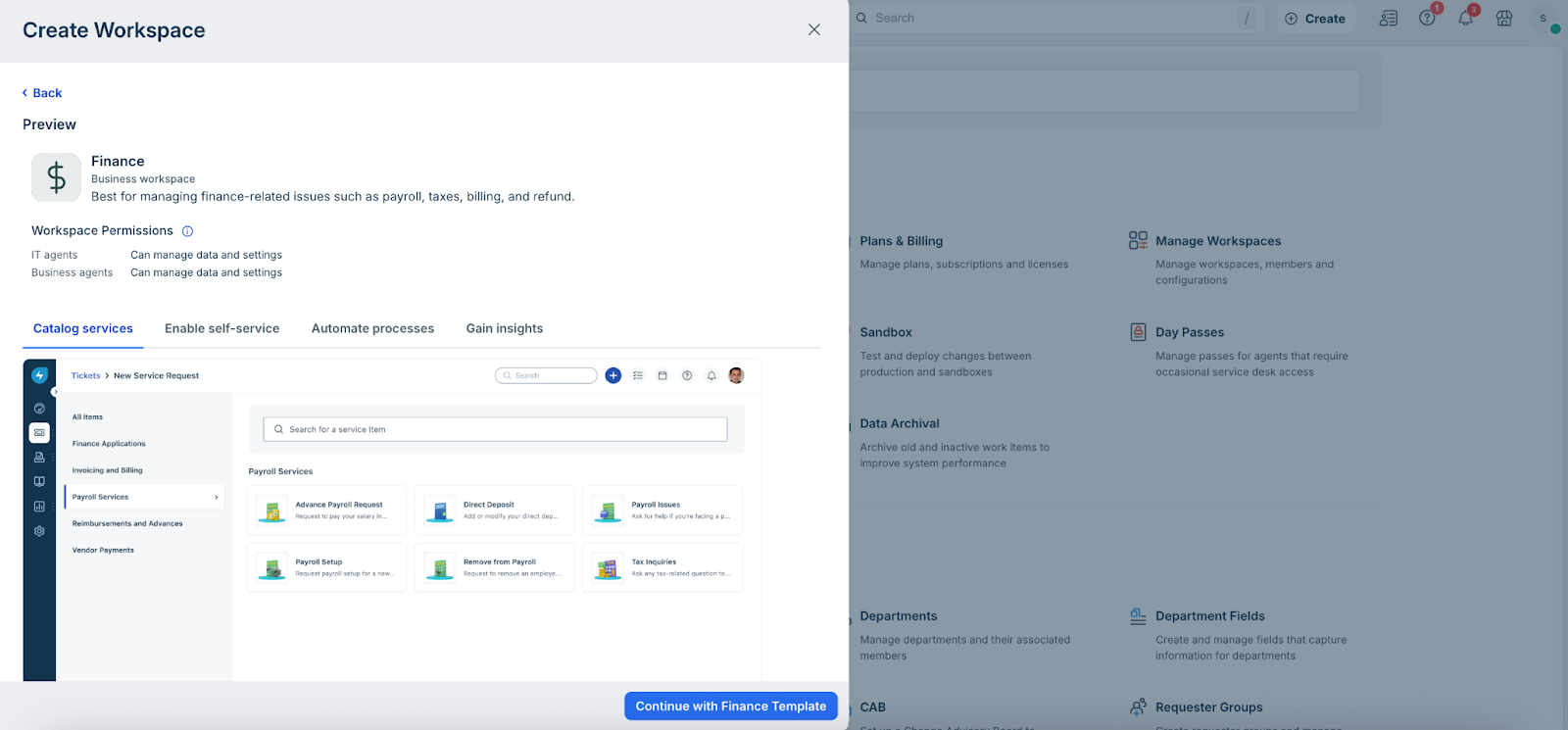
Click Continue with <template name> Template. The Create Workspace In setup slider opens.
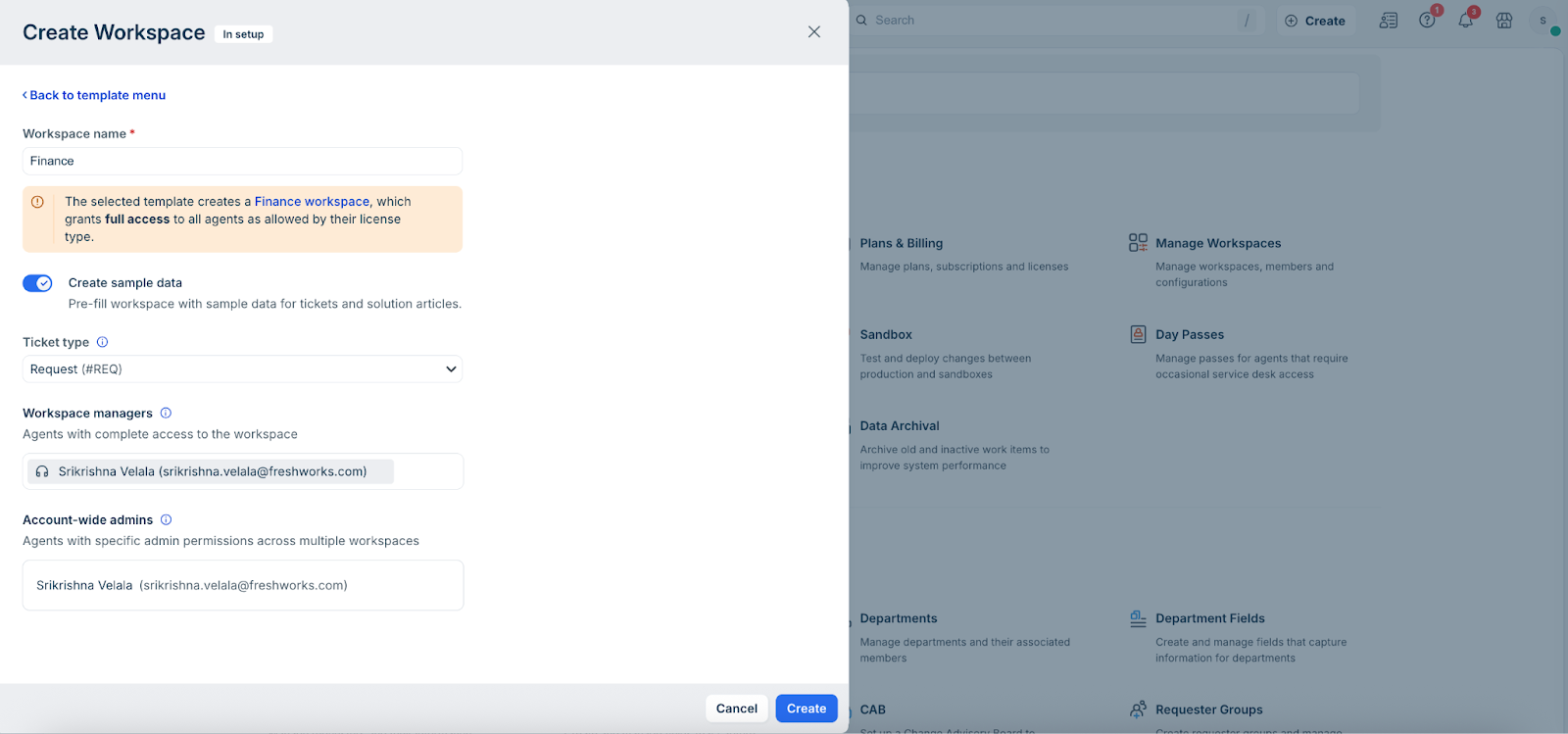
Enter or edit the Workspace name (if required).
Note: By default, the Create sample data toggle is enabled. You can disable it, however it is recommended to create sample data.
Select the relevant type from the Ticket type dropdown.
Add the required Workspace managers.
Click Create. The workspace setup mode dialog opens.
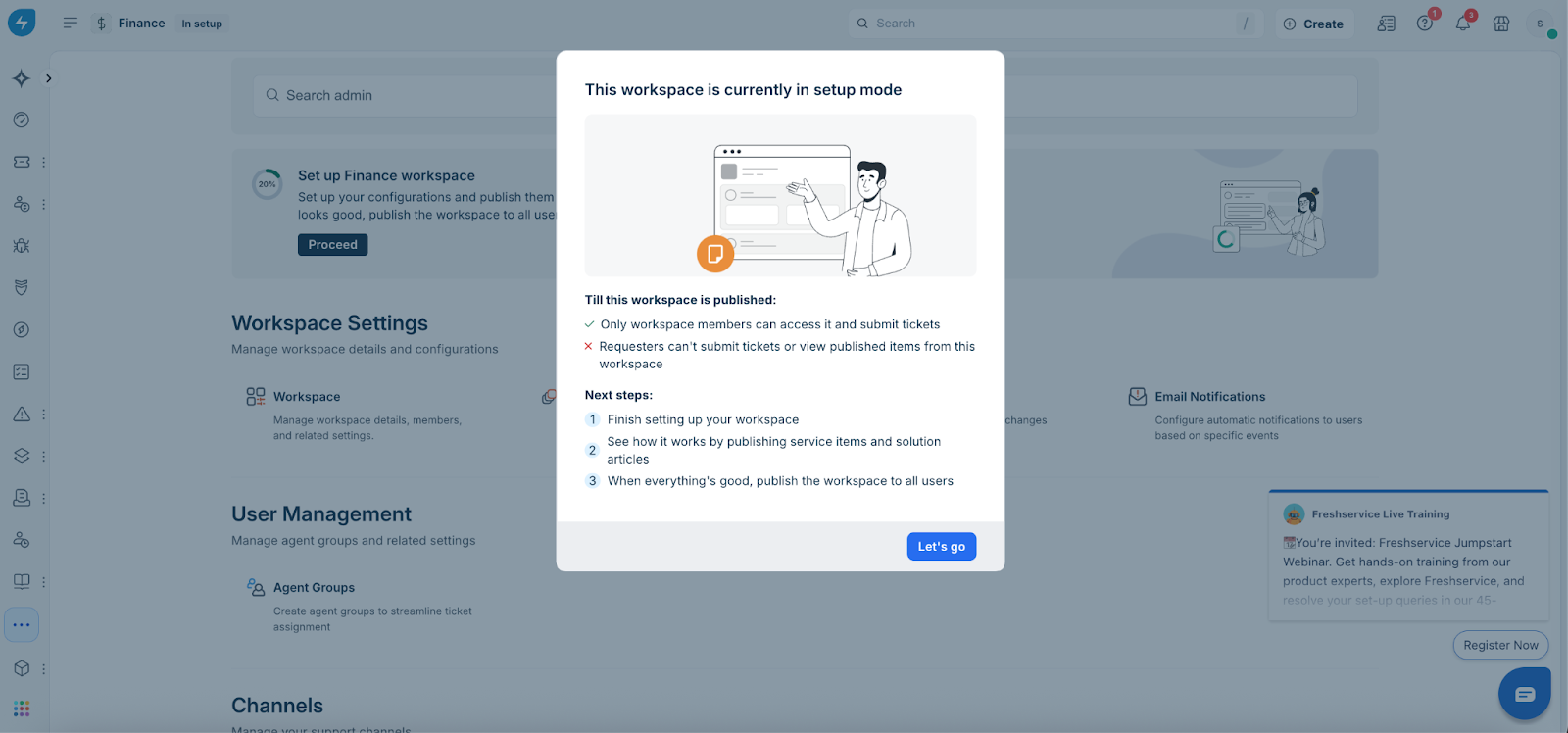
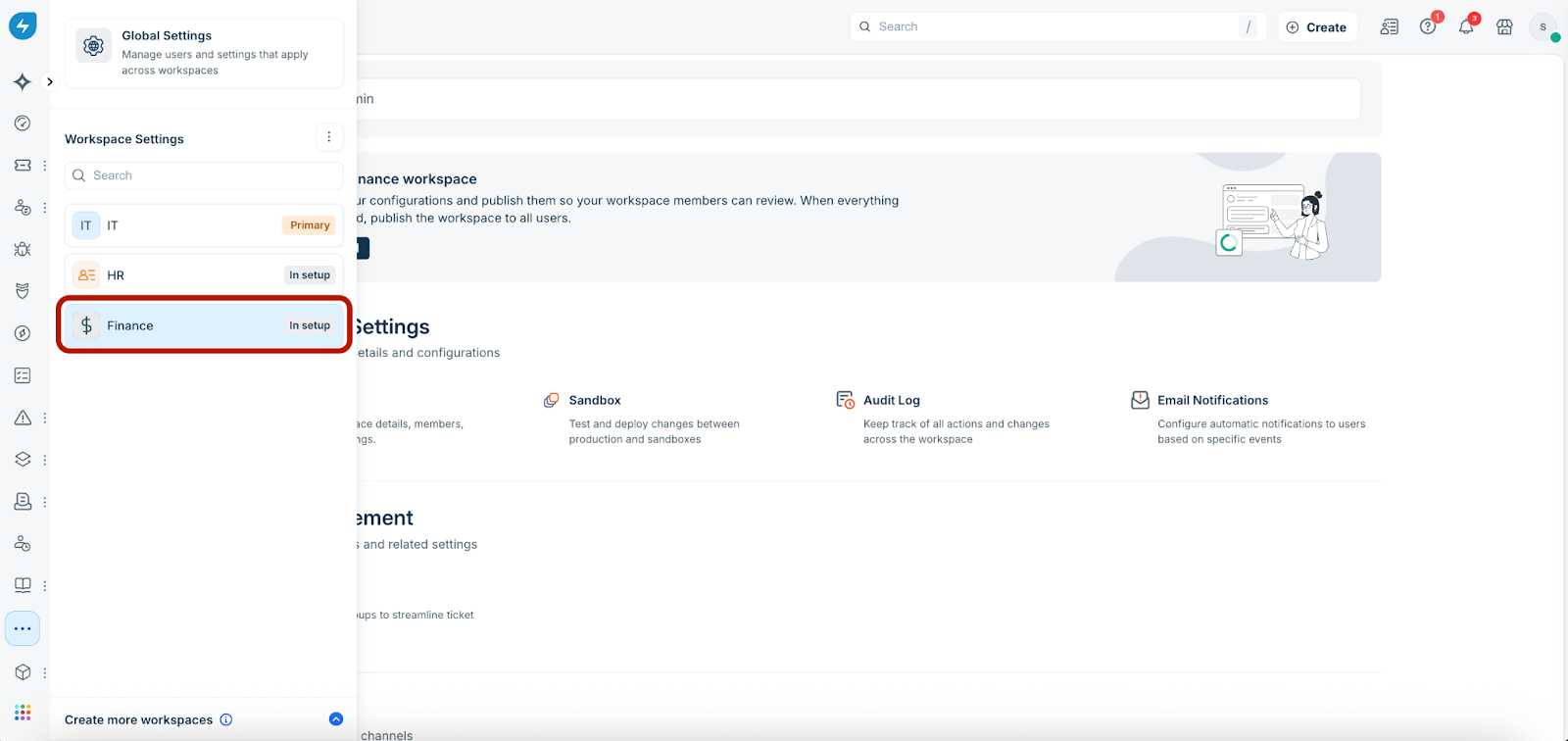
Click Let’s go, then select the new workspace.
The workspace in-setup page opens.
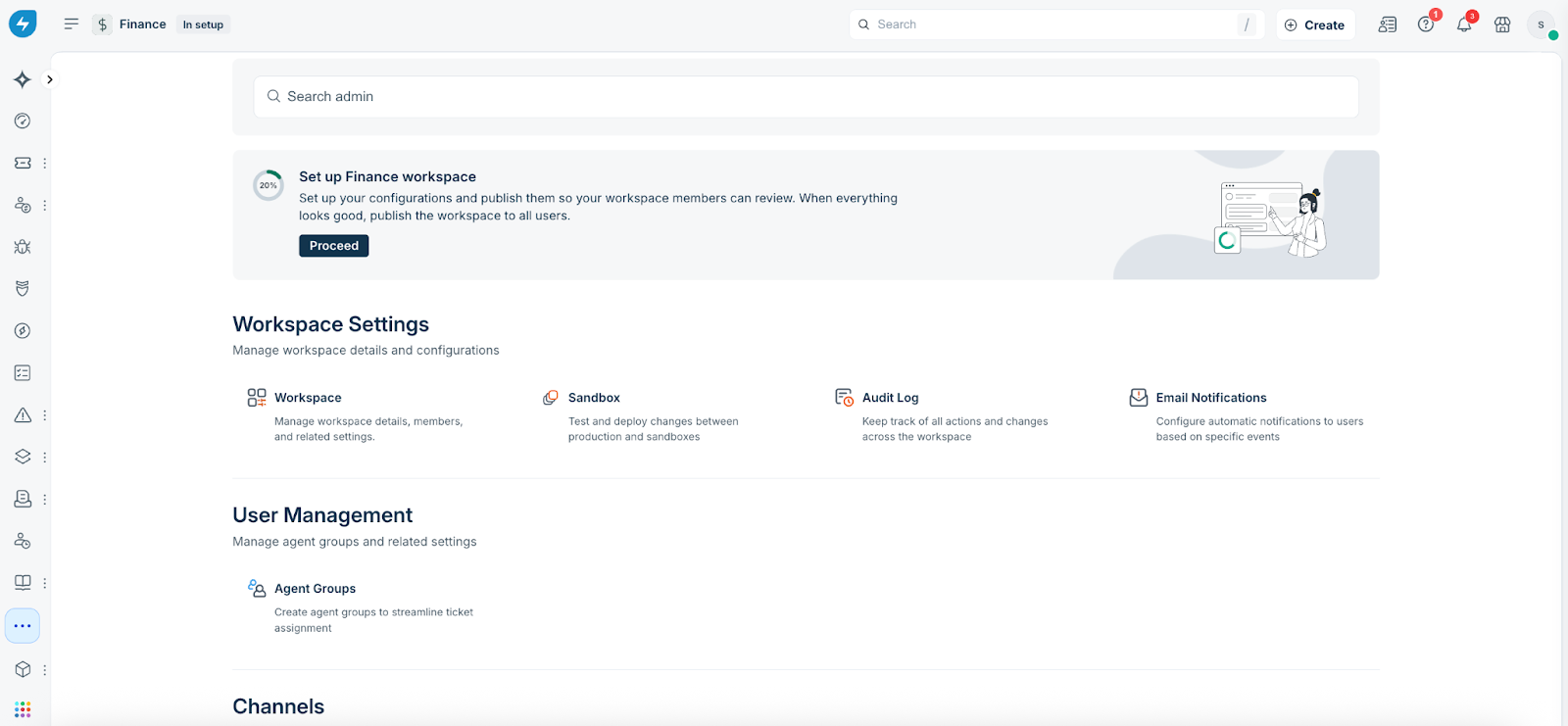
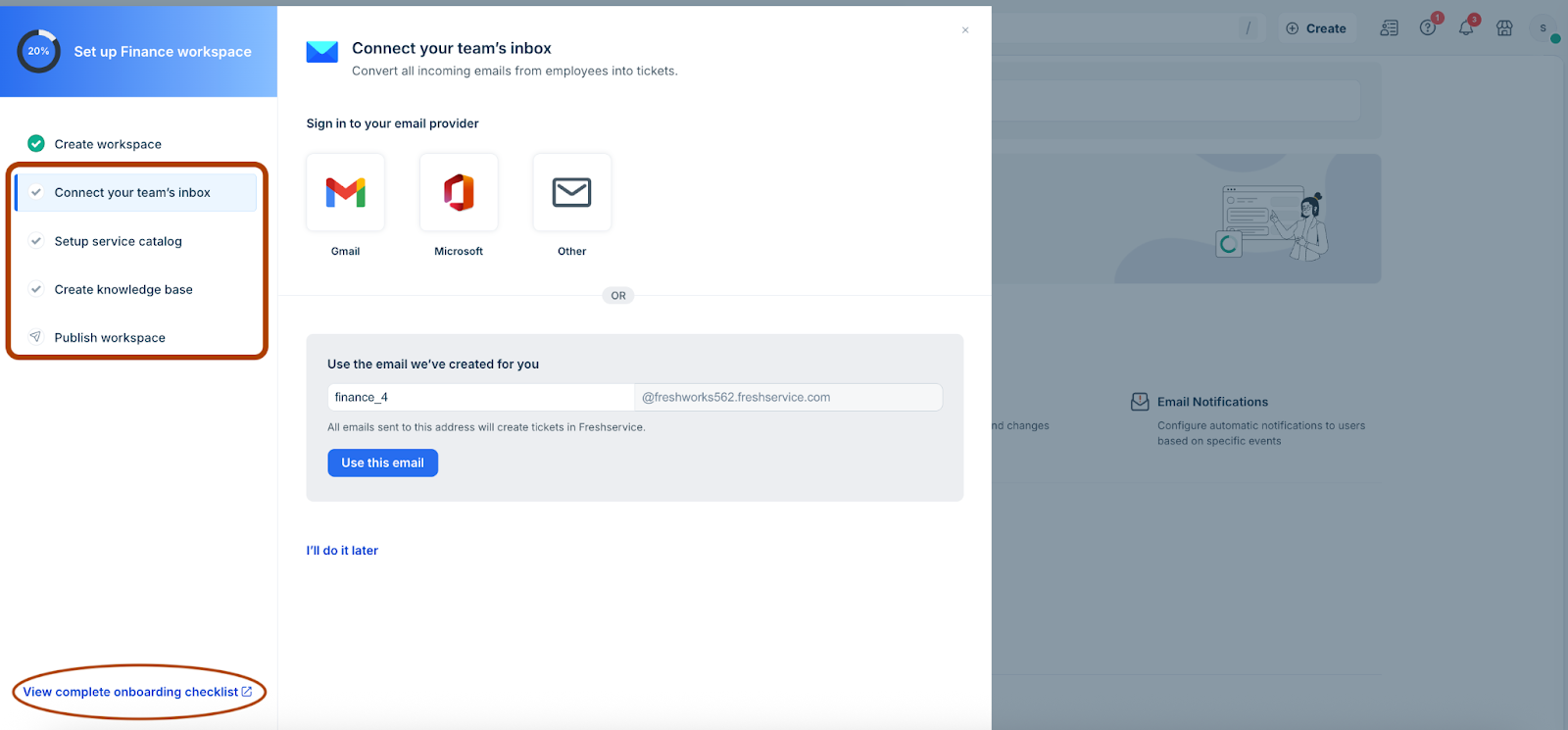
Click Proceed. The Set up <workspace name> workspace slider opens.
Continue with the new workspace setup by connecting your team’s inbox, setting up service catalog, creating knowledge base, and finally publishing the workspace.
Note: You can also view the complete onboarding checklist.
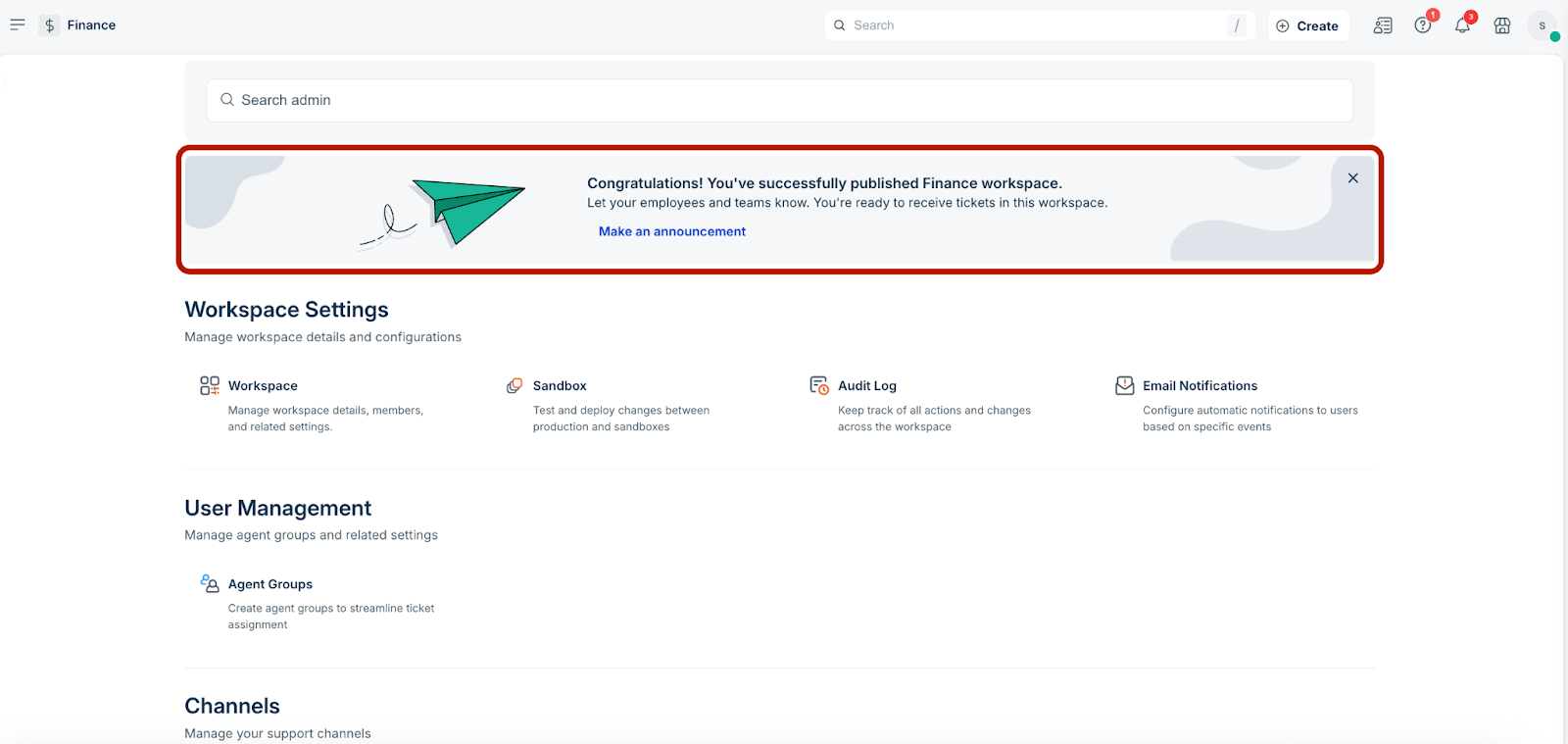
After you have completed the initial setup, you can also make an announcement to your teams.
See the following topics for more information on workspace management.