
 Community
 Video Library
 Agent Training
 Freshservice
 Freshdesk
 Freshchat
 Freshcaller
 Freshsales
 Freshteam
 Freshworks Neo
 Freshsurvey
 Freshservice for MSP
 TABLE OF CONTENTS
- Overview
- Availability
- Supported modules
- Global business rules
- Options available
- Actions supported
- Form applicability
- Business rule execution logic
- How local BRs work during a move
- Error handling for invalid applicability
- Agent experience
- Impact on existing customers
Overview
Move Form-related conditions and actions enable admins to control how fields on the move form behave when a ticket, problem, or change is transferred between workspaces. With this capability, admins can:
Mark fields as mandatory or optional
Dynamically show or hide specific fields
Display different workspace, group, or agent options based on context
When agents move tickets, problems, or changes, the configured rules are automatically applied, ensuring that only the relevant fields and options for the target workspace are displayed. While you can move tickets between both IT and non-IT workspaces, you can only move problems and changes between two IT workspaces.
Availability
This capability is available for all plans that support business rules in Freshservice. It applies only to multi-workspace environments where business rules are enabled.
Not supported in the following scenarios:
Managed Service Provider (MSP) accounts.
Single-workspace service desks.
Note: If you switch from multi-workspace mode to single-workspace service desk mode, the system automatically disables move permissions.
Supported modules
Tickets: Supports movement between IT and non-IT workspaces.
Problems: Supports movement only between IT workspaces.
Changes: Supports movement only between IT workspaces.
Global business rules
Global business rules support the Move Form’s Workspace field in condition blocks, and the Workspace, Group, and Agent fields in action blocks, enabling greater flexibility when configuring automation across workspaces.
Configure Conditions in Ticket, Problem, and Change
When creating or editing a rule:
Select Agent for Applies to and Edit form for Execute on.
Depending on the module, the respective Move Ticket (Form), Move Problem (Form), or Move Change (Form) appears as an available conditional form.
Within the specific Move form, you can define the following conditions:
Field: Workspace (target workspace for the move)
Operators: Includes, Does not include
Condition syntax:
Syntax: <Form Name>.<Field Name> <Operator> <Value>
Example: Move problem.Workspace Equals "IT Support"
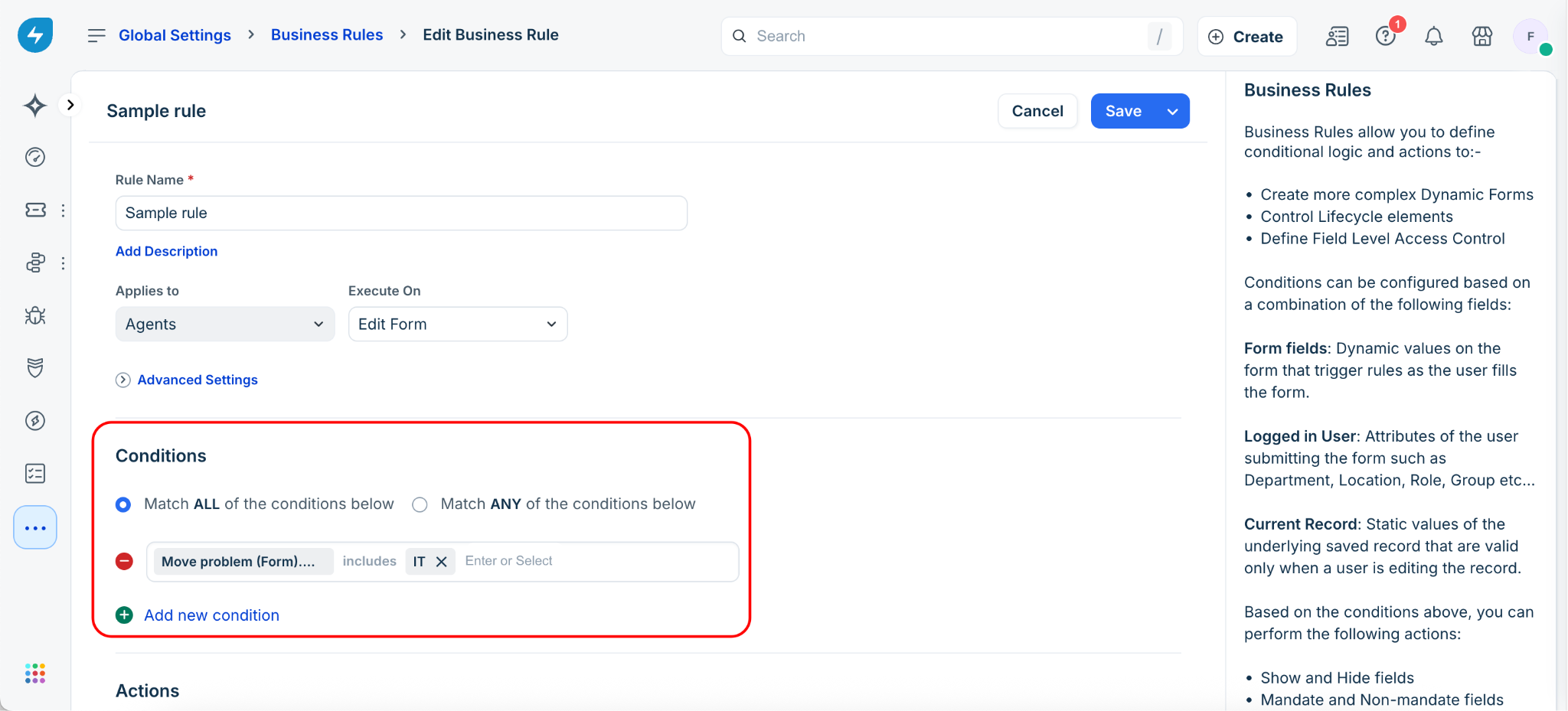
Note: You can select both in-setup and published workspaces when configuring Move form conditions.
Configure Actions in Ticket, Problem, and Change
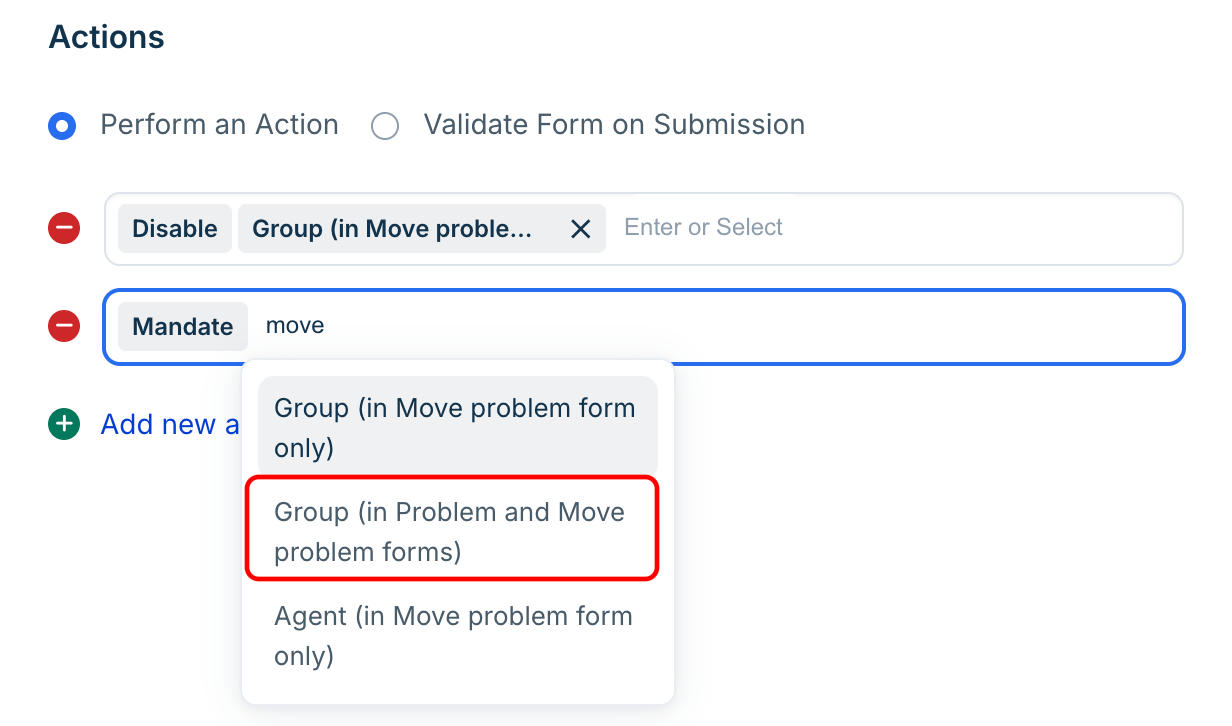
Configure conditions such as Hide, Show, Enable, Disable, Mandate, Non-mandate, Set Options, and Remove Options. You can configure these actions for the Move form as well as the Ticket, Problem, or Change forms.
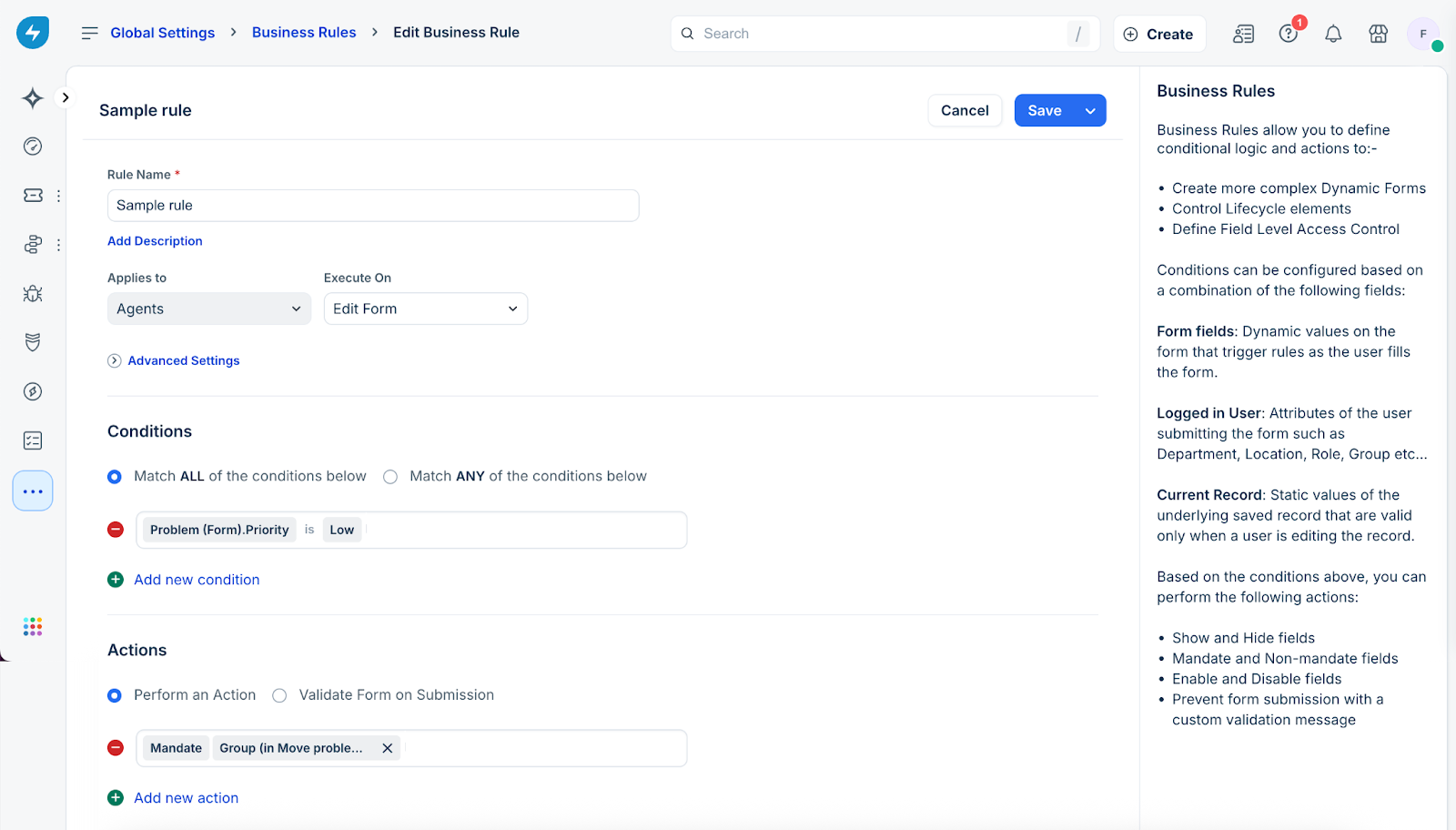
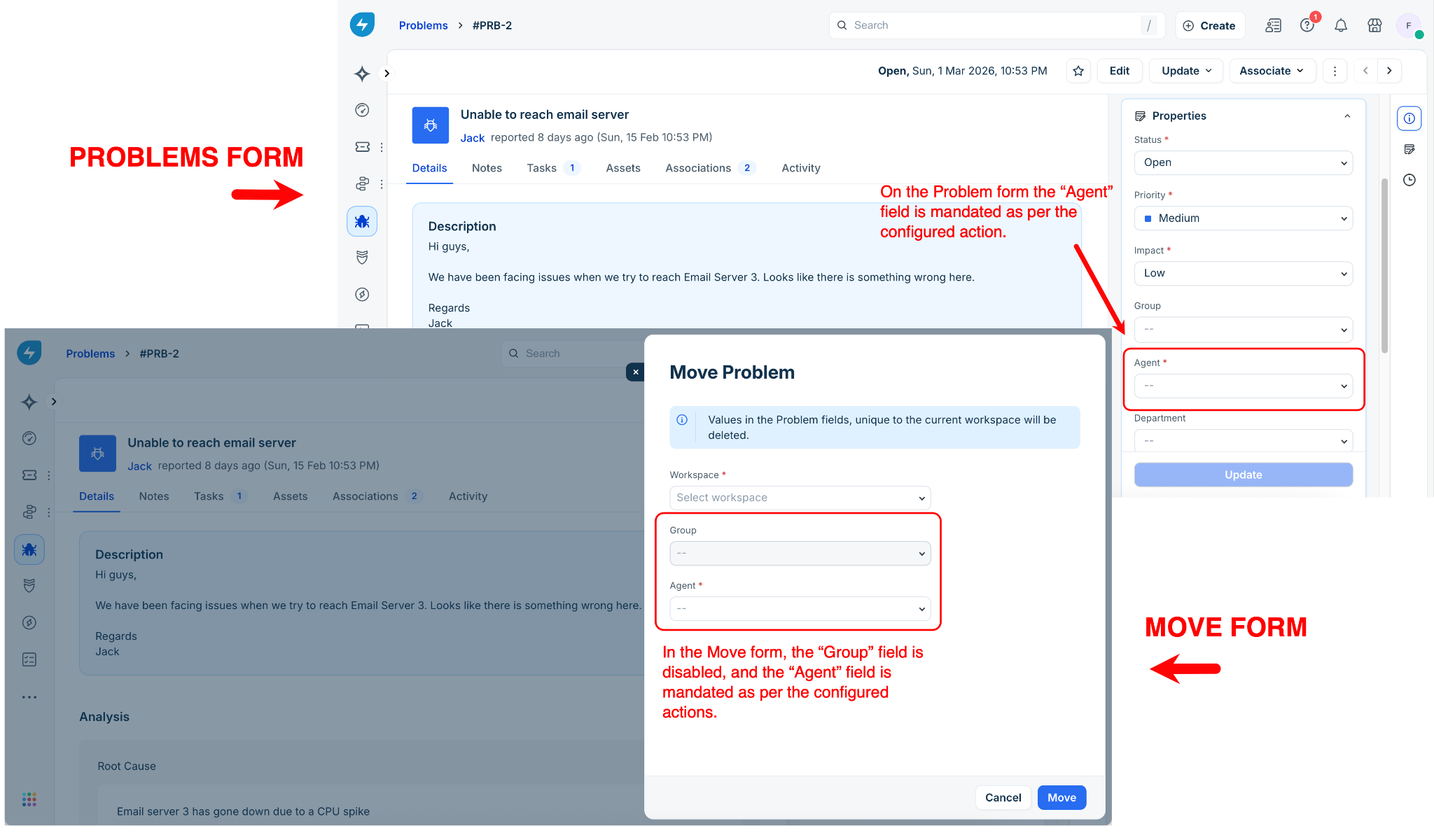
To understand this better, let’s look at an example using Problems. Suppose you want to disable the Groups field on the Move form and mandate the Agent field on both the Move and Problem forms. In this case, you can configure the actions as shown below.
Once you save and activate this action, you will notice that the Group field is disabled when you try to move a problem and the Agent field is mandated on the Problems form as shown below.
Options available
The Group, Agent, and Workspace actions now include additional options for Move ticket/problem/change form scenarios:
These appear in the same position as existing action fields. You can choose the option that suits your requirement.
Actions supported
Form applicability
Note:
Some fields may not be relevant for the selected user type. For example, when you use the Group (Move Ticket Form only) action for Agents + Requesters on the Edit Form, requesters will not see any real effect in the product. Since they cannot move tickets, no visible action occurs.
If you change the applicability to another user type (for instance, from Agent = Edit Form to Requester = New Form), the Move Ticket condition will be automatically removed, and an alert will appear- similar to the existing Ticket Form behavior. This happens because the Move action can only be performed by agents on existing tickets.
Business rule execution logic
When all conditions must match
When any condition can match
How local BRs work during a move
When a ticket is moved from one workspace to another (for example, from IT → HR):
The HR workspace’s Local Business Rule executes on the Move Ticket (form) inside the IT workspace.
All conditions in the HR BR are evaluated:
Global ticket fields/User fields: Pass (since they’re available in the source workspace too, that is, in the IT workspace)
Local fields (specific to HR): Fail (as they are not available in the IT workspace)
Actions related to the Move Ticket form (such as group/agent actions) apply to the Move form.
Standard actions on the source ticket in IT do not get applied.
The feature allows teams to define rules for how incoming tickets are received, ensuring they arrive in the format and structure they prefer. It’s recommended to communicate and align these rules with other teams before applying them.
Workspace Business Rules related to Group or Agent fields in the Move Ticket form are executed only when the same workspace is selected in the Move dropdown.

In typical scenarios, items are not moved to the same workspace, so workspace admins should not expect to see the results of their local Move Form Business Rules when selecting other workspaces in the Move form. However, they can test and validate that the Business Rule works as expected by selecting their own workspace in the Move form.
Workspace business rules
Workspace Business Rules behave similarly but have a few key differences:
The Move form is not available in the Condition block, as workspace admins can impose rules only when the current workspace is selected on the move form by any other workspace in the account.
The Action block supports only Group and Agent fields (not Workspace).
Only agents and agent groups belonging to the same workspace are listed.
When an action involves the Move Ticket (form), a banner appears under the ‘Actions’ section to explain how it applies.
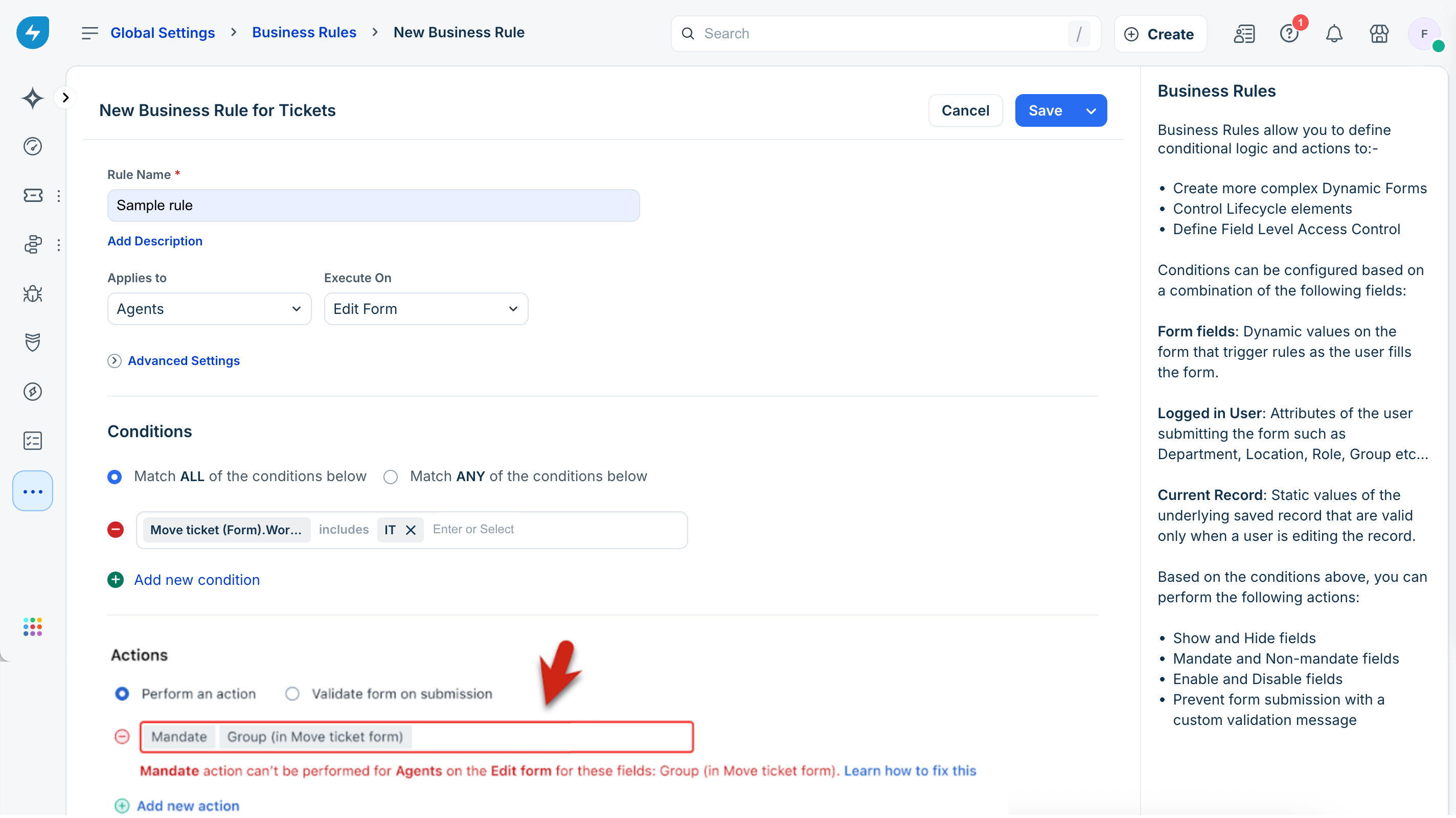
Error handling for invalid applicability
If an admin configures an action for the wrong user type or form type, the system validates it before saving.
The action block is highlighted in red.
An error message appears below the invalid action.
The rule can only be saved once the invalid action is removed or the applicability (user type/form type) is corrected.
Agent experience
When an agent uses the Move form:
The available workspace list reflects configured business rules.
Some fields (Group, Agent) may appear, be hidden, or become mandatory depending on how the admin configures business rules.
When an agent uses the Bulk Move form:
Business Rules are not applied upfront.
However, items will fail to move if they do not satisfy the conditions you’ve set.
Impact on existing customers
If you notice any of the new Move Form-related conditions or actions already present in your account, please note that this is intentional. In the earlier setup, certain Group and Agent actions were automatically applied to the Move Form as well.
To ensure your current experience remains unchanged, we’ve adjusted your account settings accordingly. In some cases, we’ve updated your Group/Agent action to Group/Agent on Ticket + Move Form to maintain consistency in behavior.