Community
 Video Library
 Agent Training
 Freshservice
 Freshdesk
 Freshchat
 Freshcaller
 Freshsales
 Freshteam
 Freshworks Neo
 Freshsurvey
 Freshservice for MSP
 TABLE OF CONTENTS
The Jobvite integration with Freshservice lets organizations automate the process of creating employee onboarding requests in Freshservice based on a candidate's status in the Jobvite portal. The app creates an employee onboarding request in Freshservice when an employee's status in the Jobvite portal matches a pre-selected status, such as Offer Accepted. A background job runs every 15 minutes to fetch the latest employee details from the Jobvite application and create the corresponding onboarding requests in Freshservice.
You can map various fields between the Jobvite portal and the Freshservice employee onboarding request form. This ensures accurate transfer of necessary information from the Jobvite portal to Freshservice.
Install Jobvite app in Freshservice
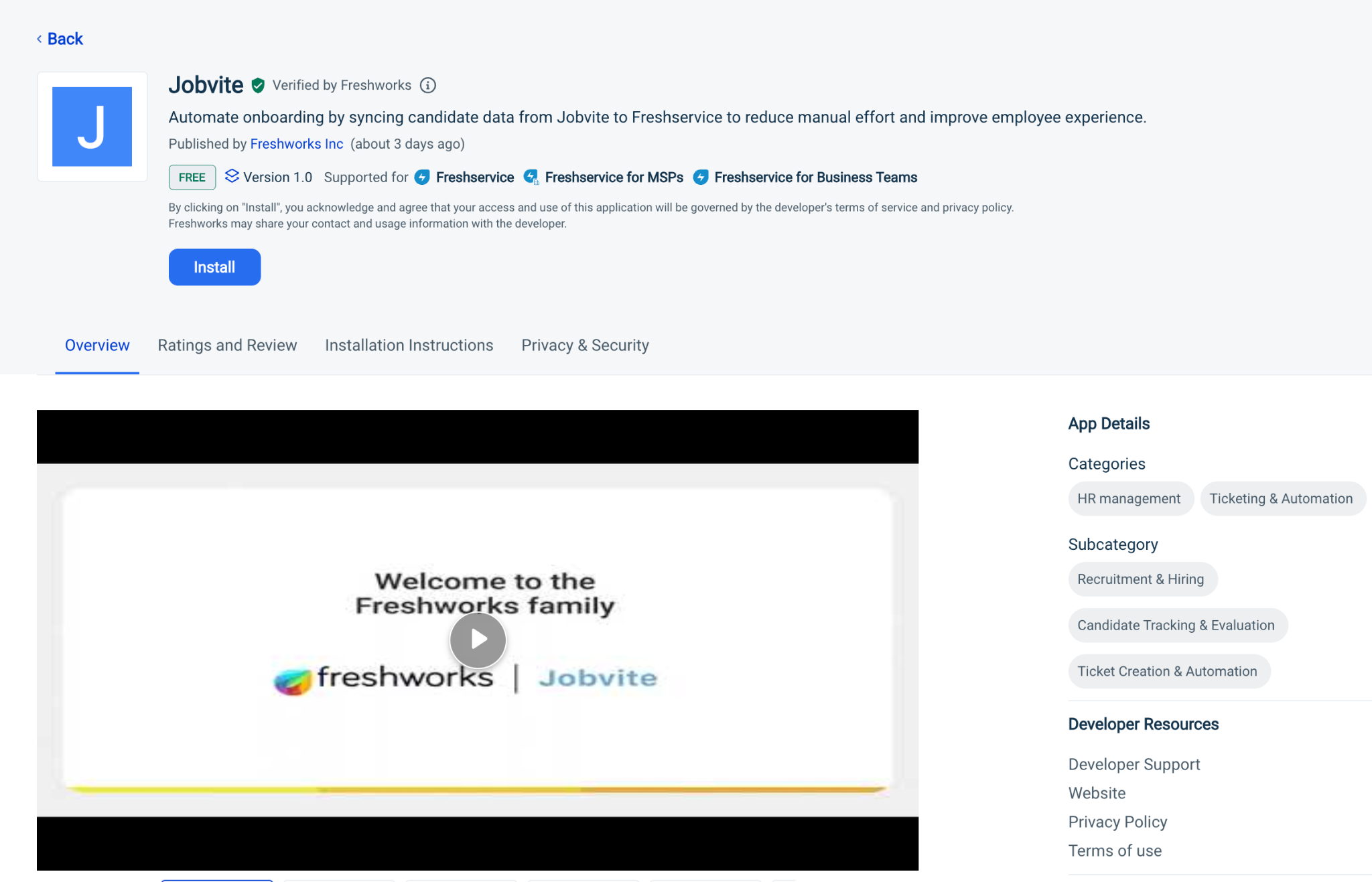
The Jobvite integration with Freshservice enables automatic creation of employee onboarding requests in Freshservice based on candidate status changes in Jobvite. Follow these steps to install Jobvite.
Log in to Freshservice as an administrator.
Go to Admin > Apps > Get More Apps.
Search for the Jobvite app and click Install.
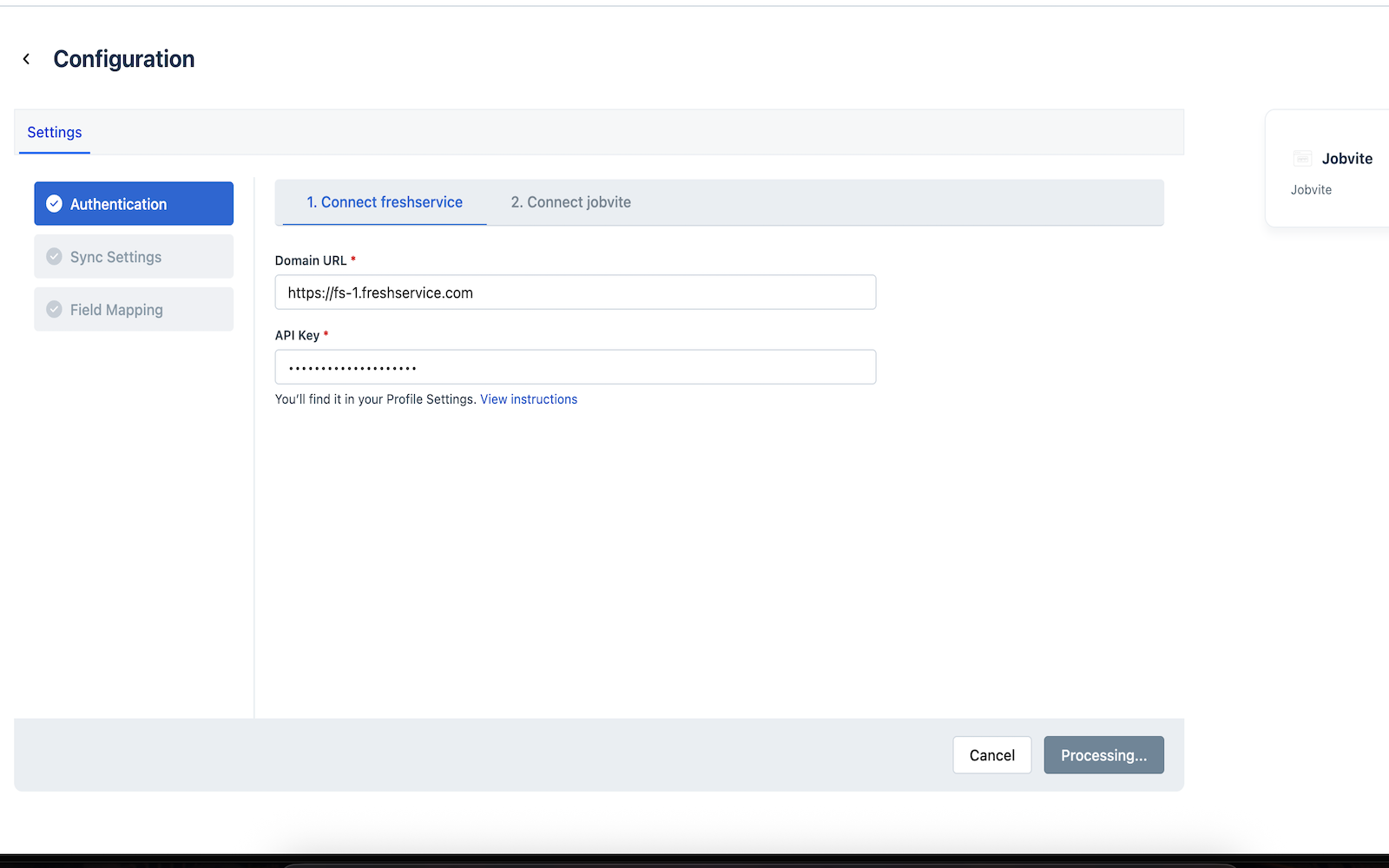
You are redirected to Global Settings > Apps > Configuration page.Under Configuration > Settings > Authentication > 1. Connect Freshservice, enter the details of your Freshservice account as follows:
Enter your Freshservice account URL in the Domain URL field.
Enter your API key in the API Key field. To know how to find your API key, see Where do I find my API key?
Click Next.
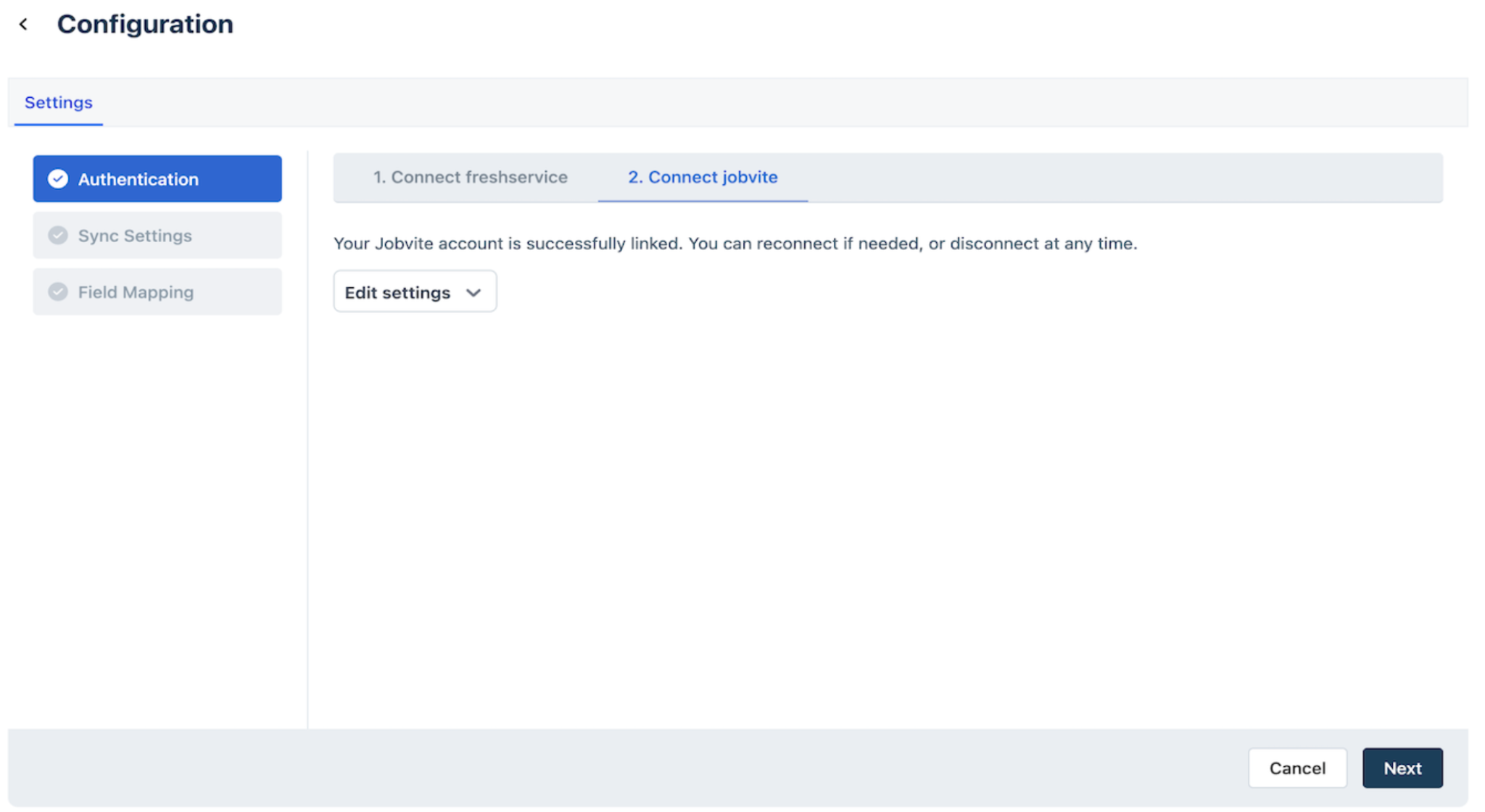
You are redirected to 2. Connect Jobvite tab.Click Connect.
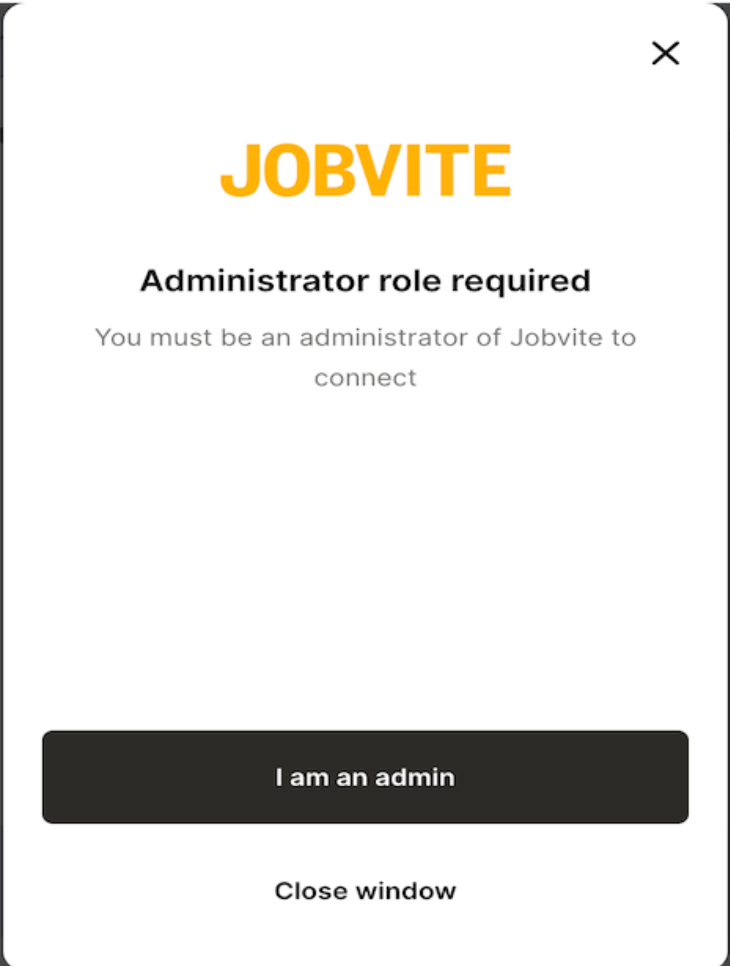
The Jobvite dialog box is displayed.Click I am an admin.
The dialog box shows a list of information that Freshservice can access from Jobvite.Click Next.
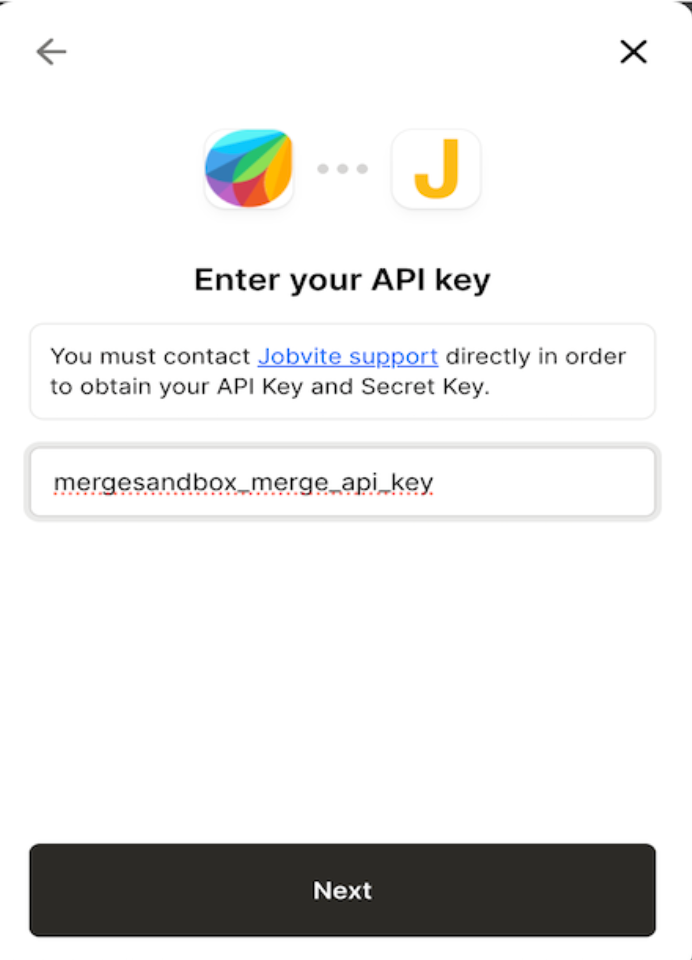
Collect your Jobvite API key from Jobvite Support and enter in the API Key field.
Click Next.
You are redirected to the Authentication page.Click Next.
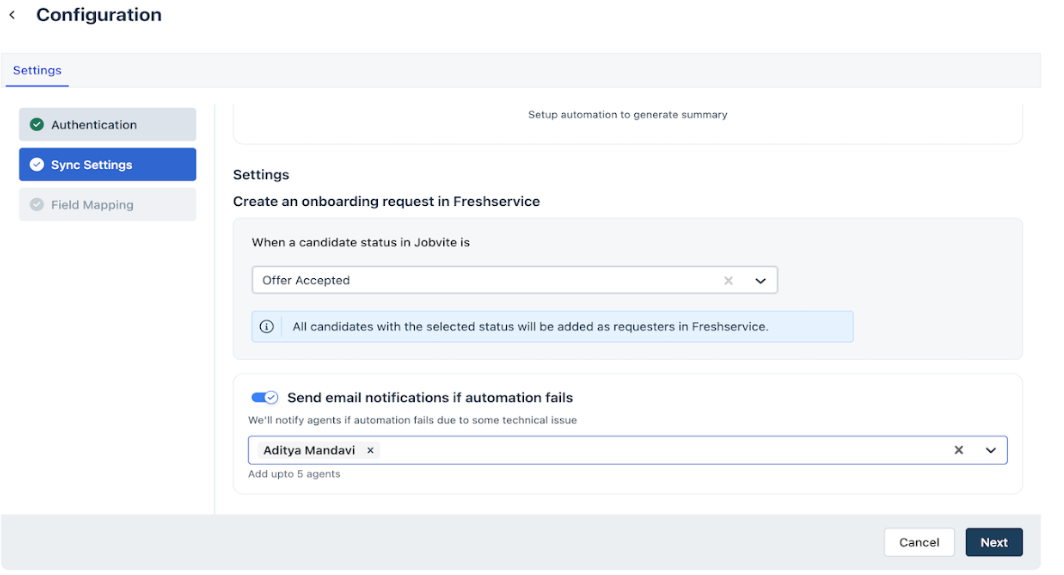
You are redirected to the Sync Settings page.From the dropdown list under When a candidate status in Jobvite is, select a candidate status value.
Note - After the integration, when this candidate status is matched on the Jobvite portal, the candidate’s profile information is copied to Freshservice and an onboarding request is created. For example, you selected Offer Accepted from dropdown list. Whenever the Candidate Status field shows Offer Accepted, the app copies the candidate’s profile information to Freshservice and creates an onboarding request.Turn on Send email notification if automation fails toggle button and select agents from the dropdown list to trigger email notifications in case the app fails to create onboarding requests.
Click Next.
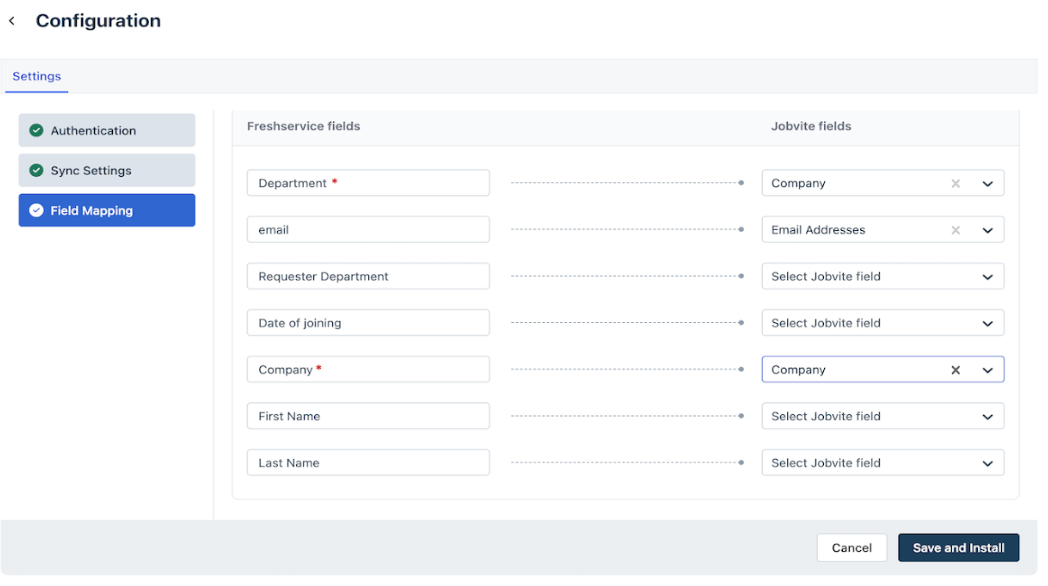
You are redirected to the Field Mapping page.Select candidate profile information fields from Freshservice and Jobvite to map them.
Click Save and Install.
View Freshservice and Jobvite Sync summary
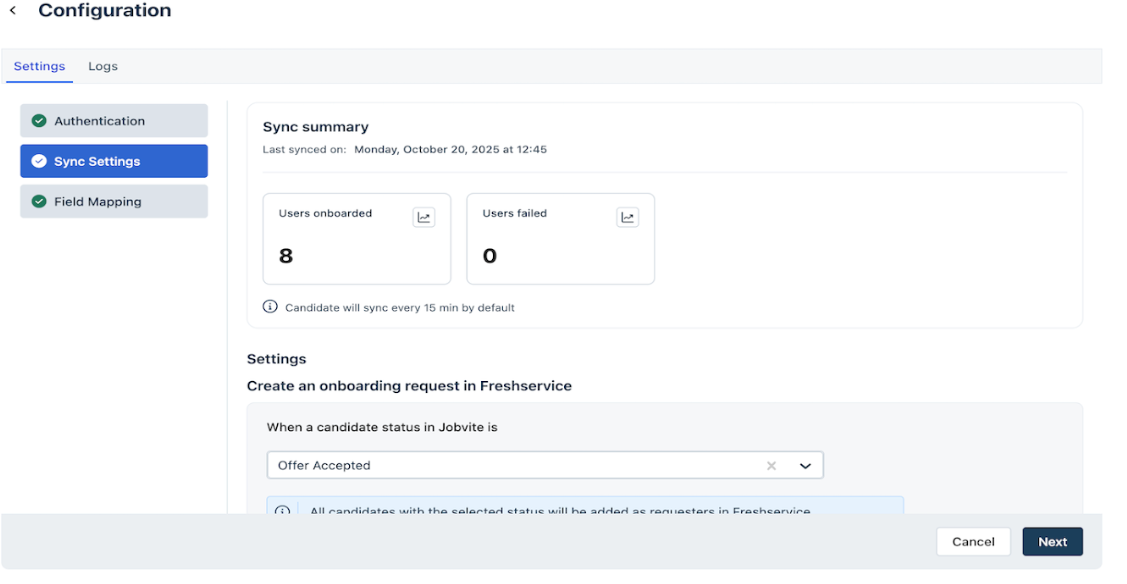
The Sync Summary in Freshservice provides visibility into how employee data from Jobvite is processed and converted into employee onboarding requests in Freshservice. From the Sync Summary, you can monitor sync health, review success and failure counts, and inspect detailed logs for each sync run. Follow these steps to view Freshservice and Jobvite sync summary
Log in to Freshservice as an administrator.
Go to Admin > Apps > Installed Apps.
Select Jobvite.
You are redirected to the Configuration page.Click Sync Settings.
The Sync Summary page is displayed. It shows the number of users onboarded and the number of user onboarding failed.Click Users onboarded or Users failed view to open the sync log and inspect the detailed log.