
 Community
 Video Library
 Agent Training
 Freshservice
 Freshdesk
 Freshchat
 Freshcaller
 Freshsales
 Freshteam
 Freshworks Neo
 Freshsurvey
 Freshservice for MSP
 TABLE OF CONTENTS
Scenario automations help agents perform multiple actions on a ticket with a single click. Instead of updating ticket fields one at a time, you can group common actions into a reusable scenario and run it whenever required.
For example, you can create a scenario for processing returns that:
Adds the Returns tag.
Assigns the ticket to the Refunds group.
Updates the ticket status to Processing Refund.
Note: Scenario automations are configured at the workspace level. Agents can access all personal and shared scenario automations from the workspaces they have permission to access.
Create a scenario automation
Go to Admin > Automations & Productivity > Automation > Scenario Automation.
If your account has multiple workspaces, go to Admin > <Workspace name> > Automations & Productivity > Automation > Scenario Automation.
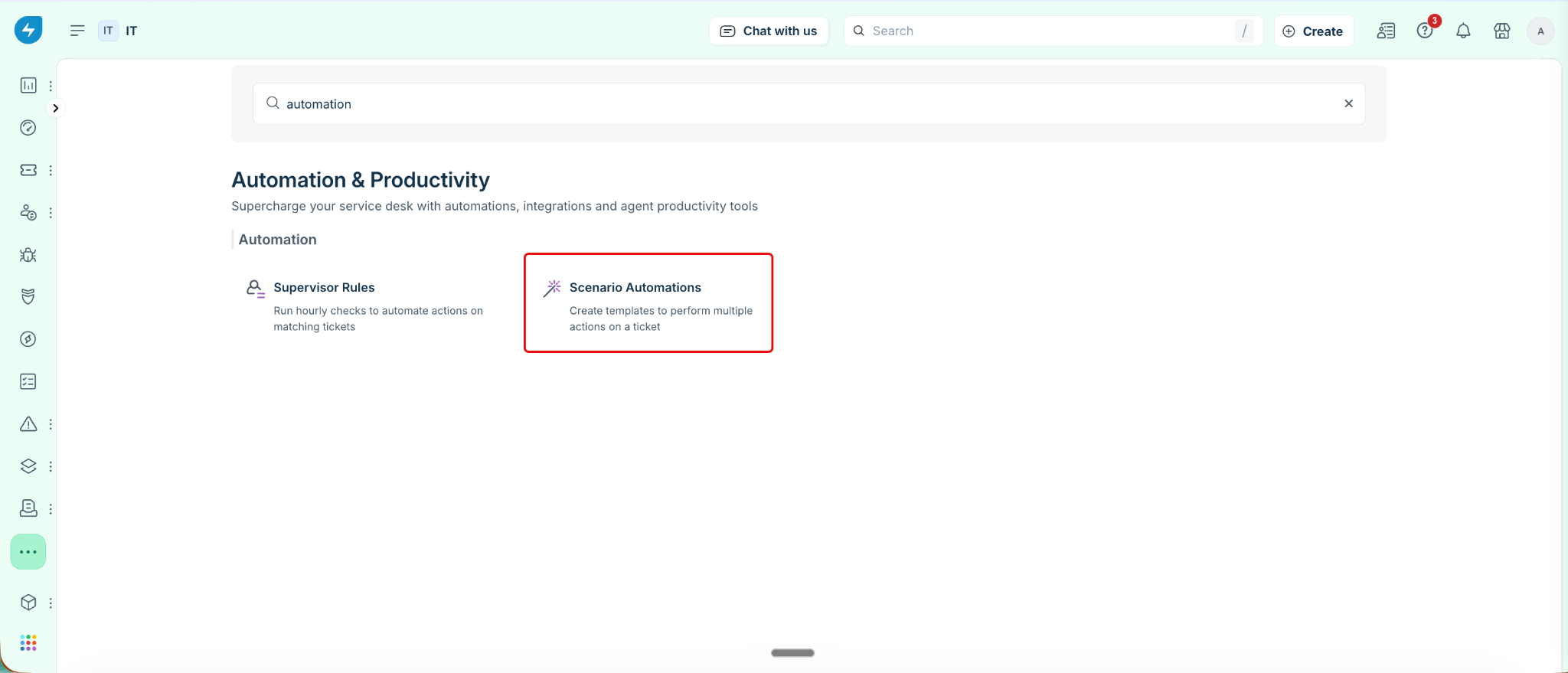
Click New Scenario.
Enter a Name and Description for the scenario.
Add the first action:
Select an action from the list.
Configure the action.
For example, to update the ticket priority, select Assign to group and then select Major Incident Team.
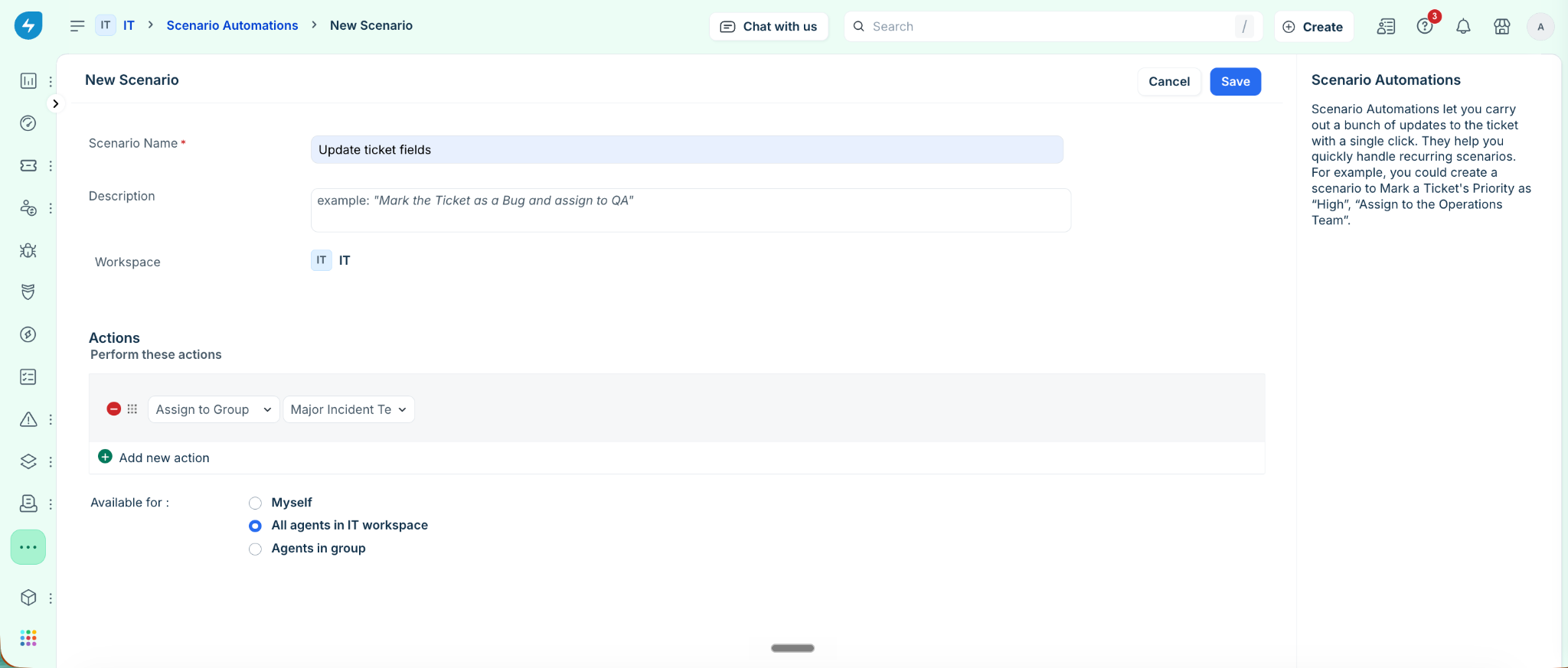
To add another action, click Add new action.
To remove an action, click the Delete (-) icon.
Configure who can use the scenario:
Only me
Specific groups
All agents
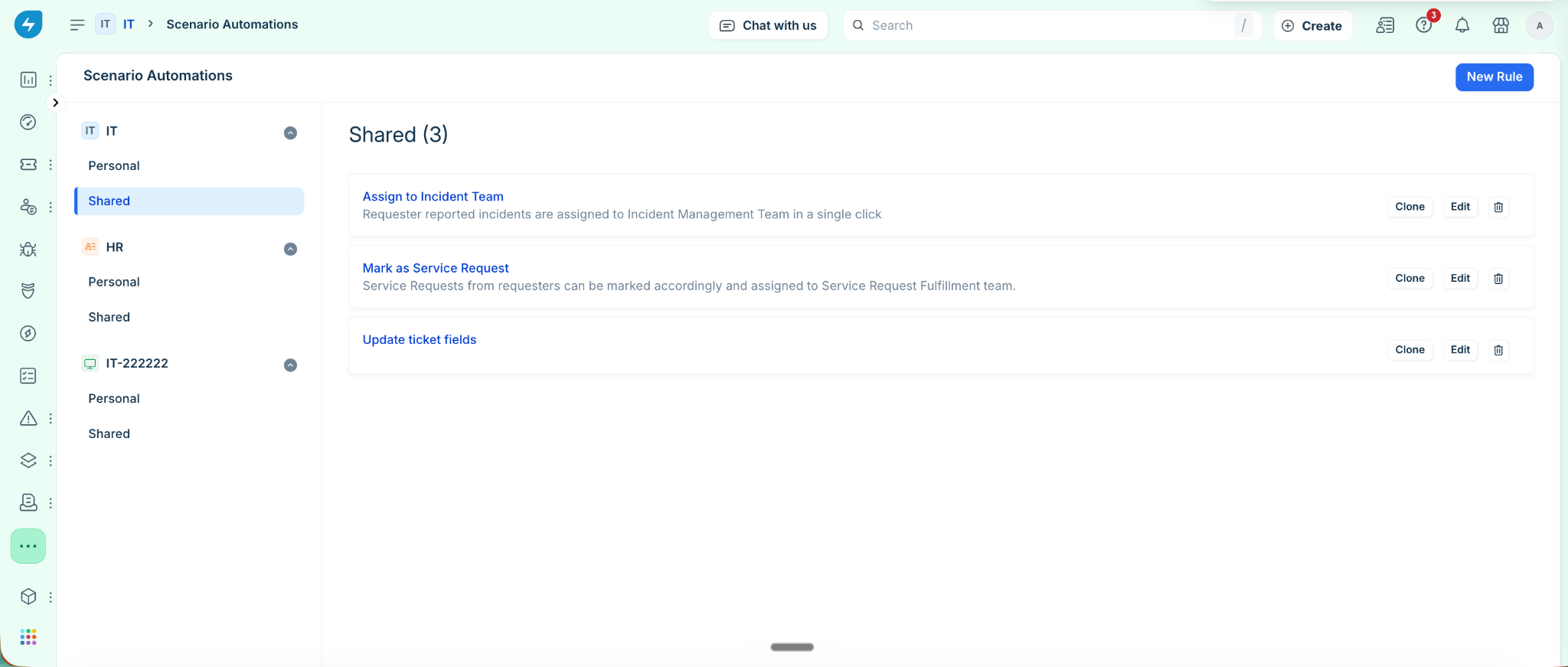
Click Save. The scenario appears on the Scenario Automation page. To modify or remove a scenario, select Edit or Delete.
Run a scenario automation
After you create a scenario, you can run it from any ticket.
Open the required ticket.
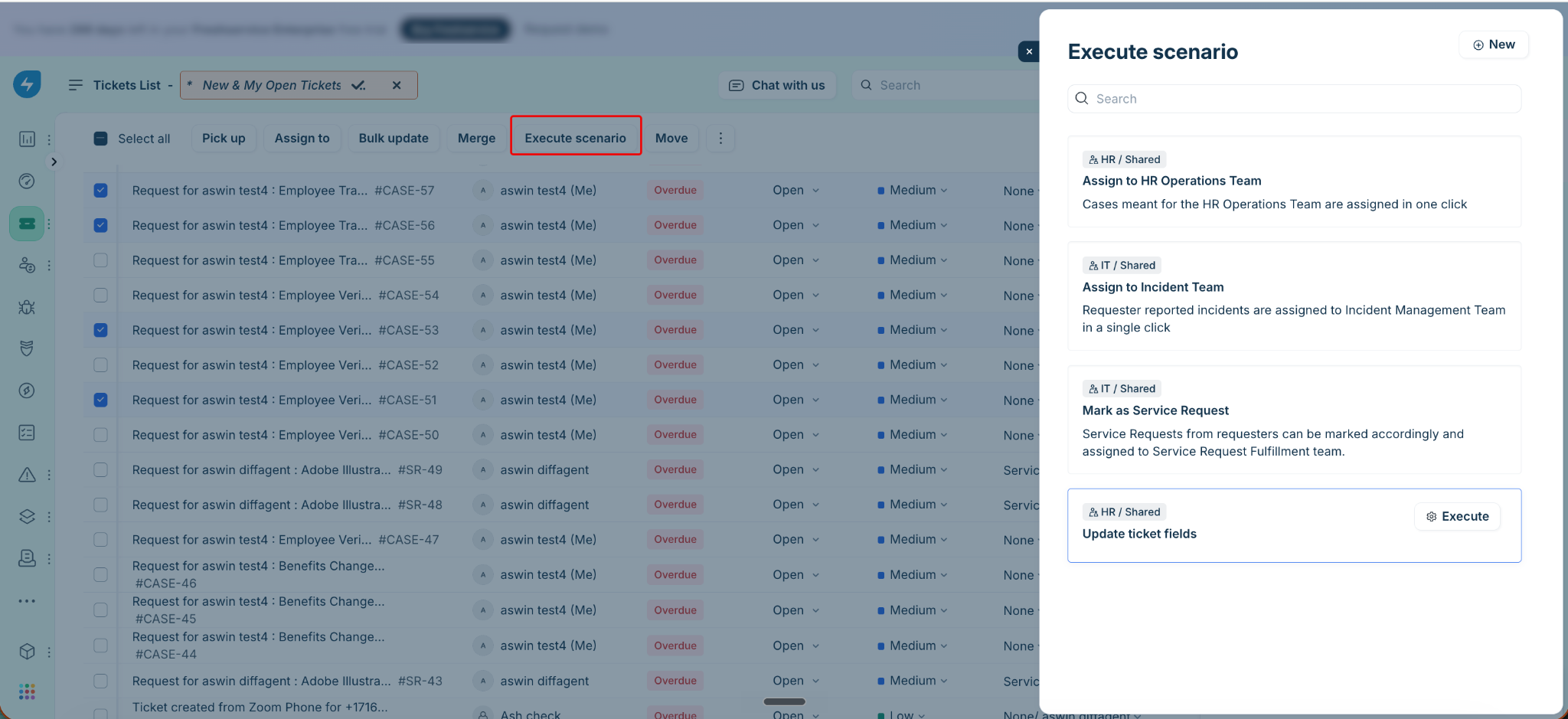
Click Execute scenario.
Select the scenario that you want to run.
Click Execute.
Freshservice performs all the configured actions and displays a confirmation message.
You can also create a new scenario directly from the Execute scenario window by clicking + New.