Community
 Video Library
 Agent Training
 Freshservice
 Freshdesk
 Freshchat
 Freshcaller
 Freshsales
 Freshteam
 Freshworks Neo
 Freshsurvey
 Freshservice for MSP
 Functions enable you to transform and process data dynamically within Freshservice AI Agent workflows using JavaScript.
This article provides an overview of pre-built and custom functions, their core capability pillars, and step-by-step instructions for executing them in your workflows.
TABLE OF CONTENTS
- Overview
Prerequisites
Before you use functions, ensure that the following requirements are met:
Ensure that you have administrator access to AI Agent Studio.
You have created an AI Agent workflow to process data.
You have a basic understanding of JavaScript if you plan to create custom functions manually.
Overview
Functions enable administrators to author and execute JavaScript for inline data transformation, parsing API responses, and evaluating custom business logic in Freshservice AI Agent workflows.
You can use pre-built functions for common transformations, such as formatting dates, manipulating text, and performing calculations, or create custom functions to implement business-specific logic. Once created, functions can be executed within a workflow to prepare data for conditions, responses, API actions, and other downstream workflow steps.
For example, an external IT asset management API may return full asset details when you only need the warranty expiration date, or you may need to calculate whether a requester is still eligible for an automated hardware upgrade before deciding how the workflow should proceed.
Function workflow
A function accepts one or more inputs, processes them using custom JavaScript code, and returns the result as a JSON object. You can provide inputs collected during the workflow, requester or ticket properties, or output parameters from API actions.
For example, in an asset request workflow, an API action can return the ticket creation date and the hardware delivery date. You can pass these values to a function to check whether the request meets the standard SLA turnaround time.
The function processes the dates and returns the result as shown in the following example:
JSON
{
"isWithinSLA": true
}
The workflow can then use isWithinSLA in a condition to determine the next step, such as routing the request for express approval.
Types of functions
Freshservice provides two types of functions that you can use in your workflow.
Pre-built functions
Pre-built functions offer ready-to-use operations for standard data processing tasks.These ready-to-use functions cover common transformation scenarios, such as string operations and date formatting, without requiring custom code.
Custom functions
Custom functions allow you to write custom code when standard options do not meet your business logic. For more information, see Create custom functions for AI Agent Workflows.
You can write custom JavaScript to implement business-specific transformations that are not available in the default library. A few scenarios where you may use custom functions include:
Extracting or transforming information from API responses.
Applying business-specific validation rules to check data against Freshservice ticket policies.
Performing custom calculations that are not covered by pre-built functions.
Creating reusable transformation logic across multiple workflows.
Explore the pre-built function library
The pre-built functions library includes a collection of ready-to-use functions organized by operational category. Instead of writing JavaScript for frequently used operations, you can use these functions directly in your workflows or clone them and customize the logic to meet your requirements.
Google Docs converts HTML line breaks (<br>) into full paragraph breaks with default top and bottom paragraph padding, which causes large vertical white spaces in table cells. Keeping the text inline as continuous paragraphs with bold section tags eliminates extra cell height when pasted.
Calculation functions
Calculation functions execute mathematical operations on numeric data. Use these functions to perform mathematical calculations using values collected during the workflow.
Date and time functions
Date and time functions allow you to format, compare, and calculate time parameters. Use these functions to perform date calculations, compare dates, and convert dates into the required format.
Text functions
Text functions allow you to clean, reformat, and combine string values. Use these functions to manipulate, combine, and standardize text before using it elsewhere in the workflow.
List functions
List functions assist in extracting elements from arrays and collections. Use these functions to retrieve or extract specific values from lists and API responses.
Encoding functions
Encoding functions convert strings between plain text and encoded formats. Use these functions to encode or decode data when working with external APIs.
Custom functions configuration
Custom functions provide flexibility when pre-built functions do not fit specific automation requirements.
The pre-built function library covers many common data transformation tasks. However, in some scenarios, you may need to create logic specific to your business processes.
In these cases, you can create a custom function to process data exactly the way your workflow requires. For more information, see Create and manage custom functions.
Access the functions
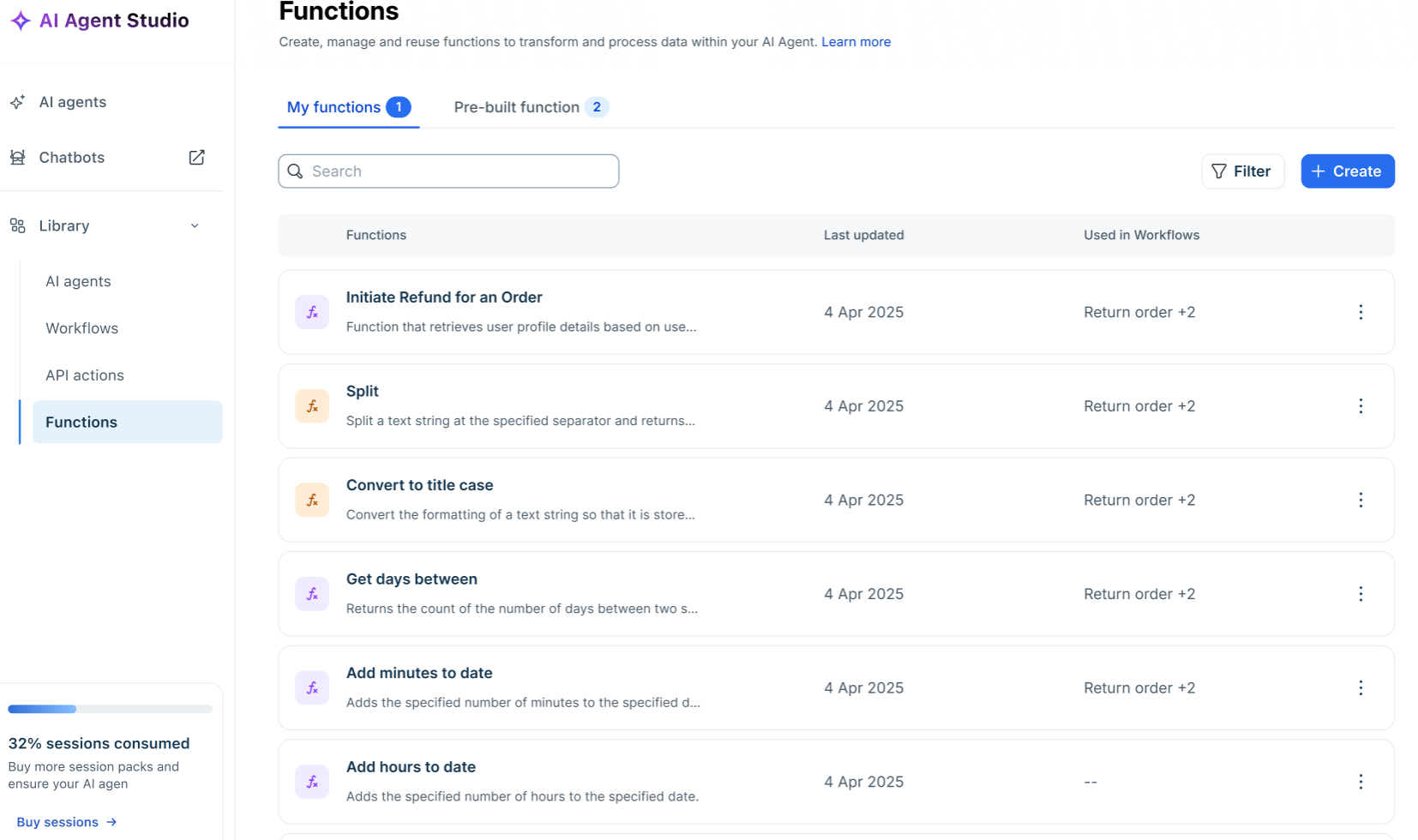
The Functions management page allows you to view and manage all function assets in one location. To access the functions, follow these steps:
Go to AI Agent Studio from the left navigation pane.
Under Library, click Functions.
You can see the list of pre-built and custom functions you have created. For more details on managing custom functions, see Create and manage custom functions.
Execute functions in workflows
Functions can be executed at various points in an AI Agent workflow to transform data dynamically. You can use functions in the following ways within the workflow:
As a standalone node: Add a function node to process data and use its outputs in subsequent steps.
Within other workflow nodes: Use a function as part of the input or parameter configuration when you need to transform or calculate data within other nodes such as:
Conditions: Use a function output when evaluating a condition. For example, calculate whether a request is eligible for automated processing before deciding the path the workflow should follow.
Custom responses: Use function outputs to personalize the response displayed to the user. For example, format a delivery date before displaying it in a response.
API actions: Use functions to transform data mapped to an API action or process an API response before using the result elsewhere in the workflow.
Add a function as a standalone workflow node
Standalone function nodes process data independently as an individual workflow step.
To add a function as a standalone node, follow these steps:
Go to AI Agent Studio > Workflows and select the workflow where you want to add the function.
Click the plus (+) icon and select Execute Function.
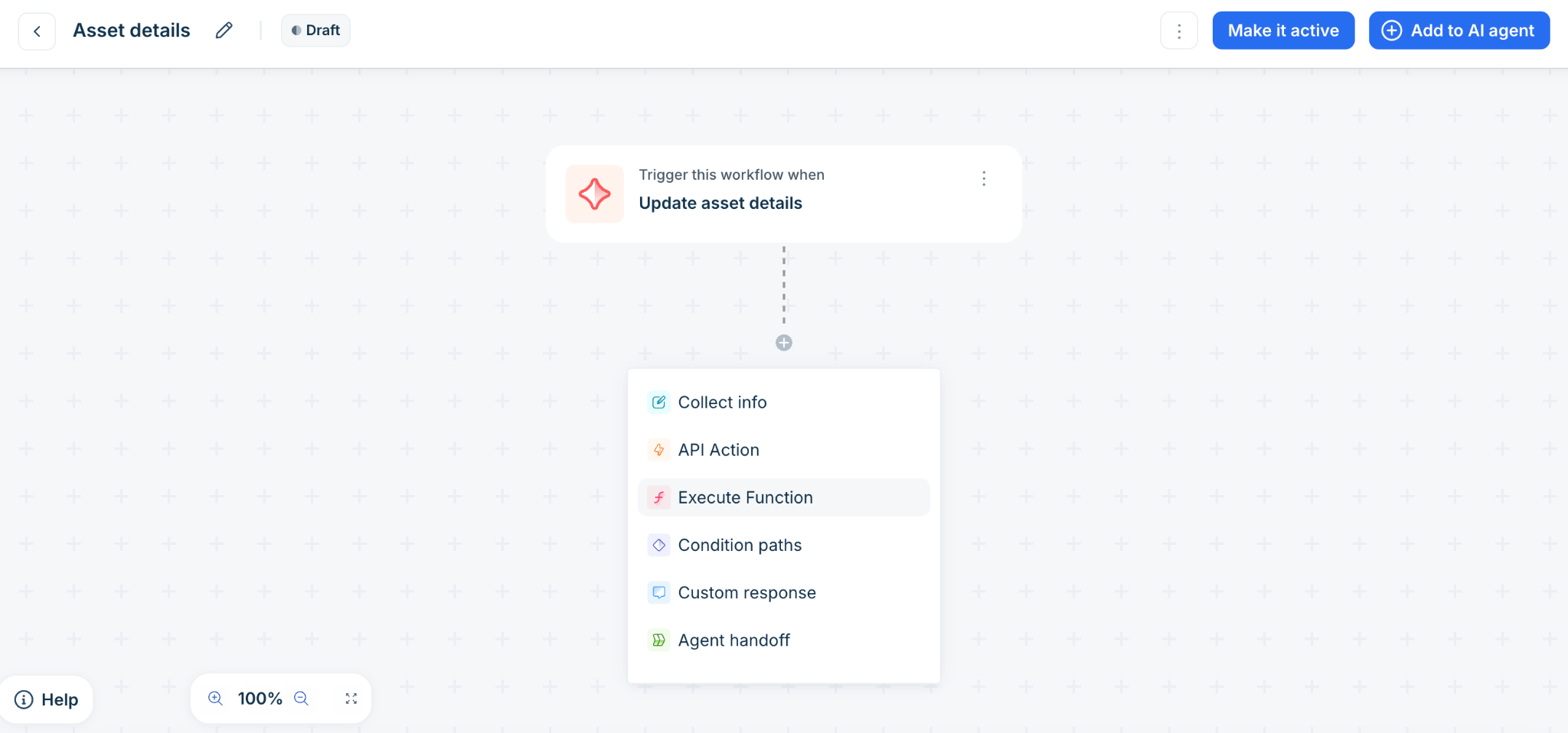
Under Choose/Create a Function, select a function from My functions or Pre-built functions. You can preview the function before selecting it.
Under Map inputs to function parameters, select the property type ( Requester, Account or Ticket) and map it to the function parameters.
Click Save.
Note: Before mapping inputs, use a Collect info block to capture them. If already available as requester or ticket properties, map them directly, especially for sensitive information like email or phone number.
`
Add a function within another workflow node
Inline functions transform specific values inside conditions, responses, or API nodes. To add a function within another node, follow these steps:
Go to the workflow node and open the condition, custom response, or API action where you want to use the function.
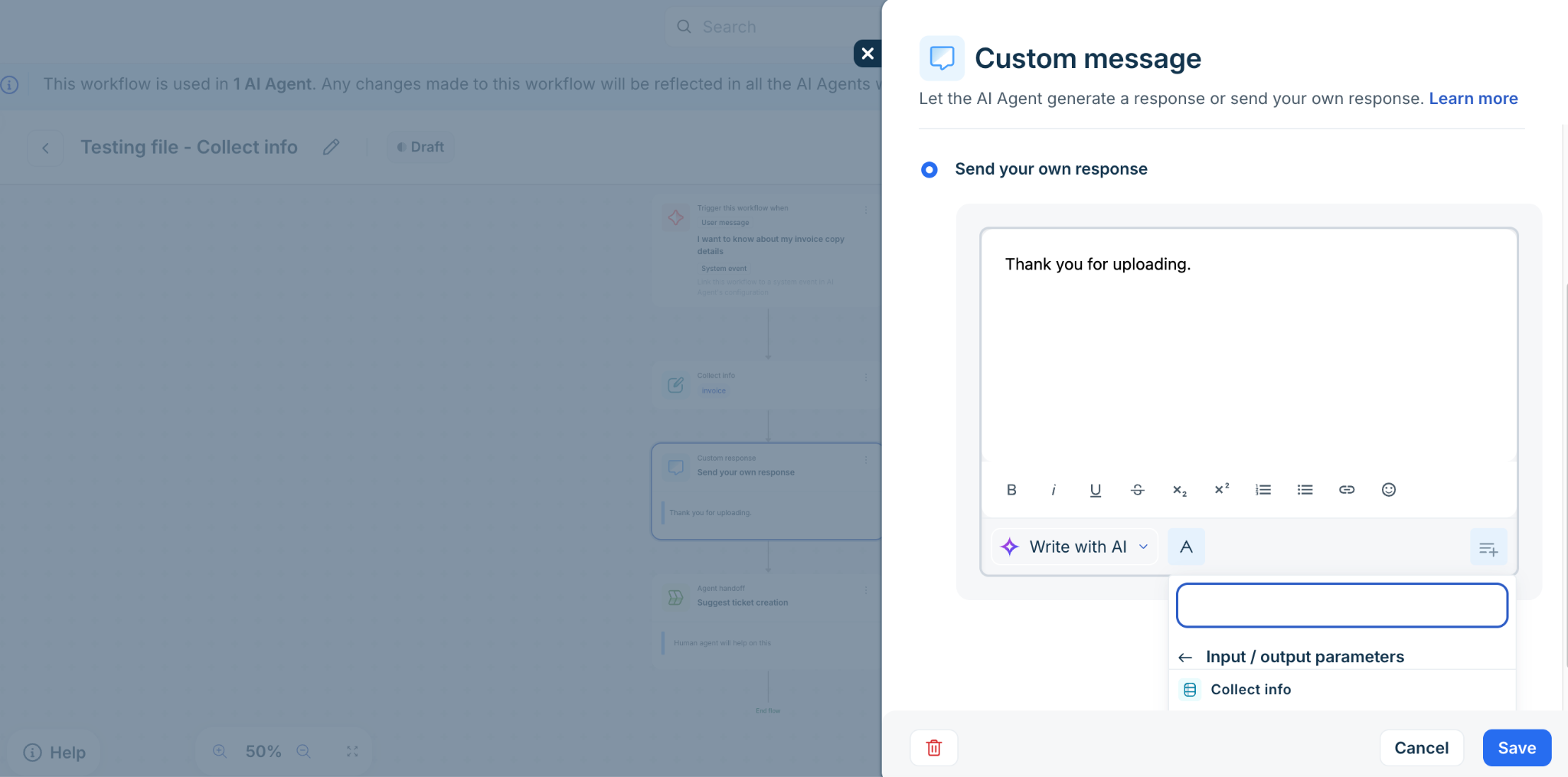
In the relevant input field, open the content picker.
Select Input/output parameters, and select the required function output.
Complete the configuration and click Save.