
 Community
 Video Library
 Agent Training
 Freshservice
 Freshdesk
 Freshchat
 Freshcaller
 Freshsales
 Freshteam
 Freshworks Neo
 Freshsurvey
 Freshservice for MSP
 TABLE OF CONTENTS
- Key concepts to know before you start
- Where to find Workflows in AI Agent Studio
- Add a workflow to your agent
- Manage existing workflows
- Understand workflow components
- Build a workflow from scratch
- Make a workflow active
- Best practices
- Frequently asked questions
- What’s next
Workflows define how your AI agent handles specific requests, from collecting information to taking action in connected systems (Slack, MS Teams, or Support portal). While the Workflow library offers ready-made options for common tasks, some business processes are unique to your organization. For those, you can build a workflow from scratch using the visual workflow builder in AI Agent Studio.
Learn about workflow components, add one to your agent, build the flow, and make it active.
Key concepts to know before you start
A few terms come up throughout this article. Knowing them up front makes the builder much easier to navigate.
| Execute Functions |
Where to find Workflows in AI Agent Studio
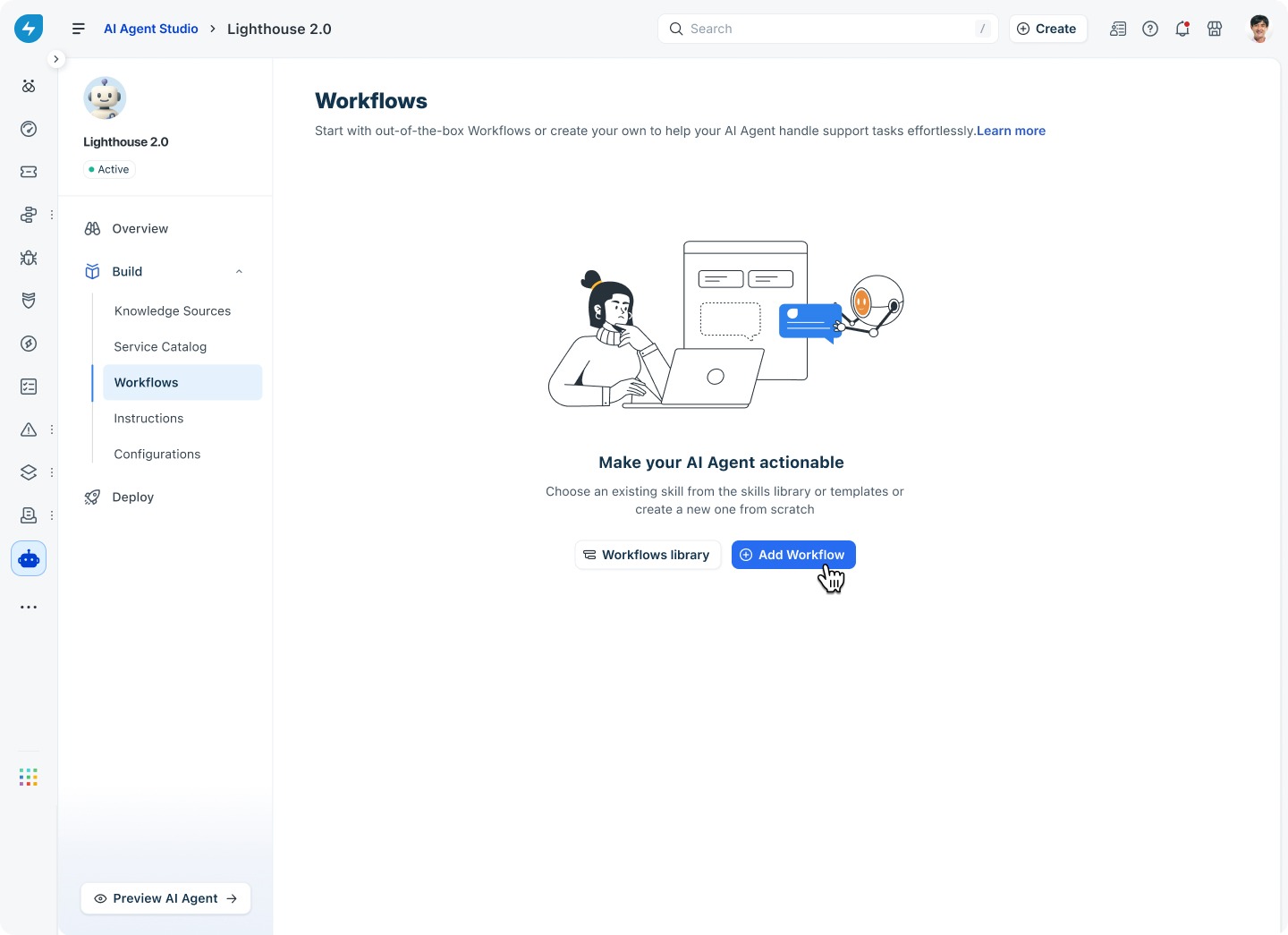
All workflow management happens in one place. To get there:
Open AI Agent Studio and select the agent you want to configure.
In the left navigation, expand Build and click Workflows. From here you can browse pre-built workflows in the Workflows library, or click Add Workflow to create a new one from scratch or select from library templates.|
Add a workflow to your agent
Click Add Workflow in the top right of the Workflows page. A panel appears with two options:
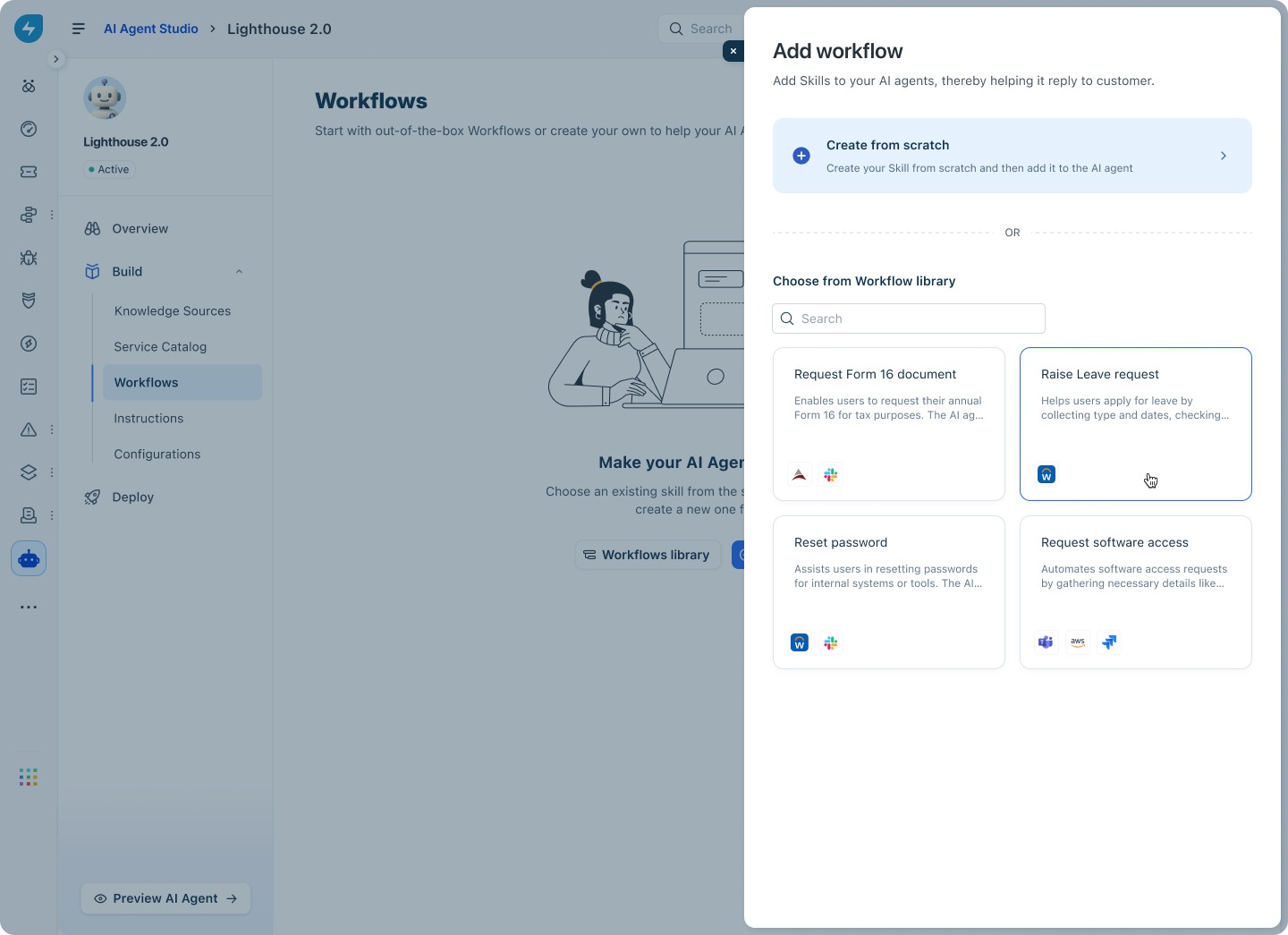
Create from scratch: Opens the visual workflow builder with a blank canvas. Use this when no existing template fits your process.
Choose from Workflow library: Browse and search pre-built workflows. Select one to add it directly to your agent, ready for customization.
Manage existing workflows
Once you add workflows, they appear in a list on the Workflows page. Each entry shows the workflow name, a short description, the apps it uses, its status (Active or Draft), and the date it was created.
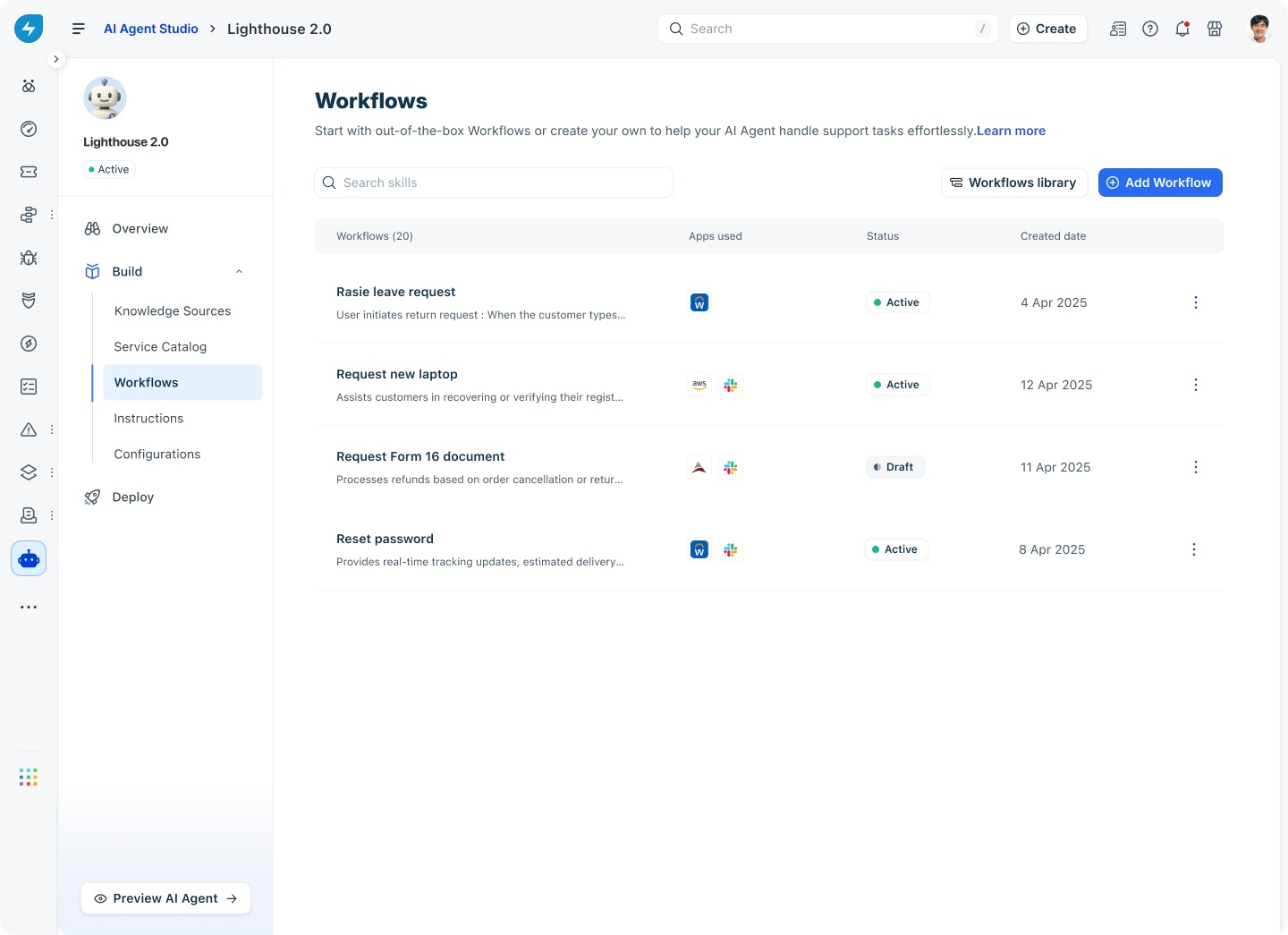
Use the ⋮ menu on any workflow to edit, duplicate, or delete it. Workflows in Draft status are saved but not yet visible to users. Click the workflow, then select Make it active when it’s ready.
Understand workflow components
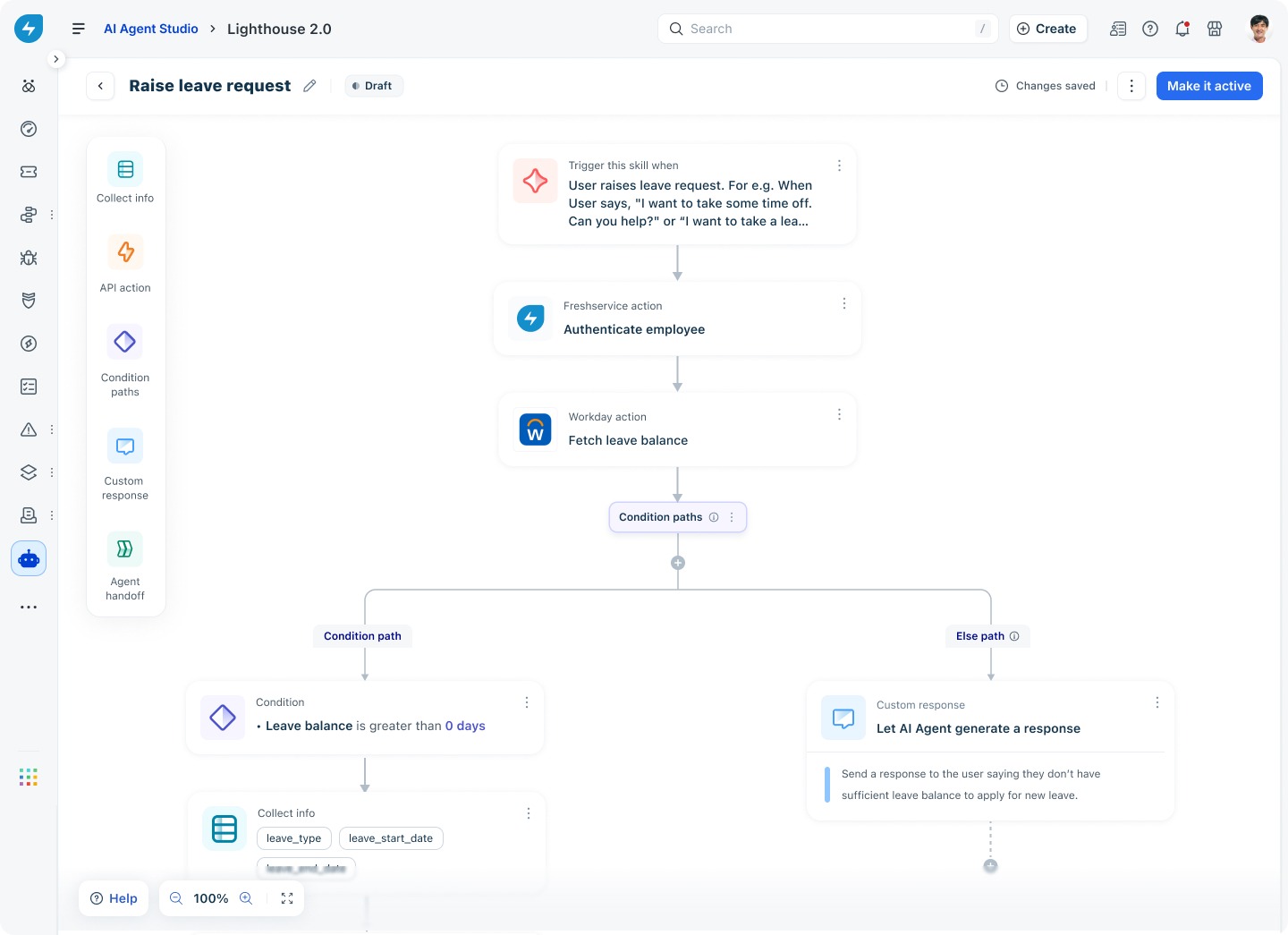
The visual workflow builder uses a set of building blocks called nodes. Each node type does a specific job. Drag them from the left panel onto the canvas and connect them to define the flow.
Build a workflow from scratch
The sections below walk through each part of building a workflow using a Raise leave request example, which mirrors the steps you’d follow for any custom process.
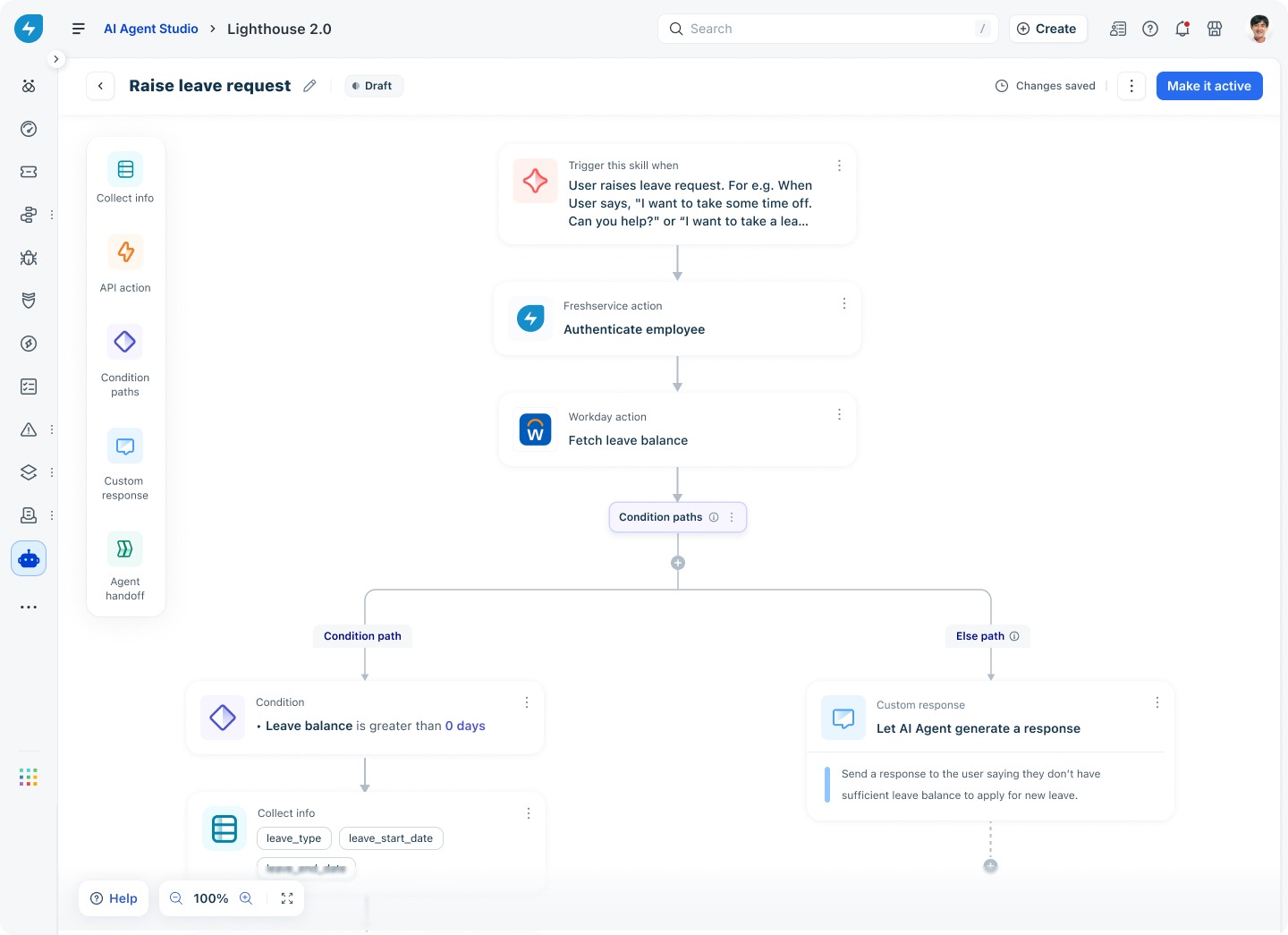
Step 1: Set the trigger
Every workflow starts with a trigger node. Click the trigger node on the canvas to edit it. Write a plain-language description of when the workflow should activate. For example: “User raises a leave request. For example, when the user says, ‘I want to take some time off. Can you help?’ or ‘I want to take a lea…’”
The AI agent reads this trigger description to decide when to start the workflow. Be specific, and include example phrases that real users are likely to say.
Step 2: Authenticate the user (optional)
If your workflow needs to retrieve or update data in a connected system, add an API action node to authenticate the user first. For example, the Raise leave request workflow uses a Freshservice action to verify the employee’s identity before fetching their leave balance.
Step 3: Add API action nodes
Use API action nodes to retrieve data from or push data to connected systems. Each node is linked to a specific app and action — for example, a Workday action to fetch leave balance.
To add an API action node:
Drag the API action node from the left panel onto the canvas.
Connect it to the previous node.
Select the app and the specific action to perform.
Save the node.
Step 4: Add Functions
Use Execute Function to accept inputs, process them using custom JavaScript code, and return the result as a JSON object. You can provide inputs collected during the workflow, requester or ticket properties, or output parameters from API actions. For example, in an asset request workflow, an API action can return the ticket creation date and hardware delivery date.
Step 5: Add condition paths
Use a Condition paths node to branch the workflow based on data or logic. For example, the leave request workflow checks whether the user’s leave balance is greater than 0 days.
Each condition path has:
Condition path: the branch followed when the condition is true.
Else path: the branch followed when the condition is false.
In the leave request example, the else path sends a custom response telling the user they don’t have sufficient leave balance.
Step 6: Collect information from the user
Add a Collect info node to prompt the user for specific details. For example, after confirming the user has leave balance, the workflow collects leave_type, leave_start_date, and leave_end_date.
Each piece of information becomes a variable that downstream nodes can use — for example, to submit the leave request to the HR system.
Step 7: Add a custom response
A Custom response node lets you send a specific message to the user, or choose Let AI Agent generate a response to have the agent compose a contextual reply based on what happened in the workflow.
Use custom responses to:
Confirm a successful action.
Explain why the workflow couldn’t proceed (for example, insufficient leave balance).
Ask follow-up questions before the workflow ends.
Step 8: Add agent handoff (when needed)
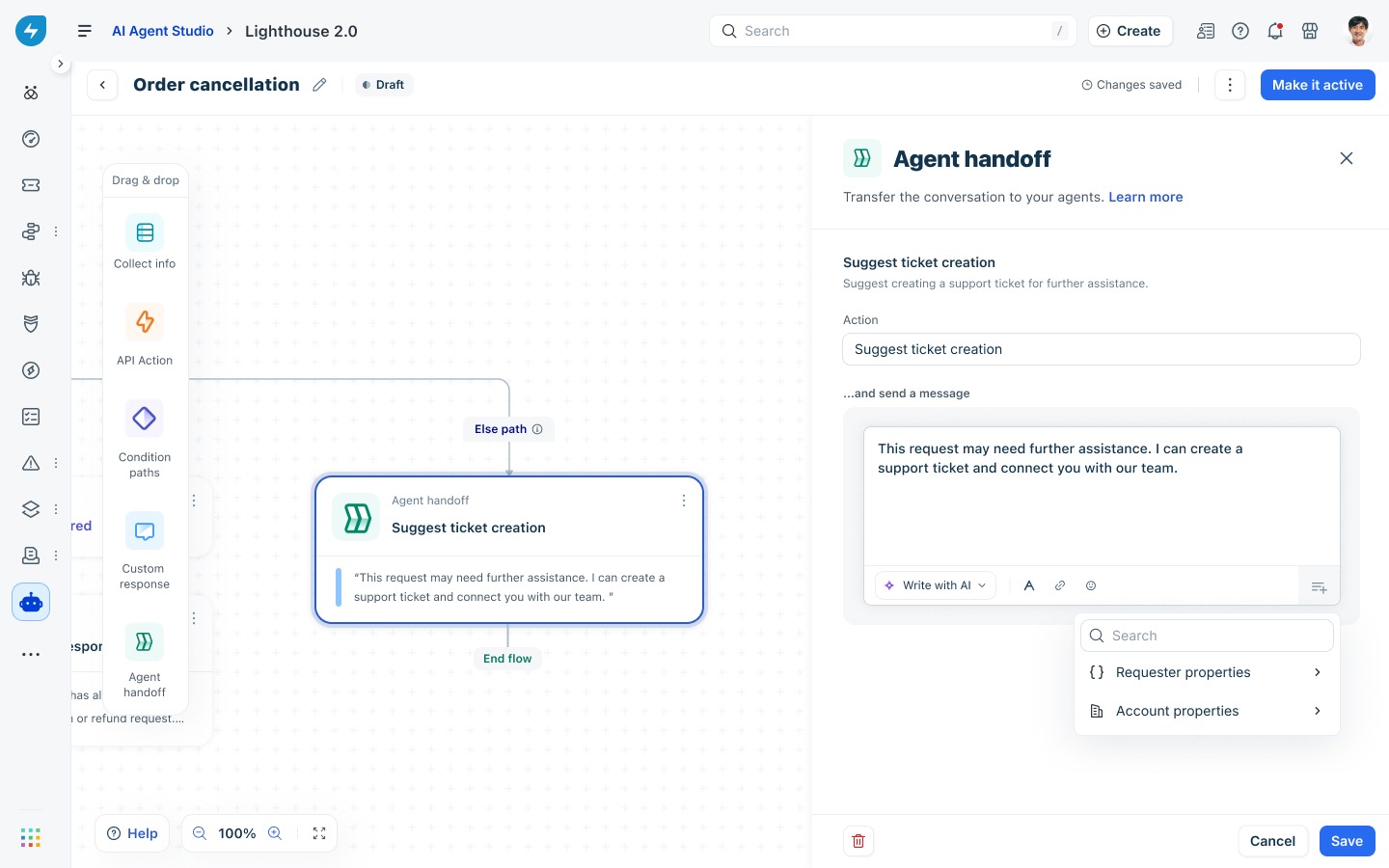
An Agent handoff node transfers the conversation to a human agent. It’s typically placed at the end of an else path, when the AI agent can’t resolve the issue automatically.
To configure an agent handoff node:
Select the action: Choose Suggest ticket creation to prompt the user to raise a support ticket, or choose another handoff action.
Write the handoff message: Compose the message the agent sends before transferring. You can type your own text or use Write with AI to generate a suggestion.
Optionally, use the { } variable picker to include requester or account properties in the message.
Click Save.
Make a workflow active
When you’re done building, click Make it active in the top right of the workflow builder. The workflow status changes from Draft to Active, and the AI agent can now trigger it in live conversations.
You can return to a workflow at any time to edit it. Changes are auto-saved as a draft. Set it back to active when the updates are ready.
Best practices
Keep each workflow focused on one task. Don’t combine multiple unrelated processes in a single flow. Separate workflows are easier to maintain and debug.
Write trigger descriptions as natural language. The AI agent matches user intent against your trigger text, so phrase it the way real users would speak.
Always handle the else path. Every condition node should have a clear else path — either a custom response or an agent handoff. Don’t leave branches unresolved.
Use Agent handoff for exceptions you can’t automate. When the workflow can’t complete the task, hand off gracefully rather than leaving the user without a resolution.
Test before activating. Use the Preview AI Agent button to simulate conversations and verify that the trigger fires correctly, conditions branch as expected, and the final response makes sense.
Frequently asked questions
Can I edit a workflow that’s already active?
Yes. Click into any active workflow to edit it. Changes are saved as a draft automatically. The live version continues running until you click Make it active again with your updates.
What’s the difference between a workflow from the library and one created from scratch?
Library workflows are pre-built templates connected to common apps and actions. Creating from scratch gives you a blank canvas to define every step yourself. Both can be fully customized after they’re added to your agent.
Can I add the same workflow to multiple agents?
Workflows are scoped to a single agent. To use the same logic across agents, open the workflow you want to reuse, duplicate it from the menu, and add the copy to the other agent.
What happens if a condition path has no matching branch?
If the condition evaluates and no matching path is found, the workflow follows the Else path. Make sure every Condition paths node has an Else path configured to avoid dead ends.
Can I use variables from one node in a later node?
Yes. Any information collected or retrieved in earlier nodes — whether from a Collect info node or an API action — is stored as a variable that downstream nodes can reference.
What’s next
Once your workflow is active, you’re ready to:
Test the agent with bulk queries to validate accuracy across many scenarios at once.
Deploy the agent on the Support Portal, Microsoft Teams, or Slack.