
 Community
 Video Library
 Agent Training
 Freshservice
 Freshdesk
 Freshchat
 Freshcaller
 Freshsales
 Freshteam
 Freshworks Neo
 Freshsurvey
 Freshservice for MSP
 Note: This feature works the same across all Freshservice products. Some screenshots or articles may reflect older designs, but the functionality remains unchanged. If certain options do not appear in your account, they may not be included in your current plan.
Every service desk has a bunch of common questions that keep coming up over and over again. Agents continue reinventing the wheel for the same queries, resulting in wasted hours as well as inconsistent replies. To save time, you can create pre-formatted reply templates to common questions as Canned Responses and allow agents to reuse them with a single click. Canned responses can be configured at a workspace level only. All canned responses across workspaces that an agent has access to, will be populated within the canned responses settings.
You can even ensure that each response is customized with the requestor’s name, agent’s signature and ticket details using dynamic content placeholders.
Quick Guide for creating a Canned Response:
Go to Admin > {Worskpace Name} > Automations & Productivity > Agent Productivity > Canned Responses.
Select the Canned Response option from the Create dropdown.
Enter a Response title that you and your agents can easily understand when using this canned response in a reply.
Type your formatted response template in the rich text editor (Message box).
Click the Insert Placeholder button to automatically include dynamic content like Ticket ID, Subject, and Requestor Name in the reply.
- Add any attachments that you'd like this response to include.
Choose the visibility and access permissions for this response.
You can choose whether this response is available only to you, to a specific set of groups, or to all agents in your help desk.
- Choose the folder you want this canned response to be saved to. Responses visible only to you will be saved in the 'Personal' folder by default.
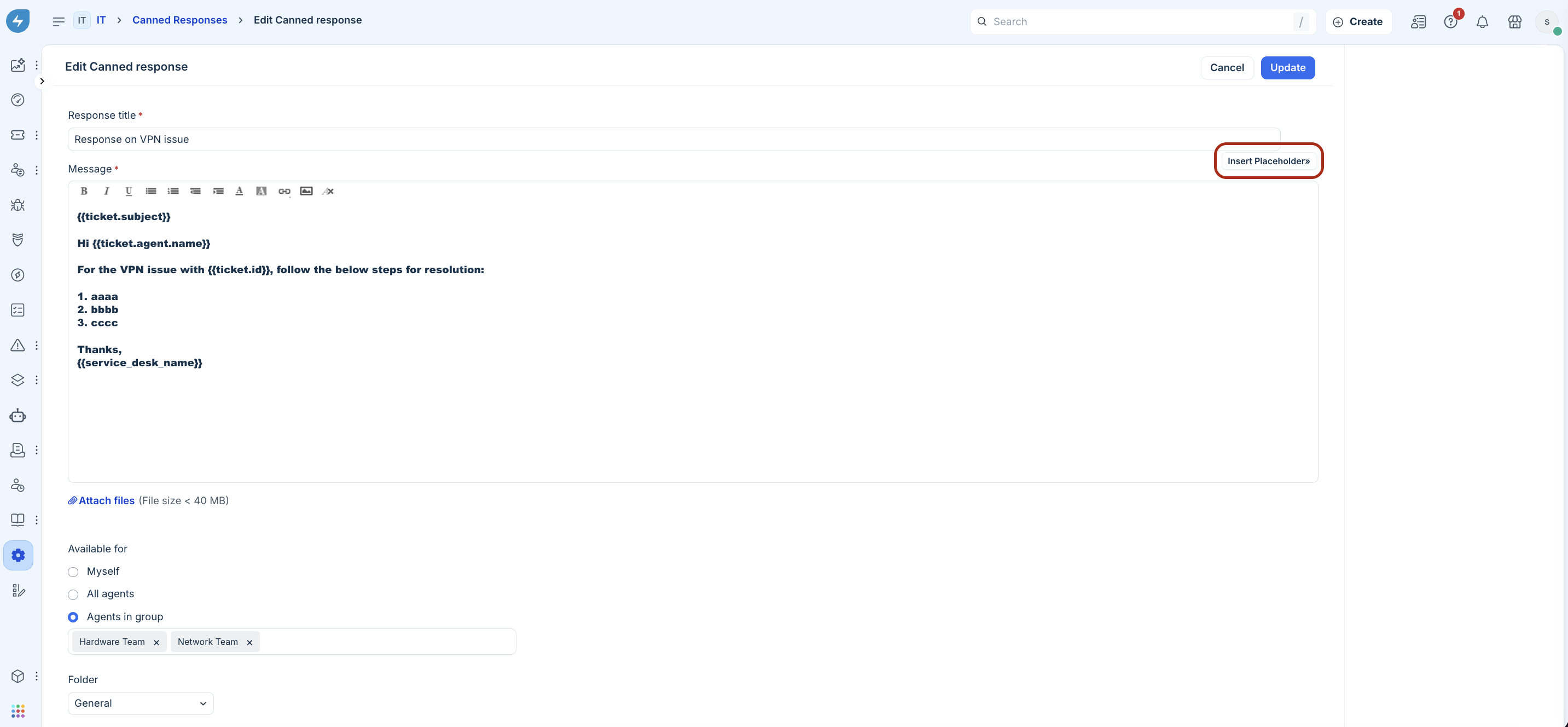
Click Save or Update to save the reply as a canned response.
The list of canned responses created will be available in the Canned Responses page. You can also create folders of Canned Responses and categorise them properly. This will also allow you to share them with specific groups of agents or your entire team.