
 Community
 Video Library
 Agent Training
 Freshservice
 Freshdesk
 Freshchat
 Freshcaller
 Freshsales
 Freshteam
 Freshworks Neo
 Freshsurvey
 Freshservice for MSP
 TABLE OF CONTENTS
- Prerequisites
- Overview of Improve
- View knowledge gap recommendations
- Review a recommendation
- Assign a recommendation to an agent
- Mark a recommendation as done or dismiss it
- Review an assigned recommendation as an agent
- Recommendation availability
This article explains how to use Improve, a Freddy AI Copilot capability, to identify knowledge gaps from resolved tickets. It covers how to view and review recommendations, assign recommendations to agents for validation, act on or dismiss recommendations, and review assigned recommendations as an agent.
Prerequisites
Before you start using the Improve module, ensure you have the following:
An active AI Copilot license assigned to you.
Access to AI Agent Studio enabled for your role under Admin > Roles.
Overview of Improve
Improve helps you keep your knowledge base aligned with the issues your agents resolve every day. It analyzes resolved tickets to identify recurring topics that are not adequately covered by your existing knowledge base.
Based on these patterns, Improve recommends creating a new article or updating an existing article. Each recommendation includes the tickets that contributed to it, so you can review the context and validate the recommendation before taking action.
You can review and manage recommendations yourself or assign them to agents to validate the information and update the content before it is published.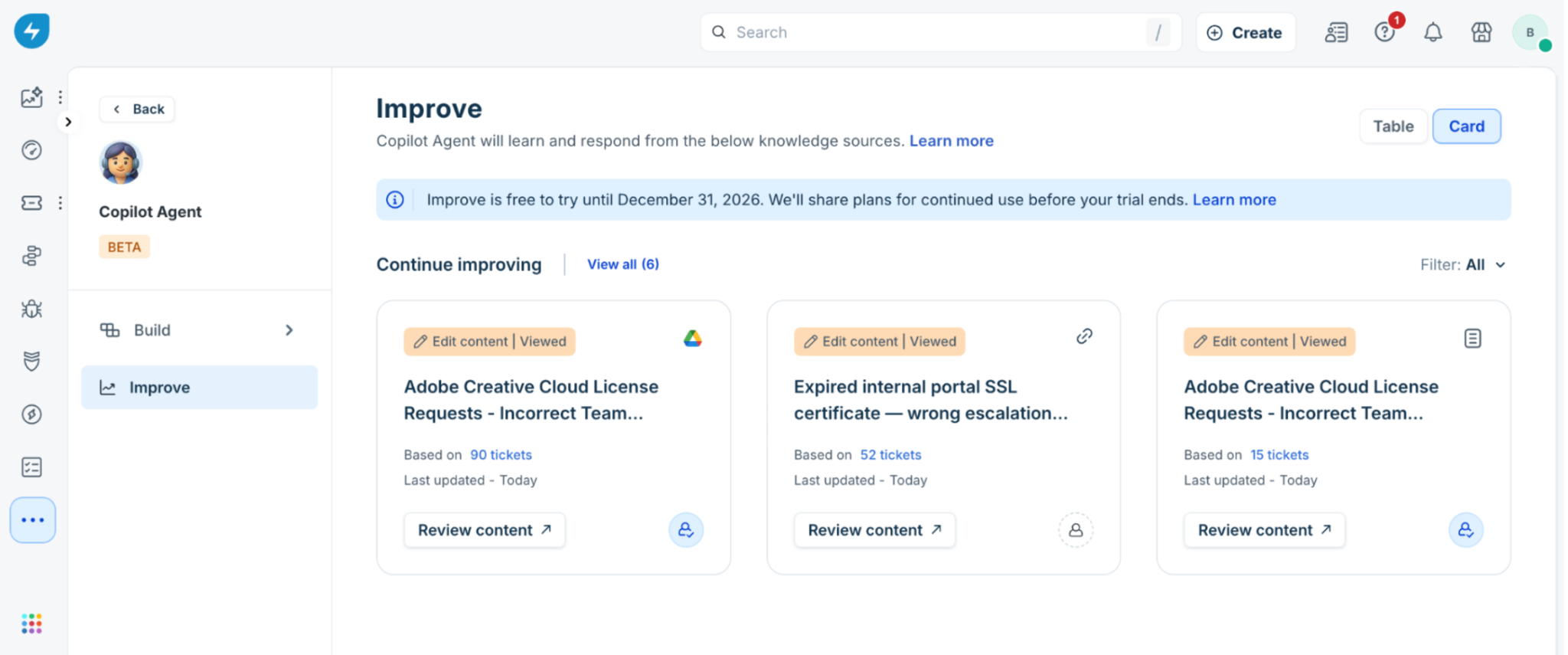
How Improve identifies knowledge gaps
Improve analyzes resolved tickets within each workspace to identify recurring topics that indicate gaps in your knowledge base. For example, if agents repeatedly resolve tickets about resetting passwords but there is no article that explains the process, Improve can identify this as a knowledge gap.
Improve uses multiple tickets to identify a recurring gap and includes the supporting tickets with each recommendation. This helps you understand the context behind the recommendation and assess whether the suggested content is relevant.
Note: Improve displays a knowledge insight only when it is based on at least 5 tickets. Insights based on fewer than 5 tickets are not displayed in the UI.Improve generates recommendations based on the following criteria:
Monthly analysis: Improve generates recommendations once a month when enough tickets have been resolved since the previous cycle to identify a reliable knowledge gap. If there are not enough tickets, Improve skips the cycle and evaluates the workspace again during the next cycle.
Workspace-specific analysis: Recommendations are based only on tickets and knowledge from the same workspace. Improve does not combine data across workspaces.
Types of recommendations
Improve provides the following types of recommendations:
New content: No existing article adequately covers the topic. Improve recommends creating a new article.
Edit content: An existing article covers the topic but may be outdated or incomplete. Improve recommends updating the article.
Before recommending new content, Improve checks for existing articles that match the identified knowledge gap. If a matching article exists, Improve recommends updating it instead of creating duplicate content.
If multiple articles could match the gap, Improve identifies the closest match and recommends updating that article. This helps keep related information consolidated in your knowledge base.
View knowledge gap recommendations
You can view all available recommendations from the Improve page. Each recommendation provides information about the identified knowledge gap and its source.
To view knowledge gap recommendations, follow these steps:
Go to AI Agent Studio and select the required AI agent. Then, in the left navigation pane, click Improve. For Copilot Agent, click Configure, and then click Improve.
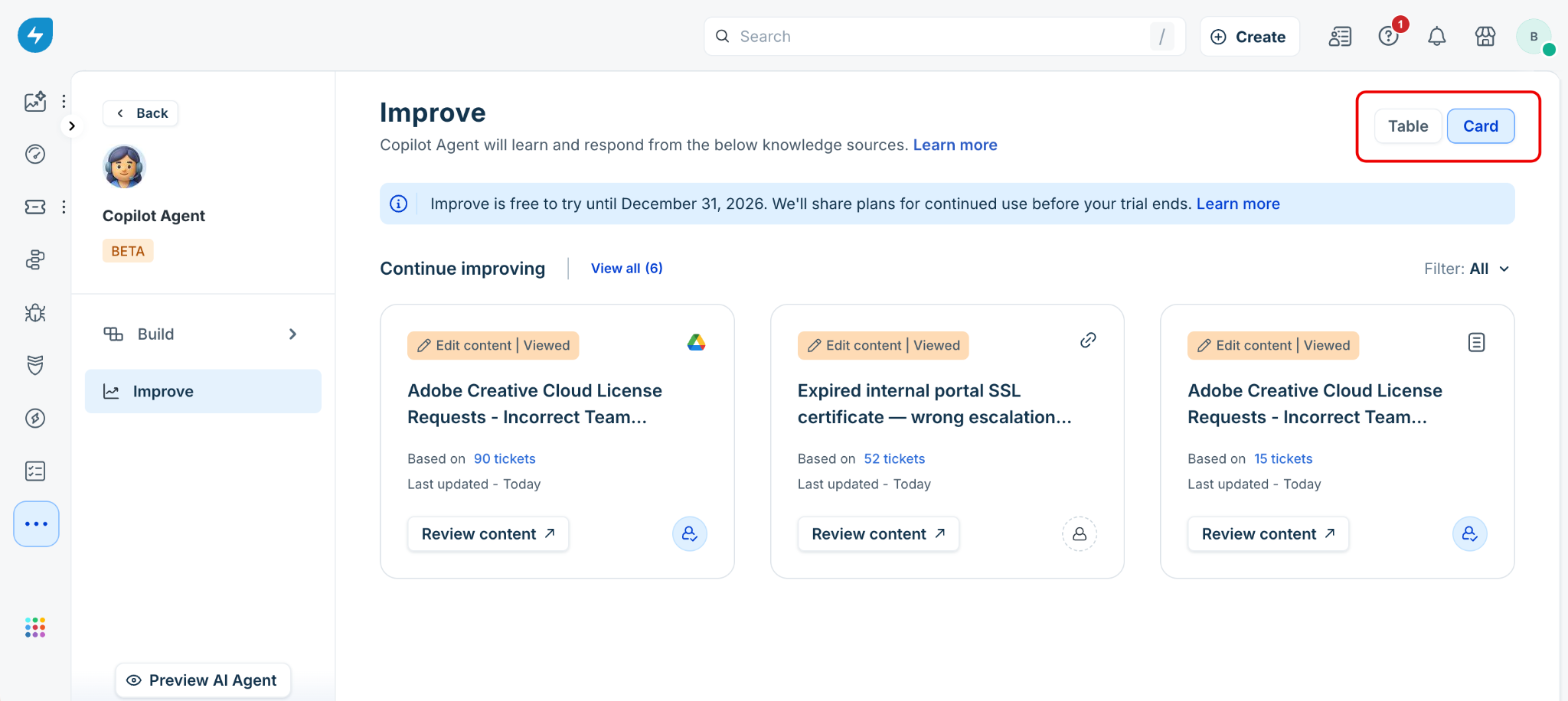
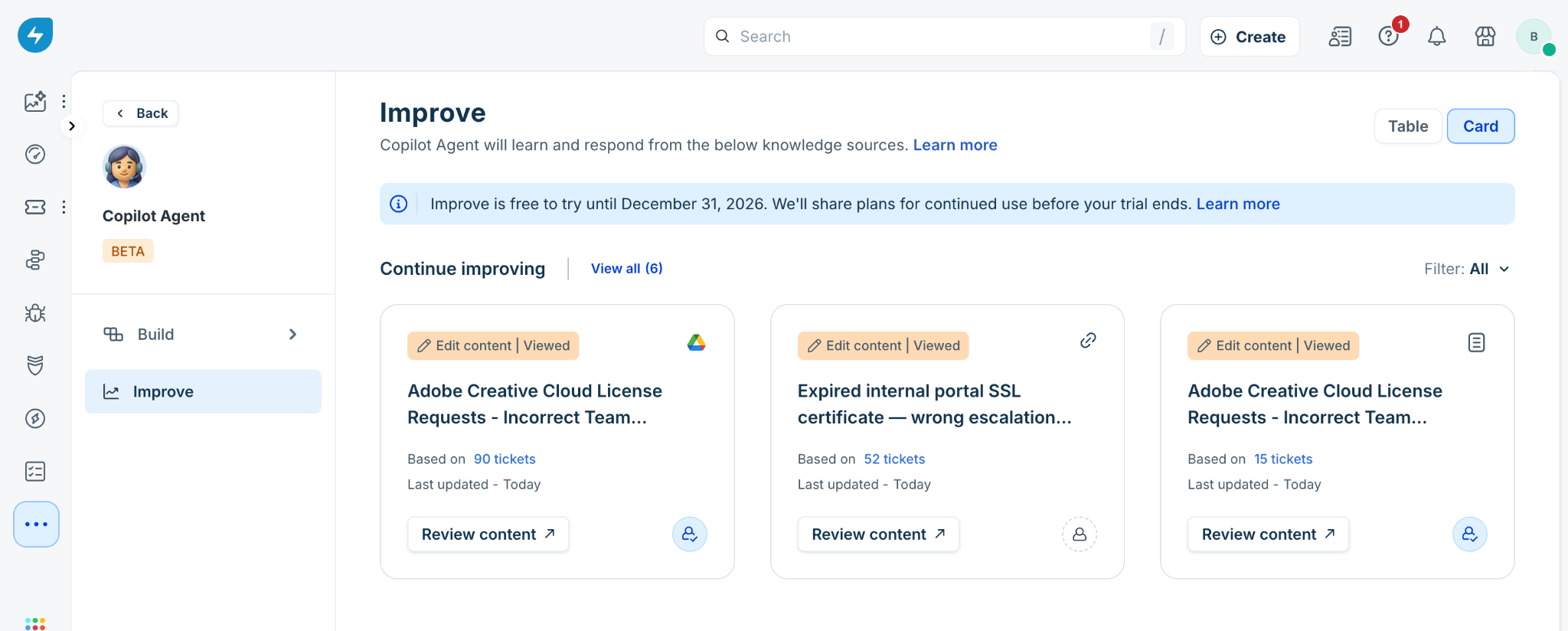
Use the view toggle to select Card or Table view.
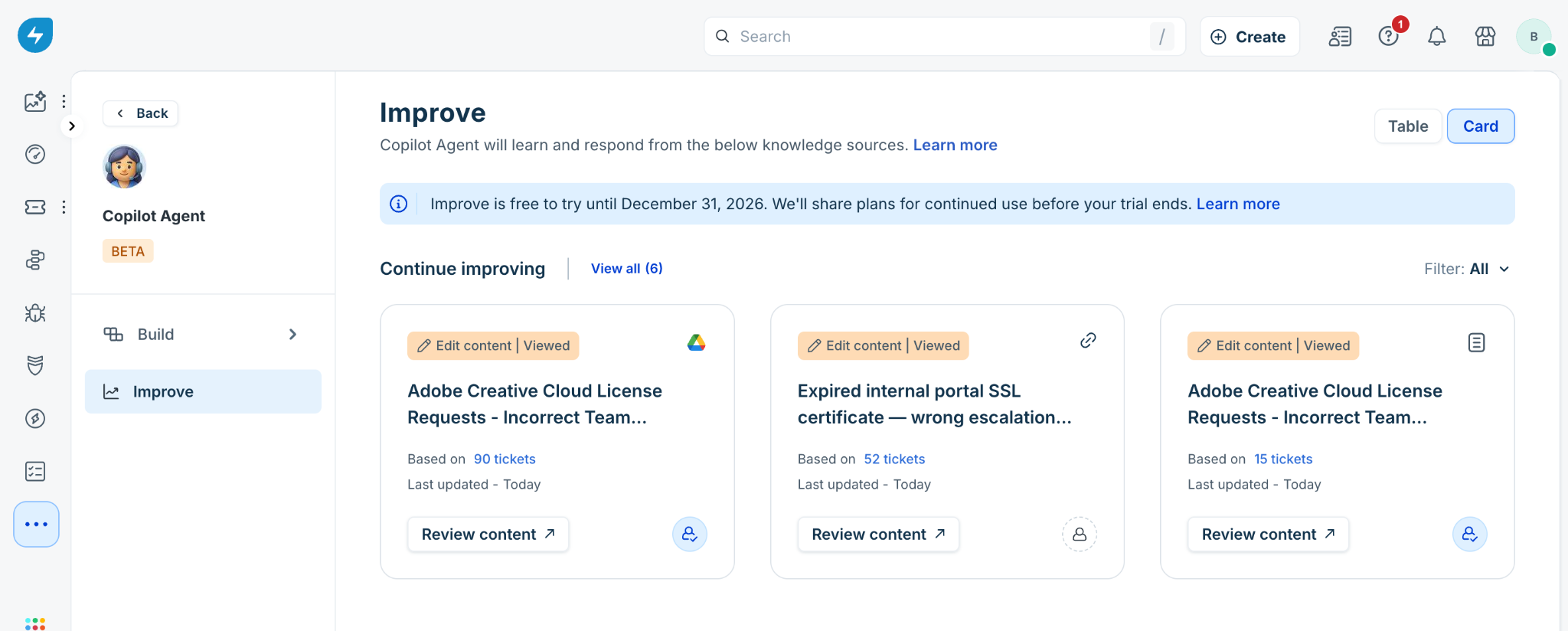
Under available insights, review the recommendations. Each recommendation displays:
A type tag indicating New content or Edit content.
A description of the identified knowledge gap.
An icon indicating the knowledge source where the article belongs or will be created, such as your Freshservice knowledge base, Google Drive, or another connected source.
The number of tickets on which the recommendation is based.
The date when the recommendation was last updated.
An icon indicating whether the recommendation is assigned to an agent.
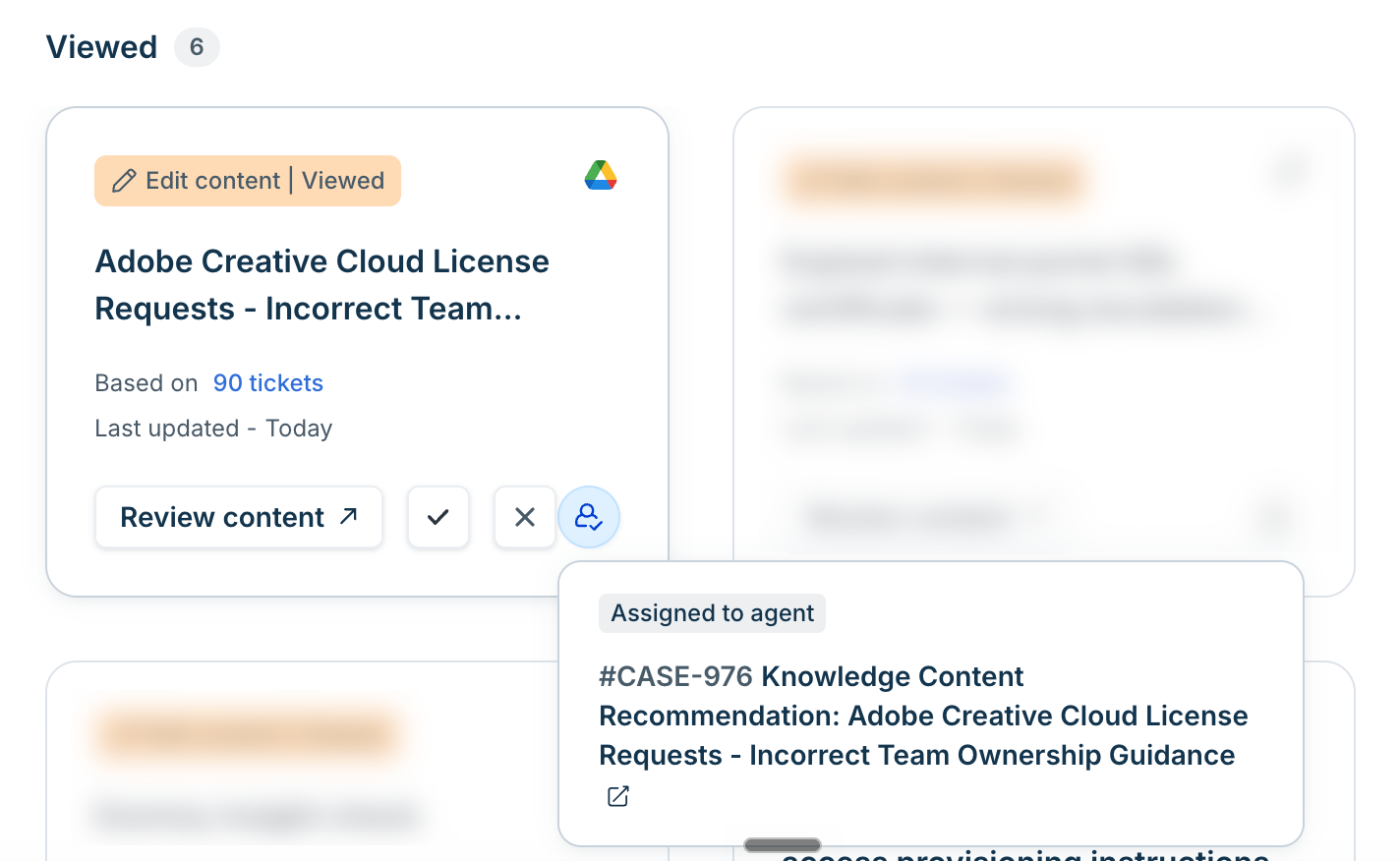
Use the Filter dropdown to filter recommendations by All, New content, Edit content, Viewed, Assigned, or Unassigned.
Note: If Improve has not generated any recommendations yet, it means tickets are still being analyzed. Recommendations appear when recurring patterns are identified.
Review a recommendation
Review a recommendation to understand the suggested content and the supporting tickets before you assign or act on it.
To review a recommendation, follow these steps:
Go to AI Agent Studio and select the required AI agent. Then, in the left navigation pane, click Improve. For Copilot Agent, click Configure, and then click Improve.
Locate the recommendation that you want to review, and click Review content.
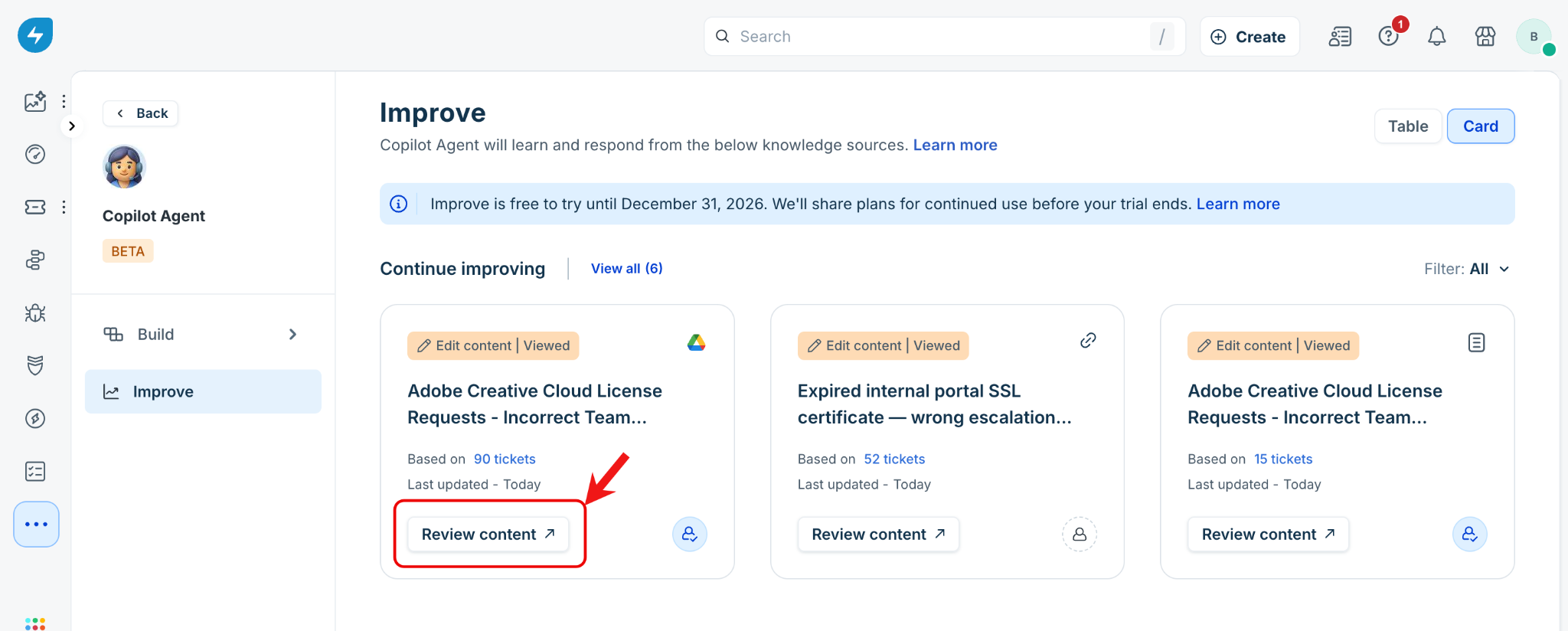
If the recommendation is for Edit content, review each suggested change:
Suggested additions are highlighted and marked with a checkmark.
Suggested removals are highlighted and marked with a minus icon.
Each change includes a Reasoning panel that explains why the change was suggested and links to the tickets that support it.
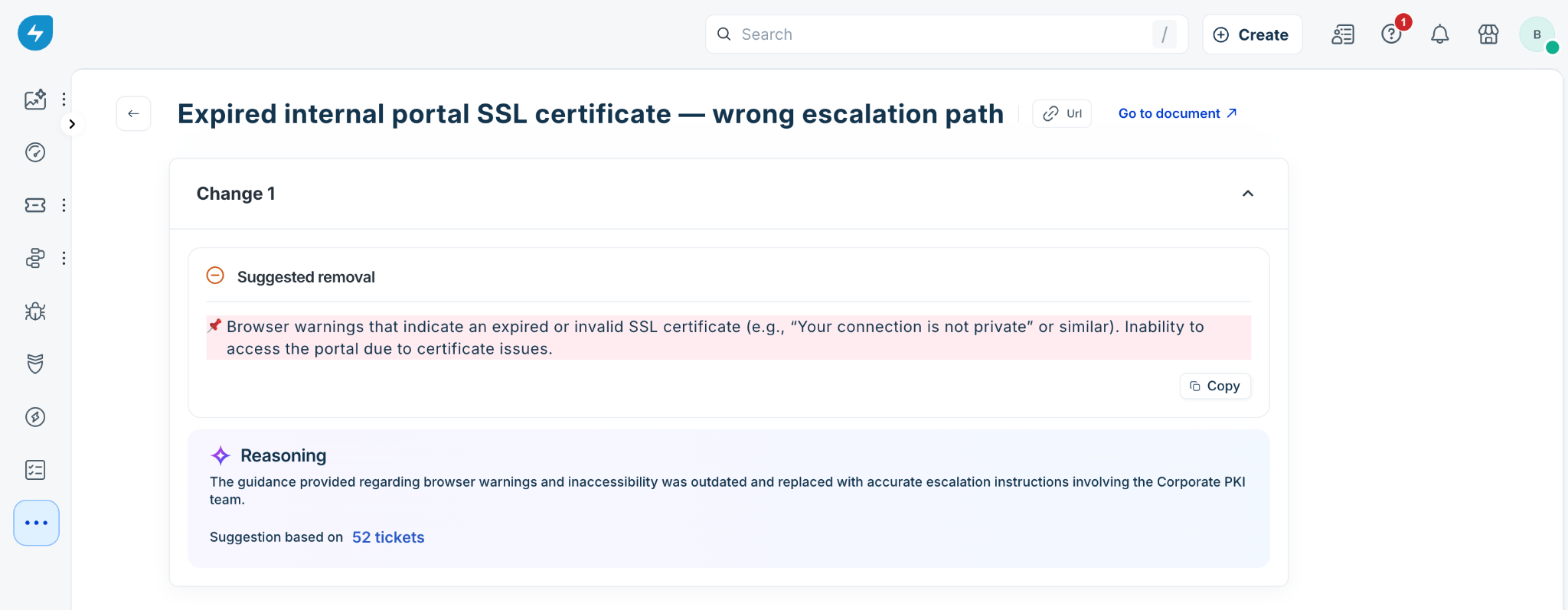
Click Copy to copy a suggested change, or click the ticket count link to view the source tickets.
Click Back to return to the list of recommendations.
View source tickets
You can review the tickets that support a recommendation to validate the identified knowledge gap.
To view the source tickets, click the Based on [N] tickets link on a recommendation or within a suggested change. The Sources page displays the ticket ID, subject, assigned agent, and status for each source ticket. Ticket statuses can include Resolved, Open, or Handed off.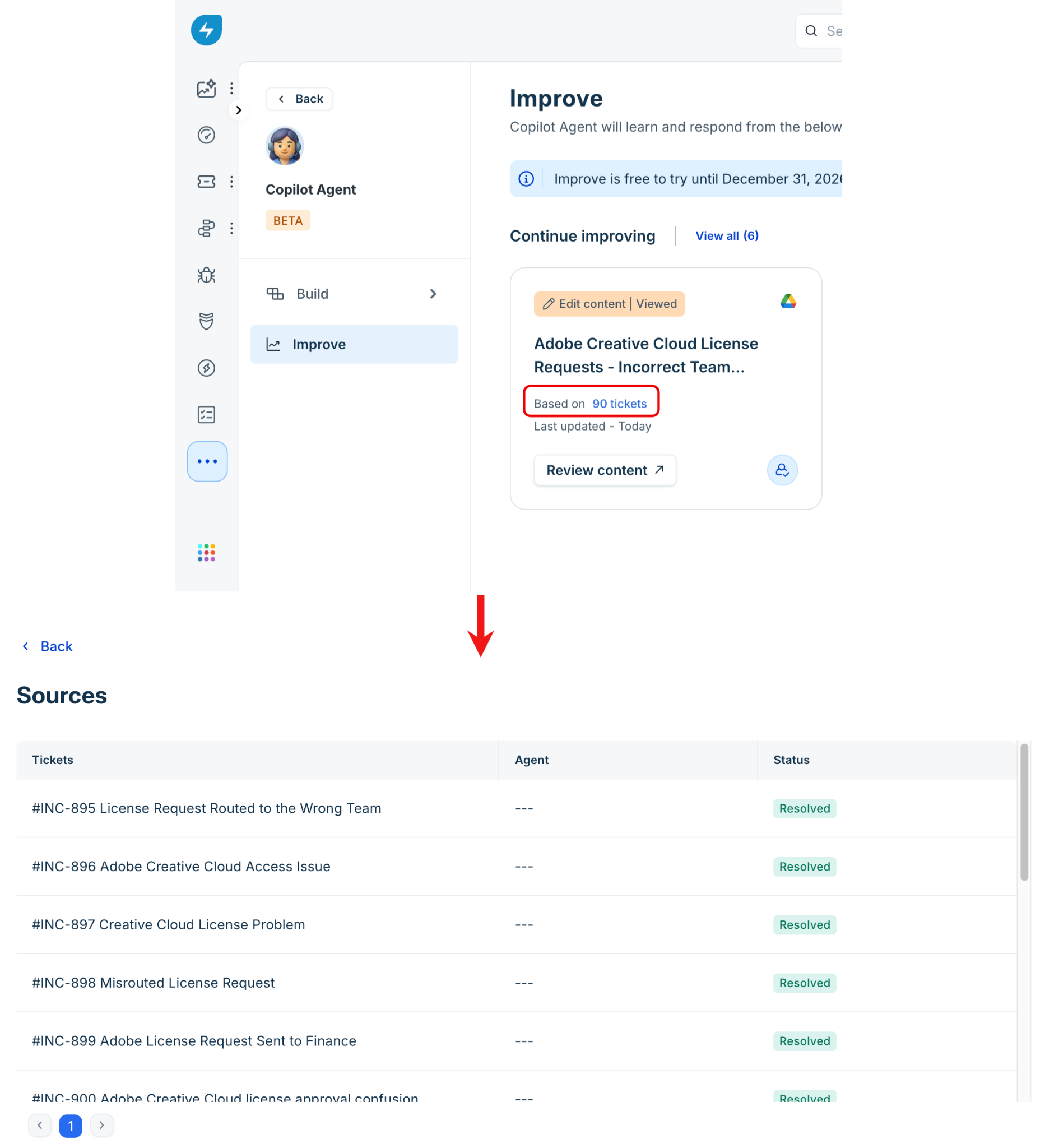
Assign a recommendation to an agent
You can assign a recommendation to an agent when you want the agent to validate the AI-generated content before creating or updating the article in your knowledge base. Assigning a recommendation creates a ticket for the agent to review and act on.
To assign a recommendation to an agent, follow these steps:
Go to AI Agent Studio and select the required AI agent. Then, in the left navigation pane, click Improve. For a Copilot agent, click Configure, and then click Improve.
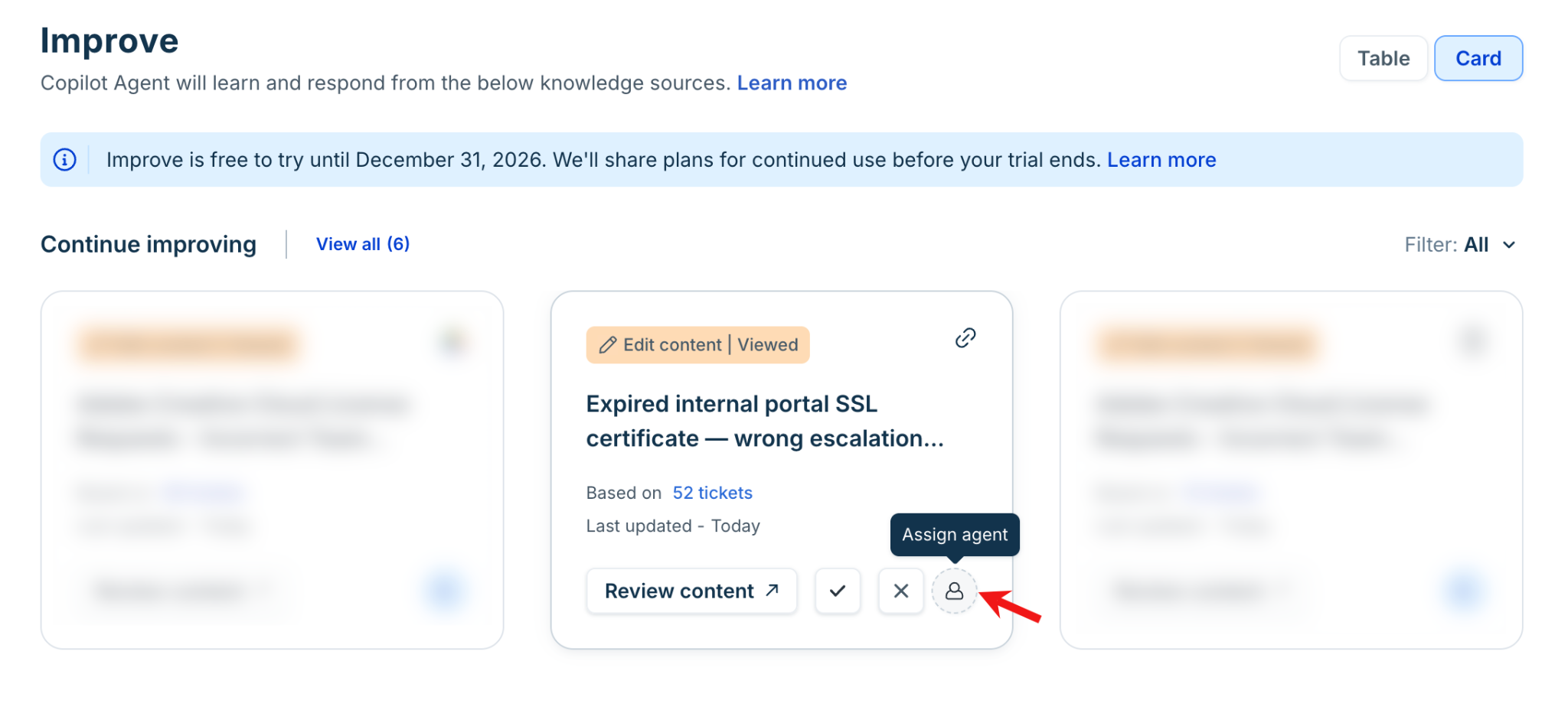
On the recommendation that you want to assign, click the Assign agent icon.
In the Assign Agent dialog, select the Workspace, Group, and Agent.
Review the pre-filled Description. It includes the AI-generated article or suggested edit and the tickets or conversations on which the recommendation is based.
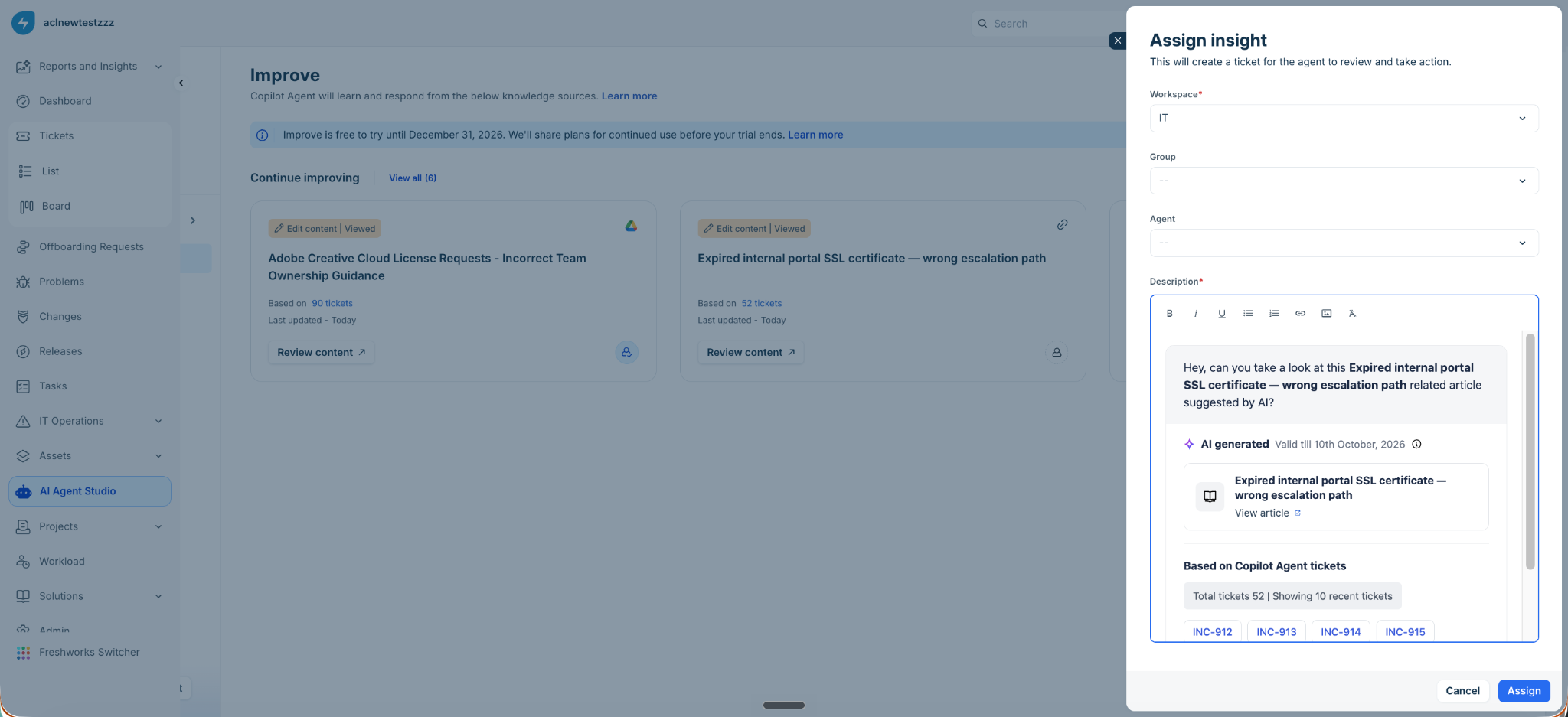
Click Assign.
After you assign the recommendation, it displays an assigned status. Hover over the status to view the ticket created for the agent and open the ticket.
Note: AI-generated content included in an assignment is valid only until its specified expiry date. The content is refreshed periodically, so review and act on assigned recommendations promptly.
Mark a recommendation as done or dismiss it
After you create or update an article based on a recommendation, you can mark the recommendation as done. If the recommendation is not relevant, you can dismiss it.
To mark a recommendation as done or dismiss it, follow these steps:
Go to AI Agent Studio and select the required AI agent. Then, in the left navigation pane, click Improve. For a Copilot agent, click Configure, and then click Improve.
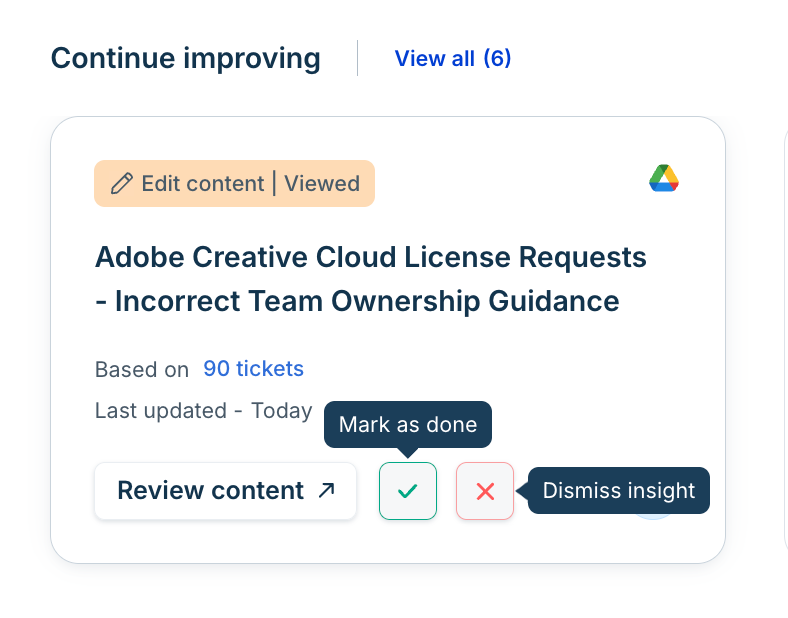
On the recommendation, do one of the following:
Click the Mark as done icon after you create or update the article.
Click the Dismiss insight icon if the recommendation is not relevant.
If you are dismissing the recommendation, select a reason:
Insight incorrect
Drafted content incorrect
Not relevant right now
Click Dismiss insight to confirm, or click Go back to cancel.
Review an assigned recommendation as an agent
When an admin or knowledge manager assigns a recommendation to you, you receive a ticket that contains the suggested article or edit. You can review the recommendation and update your knowledge base accordingly.
To review an assigned recommendation, follow these steps:
Open the ticket assigned to you. The description includes the AI-generated article or suggested edit and the tickets or conversations on which it is based.
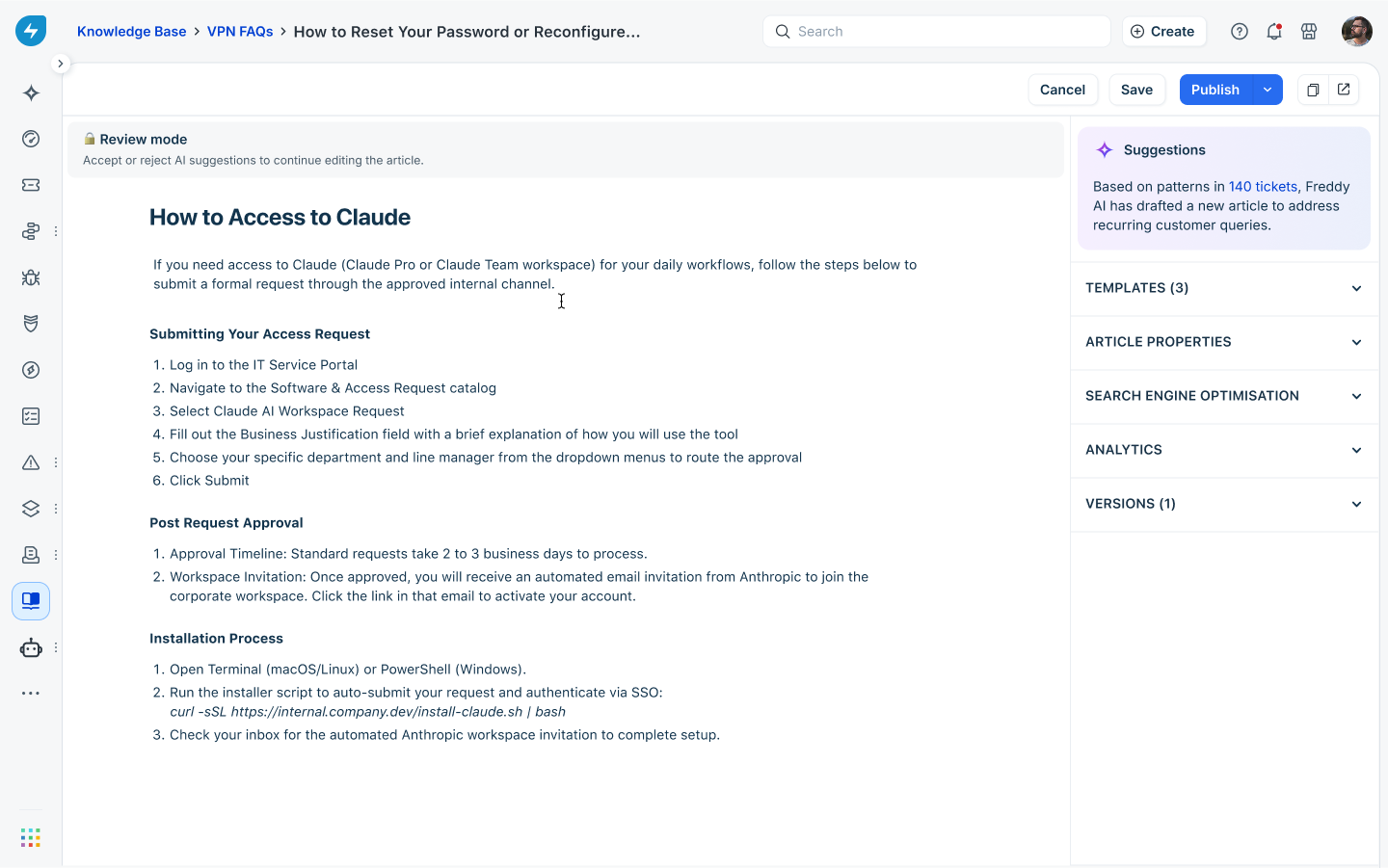
Click View article to open the suggested or existing article.
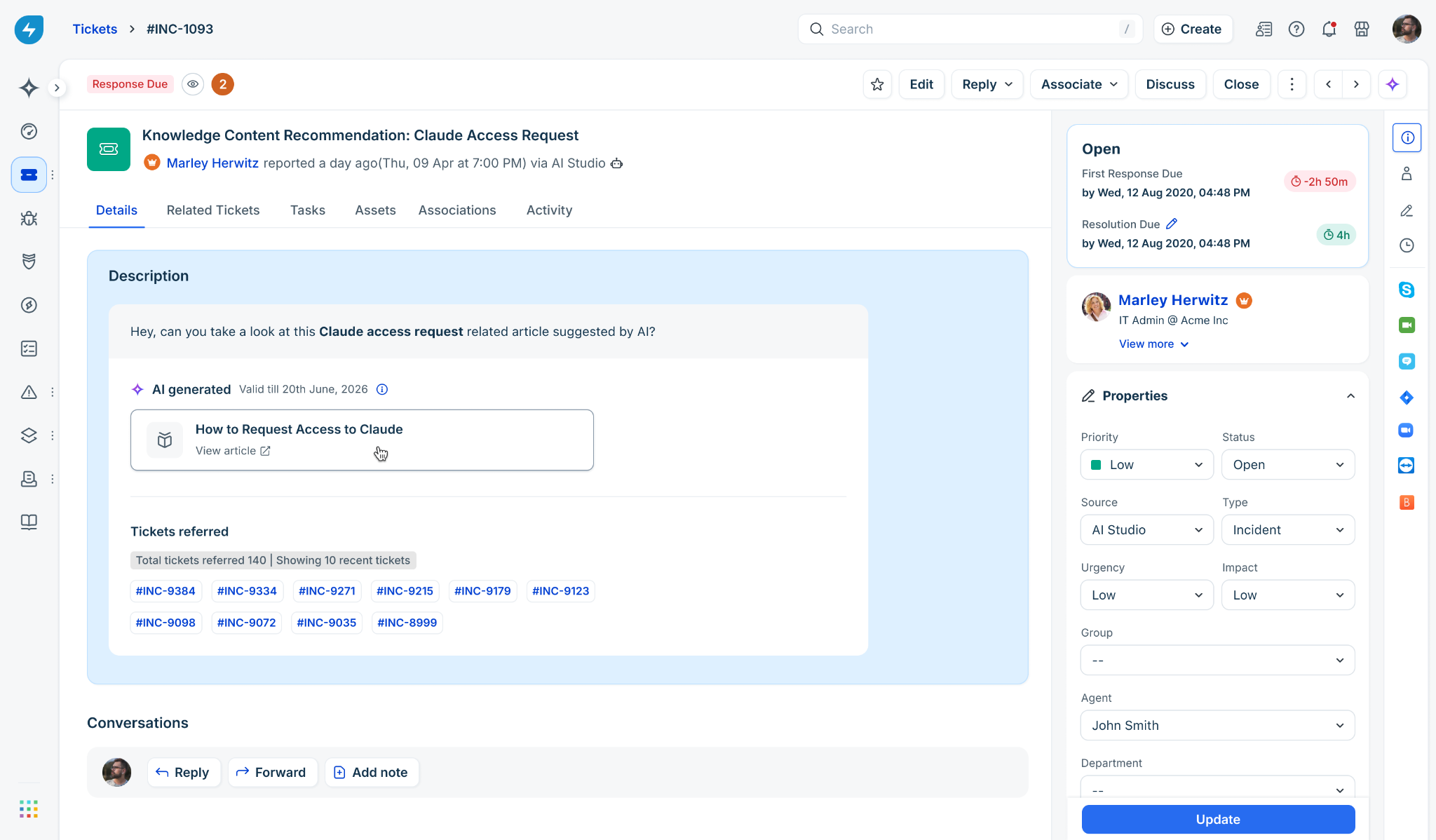
Validate the content, and create or update the article in your knowledge base as needed.
Close the ticket after you complete the review.
Recommendation availability
Improve generates recommendations once a month. Each set of recommendations expires when the next monthly cycle begins. It can take 2–3 days to generate the new recommendations.
For example, if Improve generates recommendations on August 28, those recommendations expire on September 28. The next set of recommendations is generated after the previous set expires and can take 2–3 days to become available. Therefore, if you check Improve on September 30, you might not see any recommendations because the previous recommendations have expired, and the new recommendations are still being generated.
Note: A temporary absence of recommendations does not mean that Improve has stopped working. If you do not see recommendations, check again after 2–3 days while the monthly analysis is in progress.