
 Community
 Video Library
 Agent Training
 Freshservice
 Freshdesk
 Freshchat
 Freshcaller
 Freshsales
 Freshteam
 Freshworks Neo
 Freshsurvey
 Freshservice for MSP
 TABLE OF CONTENTS
- Prerequisites
- Overview
- Reply Suggester context
- Generate reply suggestions
- Refine a reply suggestion
- Handle signatures and reply templates
- Give feedback on a suggestion
- Frequently asked questions
This article explains how to use Reply Suggester, a Freddy AI Copilot feature, to generate contextual replies for tickets. It covers how to generate and refine reply suggestions using Freddy AI Copilot and provide feedback on the suggestions.
Prerequisites
Before you use the Reply Suggester, ensure that you have the following:
An active Freddy Copilot license assigned to you
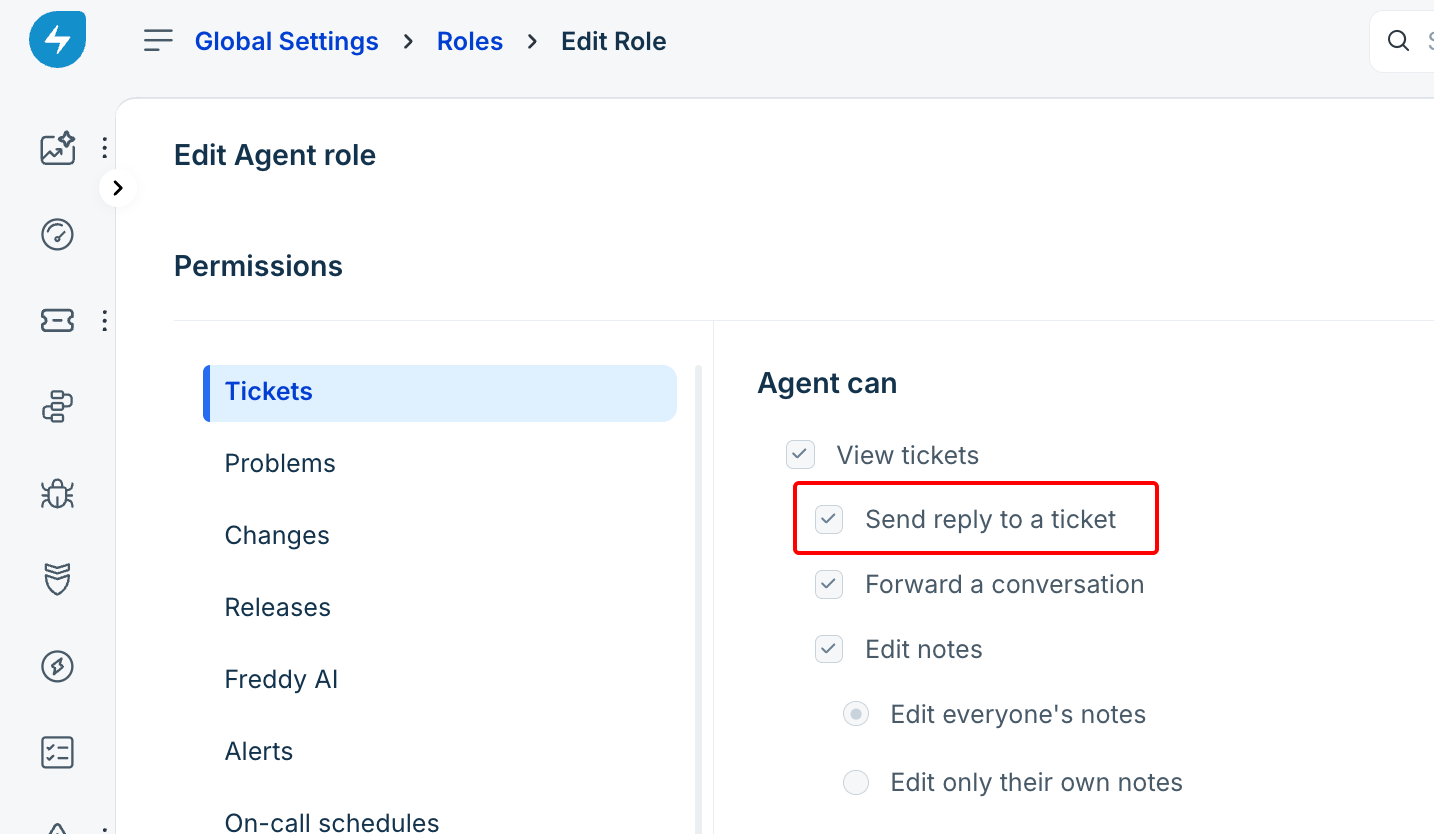
The Send reply to a ticket permission is granted to you under Global Settings > Roles > Agent Roles.
Reply Suggester enabled by an admin in AI Agent Studio.
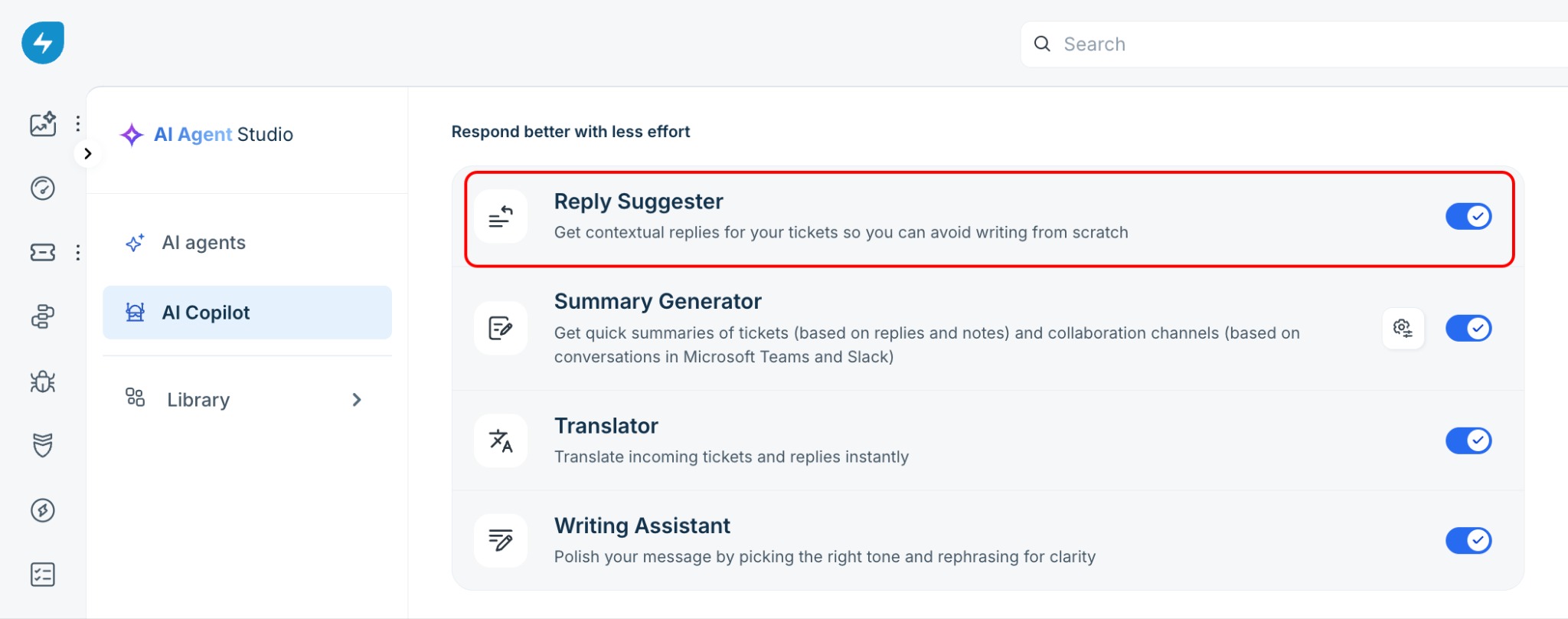
For information about enabling Freddy AI Copilot, see Configure Freddy AI Copilot features.
Overview
As an agent, you can use the Reply Suggester to respond to customer tickets faster without drafting every response from scratch. Freddy AI Copilot analyzes the ticket conversation and uses information from your organization's knowledge base, similar tickets, and resolution notes to generate relevant responses.
Use the Reply using AI button to automatically generate troubleshooting steps and tailored responses for common scenarios. Insert smart reply uses Freddy AI to understand the user's intent and the context of the ongoing conversation, including multi-turn exchanges, and generate a relevant reply suggestion. This helps you respond appropriately as the conversation progresses without manually reviewing the entire thread or determining the response type yourself.
After generating a response, you can use Refine for quick changes or use Edit with Copilot to refine the entire response or make targeted changes to selected text through the Freddy AI Copilot side panel. This gives you more control over how you adjust the suggested reply.
Reply Suggester context
Reply Suggester does not rely only on the latest message from the requester. It analyzes the available ticket context before generating a reply, including:
Ticket subject and description.
Messages exchanged between the requester and agents.
Public and private notes added to the ticket.
Important: Private notes are used only to understand the ticket context. Reply Suggester does not include internal-only information or conversations from private notes in the suggested reply to the requester.
Generate reply suggestions
Reply Suggester proactively analyzes the ticket context and generates a relevant reply suggestion for an agent assigned to the ticket when the agent has a Freddy AI Copilot license and the Send reply to a ticket permission. An agent with a Freddy AI Copilot license who is not assigned to the ticket can use Insert smart reply to generate a reply suggestion or wait for the reply suggestion to become available after their access control settings (ACLs) are updated.
The suggestion considers the conversation history, including multi-turn replies. You can let Freddy AI determine the appropriate response or select a specific reply type for the scenario. When a suggestion is available, it appears as faded text in the reply editor.
To generate a reply suggestion, follow these steps:
Open the ticket that requires a response.
In the reply editor, click Reply using AI. Reply Suggester proactively analyzes the ticket conversation and displays a suggested response in the reply editor as fad ed text for agents with active Freddy Copilot licence.
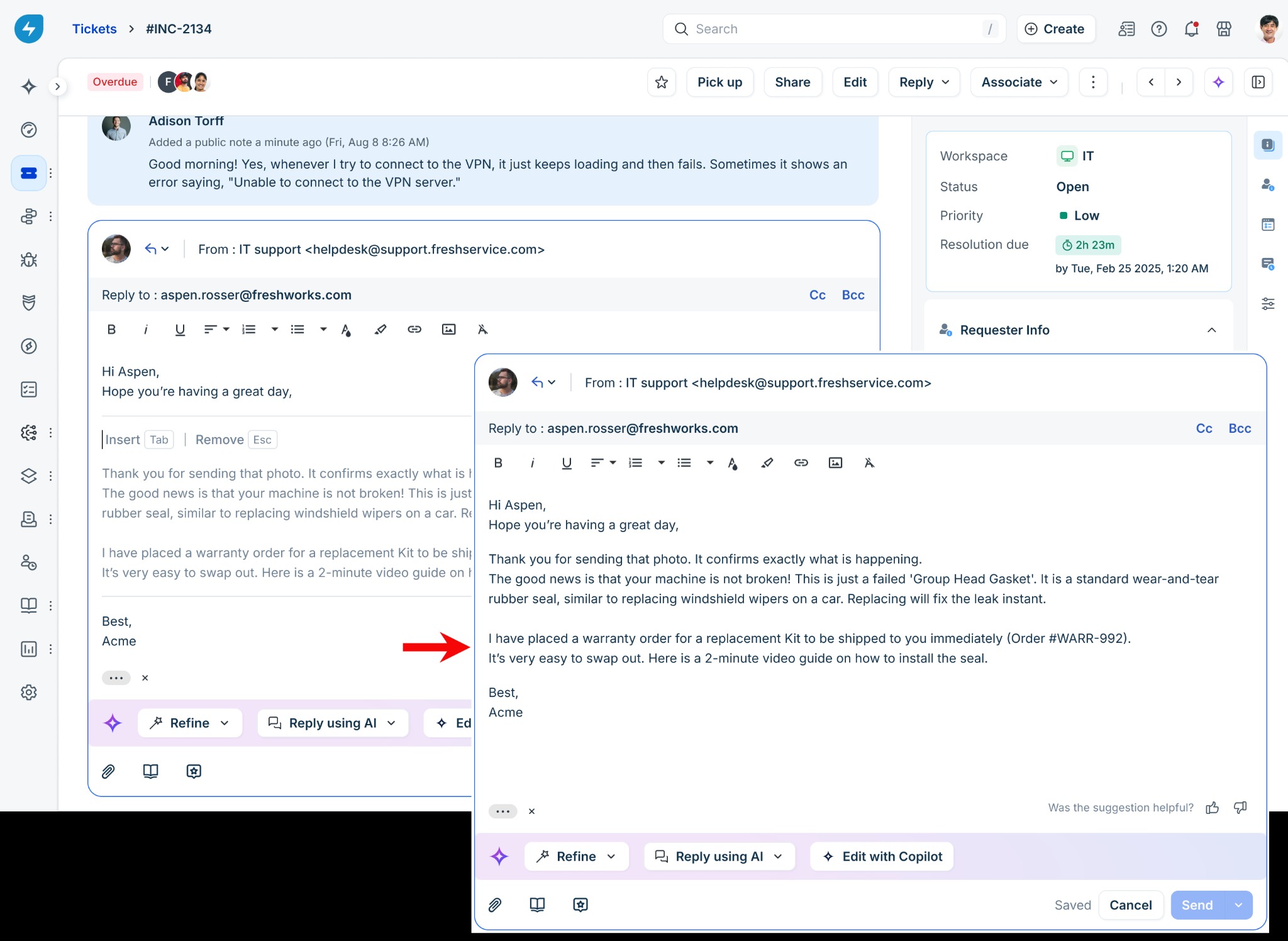
To use the suggested response, click it or press Tab. To dismiss it, press Esc or start typing your response.
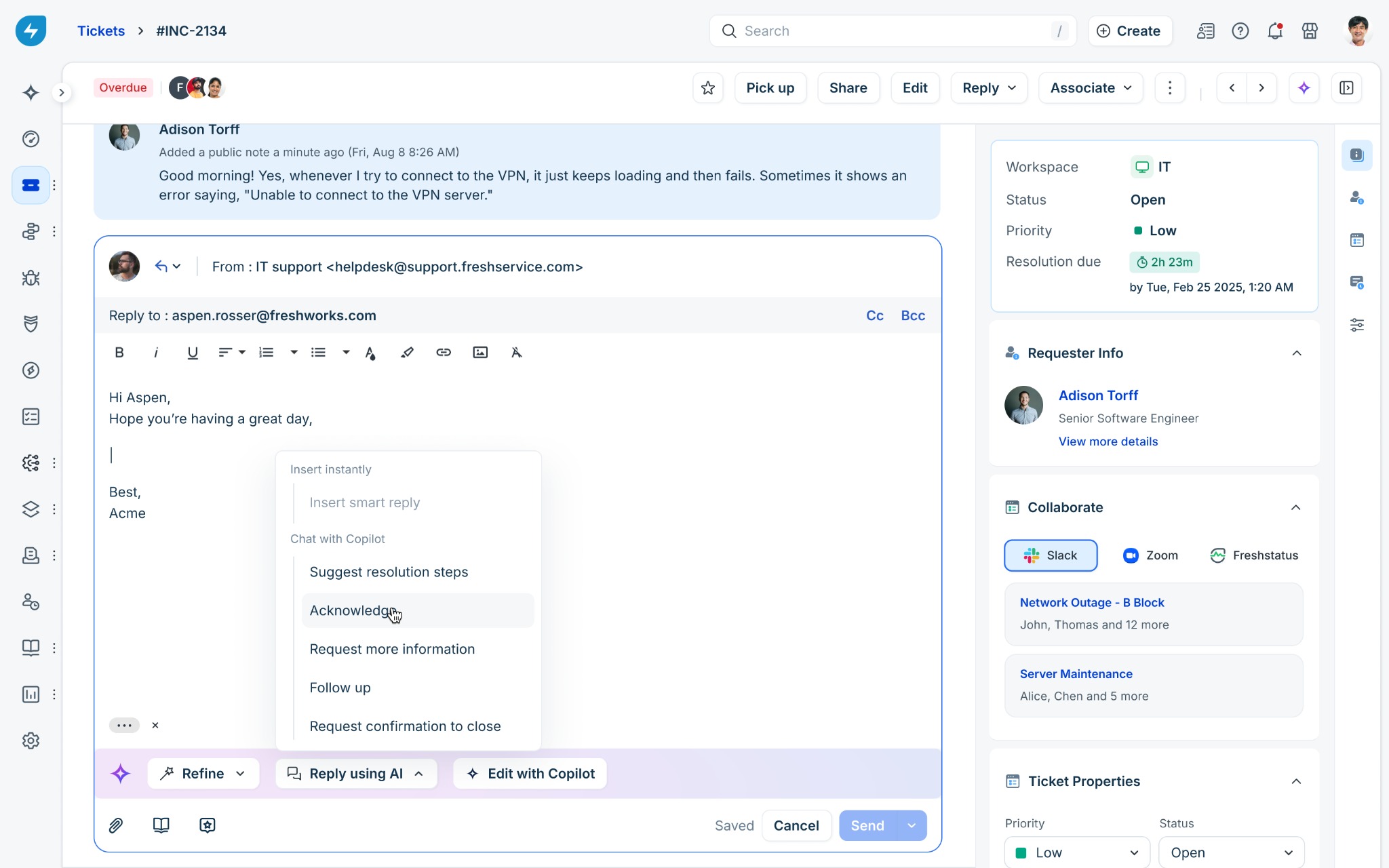
If you want to generate a specific type of response, click Reply using AI and select one of the available options:
Under Chat with Copilot, select one of the following options:
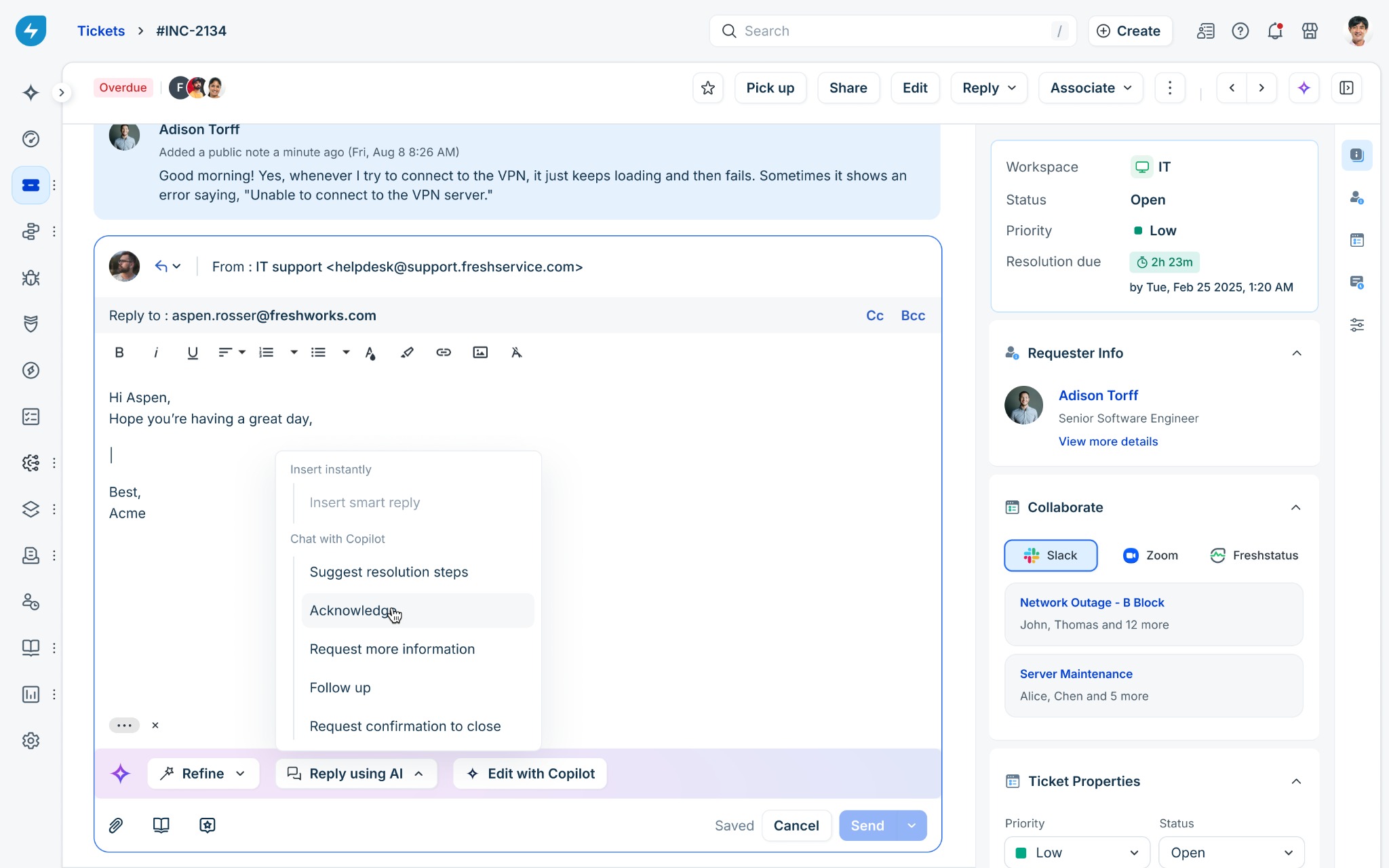
Suggest resolution steps: Generates troubleshooting or resolution steps based on the ticket context and available information.
Acknowledge: Generates a response acknowledging the customer's request or issue.
Request more information: Generates a response asking the customer for additional information.
Follow up: Generates a response to follow up with the customer.
Request confirmation to close: Generates a response asking the customer to confirm before you close the ticket.
Edit the response as required and click Send.
Edit a reply with Copilot
Use Edit with Copilot to refine a suggested reply conversationally before adding it to the reply editor. The Freddy AI Copilot side panel lets you describe how you want to change the response, such as rephrasing it, changing its tone, simplifying the language, or adding more detail.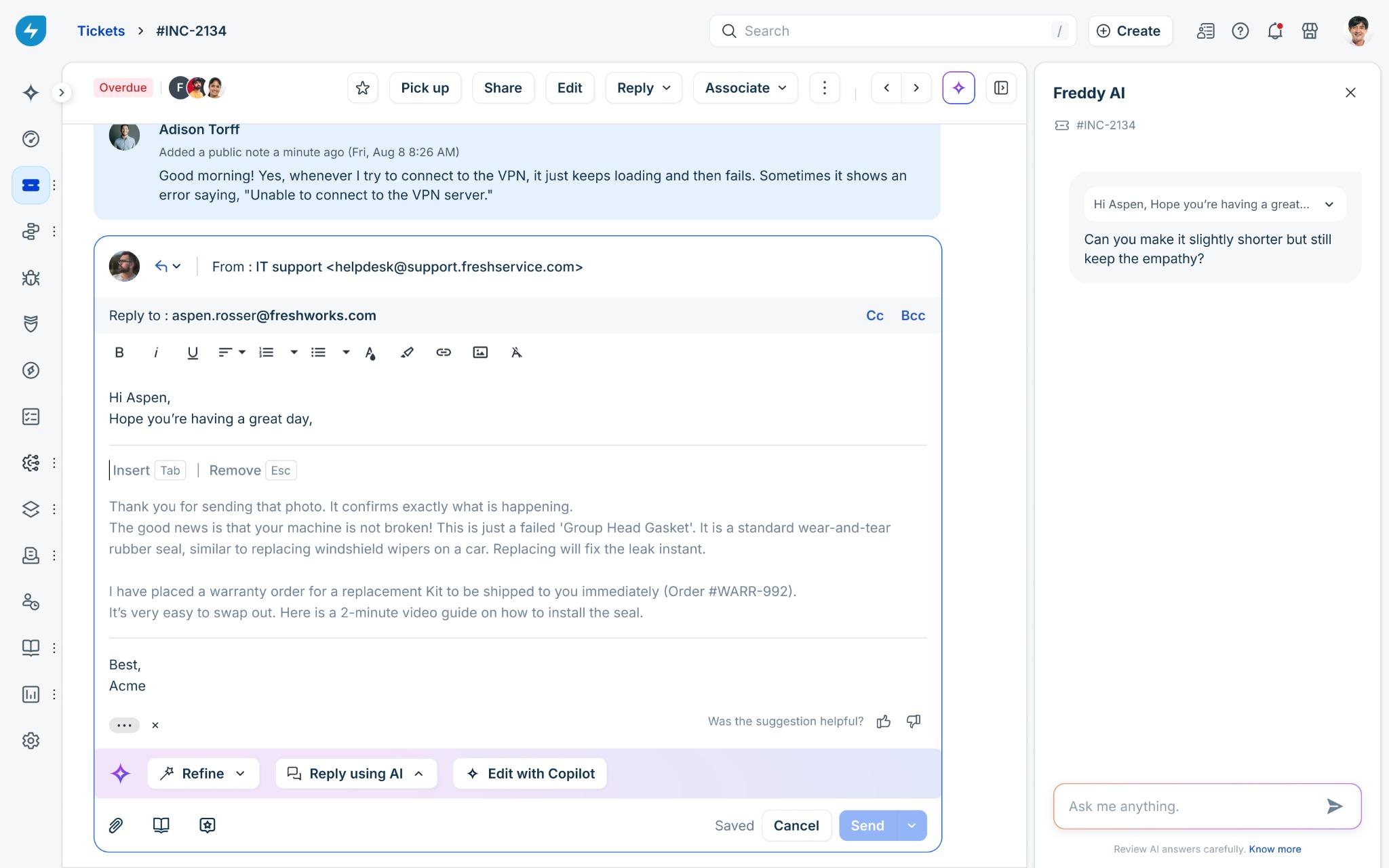
To edit a suggested reply with Freddy AI Copilot, follow these steps:
After reviewing the suggested reply displayed in the reply editor, click Edit with Copilot.
In the Freddy AI Copilot side panel, enter an instruction describing how you want to change the response. For example, “Can you make it slightly shorter while still keeping the empathy?”
Review the revised response.
Click + Add to reply to insert the revised response into the reply editor.
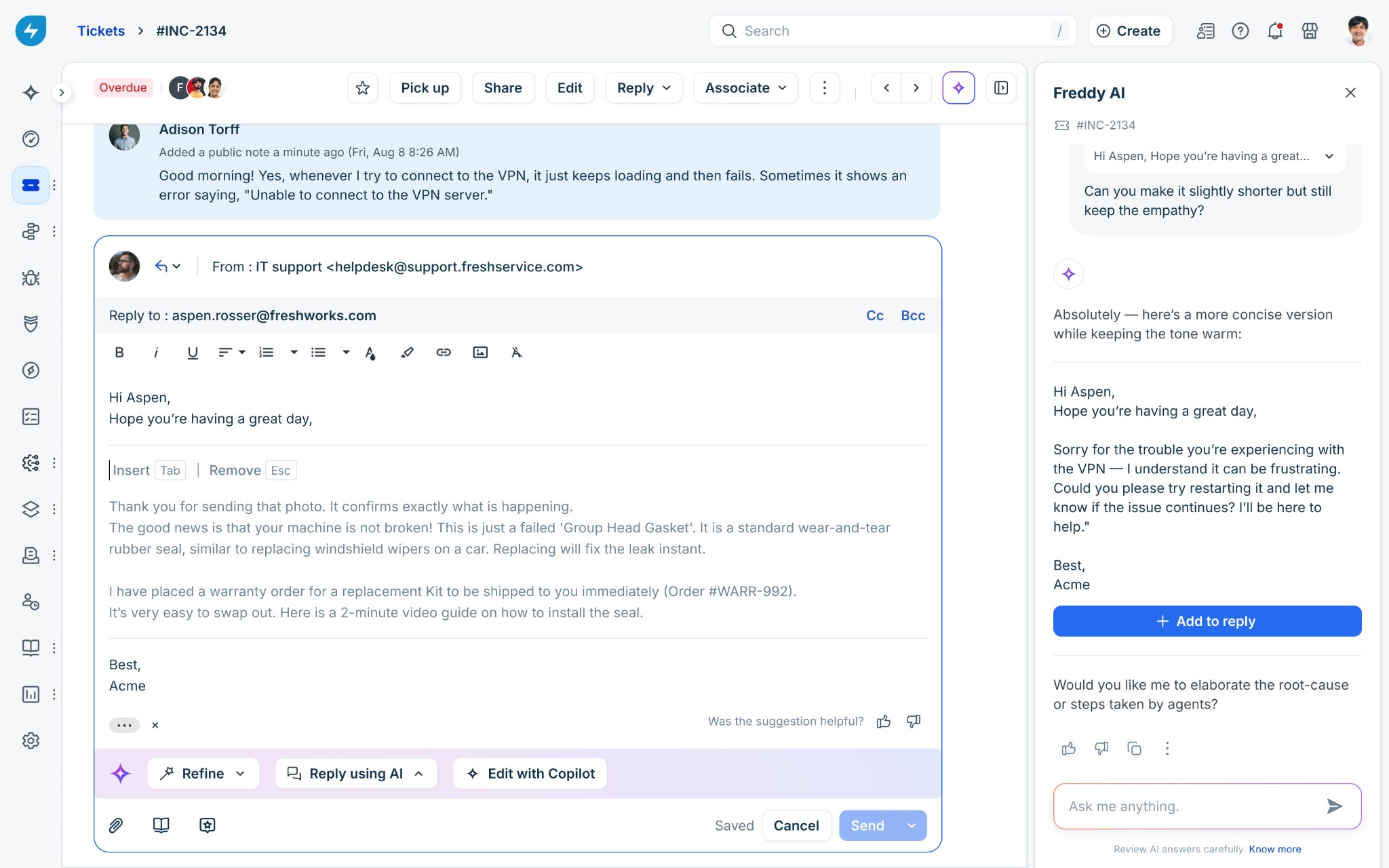
Edit the response as required and click Send.
You can also refine a specific part of an inserted reply. Select the text that you want to change, click Edit with Copilot, and describe the change in the Freddy AI Copilot side panel. Click +Add to reply to replace the selected text with the revised text while keeping the rest of the reply unchanged.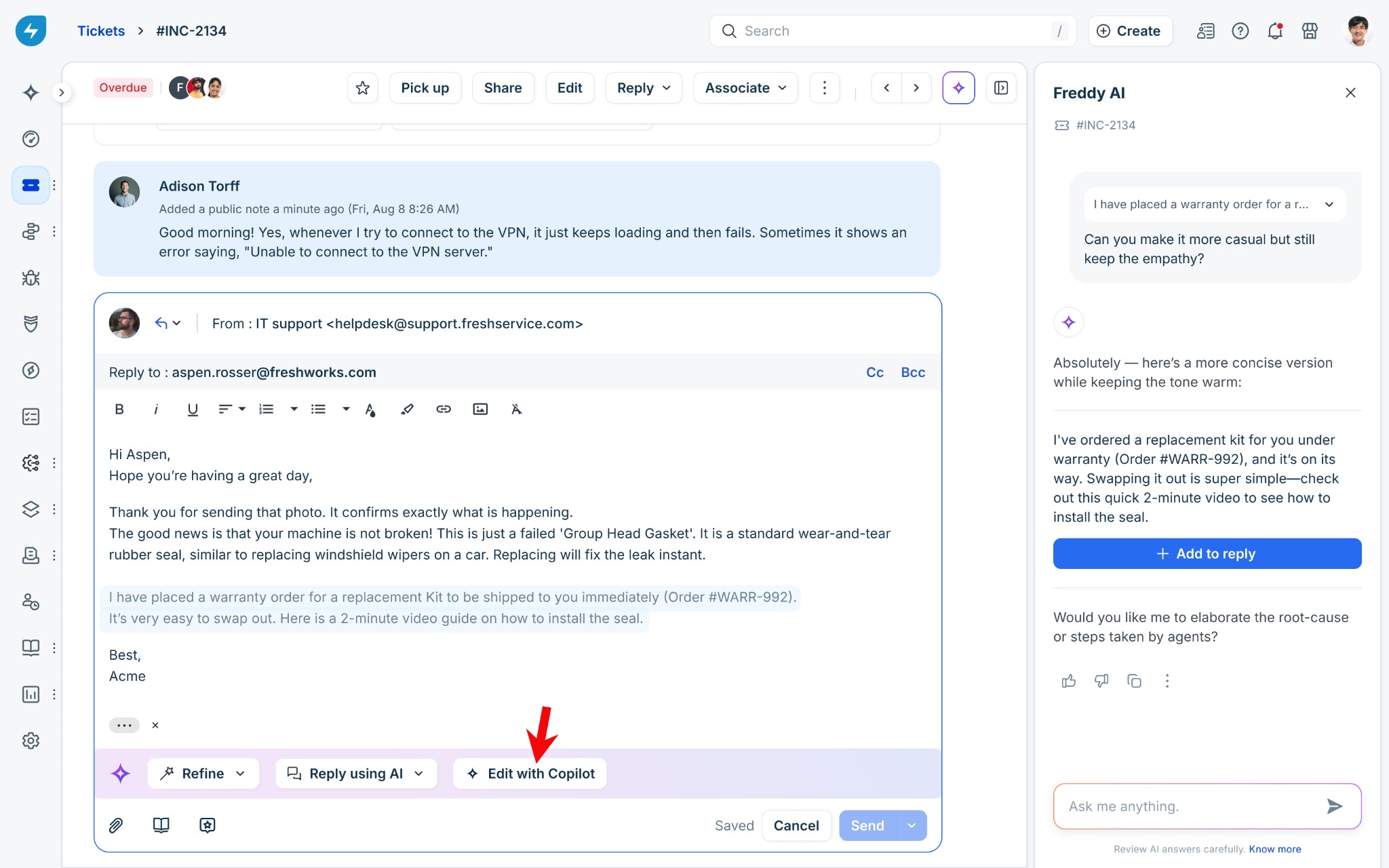
Get AI assistance while drafting a reply manually
If you have already started drafting a reply on your own and need assistance from Freddy AI Copilot, you can invoke Reply using AI directly from the reply editor without leaving the ticket or restarting your draft. To do so, follow these steps:
Place the cursor on a new line where you want Freddy AI Copilot to generate a response.
When the Reply using AI prompt appears, click it or press Tab.
From the list of available options, choose the one that best meets your requirements.
Review the generated response and edit it as required.
Click Send.
Refine a reply suggestion
Refine a generated reply to adjust its wording, length, or tone. You can refine the entire reply or select a specific section to modify.
For more control, use the Freddy AI Copilot side panel to describe the desired changes in your own words. Ask AI Copilot to rephrase the reply, make it more concise or detailed, or adjust its tone.
For quick, predefined changes, use the dedicated Refine button. To do so, follow these steps:
In the reply editor, select the response or the text that you want to refine.
Click Refine.
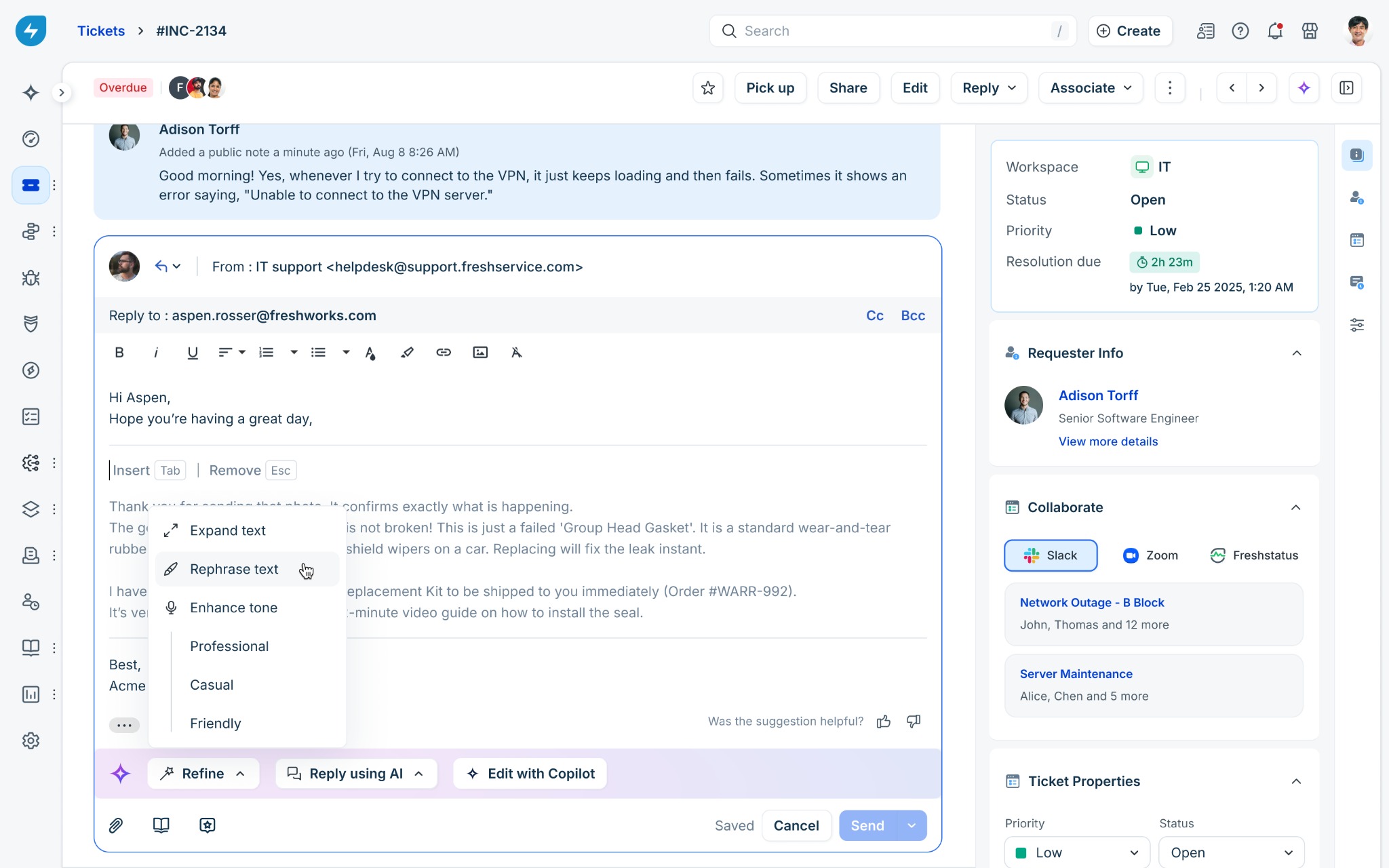
Choose one of the following options:
Expand text: Adds more detail to the selected text or response.
Rephrase text: Rewrites the selected text or response using different wording.
Enhance tone: Changes the tone of the selected text or response. You can choose Professional, Casual, or Friendly.
Review the updated response.
Edit the response as required and click Send.
Each refine action has a corresponding keyboard shortcut. To view the complete list of Freddy AI refine action shortcuts for Windows and Mac, see Keyboard shortcuts in Freshservice.
Handle signatures and reply templates
Reply Suggester adapts the generated response to your configured signature or reply template.
If you have a signature configured in your profile settings, Reply Suggester generates only the reply body and retains your configured signature.
If you have an Agent Reply Template configured under Email Notifications, Reply Suggester generates only the body content and maintains the template's existing structure, including the header, branding, footer, and closing. The suggested response is inserted at the cursor position defined in the template.
If you use a signature app from the Marketplace, Reply Suggester generates the reply body while the app manages your signature.
The generated response can also include citations to relevant solution articles used to ground the suggestion. You can review these citations in the Freddy AI Copilot side panel before inserting the response.
Give feedback on a suggestion
Your feedback helps us identify areas for improvement and prioritize enhancements to Reply Suggester. Note that it does not change a response that has already been inserted or sent.
To provide feedback on a generated response, follow these steps:
Click the thumbs-up icon if the suggestion was helpful, or click the thumbs-down icon if it was not.
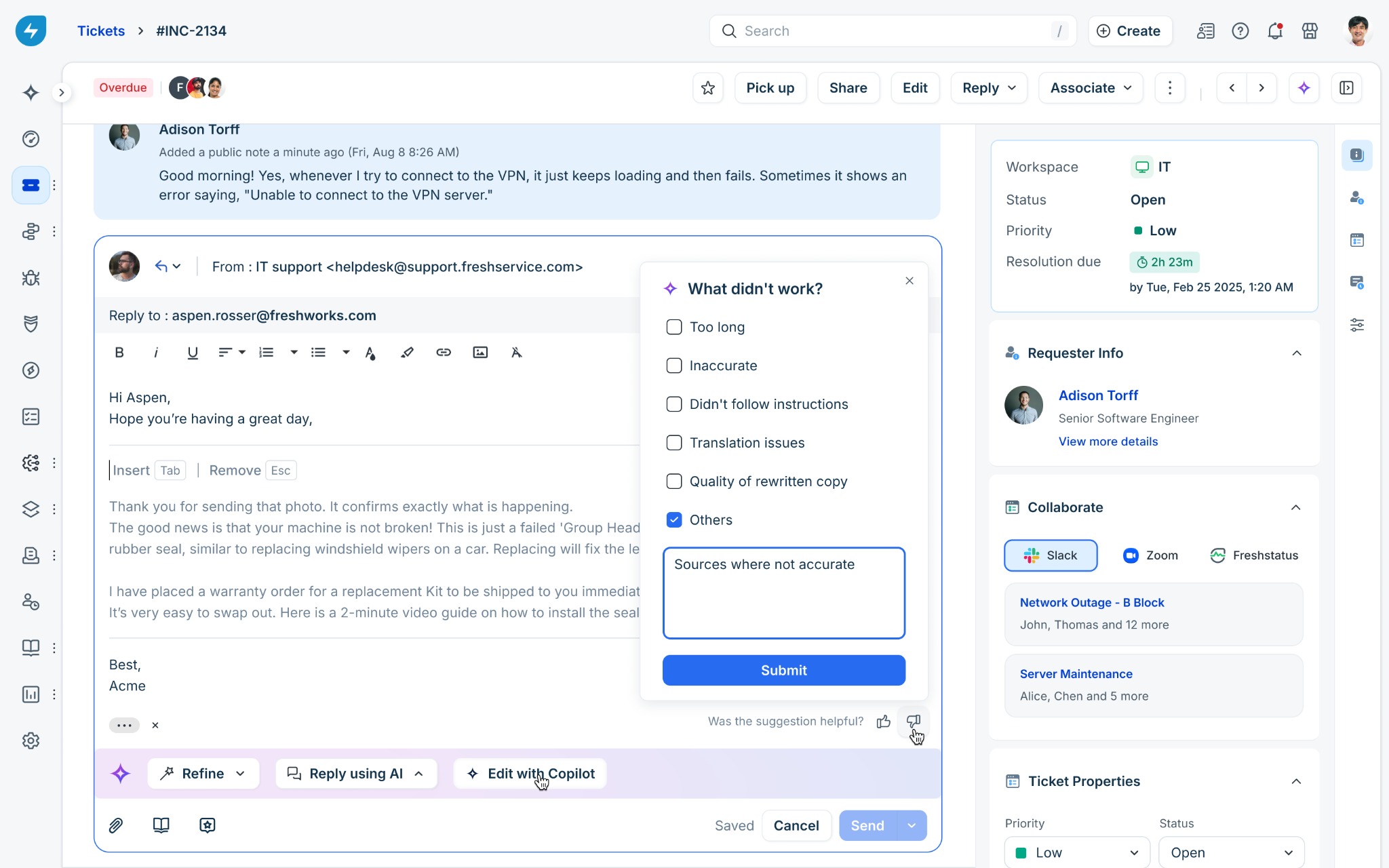
If you click thumbs-down, select the reason that best describes the issue:
Too long
Inaccurate
Didn't follow instructions
Translation issues
Quality of rewritten copy
Others
If required, enter additional details.
Click Submit.
Frequently asked questions
The following frequently asked questions provide additional information about using Reply Suggester and handling common scenarios.
1. Why is Insert smart reply unavailable?
Insert smart reply is unavailable when Reply Suggester cannot generate a suitable response with sufficient confidence. Ensure that you have an active Freddy AI Copilot license, the required reply_ticket permission, and that Freddy AI Copilot is enabled for your account. Also, ensure that the ticket is not resolved, closed, marked as spam, archived, or deleted.
2. How can I get a reply that reflects the latest conversation?
The Reply Suggester uses the latest available ticket context when generating a suggestion. If the conversation has changed, generate a new suggestion so that Freddy AI can use the updated context.
3. How can I change only part of a generated response?
Select the text that you want to change and click Edit with Copilot. Use the Freddy AI Copilot side panel to describe the change you want to make. This lets you modify the selected text without changing the rest of the response.
4. How can I quickly change the wording or tone of a response?
Click Refine and choose Expand text, Rephrase text, or Enhance tone. You can also select Professional, Casual, or Friendly when you use Enhance tone.
5. Does Reply Suggester use information from merged tickets?
Yes. The Reply Suggester can use relevant context from merged tickets when generating a suggestion.