
 Community
 Video Library
 Agent Training
 Freshservice
 Freshdesk
 Freshchat
 Freshcaller
 Freshsales
 Freshteam
 Freshworks Neo
 Freshsurvey
 Freshservice for MSP
 TABLE OF CONTENTS
- Prerequisites
- Overview
- Create an employee journey using a prompt
- Refine a journey draft using follow-up prompts
- Tips for writing effective prompts
- Limitations
Freshservice now lets you create and configure employee journeys conversationally using Freddy AI. Instead of manually configuring initiator forms, phases, activities, and stakeholders, describe the workflow you want in natural language. Freddy AI generates an editable journey draft that you can review, refine, and publish.
Prerequisites
Ensure that the following prerequisites are met:
You have administrator privileges.
The Journeys feature is enabled for your account (available on the Pro and Enterprise plans).
A Freddy AI Copilot license is assigned to your account.
Agent groups, requester groups, and workspaces are already configured. Freddy AI uses this information to map stakeholders and assign activities.
Overview
Freddy AI uses your prompt to generate a structured journey draft. It uses your account data, such as existing agent groups, requester groups, and published journeys, to map journey components automatically. This helps you create journeys faster and reduces manual configuration.
After you describe the journey that you want to create, Freddy AI analyzes your prompt and performs the following actions:
Identifies the required phases, activities, stakeholders, trigger conditions, and initiator form fields.
Maps generic references, such as IT Team, to matching groups in your Freshservice account.
Generates an editable journey draft and summarizes any assumptions that it makes.
Lets you refine the draft by using follow-up prompts or manual edits.
Create an employee journey using a prompt
To create an employee journey using Freddy AI, follow these steps:
Go to Admin > Global Settings > Journeys.
Click Create journey.
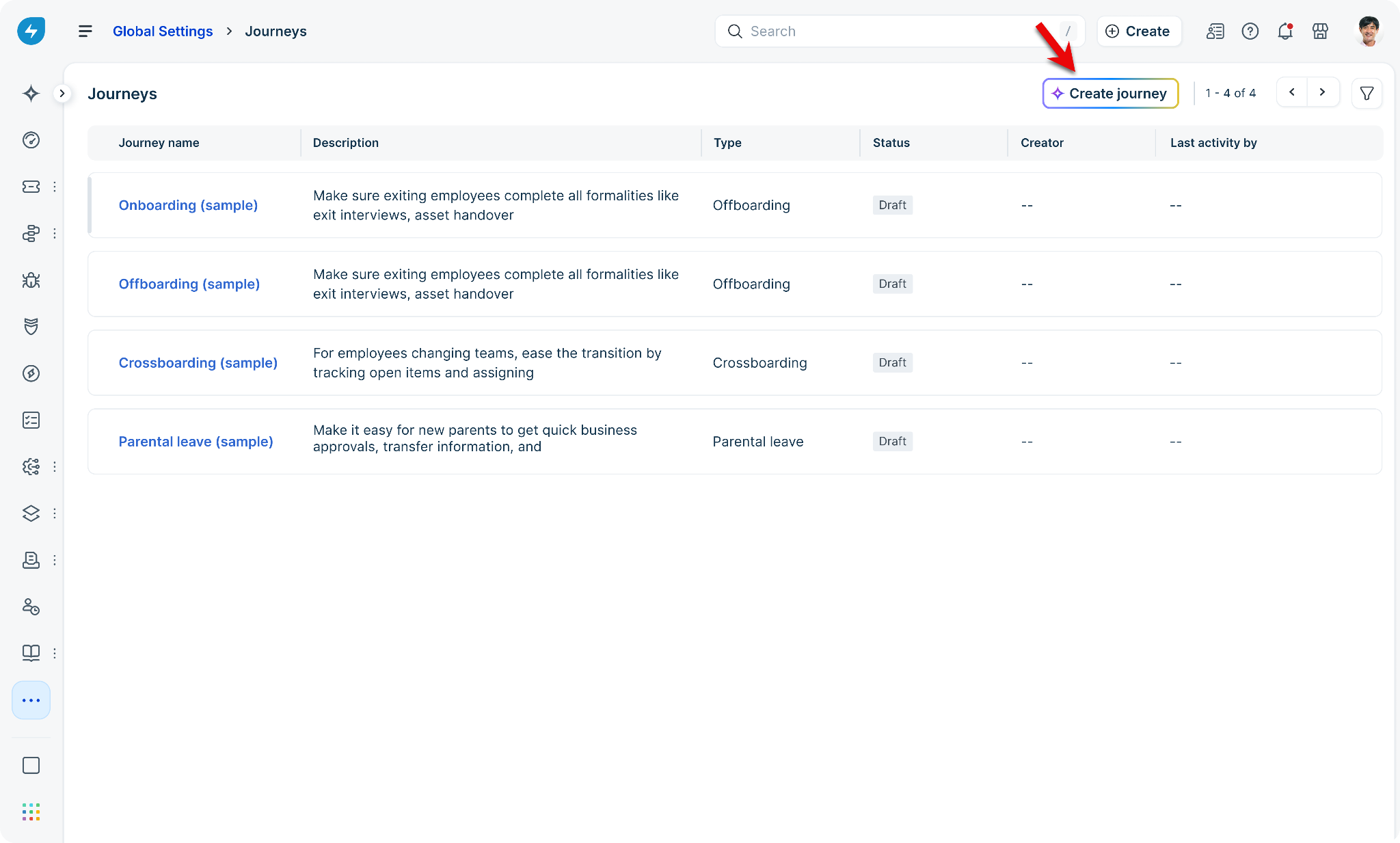
On the Create journey page, describe the journey you want to create. Include details such as the journey type, phases, stakeholders, approvals, and any specific requirements.
For example, create an onboarding journey for new employees that includes pre-joining activities, welcome tasks, first-day preparation, and a one-month check-in.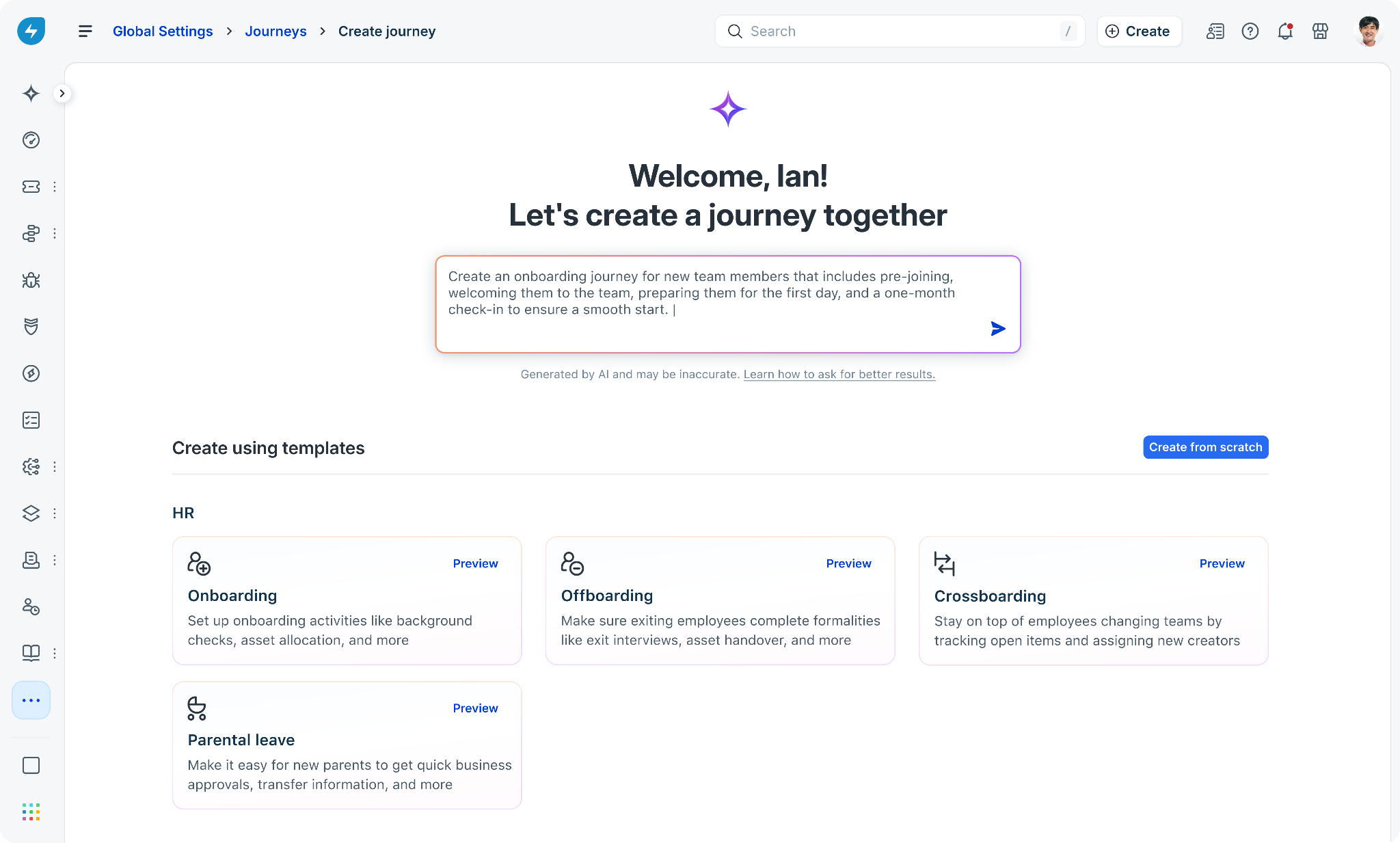
Click Send or press Enter. Freddy AI analyzes your prompt and begins generating the journey draft.
Review the generated draft in the Freddy AI panel. While generating the draft, Freddy AI displays its progress, including tasks such as assigning an agent group and creating the initiator form.
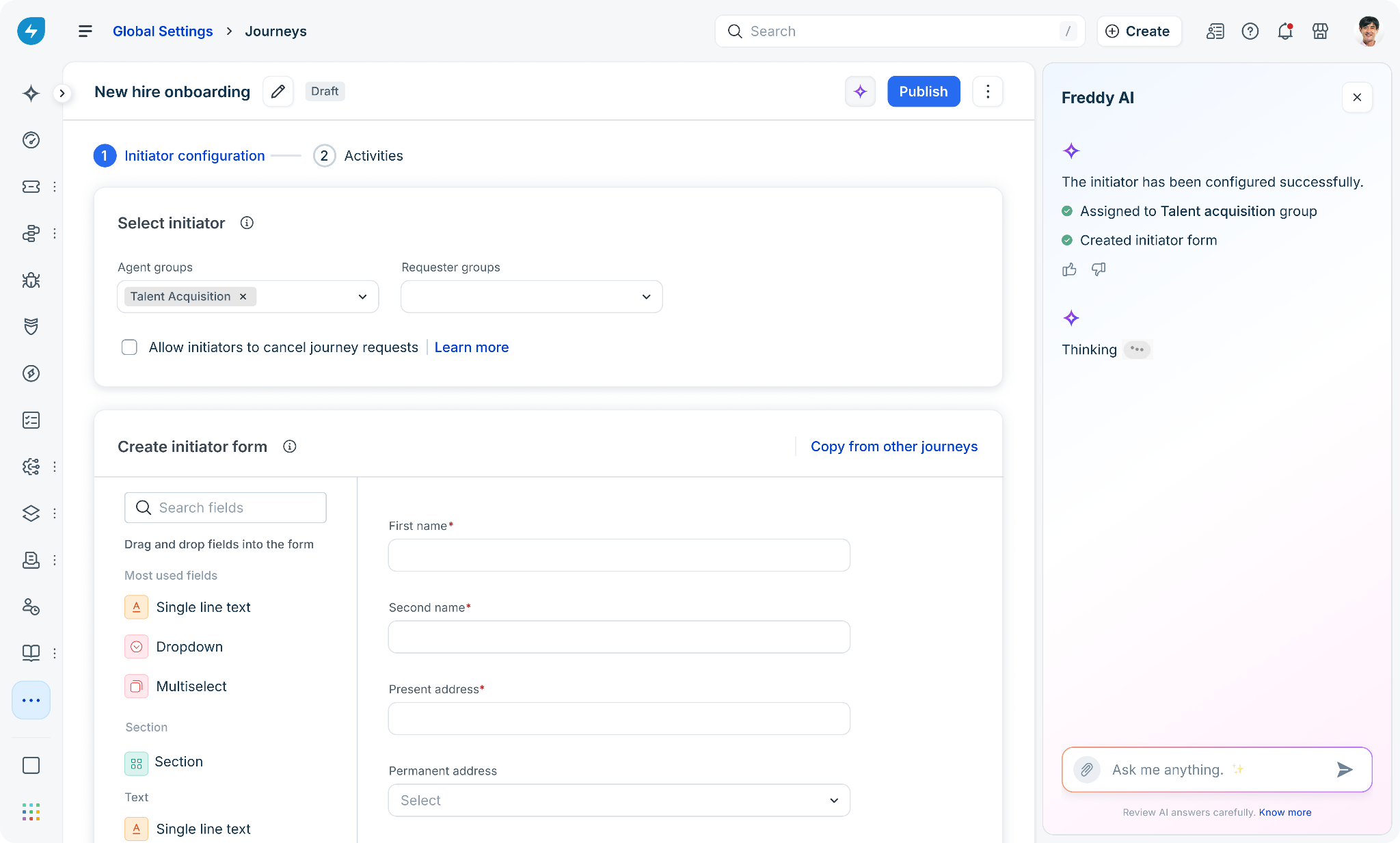
Review the generated initiator configuration. Verify the following:
The correct agent group is assigned.
The generated initiator form contains the required fields.
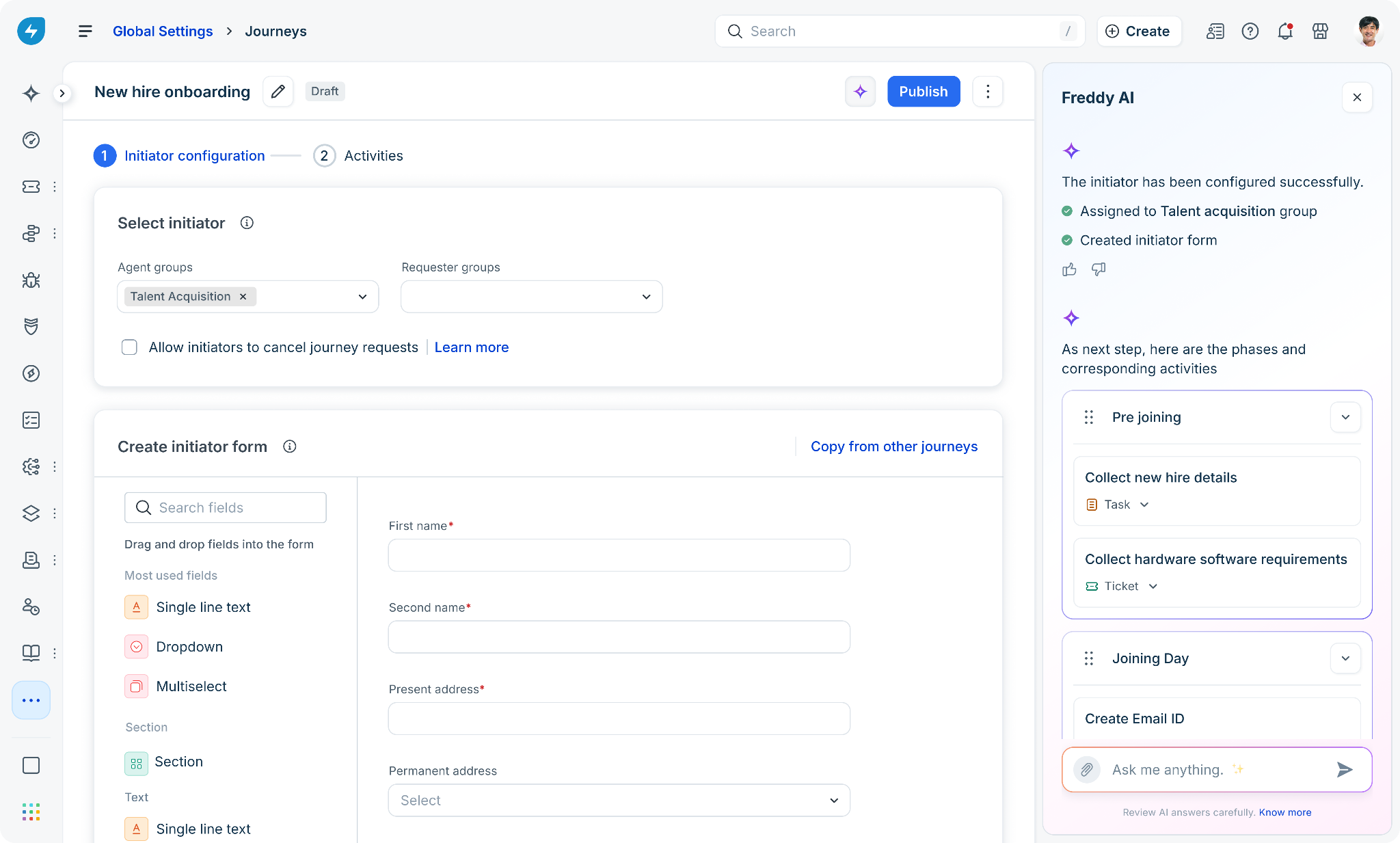
Review the generated phases, activities, stakeholders, and trigger conditions.
Choose how you want to proceed with the generated draft:
Accept the generated draft: If the proposed journey meets your requirements, enter a confirmation, such as Yes, proceed, in the Ask me anything field and press Enter. Freshservice creates the journey and opens the Activities tab.
Modify the proposed draft: If you want to make changes by using the controls in the Freddy AI panel, update the generated phases and activities as required, and then click Proceed with changes.
Note that if you enter another prompt instead of clicking Proceed with changes, your changes are discarded.Generate a different draft: If the proposed journey does not meet your requirements, enter a follow-up prompt in the Ask me anything field. For example, ask Freddy AI to add or remove a phase, update a stakeholder, modify an activity, or regenerate the journey based on different requirements. <Learn more>
Review the generated journey in the Activities tab. Before publishing the journey, review the generated draft to ensure that it meets your requirements. If necessary, make additional changes by:
Editing phases, activities, stakeholders, trigger conditions, or initiator form fields manually.
Refining the draft by using follow-up prompts.
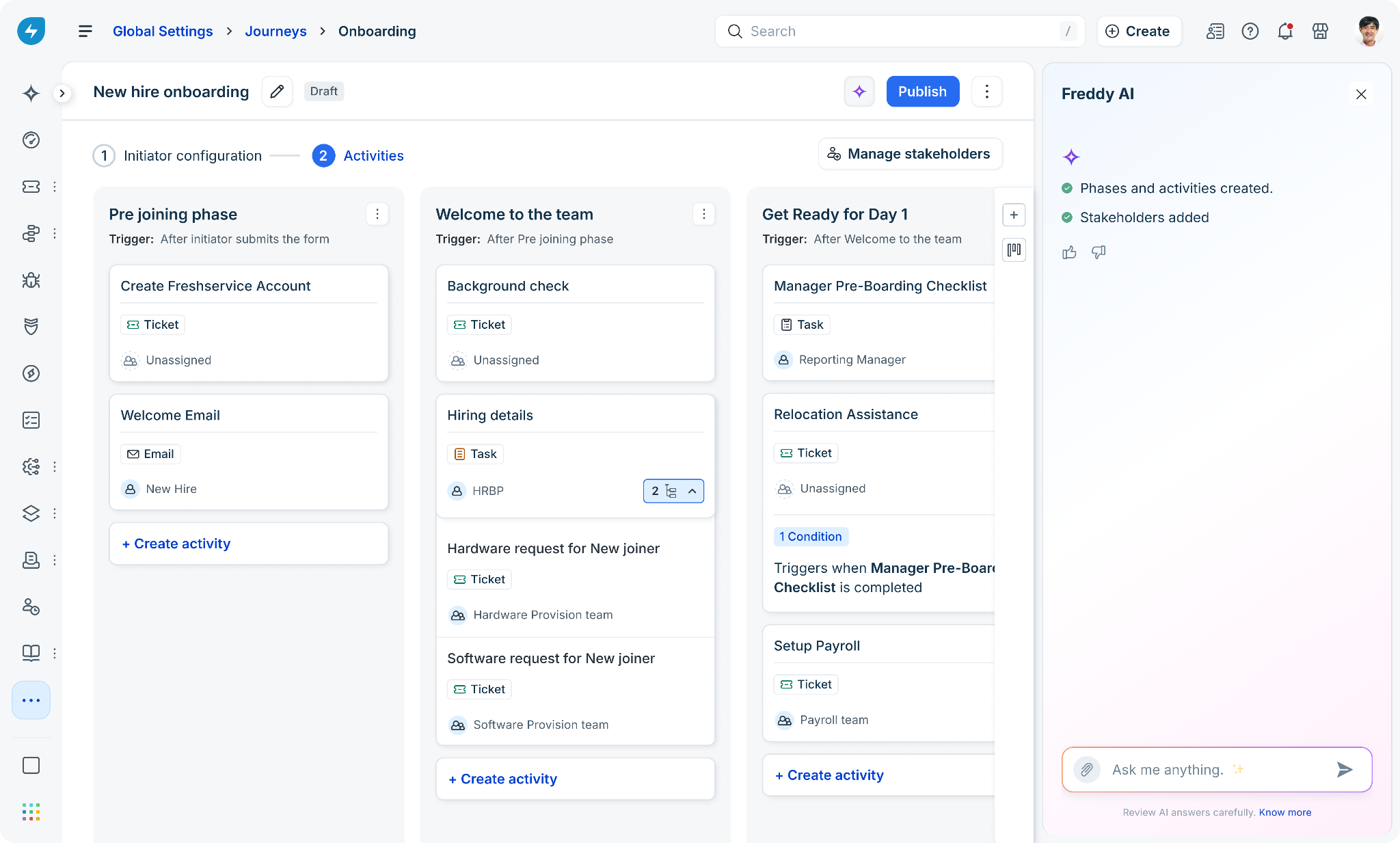
Note: After you publish a journey, you can continue making AI-assisted changes by opening it as a draft. Freddy AI starts a new conversation for the new draft, so the previous conversation history is not retained.
For more information, see Set up Phases, Set up Activities, and Manage Stakeholders.
Click Publish. The journey becomes active when its trigger conditions are met.
Refine a journey draft using follow-up prompts
After Freddy AI generates the initial draft, you can refine it by using natural language prompts in the Ask me anything field. Freddy AI updates the current draft without requiring you to edit each component manually.
To refine a journey draft, follow these steps:
Open the journey draft.
In the Freddy AI panel, click the prompt box and enter your request. For example:
Add an approval step for the hiring manager before the laptop provisioning task.
Remove the Background check activity from the Welcome to the team phase.
Rename the Welcome to the team phase to Employee orientation.
Rename the Laptop provisioning activity to Provision employee laptop.
Change the Create task activity to a Create ticket activity.
Add a new Manager introduction activity to the Welcome to the team phase.
Add IT Support as a stakeholder and assign all hardware-related activities to them.
Click Send. Freddy AI updates the journey draft and summarizes the changes it made, including any assumptions.
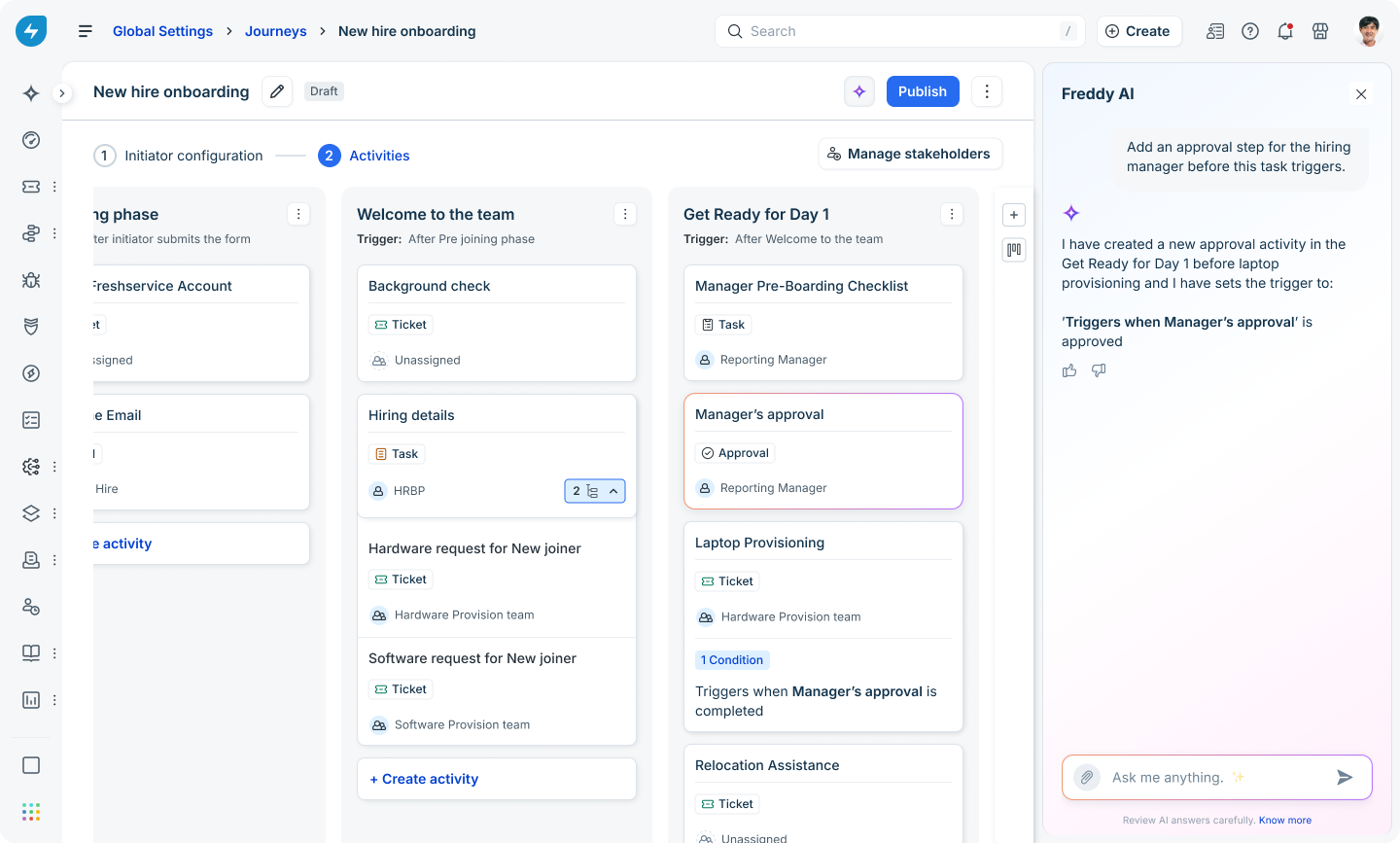
If the changes are not what you expected, click Undo to restore the previous version of the draft.
Continue refining the journey by entering additional prompts or making manual edits.
Freddy AI preserves manual changes. When you submit another prompt, it uses the current state of the draft, including any unsaved manual edits.Tips for writing effective prompts
To generate better journey drafts:
Specify the journey type. For example, onboarding, offboarding, crossboarding, or parental leave.
Describe the major phases. List the main stages that the journey should include.
Identify stakeholders. Specify who is responsible for each activity where applicable.
Use existing Freshservice group names. Refer to agent groups and requester groups by their configured names to improve mapping accuracy.
Specify required form fields. Mention the information that the initiator form should collect.
Limitations
Keep the following limitations in mind when creating journeys using Freddy AI:
If Freddy AI cannot match an agent group, service item, or form field to your Freshservice account, it uses a placeholder or requests clarification. Review the generated summary and update any unresolved items before publishing.
Approval activities are not supported during AI-assisted journey creation. Add approval activities manually after the journey is created.
Business rules are not supported during AI-assisted journey creation.
AI-generated content might not always be accurate. Review the generated journey carefully before publishing.