
 Community
 Video Library
 Agent Training
 Freshservice
 Freshdesk
 Freshchat
 Freshcaller
 Freshsales
 Freshteam
 Freshworks Neo
 Freshsurvey
 Freshservice for MSP
 TABLE OF CONTENTS
- Overview
- Reporting tabs
- Summary tab
- Adoption tab
- Impact tab
- Breakdown of Features
- Feature Usage (With Feedback)
- Feature Usage (Without Feedback)
Overview
Freddy AI Copilot impact reports give service desk administrators and managers a centralized framework for measuring the strategic value of AI across their helpdesk operations. The reports convert raw usage data into actionable business key performance indicators (KPIs) and time saved, enabling you to communicate operational effectiveness to stakeholders and leadership.
In this article, learn how to read and act on each of the six reporting tabs in the Freddy AI Copilot reporting suite.
What you can do with these reports
Analyze ROI: Quantify financial impact by applying agent hourly rates to the total time reclaimed through AI assistance.
Evaluate feature impact: Measure how individual capabilities, such as Ticket Summarizer and Similar Ticket Suggester, contribute to reduced handle times and overall operational efficiency.
Reporting tabs
The reporting suite is organized into six specialized views. Each tab answers a distinct business question:
Summary tab
The Summary tab provides an executive-level overview of your AI deployment and its immediate effect on helpdesk productivity. Use this tab to report high-level ROI to stakeholders and to identify internal AI champions who are most efficient with the toolset.
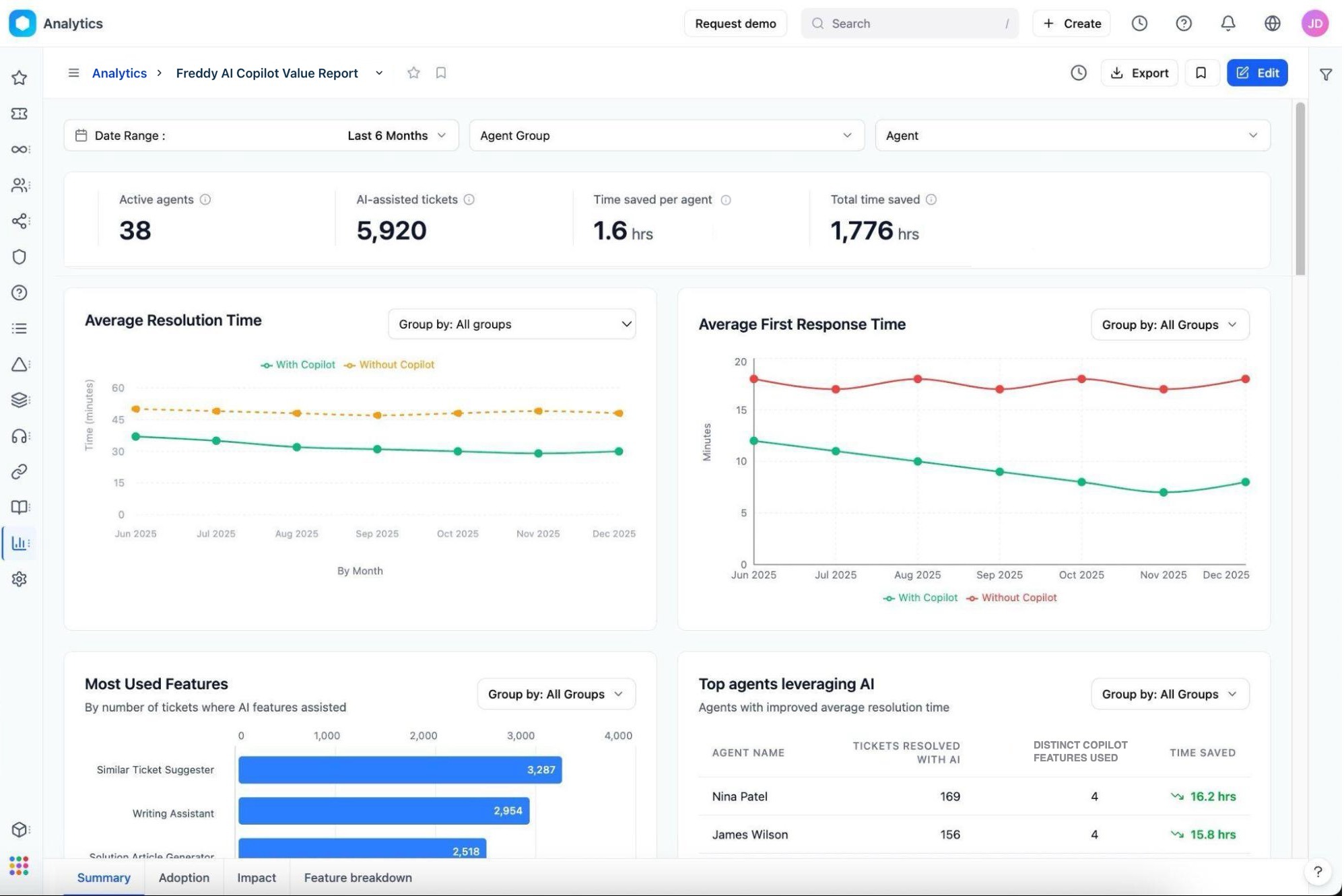
View aggregate performance
The top row of the dashboard displays cumulative KPI widgets that quantify the immediate footprint of AI in your service desk.
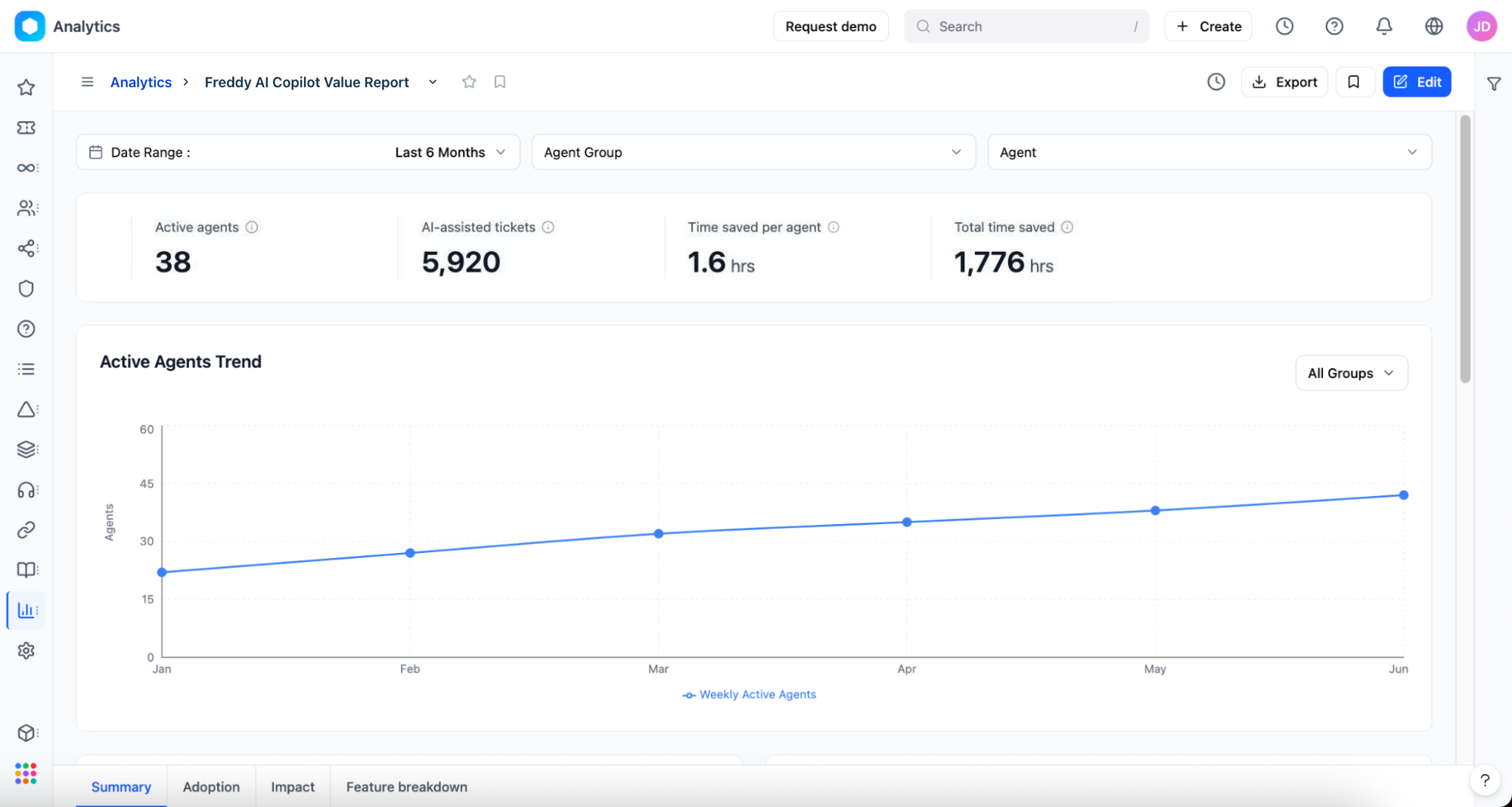
Key metrics in the table
The Active Agents Trend line chart plots the count of agents using Copilot features. An upward slope confirms that AI adoption is growing organically. A plateau or decline warrants investigation using the Adoption tab.Compare performance trends
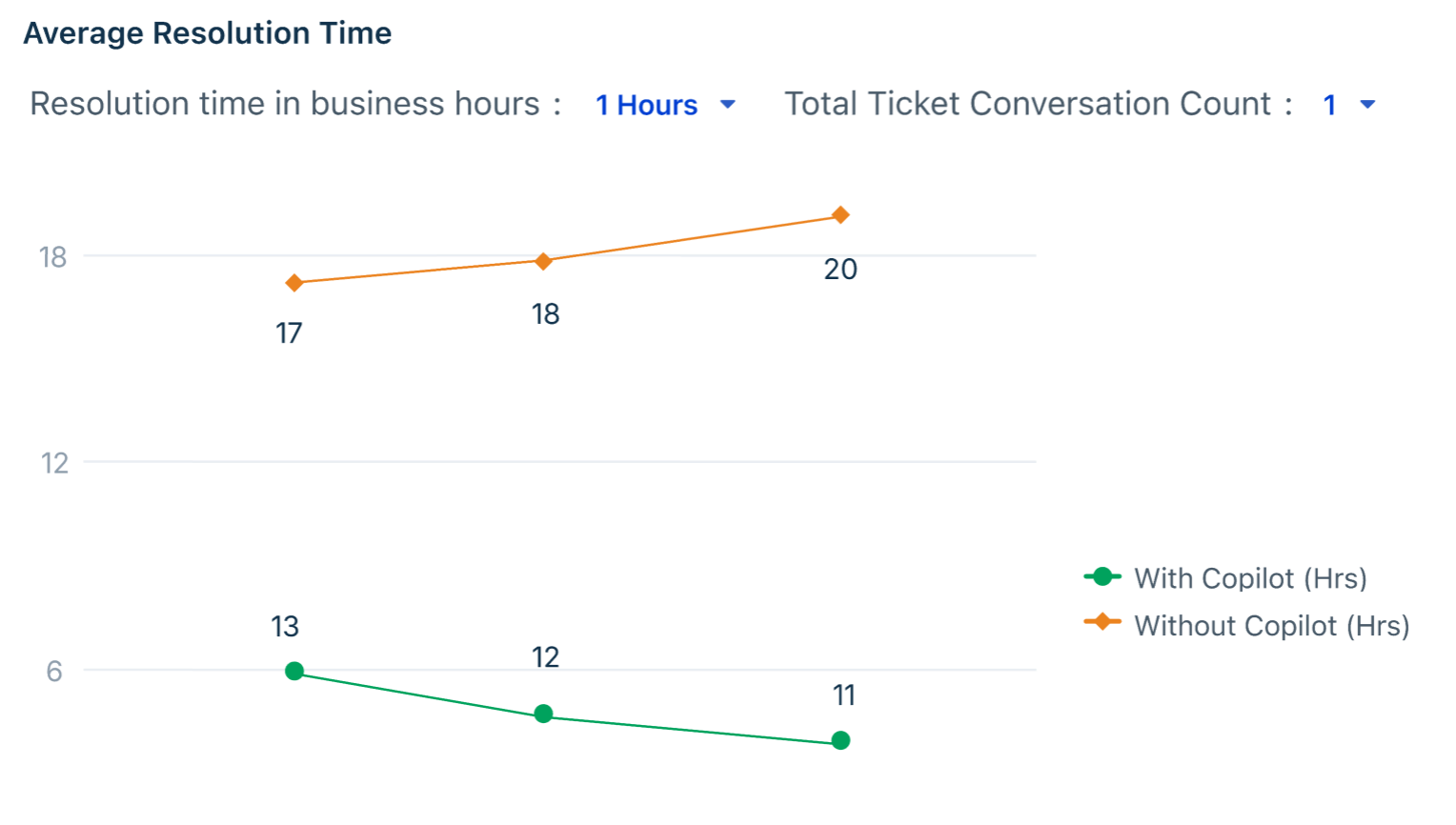
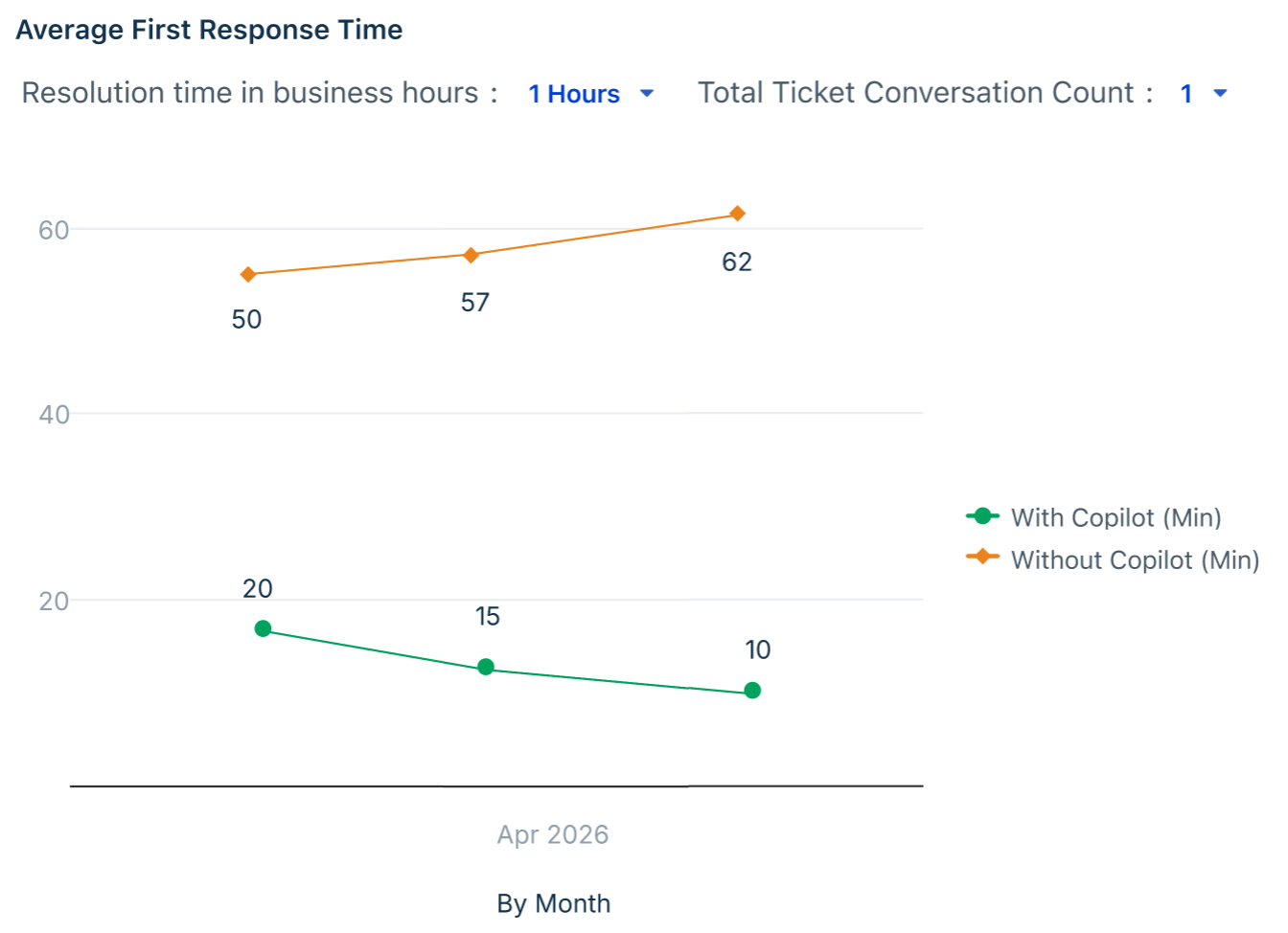
The Average Resolution Time and Average First Response Time line charts track helpdesk efficiency over time. Both charts use the same two-line convention:
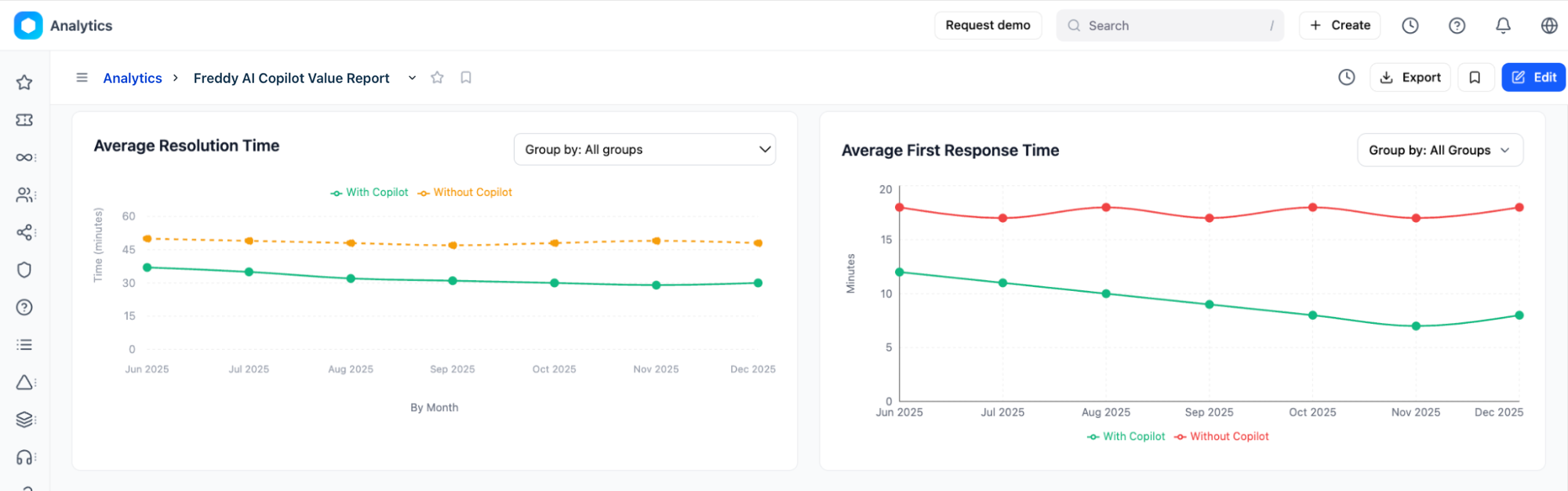
How to interpret the trend charts
Performance gap: The vertical distance between the two lines at any point in time quantifies the speed advantage that AI provides. A consistently lower green line confirms that Copilot is accelerating resolution and response.
Downward slope on the green line: A declining With Copilot line over multiple months indicates that agents are becoming more proficient with AI features—efficiency compounds as familiarity grows.
SLA validation: If the Without Copilot baseline holds steady or rises while the With Copilot line drops, this is strong evidence that AI adoption, not other factors, is driving SLA improvements. Present this gap to leadership as quantified ROI.
Converging lines: If the two lines trend toward each other, investigate whether agents are using AI for low-complexity tickets only. Broaden training to encourage use on more ticket types.
Most Used Features
The Most Used Features horizontal bar chart ranks each Freddy AI capability by the number of tickets it assisted. The x-axis represents ticket count; longer bars indicate higher adoption for that feature.
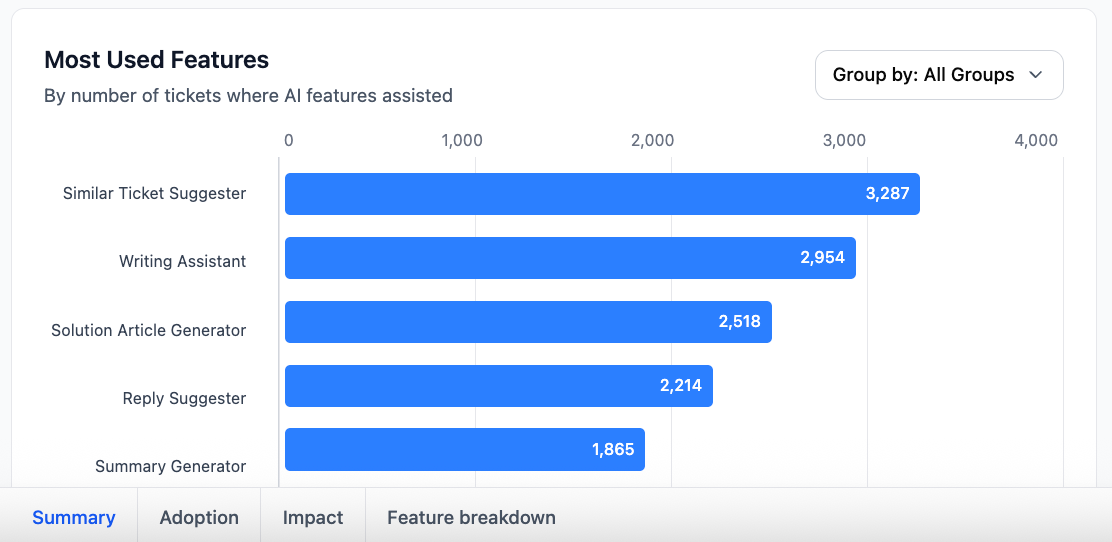
How to interpret the chart
Identify efficiency drivers: Features at the top of the list represent the primary sources of reclaimed time. In Figure 4, the Similar Ticket Suggester and Writing Assistant are the leading contributors to productivity.
Filter by team: Select a group from the Group by dropdown to compare feature preferences across departments.
Spot training gaps: A high-value feature appearing low on the list, such as Summary Generator showing fewer than 2,000 tickets when your total eligible ticket volume is much higher, indicates an awareness or training gap rather than a product limitation. Schedule targeted enablement sessions.
Top agents leveraging AI
The Top agents leveraging AI table identifies individual contributors who most effectively integrate Copilot into their resolution workflows. These agents serve as measurable AI champions.
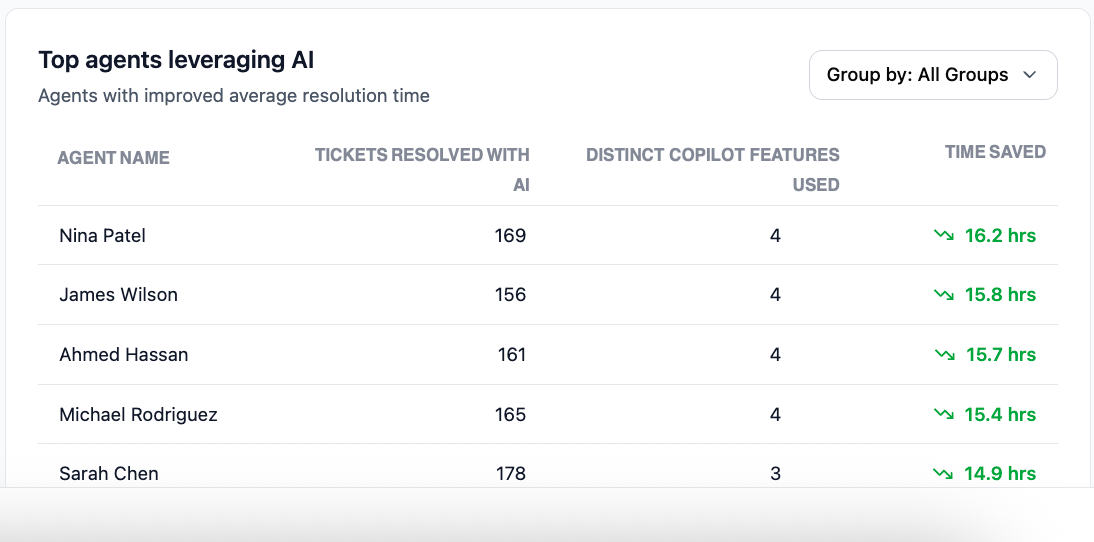
Key metrics in the table
How to use this data
Establish best practices: Agents at the top of this table use an average of 4 features per ticket. Interview them to document which feature combinations yield the highest time savings, then share those workflows across the team.
Set adoption targets: Use the Distinct Copilot Features Used column to set a team-wide benchmark. Agents with fewer than 2 features per ticket are prime candidates for targeted coaching.
Filter by group. Use the Group by dropdown to find top performers within a specific support team, enabling localized benchmarking and peer mentoring programs.
Adoption tab
The Adoption tab measures the depth and breadth of AI integration across your support teams. Use this tab to identify friction points in your rollout, track seat utilization, and set data-driven targets for onboarding programs.
Ticket Overview
The Ticket Overview section gives you a snapshot of how broadly Freddy AI is touching your support volume. Use these metrics to assess overall AI saturation before drilling into team-level breakdowns.
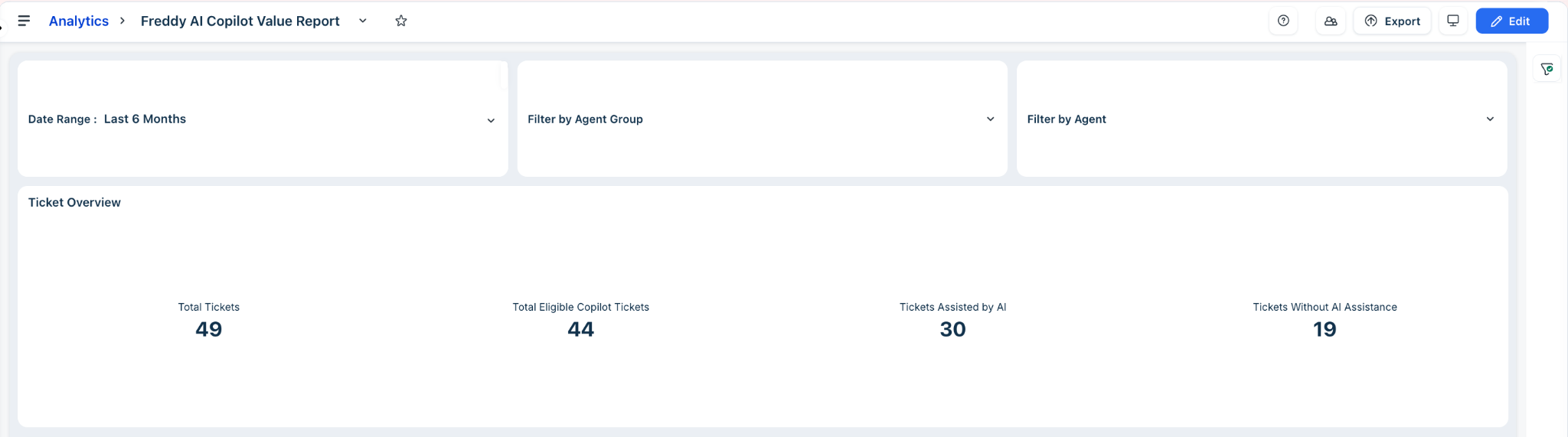
Key metrics in the table
AI Adoption by Tickets
The AI Adoption by Tickets table breaks down ticket volume and AI assistance per agent group, helping you pinpoint which teams are driving AI-assisted resolutions and which are lagging.
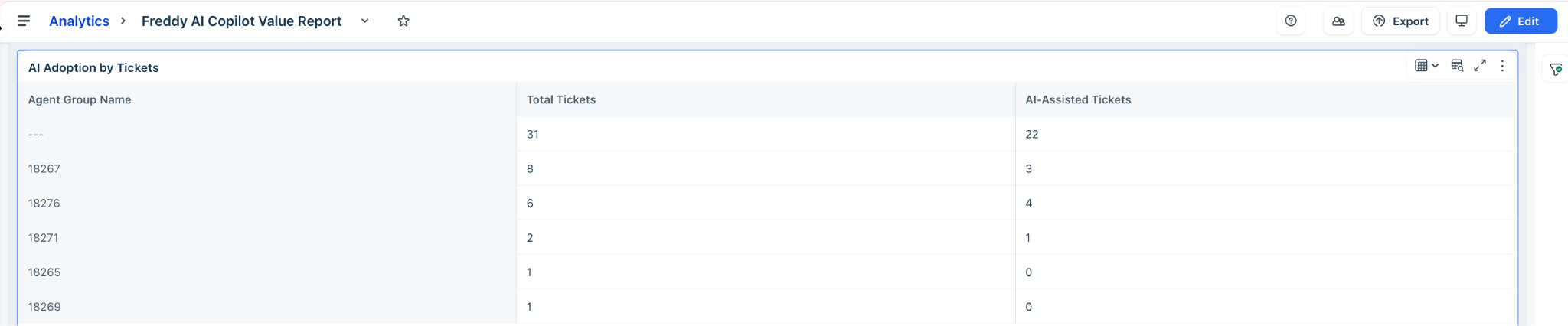
Key metrics in the table
AI Adoption by Agents
The AI Adoption by Agents table shifts the lens from tickets to people, showing how many agents within each group are actively engaging with Copilot and how productive they are.

Key metrics in the table
Tip: Sort the AI Adoption by Agents table by Active AI Users to immediately surface teams with the lowest engagement. For groups where Active AI Users represent less than 50% of Total Users, schedule a dedicated enablement session and follow up directly with agents showing zero usage.
Impact tab
The Impact tab correlates AI usage with your critical service level agreements (SLAs) and satisfaction scores. This strategic view demonstrates that AI assistance not only saves time but also improves service quality and resolution accuracy.
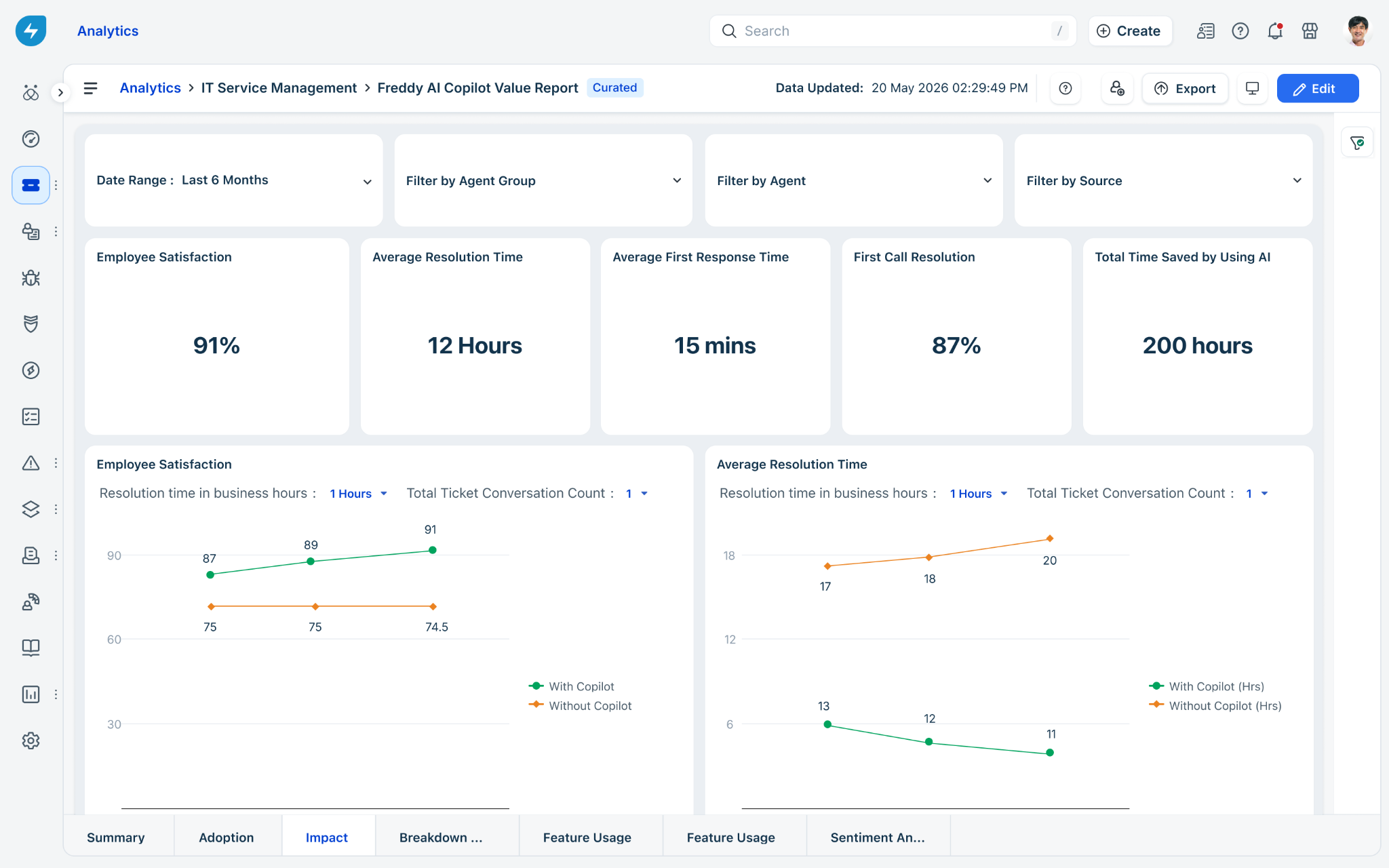
Use ticket resolution metrics to build the business case for AI investment and identify where Copilot is delivering the most value.
Note: if metrics aren't trending the intended way, it doesn't necessarily mean Copilot isn't working. It could signal an adoption gap, or that agents are routing Copilot toward more complex tickets where resolution naturally takes longer. Worth segmenting by ticket complexity and usage frequency before drawing conclusions.
Top-line KPIs
These metrics give you an at-a-glance view of AI's operational impact — track them over time to quantify efficiency gains and surface areas where Copilot is underperforming.

Key metrics in the table
Average Resolution Time
How is Copilot affecting the time it takes to close tickets? This chart plots resolution time for AI-assisted tickets against non-assisted tickets over the selected period, making the productivity delta immediately visible.
Key metrics in the table
Average First Response Time
Is AI helping agents reply to customers faster? This chart compares first response time between AI-assisted and non-assisted tickets, surfacing whether Copilot features like Reply Suggester are reducing the time customers wait for an initial reply.
Key metrics in the table
Tip: Use the Resolution Time in Hours and Total Ticket Conversation Count filters on each chart to control for ticket complexity. High-conversation tickets naturally take longer to resolve — isolating low-conversation tickets gives you a cleaner read on AI's direct impact on resolution speed.
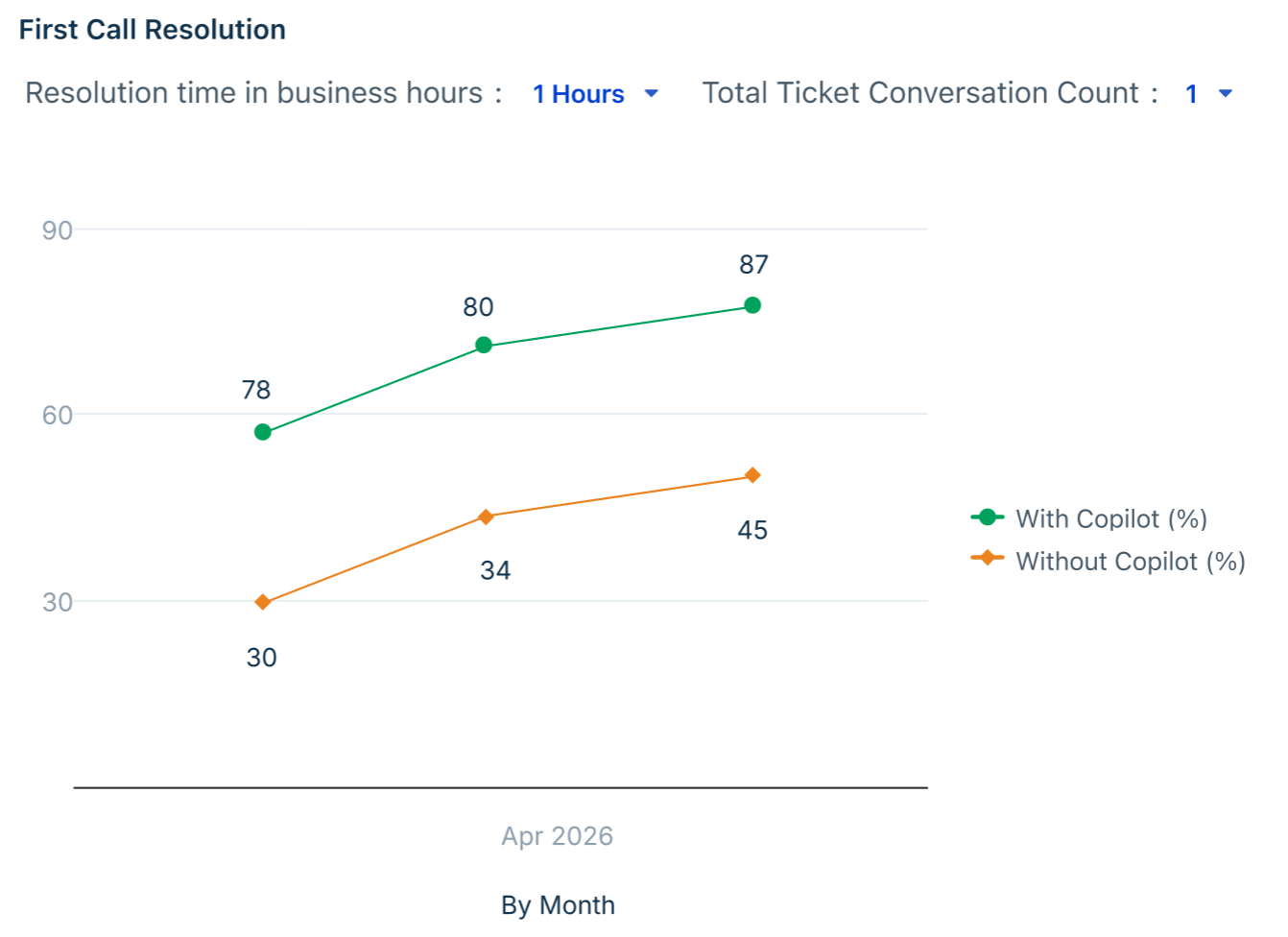
First Call Resolution
Are agents resolving issues in a single interaction when using Copilot? This chart compares the FCR rate between AI-assisted and non-assisted tickets, revealing whether Copilot is helping agents arrive at the right answer without requiring follow-up conversations.
Key metrics in the table
Tip: Use the Resolution Time and Total Ticket Conversation Count filters to isolate specific ticket complexity bands. FCR rates are naturally lower for complex, multi-conversation tickets — filtering to simpler tickets gives you a cleaner signal of AI's direct contribution to first-touch resolution.
Breakdown of Features
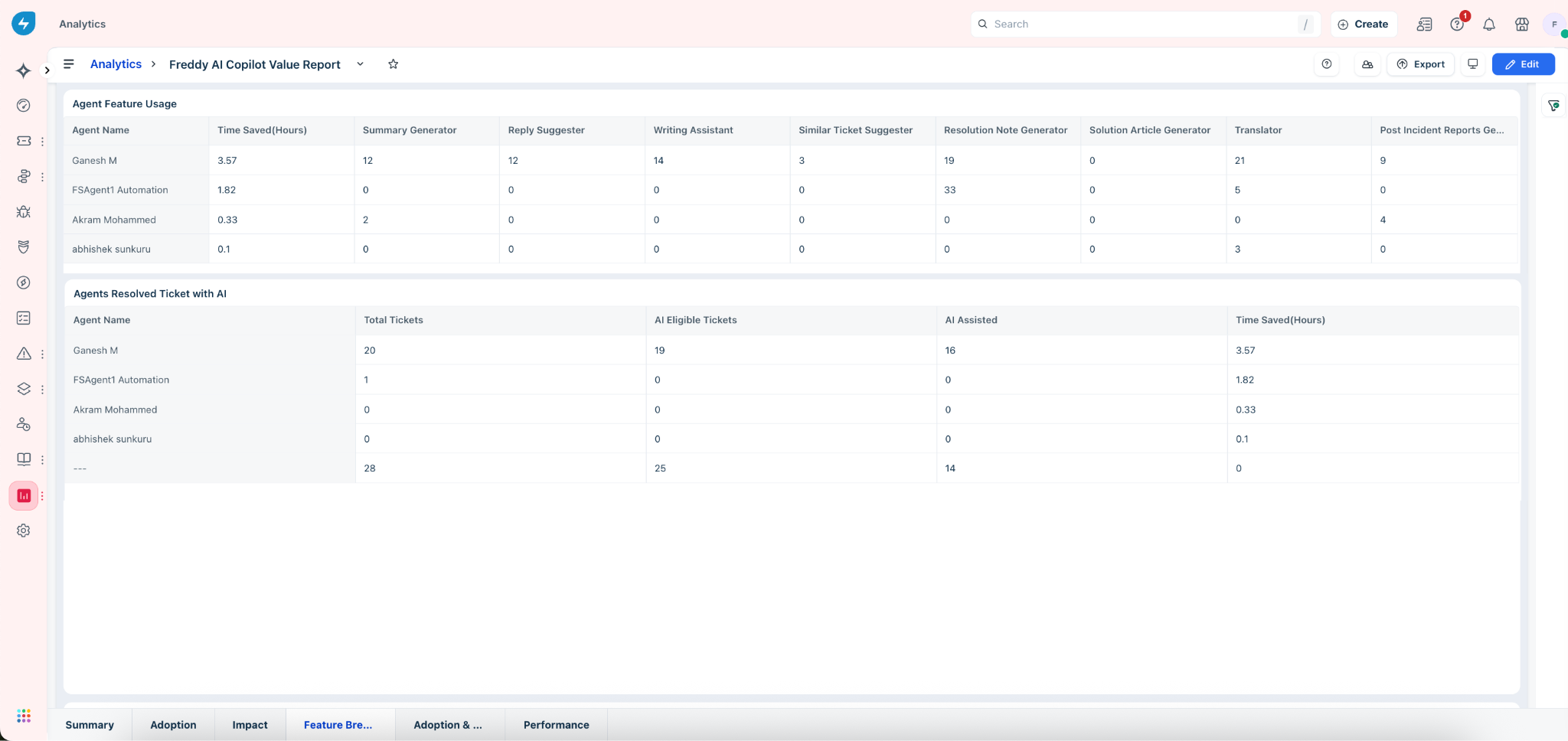
This tab shifts the focus from overall AI performance to individual feature-level behavior, showing which tools agents are using, how frequently, and how much time each is saving. Use this view to identify training gaps, surface power users, and prioritize enablement efforts by feature.
Features Used by Agents
Which agents are using which tools — and how much time are they saving? This table maps each agent's usage count across every Copilot feature alongside their total time saved, making it easy to spot both breadth of adoption and individual efficiency gains.
Key metrics in the table
Tip: Agents with zero usage across all features but a non-zero Time Saved value may have indirect AI exposure through automation rules. Validate whether these agents need hands-on onboarding or are already benefiting passively.
Tickets Resolved with AI
How effectively is each agent converting AI-eligible tickets into AI-assisted resolutions? This table reveals the gap between opportunity and actual usage at the individual level, making it your primary tool for targeted coaching conversations.
Key metrics in the table
Tip: Sort by AI Assisted to immediately identify agents at the bottom of the list. Cross-reference with the Agent Feature Usage table above — agents with zero AI-assisted tickets and zero feature usage are your highest-priority targets for direct outreach and hands-on training.
Feature Usage (With Feedback)
This tab pairs feature-level adoption metrics with direct agent feedback, giving you a side-by-side view of how frequently each AI tool is being accepted and whether agents are signaling satisfaction or dissatisfaction with its suggestions. Use this view to prioritize which features need prompt tuning, additional training, or broader rollout.
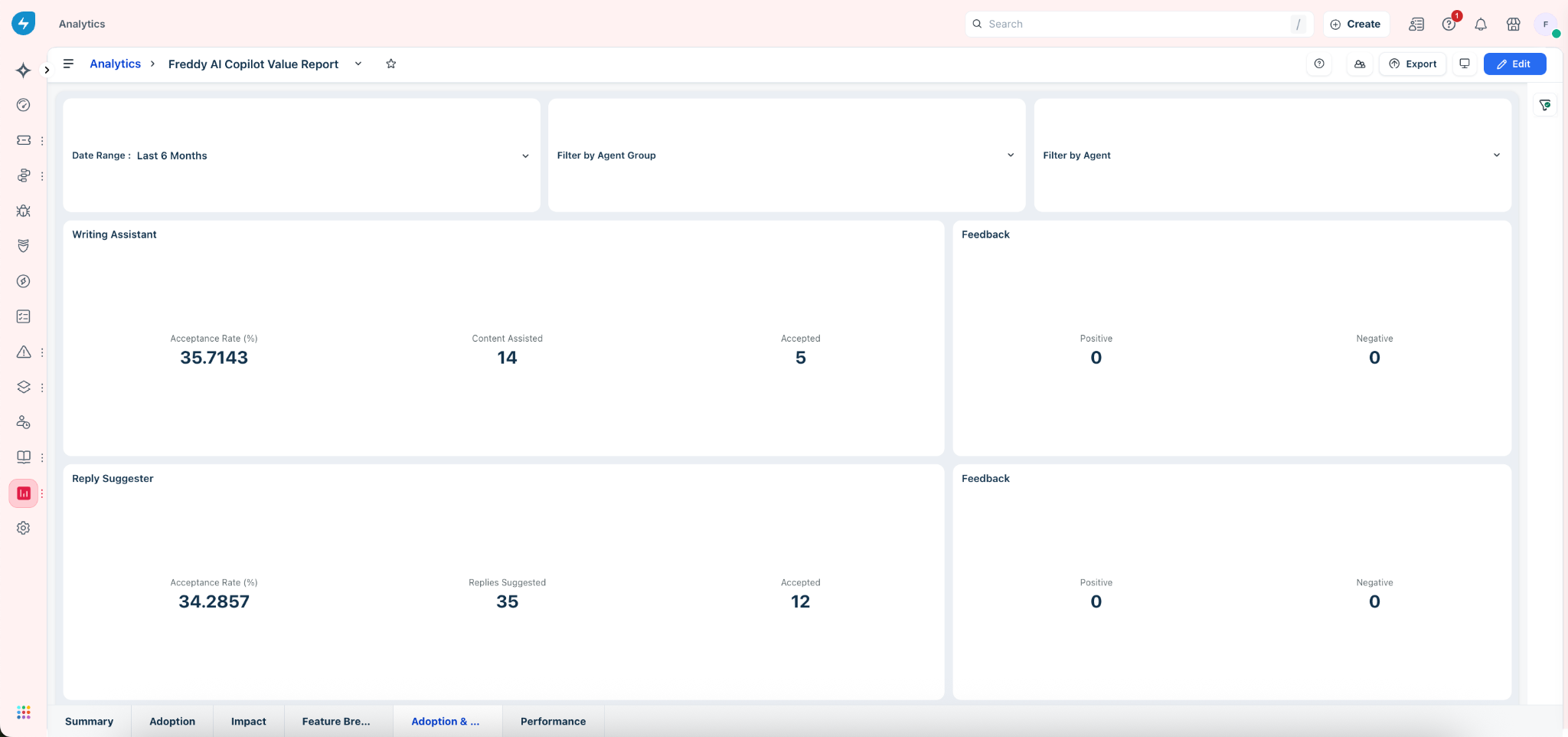
Reading each feature card
Each feature is presented as a pair — usage metrics on the left, feedback signals on the right. Together they tell a complete story: a high acceptance rate with no feedback may indicate passive usage, while a low acceptance rate with negative feedback points to a feature that needs attention.
Key metrics in the table
Tip: Features with zero positive and zero negative feedback are not necessarily underperforming — agents may simply not be using the feedback mechanism. If acceptance rates are healthy but feedback is absent, introduce a team norm around rating suggestions to build a richer signal over time.
Feature Usage (Without Feedback)
While the Feature Usage tab reflects agent sentiment and usage trends, this tab shifts the lens to objective performance. It shows how each Copilot feature is actually doing its job, measured by generation counts, acceptance rates, and feature-specific output metrics — independent of user feedback.
Reading each feature card
Each card surfaces three metrics that together reveal the operational health of that feature. Use them to benchmark individual tools against each other and track improvement over time.
Key metrics in the table
Tip: Features with a high acceptance rate but low output volume — like Translator — are performing well but underutilized. Features with high output volume but low acceptance rate — like Ticket Summary — are your highest-leverage tuning opportunities: small improvements to output quality here will have an outsized effect on overall AI value delivered.