Community
 Video Library
 Agent Training
 Freshservice
 Freshdesk
 Freshchat
 Freshcaller
 Freshsales
 Freshteam
 Freshworks Neo
 Freshsurvey
 Freshservice for MSP
 A Remote Collector (RC) is a virtual appliance deployed locally on your device. It is controlled by Freshservice’s Advanced ITAM module and is sent autodiscovery jobs which are then executed remotely. All autodiscovery jobs, including Power SNMP jobs, are supported and can be run remotely on an RC.
Freshservice supports the creation and deployment of an unlimited number of remote collectors as needed across your environment. Remote collectors facilitate SNMP(Simple Network Management Protocol), IPMI(Intelligent Platform Management Interface), hypervisor, and other types of autodiscovery across networks requiring only HTTPS access, eliminating the need to open numerous ports across network segments.
Note: Windows discovery requires at least one Windows Discovery Service (WDS) instance to be deployed.Here’s how you can set up a Remote Collector in Freshservice:
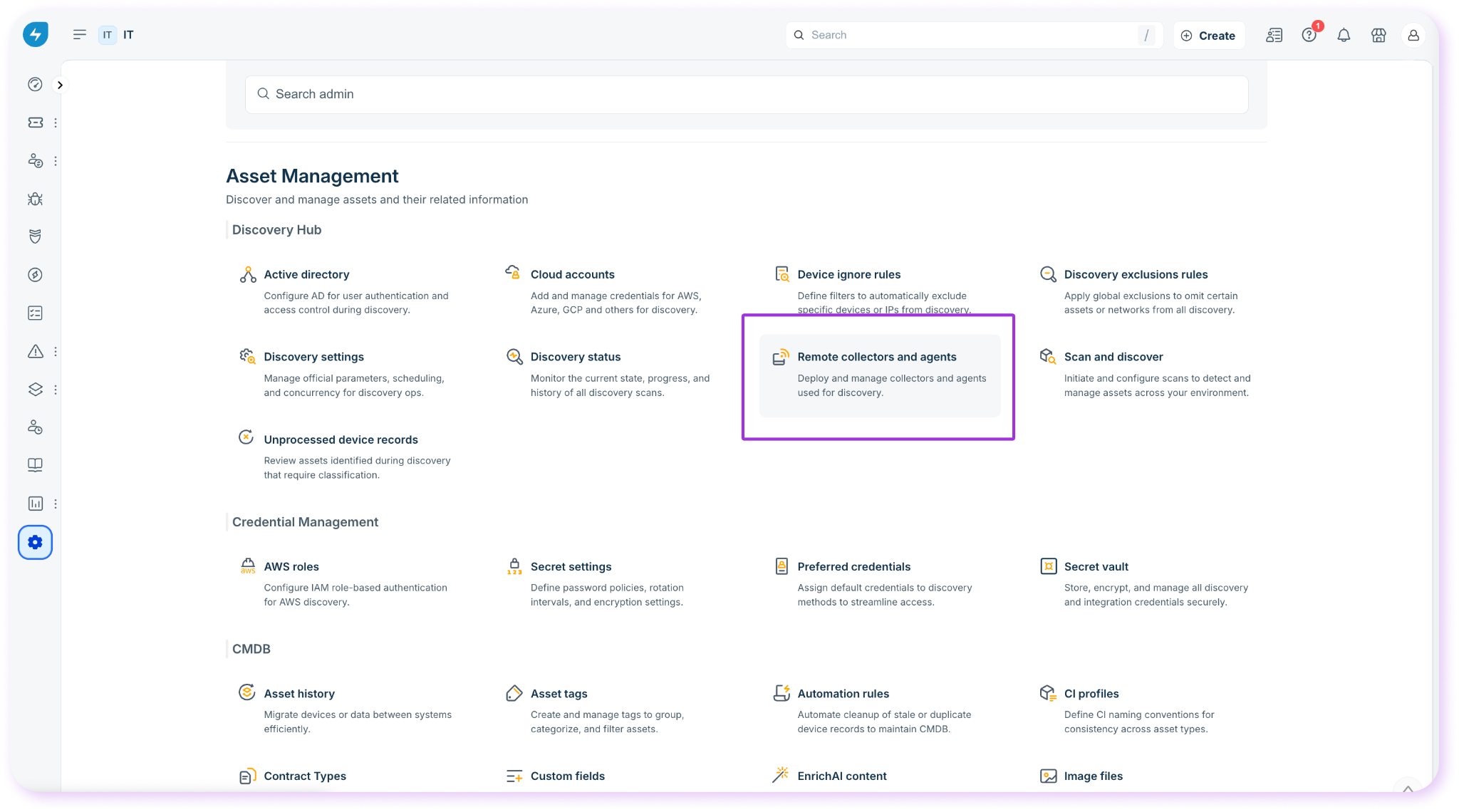
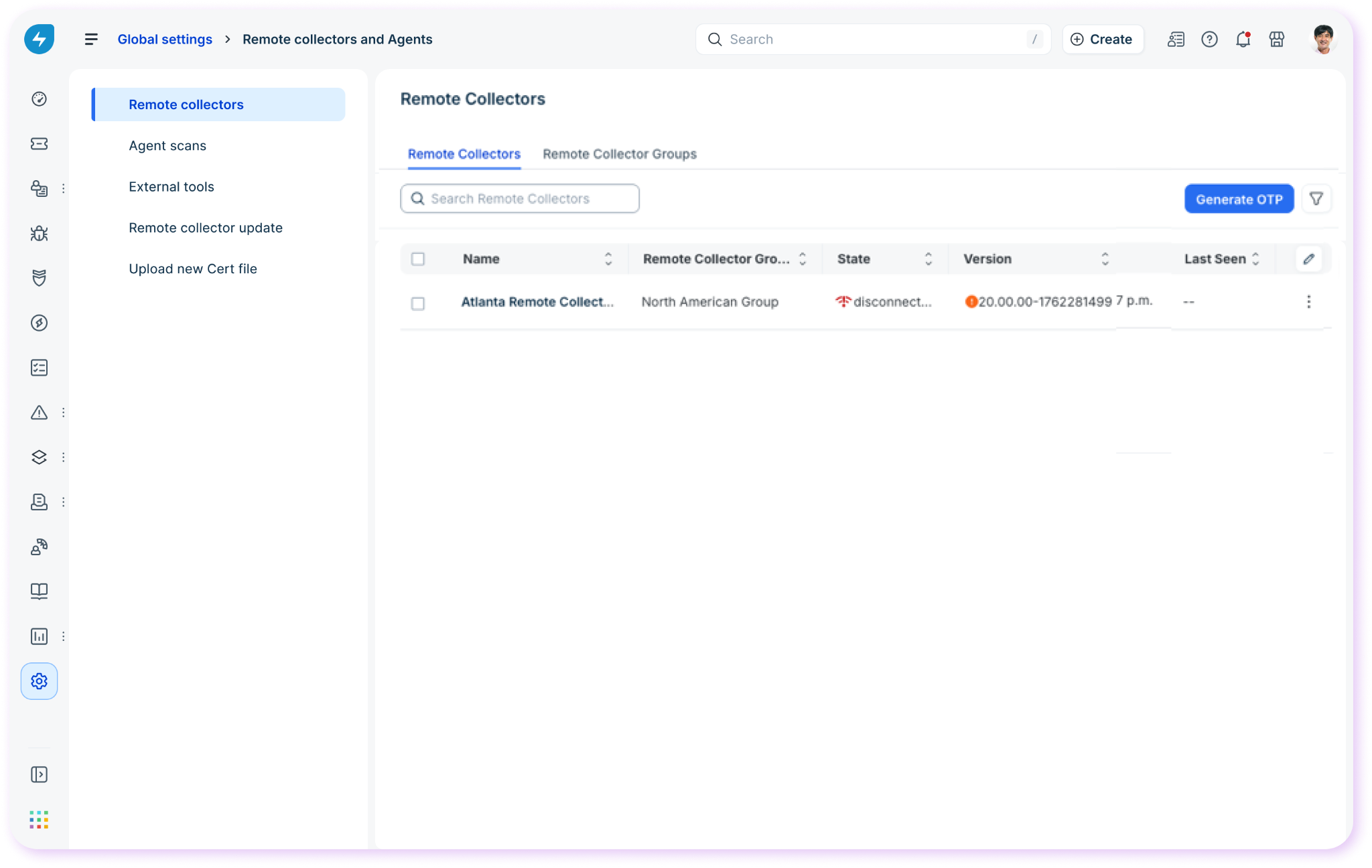
Go to Admin Settings > IT Workspace > Asset Management and click Remote collectors and agents. This opens the dedicated page for setting up remote collectors.
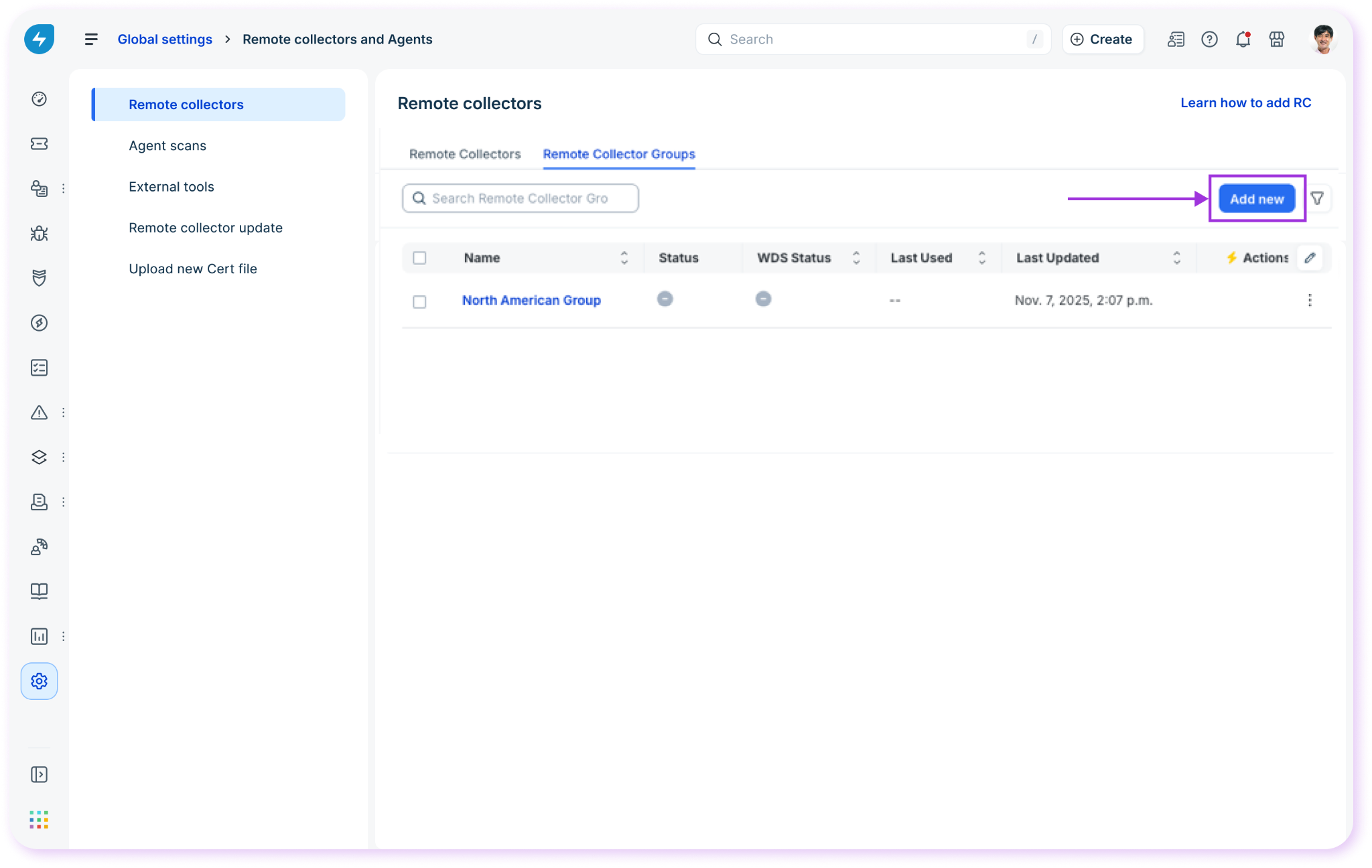
Go to the Remote Collectors Group tab and click Add new. This helps you create a new Remote Collector group.
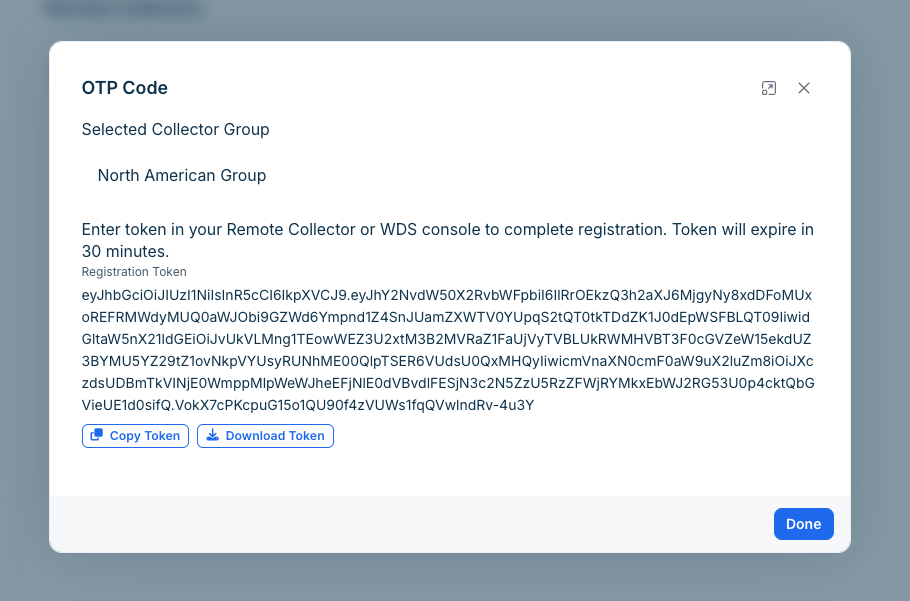
Next, go to the Remote Collectors section and click Generate OTP to create a new remote collector. You will be provided with an OTP. Use the OTP to authenticate the collector group and generate a token.
Register the remote collector
Setting up the remote collector involves downloading it to your local and registering it for your device. Here’s how:
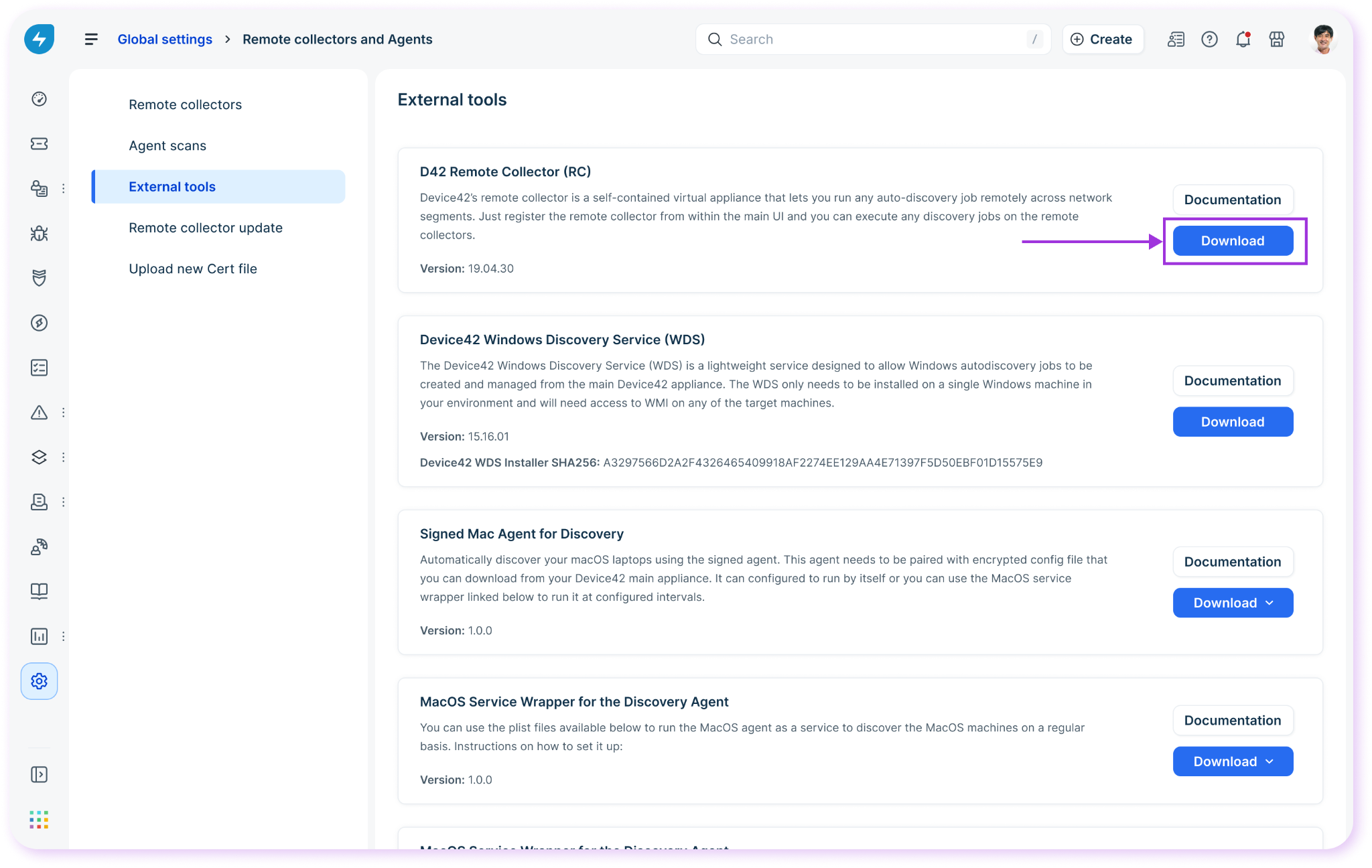
Head to the External tools section and click the download button on the D42 Remote Collector (RC) section at the top of the page. Download the .ovf image file.
Deploy the VM image to your hypervisor, boot it, and use the default credentials to log in via the VM console or SSH, Port 22.
Username: client
Password: device42
Once logged in, the Main Menu will be displayed.
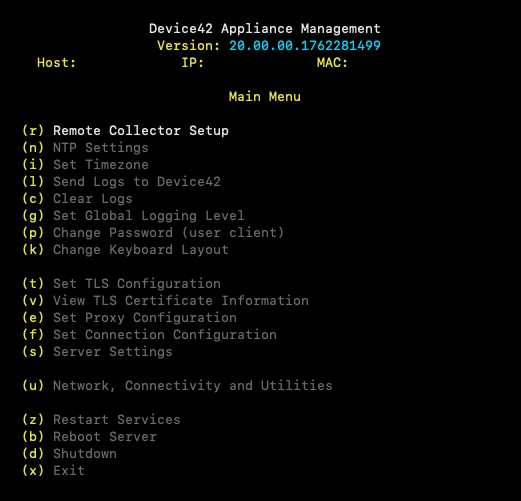
Go to Remote Collector Setup, fix the NTP, time zone, global logging level, or TLS configuration as required.
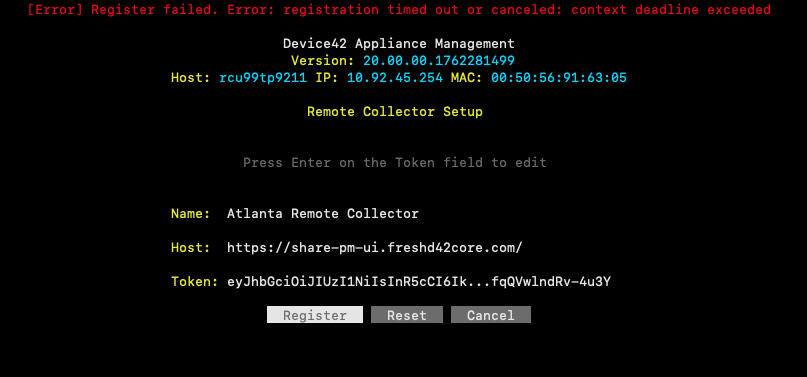
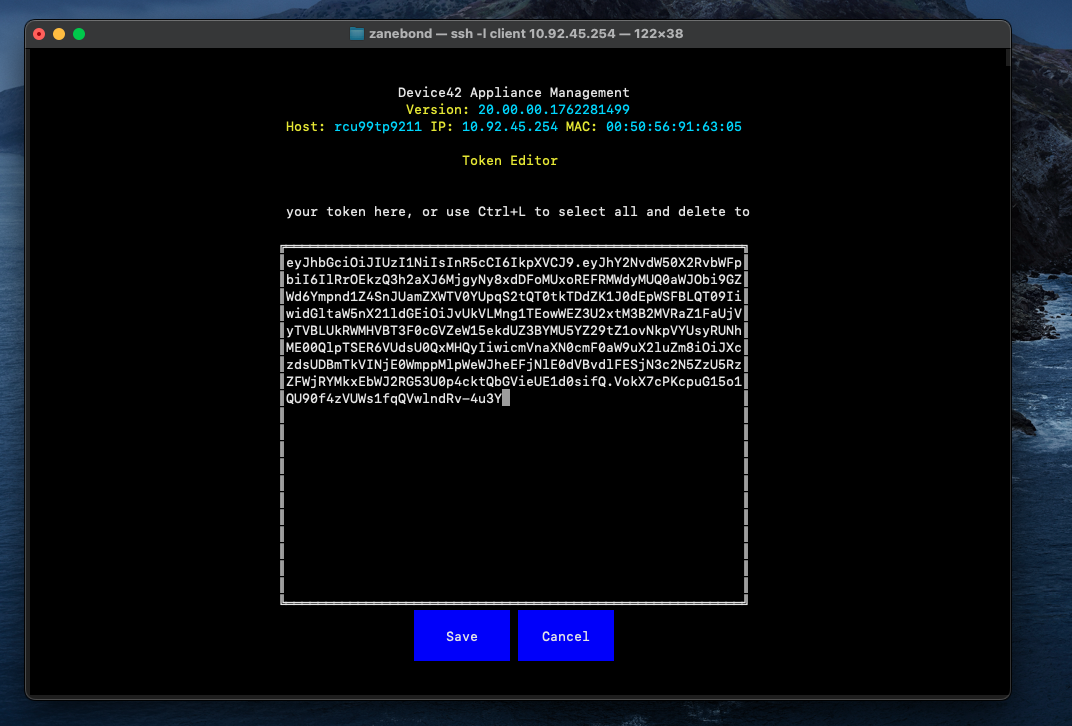
Upon initial installation, configure your network settings to proceed with setup. Input your device42 URL, Name the remote collector, and input a token.
Note: The name of Remote Collector is to be in this format: yourdomain.freshservice.com. Remember to strip out https:// if you are copying the domain name from your browser.Input your token and click Save. This initiates the registration of the remote collector.
Note: Please ensure that extra characters are not added to the token while copying it.
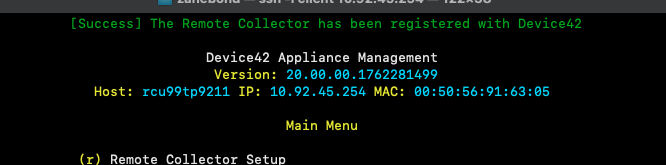
If your connection is successful, you will receive a success message and will be able to find the remote collector in your Freshservice instance.
If the connection fails you will receive the following error: