
 Community
 Video Library
 Agent Training
 Freshservice
 Freshdesk
 Freshchat
 Freshcaller
 Freshsales
 Freshteam
 Freshworks Neo
 Freshsurvey
 Freshservice for MSP
 Freshservice integration with the Sync Requester Fields with Ticket Fields app enables automatic mapping of requester fields to the corresponding ticket fields when a ticket is created. This integration is critical to copy the relevant field data from the requester to the ticket properties.
Note - This app maps only the global-level custom fields, not the workspace-specific fields.
Overview
The Sync Requester Fields with Ticket Fields app runs in the background. First, you configure the requester values to the corresponding ticket field values while installing the app. Then, whenever a ticket is created, the corresponding field values from the requester are automatically mapped to the ticket fields.
Install and set up Sync Requester Fields with Ticket Fields app
Install the Sync Requester Fields with Ticket Fields app in Freshservice to automatically copy requester field data to ticket fields during ticket creation. As part of the installation, you can set up the requester fields with the corresponding ticket fields that you want to sync. Follow these steps to install the Sync Requester Fields with Ticket Fields app:
Log in to Freshservice as an administrator.
Go to Admin > Apps > Get More Apps.
Search for the Sync Requester Fields with Ticket Fields app and click Install.
Or, you can go to Freshworks Marketplace, search for the Sync Requester Fields with Ticket Fields app, and install it.
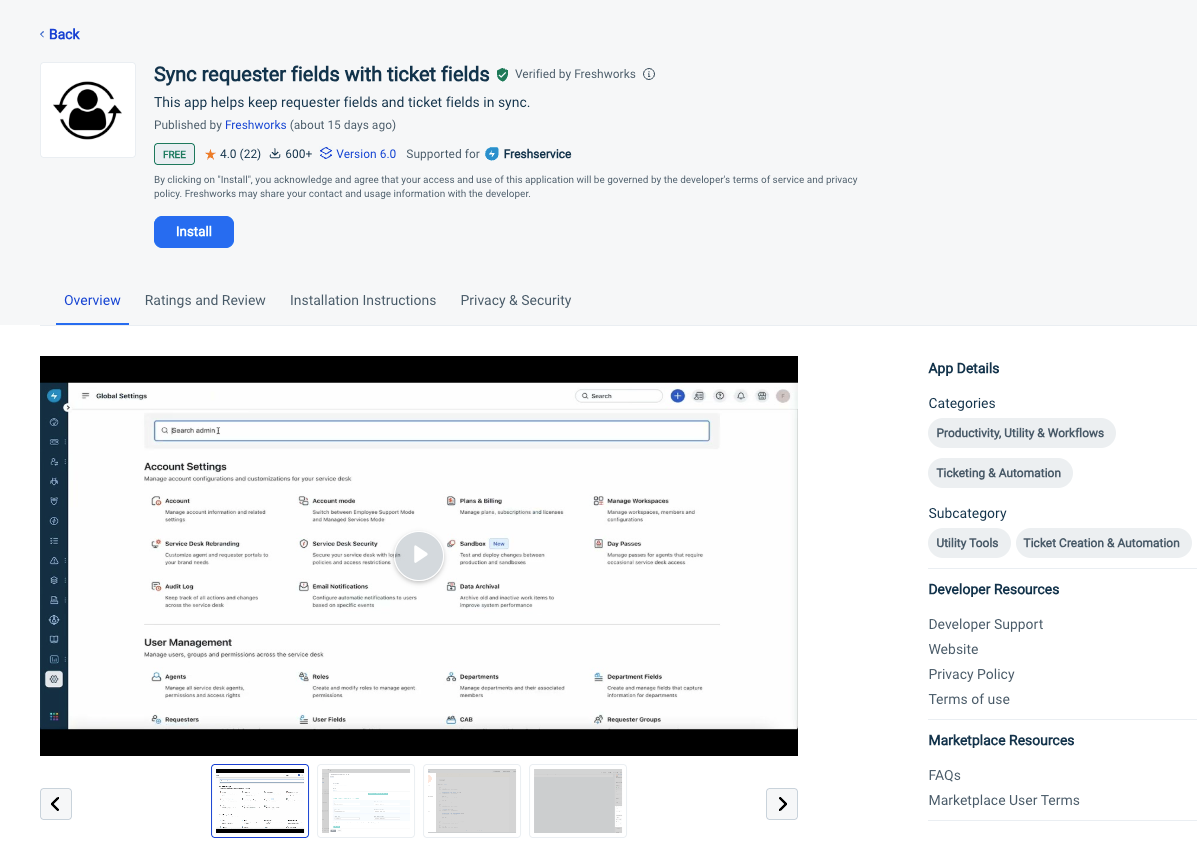
You are redirected to Global Settings > Apps > Configuration.
Under Freshservice - OAuth Parameters, the Configuration Name and Freshworks Organization domain fields are auto - populated.
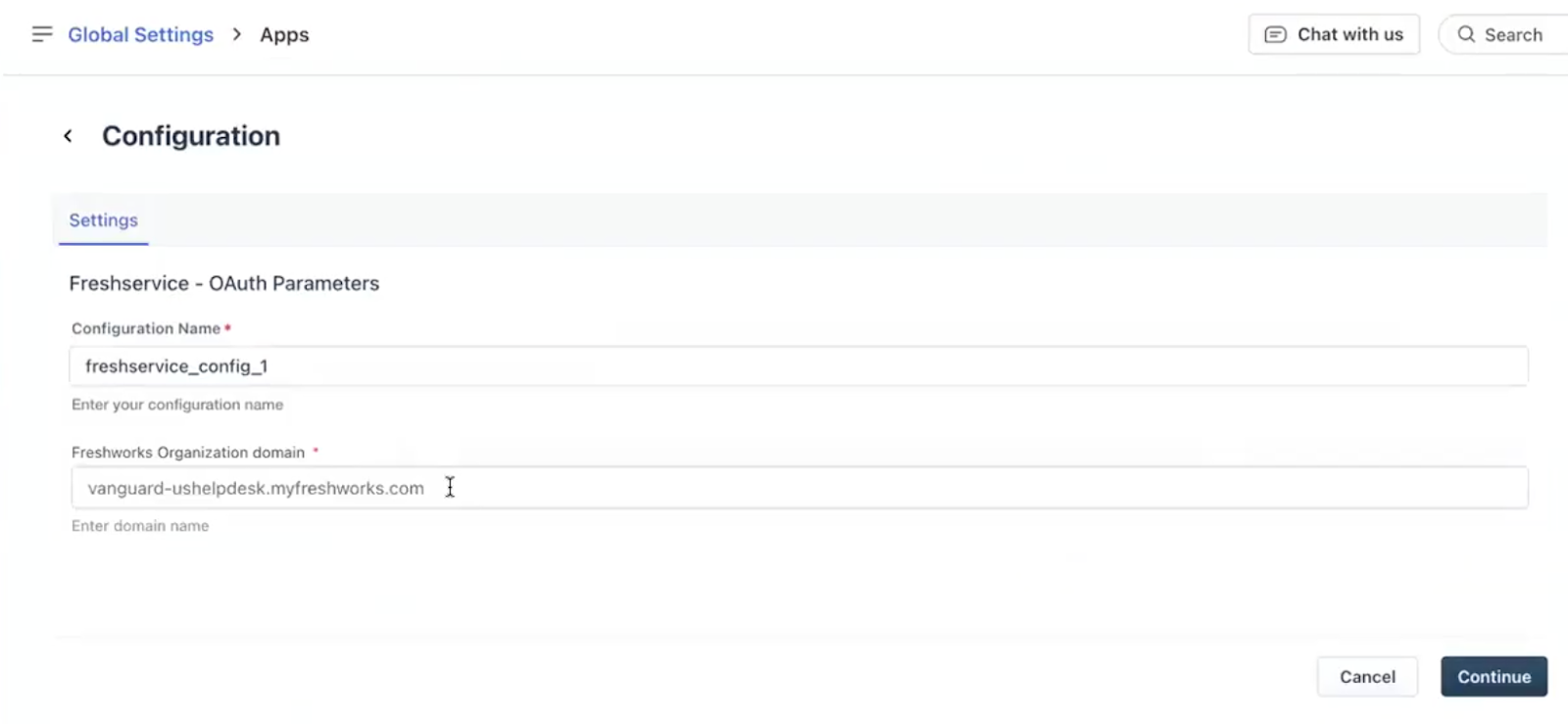
Click Continue.
You are redirected to an authorization page.Select your Freshworks account on the authorization page and click Continue.
The authorization page shows a list of authorizations required to install the Sync Requester Fields with Ticket Fields app.Review the list of required authorizations and click Agree.
Under Configuration, in the Included workspace (s) for mapping fields field, enter the workspace in which you want to map the ticket fields.
The Map contact fields with ticket fields section is displayed.From the Select contact field and Select ticket field lists, select the contact fields and ticket field respectively that you want to map.
If you want to map more fields, click Add Rule and select the fields you want to map.
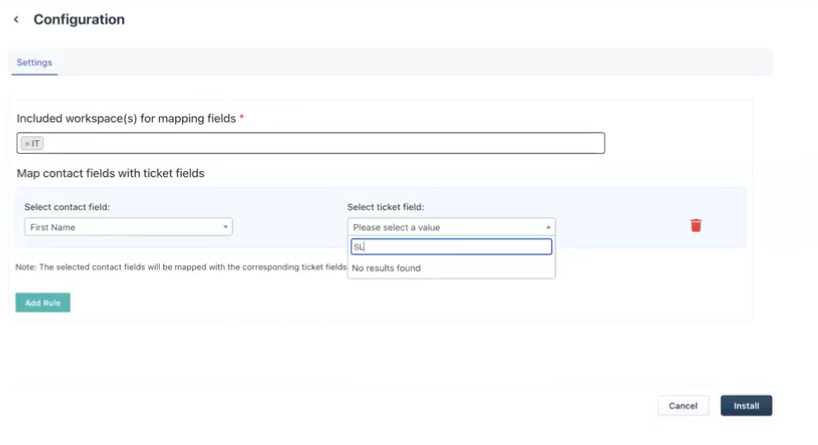
Click Install.
A success message appears to confirm installation of the Sync Requester Fields with Ticket Fields app.
When an agent creates a ticket, the app automatically copies the configured requester values to the ticket fields.