
 Community
 Video Library
 Agent Training
 Freshservice
 Freshdesk
 Freshchat
 Freshcaller
 Freshsales
 Freshteam
 Freshworks Neo
 Freshsurvey
 Freshservice for MSP
 This article provides details about ticket archiving in Freshdesk, including how tickets get archived, where to find and export archived tickets, and how archiving affects other Freshdesk features.
Prerequisites:
Ensure you have admin or agent access to Freshdesk.
About ticket archiving
Freshdesk automatically archives tickets that have been closed and are in inactive status for 120 days. This reduces the volume of active ticket data processed for day-to-day operations, such as loading dashboards, running reports, and calculating ticket counts, resulting in a quicker, more efficient experience.
How ticket archiving works
A closed ticket is archived after it remains inactive for 120 consecutive days. A ticket is considered inactive if the following conditions are met during the period of inactivity:
- The ticket receives no new replies or private notes.
- The ticket properties are not updated.
Archived tickets remain accessible to agents and customers as read-only records. Agents, admins, and customers cannot manually unarchive a ticket. If a customer replies to an archived ticket's email thread, or sends a follow-up email, Freshdesk creates a new ticket instead of reopening the archived one.
Archiving parent-child and linked tickets
In addition to standalone tickets, parent-child tickets, tracker, and related tickets are also archived after inactivity. Freshdesk preserves the associations between linked tickets even after archival.
Note: When you open a parent or tracker ticket, you can see all its linked tickets, whether archived or not. You can click an archived linked ticket to open it in the archived view.
The following table describes the archiving behavior for parent-child and tracker-related tickets.
| Ticket type | Scenario | Archiving behavior |
|---|---|---|
Parent-child | The parent ticket is unarchived, and all the associated child tickets are archived. | Freshdesk archives the parent ticket. |
Parent-child | The parent ticket is open, and some or all child tickets are closed. | Freshdesk archives all child tickets and leaves the parent ticket unarchived until it's closed. |
Parent-child | Both the parent ticket and all child tickets are closed. | Freshdesk archives the parent ticket and all child tickets. |
Parent-child | A customer responds to an archived ticket, creating a new child ticket. | Freshdesk archives the new child ticket once it meets the archival interval. |
Tracker-related | The tracker ticket is open, and all related tickets are closed. | Freshdesk archives the related tickets and leaves the tracker ticket unarchived. |
Tracker-related | The tracker ticket is closed, and all related tickets are open. | Freshdesk archives the tracker ticket and leaves the related tickets unarchived. |
View and export archived tickets
You can access archived tickets through ticket views, the customer portal, or a contact's or company's profile.
View archived tickets in the tickets tab
To view archived tickets from the Tickets tab, follow these steps:
- Go to the Tickets tab.
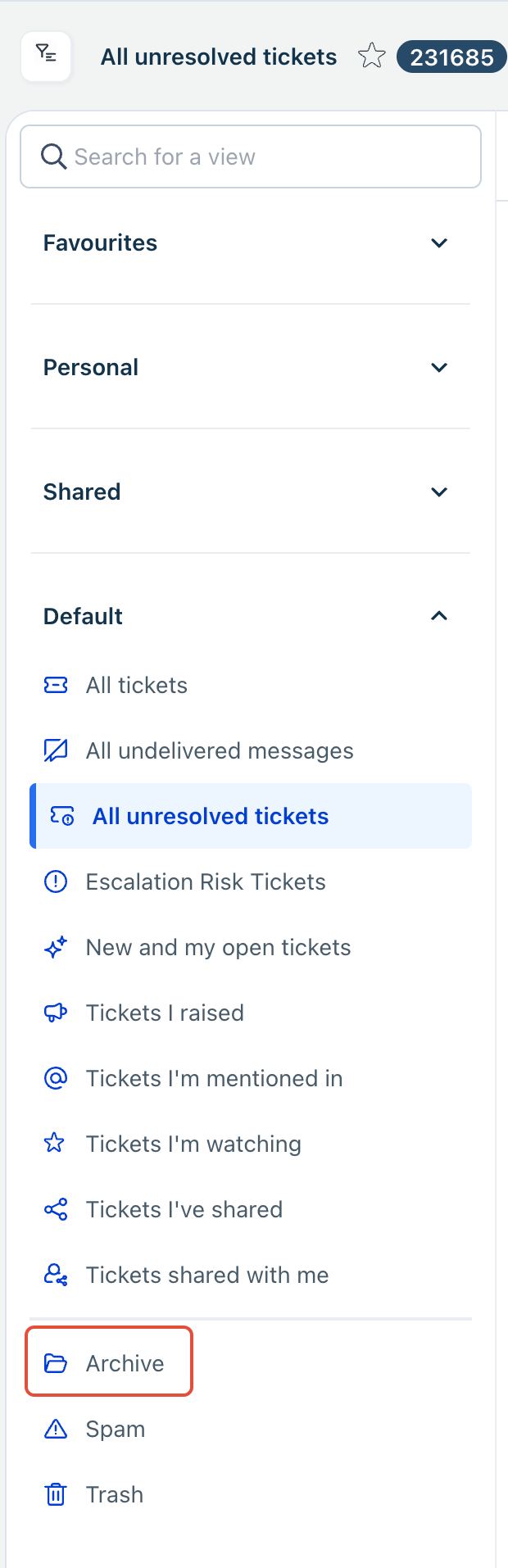
- Select the Archive view.
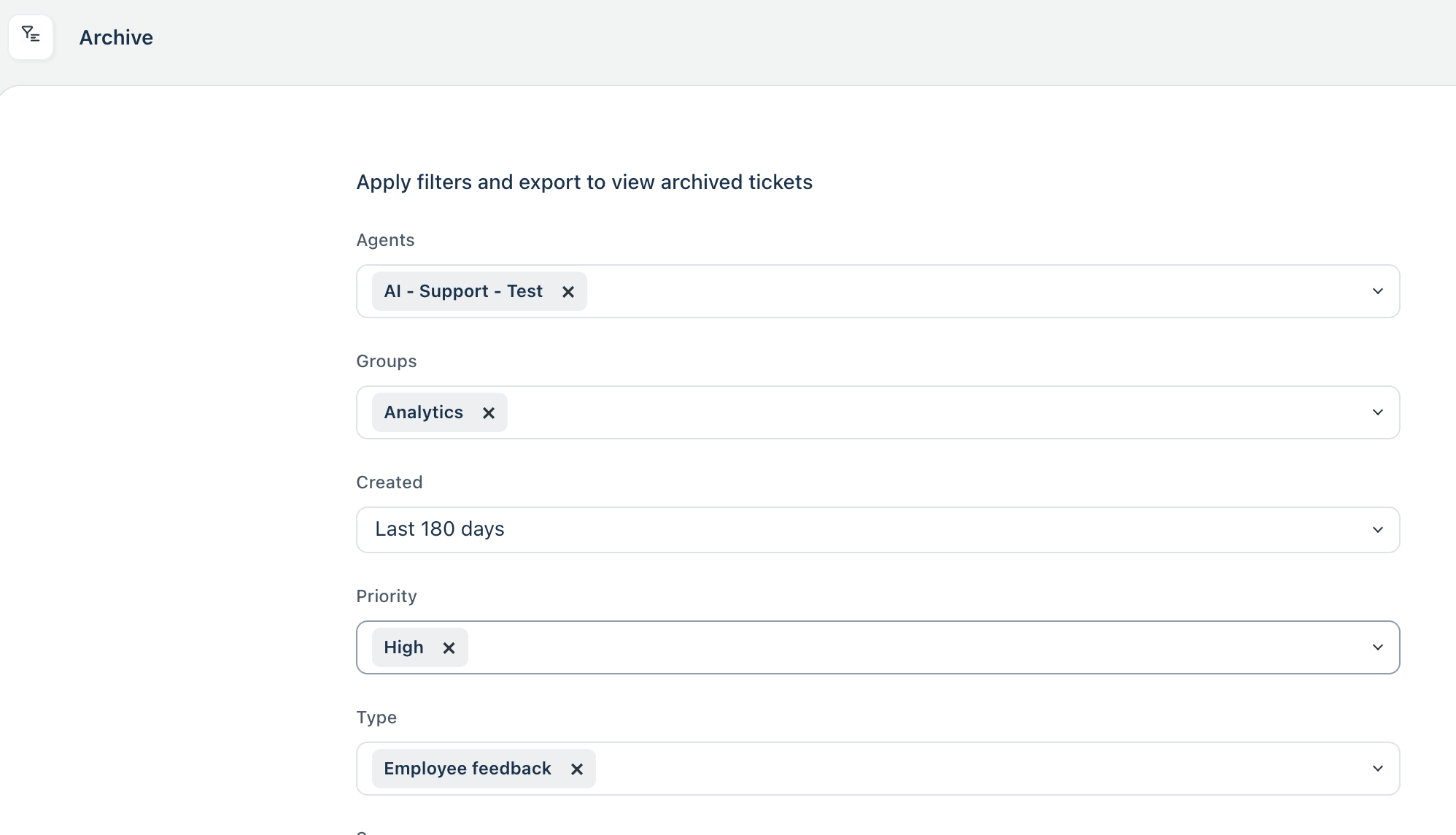
- Apply the required filters and click Next.
- Choose the fields you want to export and click Export.
- Open the exported file and use the ticket URL to view any ticket individually in your account.
Note: You can run only one archived ticket export at a time for your account. Wait until you receive the current export file before you trigger the next one.
View archived tickets in the customer portal
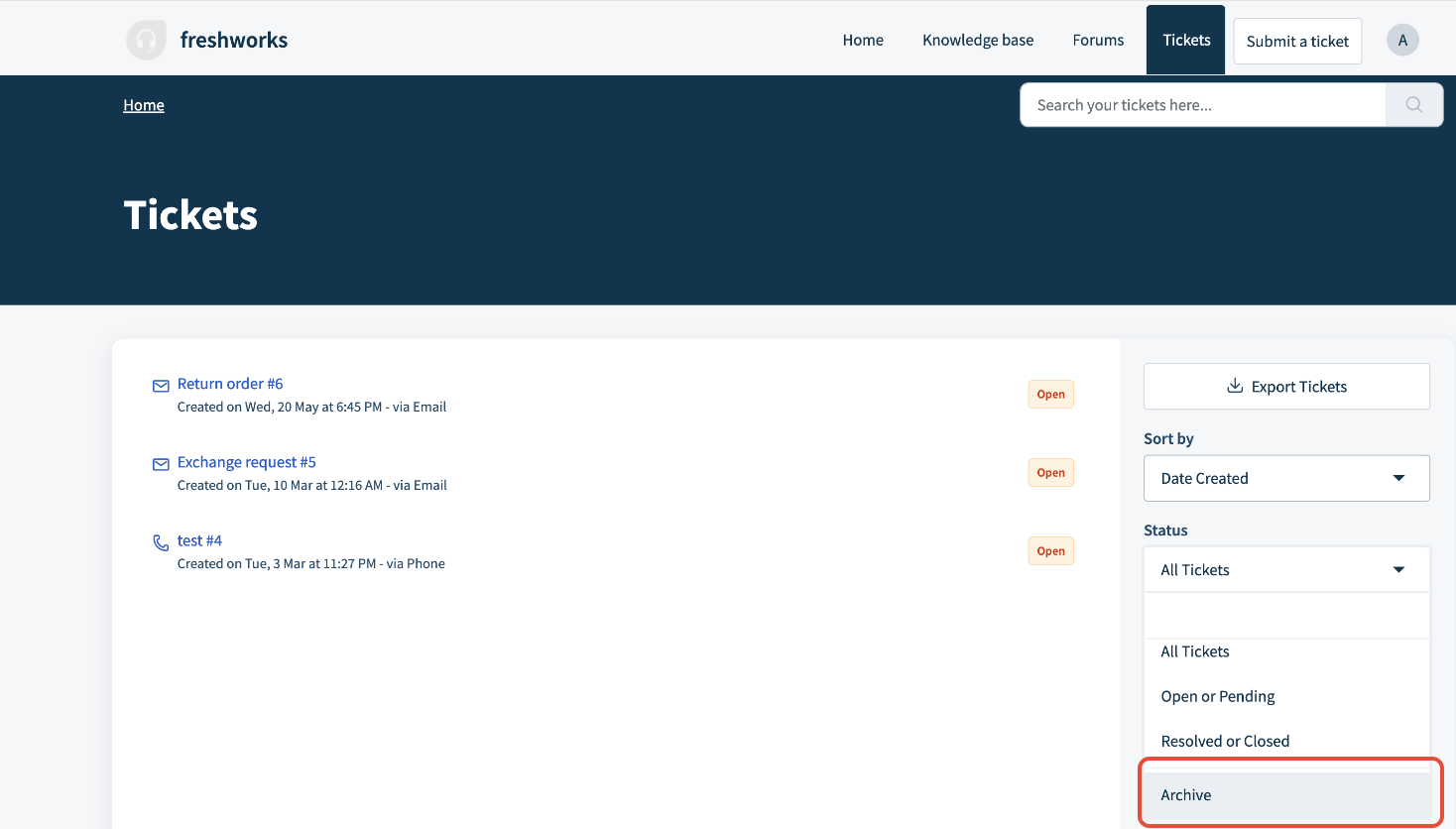
Customers can view their archived tickets by logging into the customer portal and selecting Archive in the ticket filter. Customers cannot reply to an archived ticket from the portal.
View archived tickets from a contact or company profile
To view the archived tickets associated with a specific contact or company, follow these steps:
- Go to the Contacts tab.
- Open the relevant contact or company details page.
- Select Archived tickets.
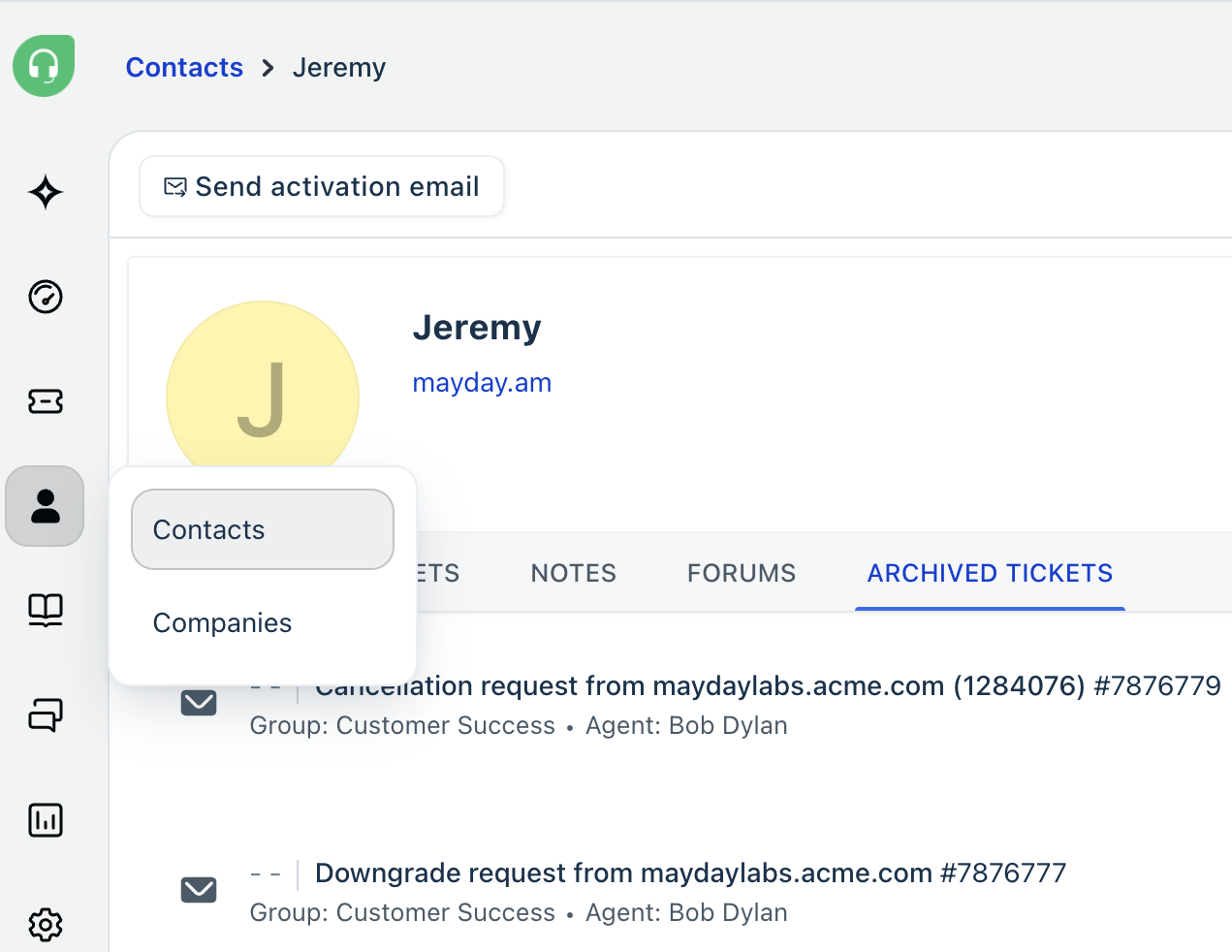
This view displays up to 30 archived tickets for that contact or company. If more than 30 archived tickets exist, Freshdesk displays an option to export the full list.
Include archived tickets in global search
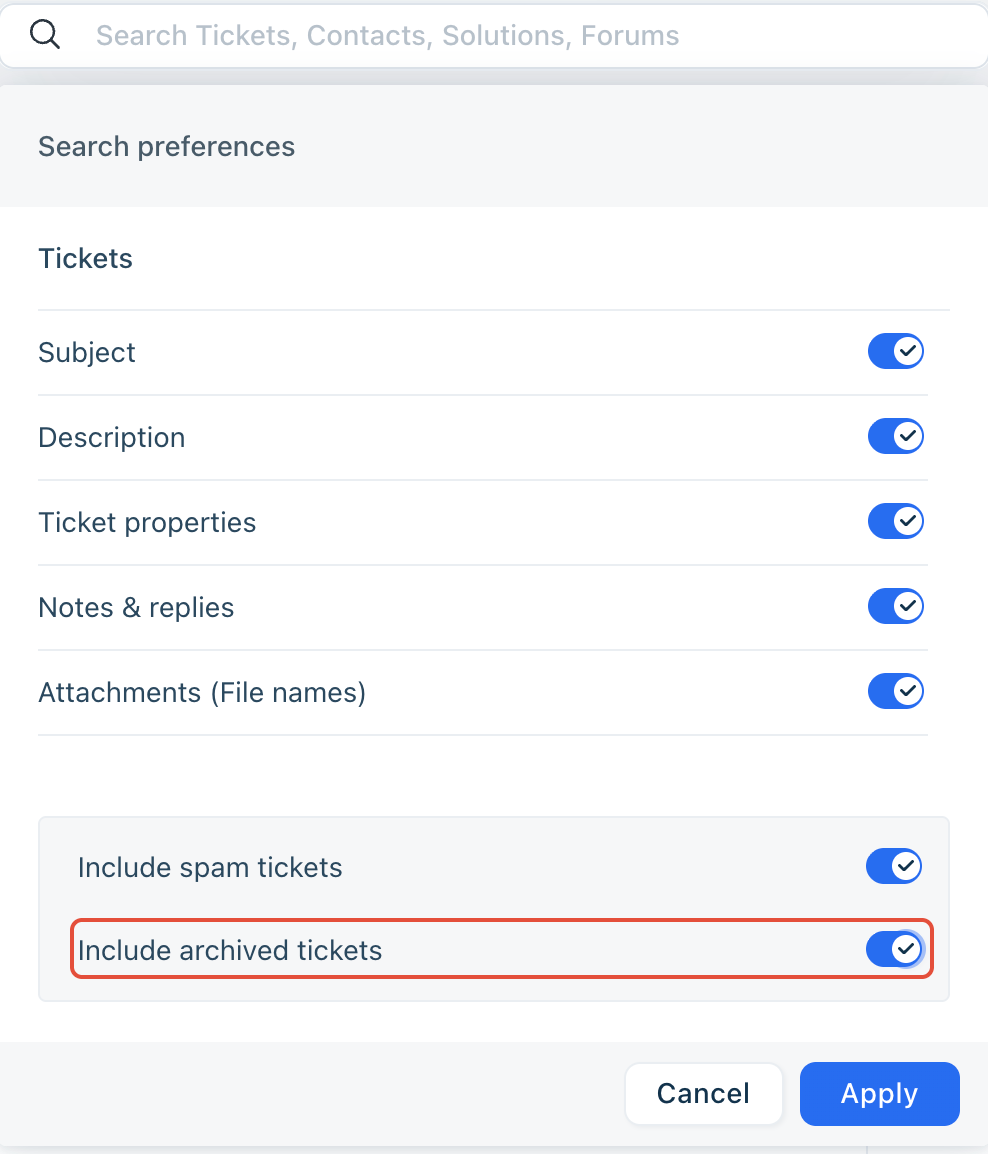
By default, global search excludes archived tickets. To include them, you must manually update your search settings.
To do this, follow these steps:
- Click on the global search bar.
- Click the settings icon.
- Under search preferences, turn on Include archived tickets.
Delete an archived ticket permanently
To permanently delete an archived ticket, follow these steps:
- Use any method detailed above to view the archived tickets.
- Open the archived ticket's detail page.
- Select Delete forever.
Important: Deleting an archived ticket is permanent and irreversible. Freshdesk removes the ticket from the helpdesk completely.
Effects of archiving on other Freshdesk features
The following table summarizes how ticket archiving affects related features.
Feature | Effect of archiving |
Reports | Archiving does not affect reports. Freshdesk counts archived tickets as closed tickets. |
Automation | Automation rules do not run on archived tickets. |
Dashboard | Ticket counters load faster, since archived tickets are excluded. |
Ticket watching | Agents added as watchers stop receiving notifications once a ticket is archived. |