
 Community
 Video Library
 Agent Training
 Freshservice
 Freshdesk
 Freshchat
 Freshcaller
 Freshsales
 Freshteam
 Freshworks Neo
 Freshsurvey
 Freshservice for MSP
 TABLE OF CONTENTS
- Overview
- Plan and scope availability
- Prerequisites and role permissions
- Enable field level encryption
- Field lifecycle and migration states
- View and reveal protected data
- Requester and portal experience
- Disable encryption and decrypt data
- System limitations and impacted services
- Audit and activity tracking
Overview
Field level encryption (FLE) enables organizations handling sensitive personal, medical, or financial information to secure custom field data across tickets and service requests. When you encrypt a field, its contents are automatically masked and can only be viewed through controlled, session-isolated reveal workflows.
Plan and scope availability
Prerequisites and role permissions
Protection applies directly to data rather than user roles. Both agents and administrators view masked values by default.
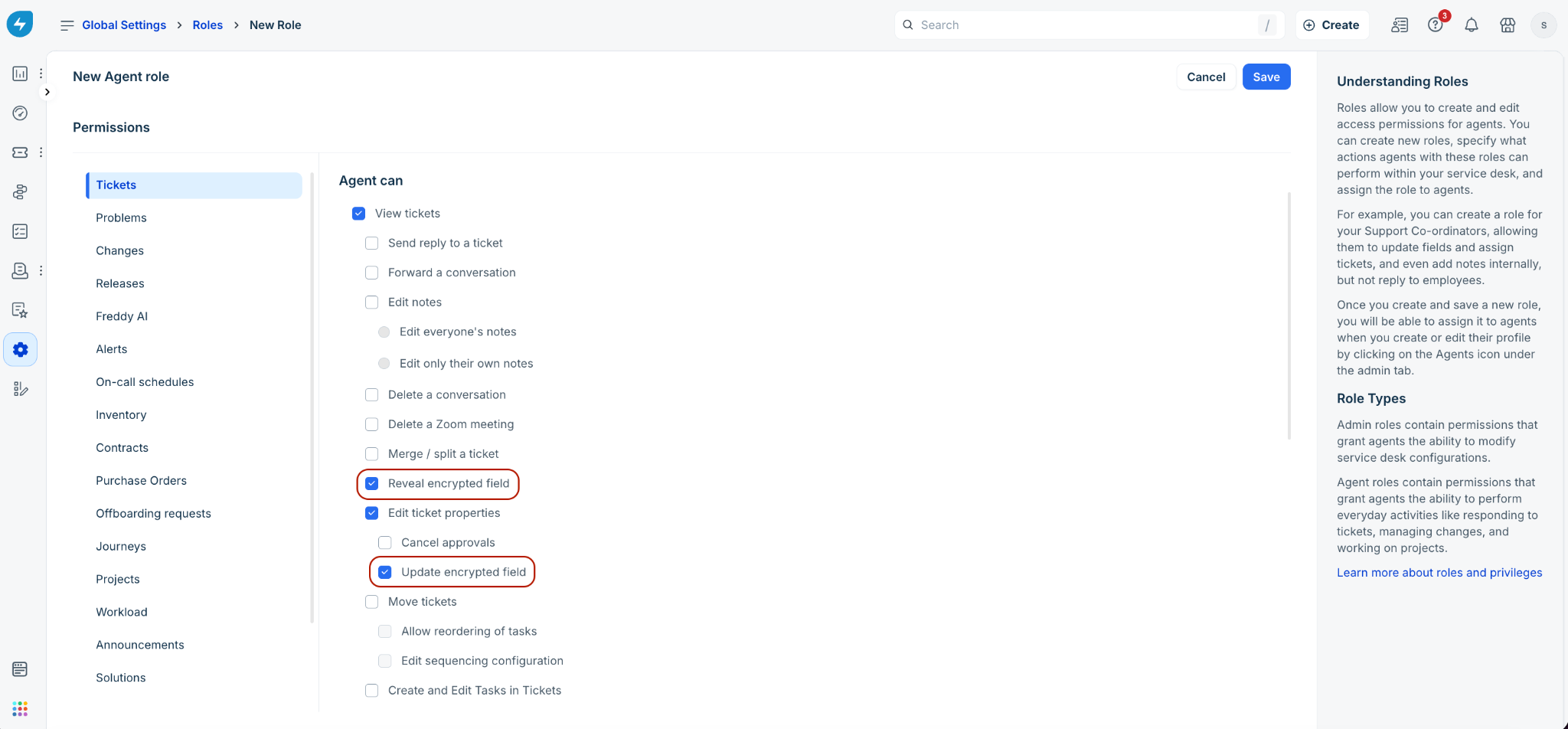
To view or edit encrypted fields, an administrator must assign the following agent permissions under Admin > Global Settings > User Management > Roles:
Reveal encrypted field: Located under the Tickets permissions group. Allows the user to select the eye icon and view the plain text value for the duration of an active session.
Update encrypted field: Located under the Edit ticket properties permission block. Allows the user to edit or enter values into an encrypted field.
Enable field level encryption
You can encrypt newly created custom fields or encrypt existing custom fields retroactively.
Encrypt ticket fields
Log in to your Freshservice account.
Go to Admin > Global Settings (or Workspace Settings) > Service Management > Field Manager > Ticket Fields.
Drag and drop a new Single-line Text or Paragraph Text field onto the form canvas, or select an existing custom text field.
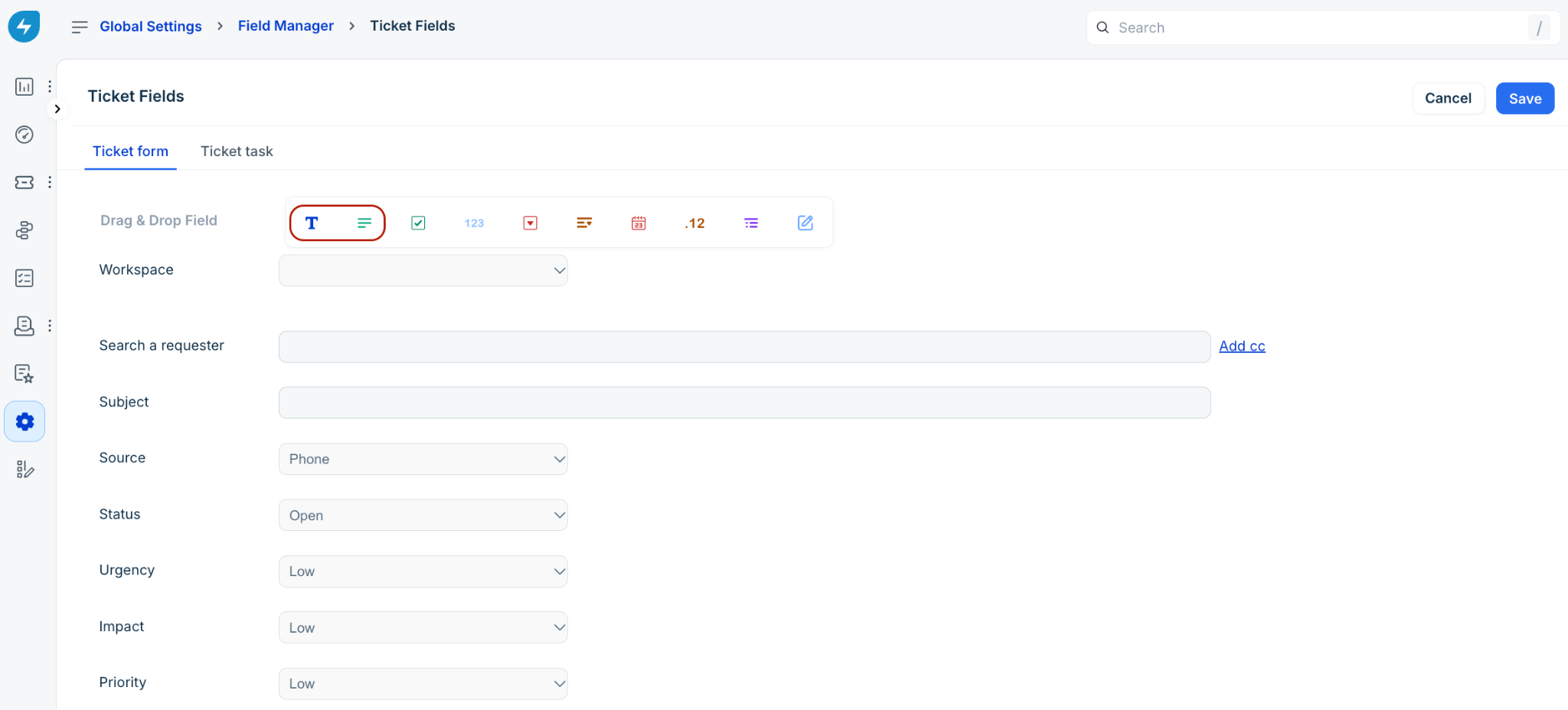
Note: Default system fields and Ticket Task fields cannot be encrypted.
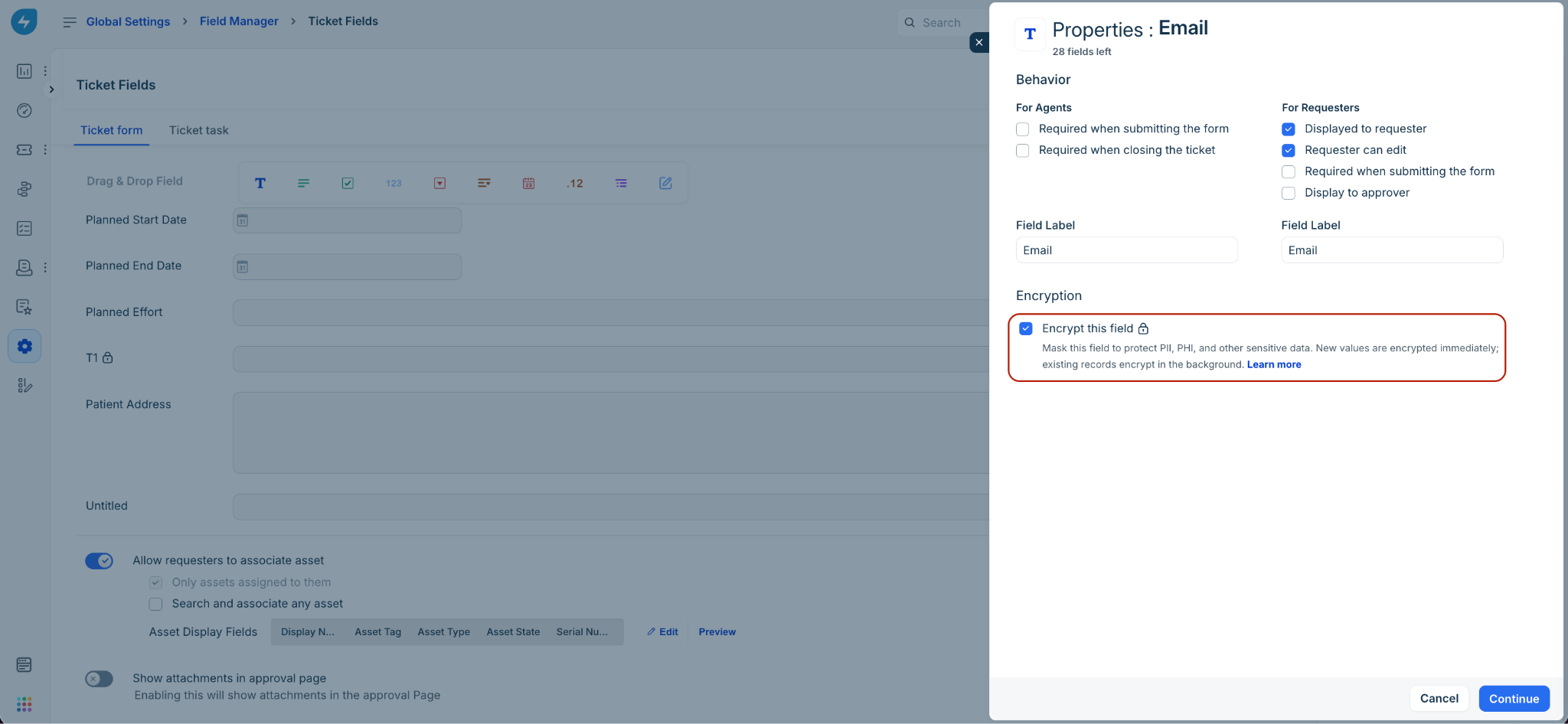
In the field properties slider, select the Encrypt this field checkbox.
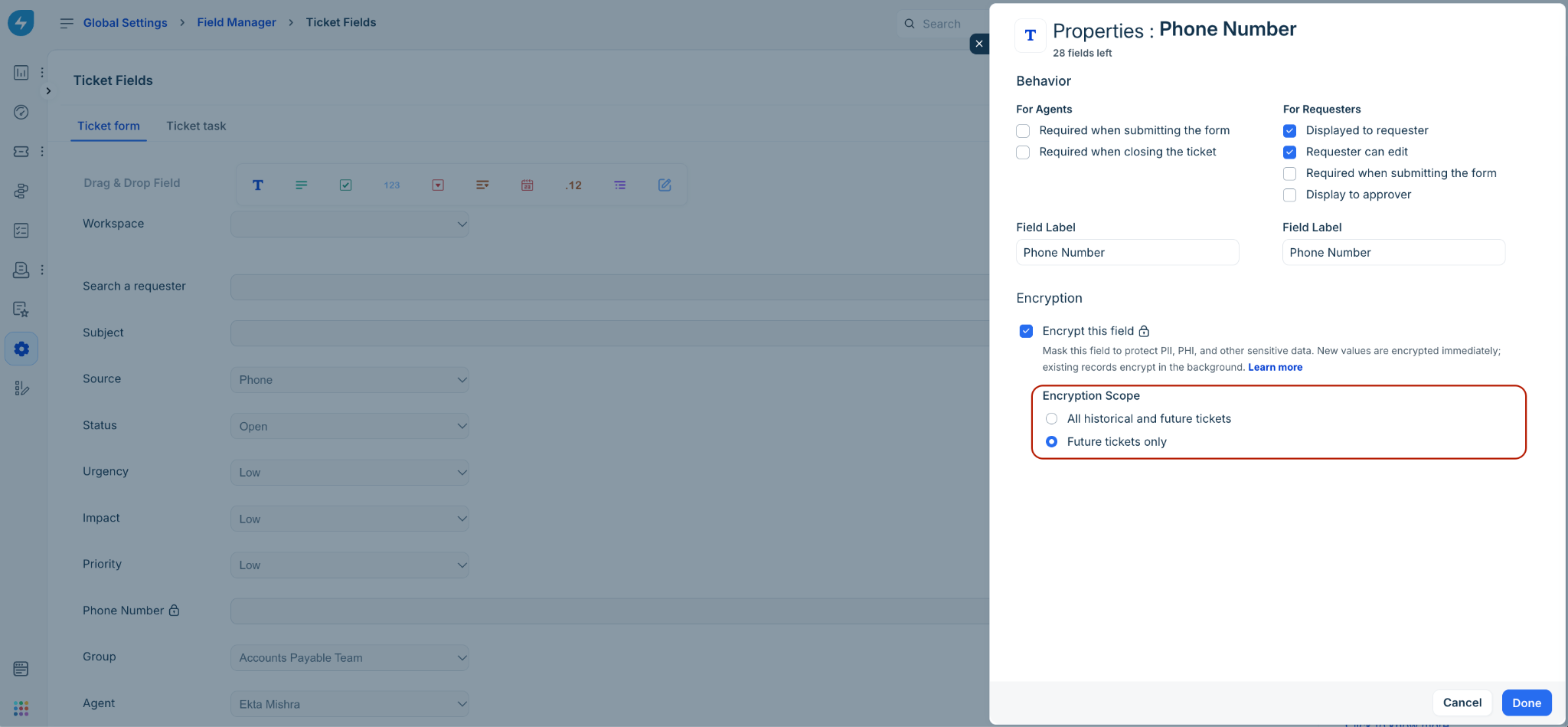
If you are encrypting an existing field, select an Encryption Scope:
All historical and future tickets: Tokenizes and encrypts all past entries in this field across existing tickets while securing all new entries.
Note: Depending on your data size, encrypting existing and future tickets can take between 24 and 48 hours. Until process completion, certain fields may temporarily display plain text values. Once the encryption process completes, a notification email is sent to the admins.
Future tickets only: Encrypts entries added from this point onward; past entries remain in plain text.
Select Continue to review the Review encryption impact screen. This screen details feature dependencies and restrictions.
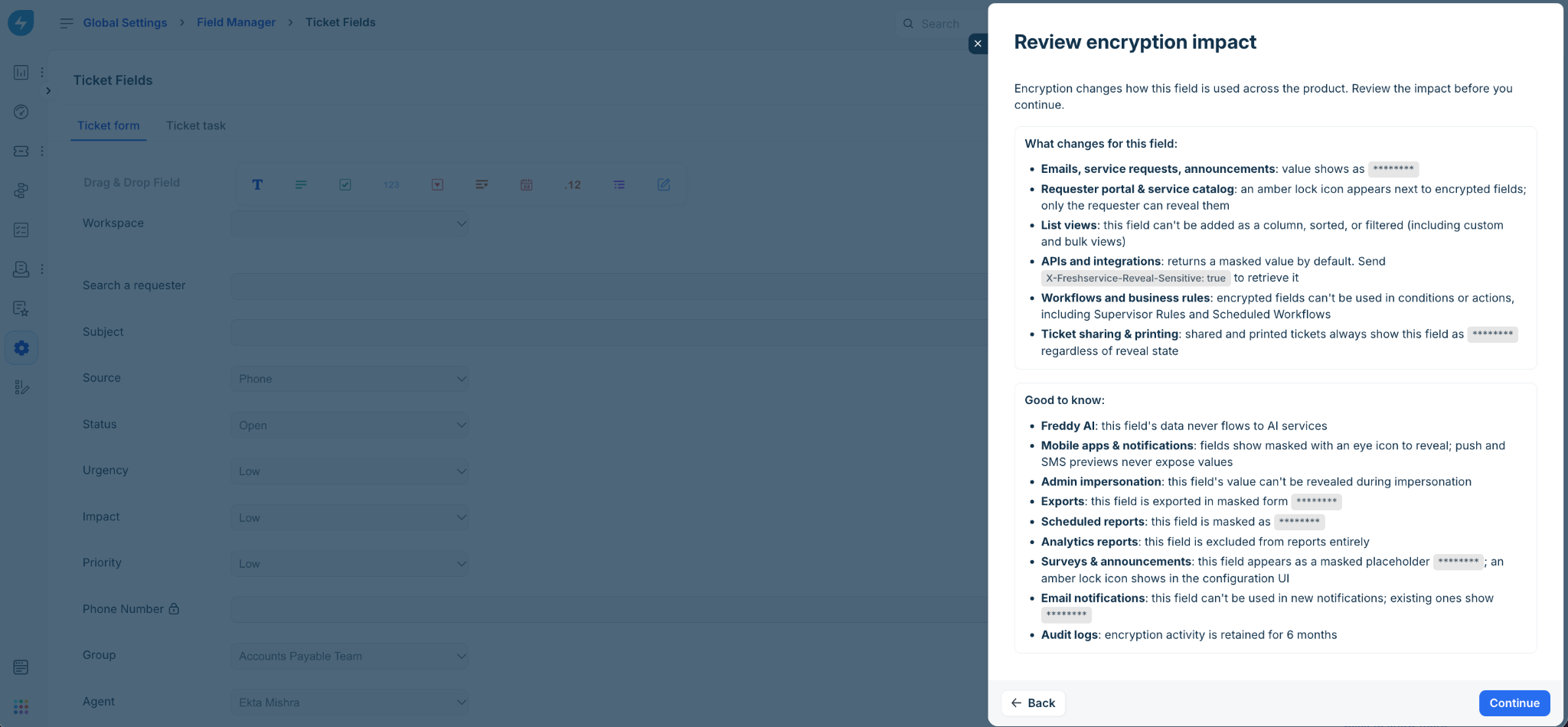
Select Continue, then select Save on the ticket form page.
Encrypt service catalog fields
Go to Admin > Global Settings (or Workspace Settings) > Service Management > Service Catalog.
Open the desired Service Item and go to the Custom Fields form builder.
Add a custom Single-line Text or Paragraph Text field, or select an existing one.
Select the Encrypt this field checkbox in the properties pane.
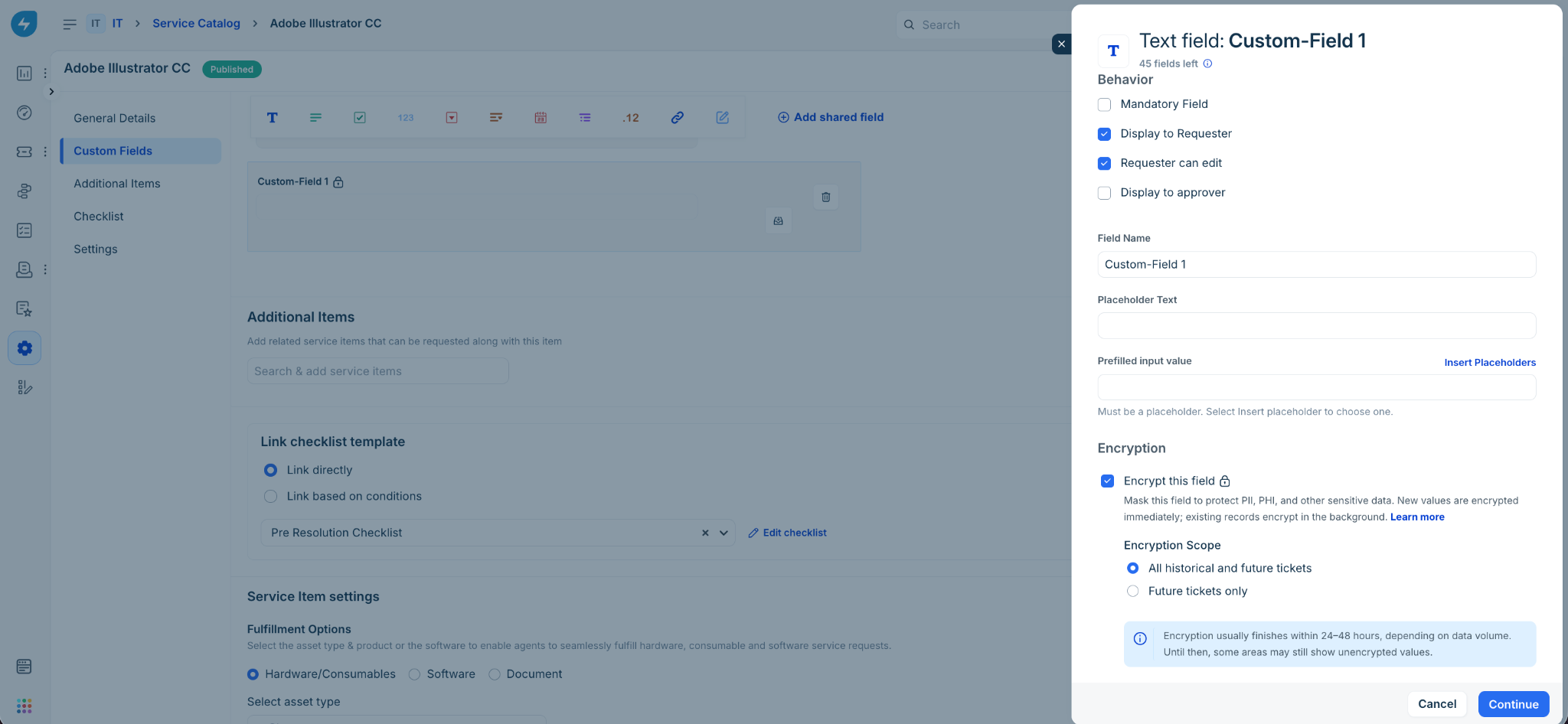
Review the Review encryption impact screen, and save the Service Item.
An amber lock icon appears next to the field label in the form builder to indicate that submitted data is protected.
Field lifecycle and migration states
Every encrypted field transitions through a defined lifecycle:
Unmarked: Standard field behavior. Values are visible to any user with ticket access.
Encrypted — Migration in progress: Active while historical ticket data is being encrypted in the background.
Forward protection is active immediately for all new tickets.
Historical values are encrypted via a background job (typically taking 2 to 3 hours, up to 24-48 hours depending on ticket volume).
The field displays an "Encryption in progress" indicator.
An email notification is sent to the administrator when migration completes.
Encrypted Active: All values are encrypted. Controlled reveal, session timeouts, and audit logging are enforced. While each reveal action is logged, the value stays unmasked until the session times out.
Encryption Disabled: The field has reverted to a standard text field. All historical values are automatically decrypted, and new values will be saved as plain text.
Encrypted — Archived: The field is retired from active forms.
View and reveal protected data
Default masked display
Across ticket details, mobile apps, and APIs, protected fields display a uniform, fixed-length mask. The mask length does not vary based on the underlying text length, preventing character-count inferences.
Reveal a value
Locate the encrypted field in the ticket properties pane or service request view.
Select the eye icon adjacent to the masked text (the plain text value will appear inline).
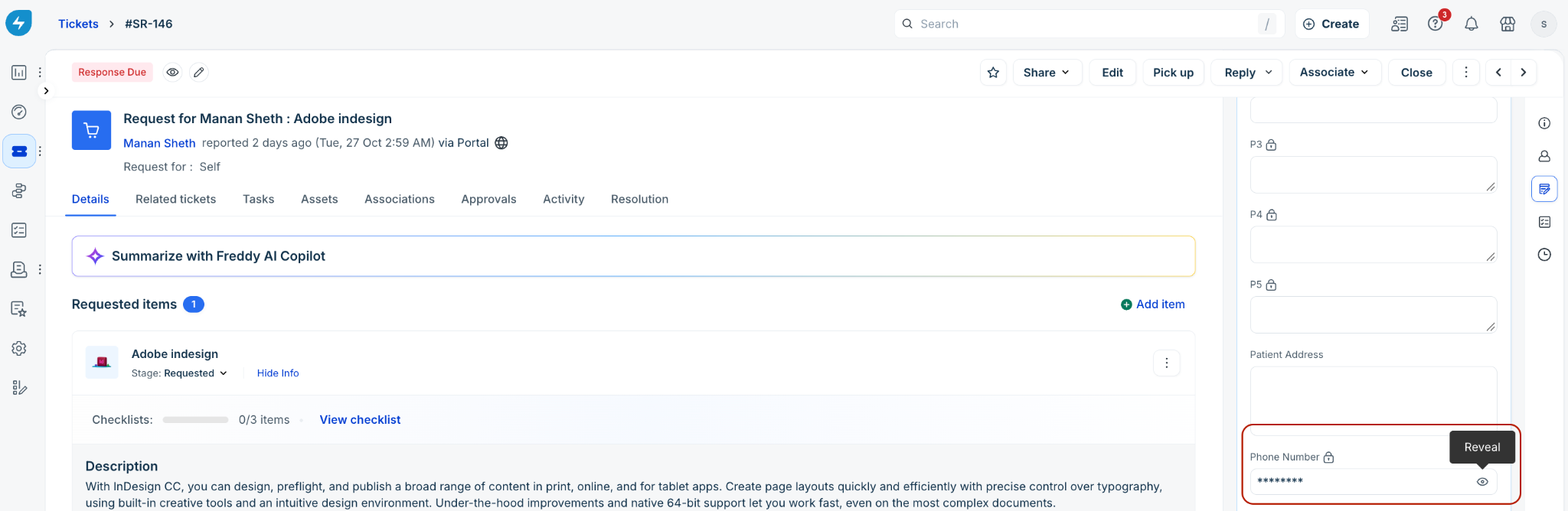
The reveal event is also recorded in the ticket Activity log.
Session isolation and auto-masking
Reveal states are strictly isolated to your individual session:
No cross-session sync: Revealing a value in one browser tab does not reveal it in other tabs, other browser windows, or mobile apps, even for the same user.
Auto-mask triggers: The plain text value reverts to the masked value when:
The session timeout expires.
You refresh the page.
You select the hide icon manually.
Edit encrypted values
Opening a ticket in edit mode does not reveal the protected value.
To overwrite the content, enter the new value directly into the field and save.
To review the current value before editing, select the reveal icon within the edit form.
Upon saving, the new value is encrypted and masked immediately.
Requester and portal experience
Submitting requests: When requesters submit Tickets or Service Catalog items via the portal, an amber lock icon appears next to the field label with a tooltip indicating it is a protected field. Data is entered normally.
Requester ticket view:
Requester: Can view their own submitted ticket details.
Note: In the current FLE rollout, requesters can reveal their own submitted values using click-to-reveal on the portal.
Shared Viewers (CC/BCC and Department Viewers): Users added as CC or BCC, or users with department ticket visibility, see the masked value permanently with no option to reveal. Department-level oversight permissions do not grant access to individual protected fields.
Chatbot and virtual agent channels (Slack and Microsoft Teams): When a user raises a ticket or service request containing an encrypted field through virtual agents in Slack or Teams, Freshservice does not collect the sensitive value within chat. The bot redirects the user via a link to complete the form securely within the Freshservice portal.
Disable encryption and decrypt data
If you no longer need encryption on a field, you can disable it:
Go to Field Manager > Ticket Fields (or Service Catalog) and select the field.
Clear the Encrypt this field checkbox.
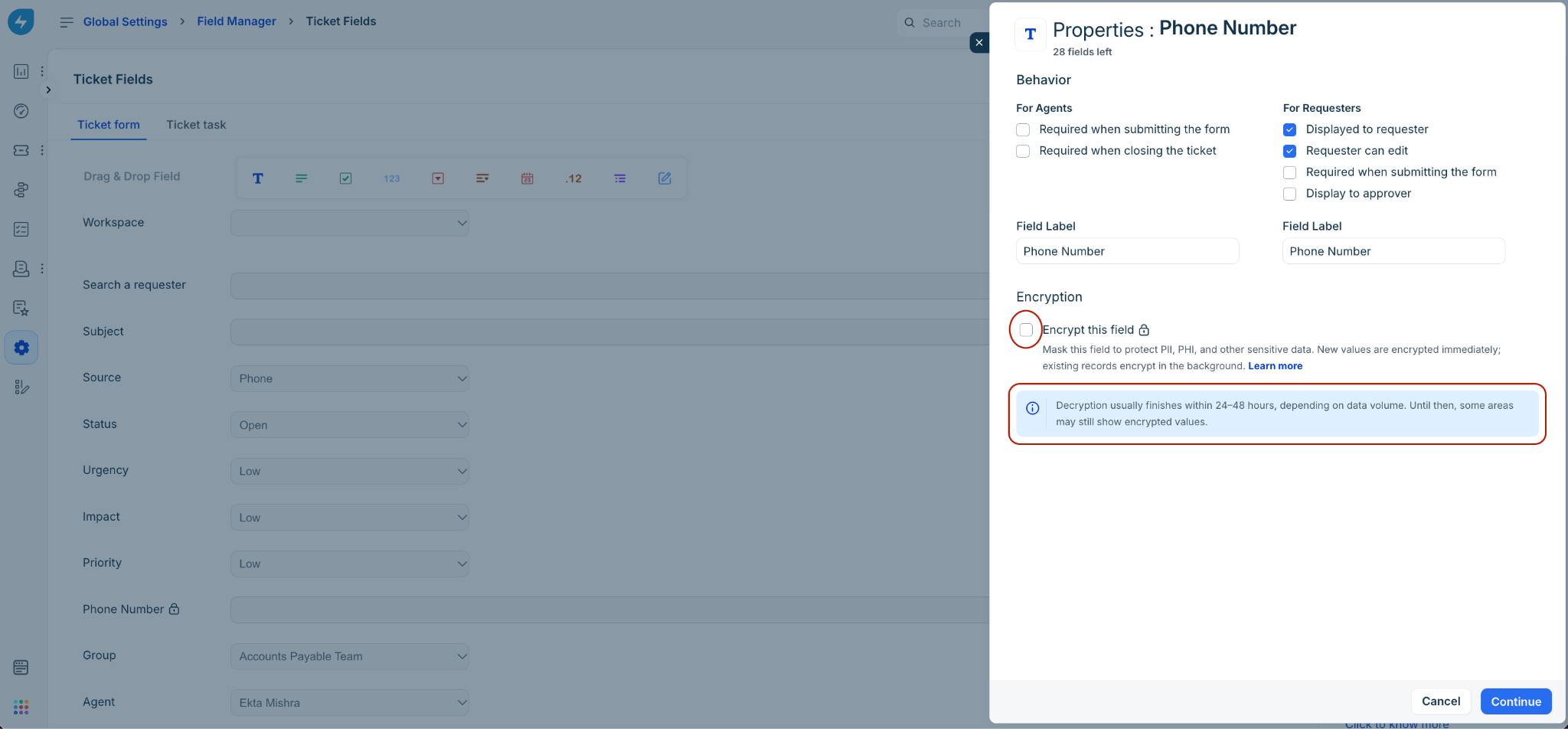
Review before removing the encryption.
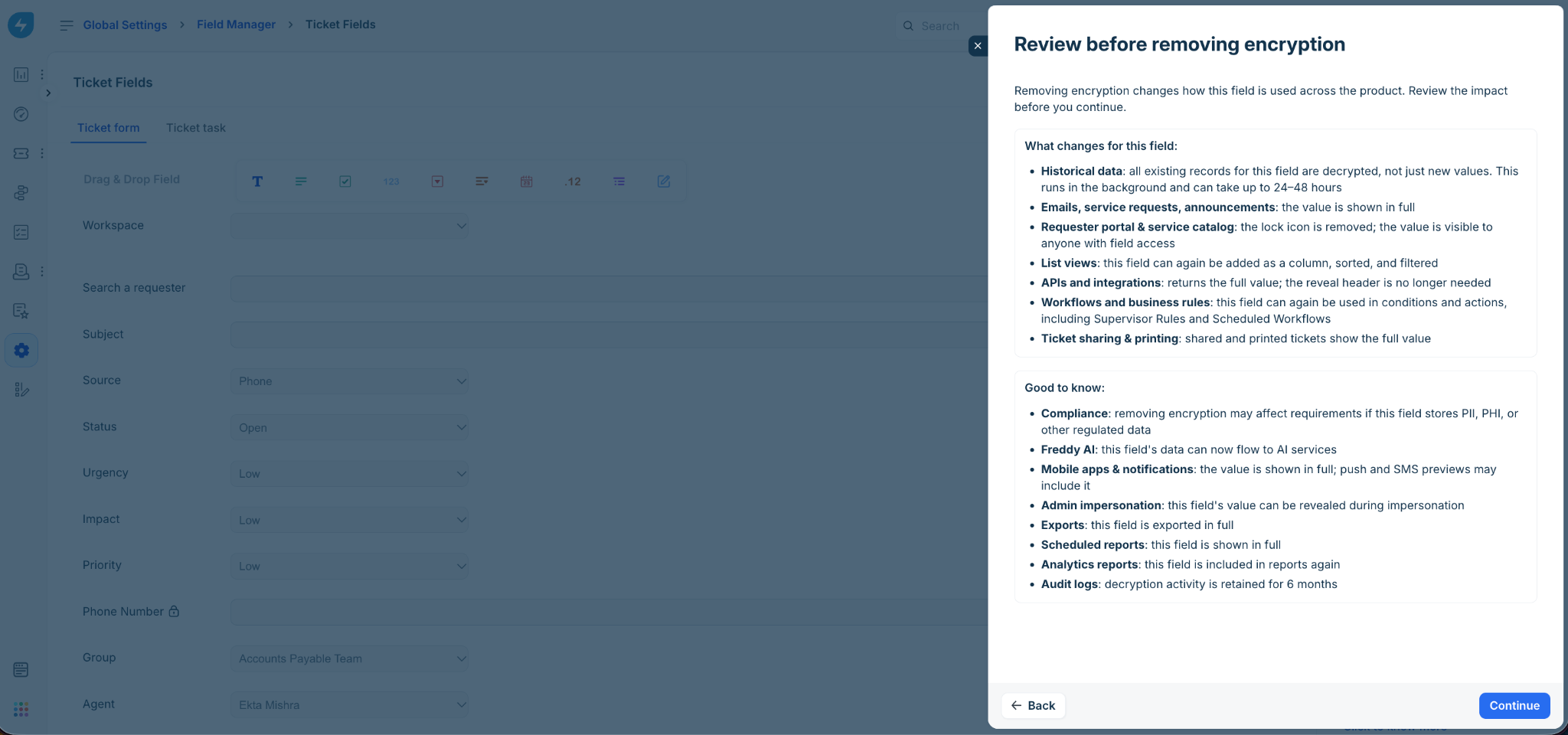
The system checks for existing records:
No protected records exist: If no values were ever written while the field was encrypted, the field returns directly to the Unmarked state.
Protected records exist: Protection is disabled for all future writes, but previously written records remain encrypted and require click-to-reveal permissions.
Historical decryption: To convert historically encrypted records back to standard plain text, select the option to decrypt all historical data and confirm.
A background job initiates (taking up to 24-48 hours depending on the volume).
The Field Manager displays a "Decryption in progress" status banner.
When finished, all historical entries display in plain text without requiring reveal access.
System limitations and impacted services
Before encrypting a field, review how it affects other Freshservice capabilities:
Audit and activity tracking
Freshservice tracks access and configuration changes across two administrative logging layers:
Ticket activity stream: Records every user reveal event, manual hide action, and session timeout auto-hide event directly within the Ticket's Activity tab. These activity entries persist for the lifetime of the ticket record.
Service desk audit log: Located under Global Settings > Audit Log. Administrative actions—such as marking a field as encrypted, disabling encryption, modifying scope, or initiating background decryption—are logged here. Audit log entries are retained for 6 months and can be exported as a CSV file.