
 Community
 Video Library
 Agent Training
 Freshservice
 Freshdesk
 Freshchat
 Freshcaller
 Freshsales
 Freshteam
 Freshworks Neo
 Freshsurvey
 Freshservice for MSP
 Important: Freshstatus will be discontinued on March 31, 2026.
Overview
Freshstatus will be discontinued on March 31, 2026. To continue publishing incident and service updates without interruption, you can migrate your existing status page to Freshservice. This article explains the following:
Advantages of migrating to Freshservice:
Migrating status page from Freshstatus to Freshservice offers the following advantages:
Integrated solution: Manage incidents, changes, and status updates in a single platform. Publish status updates directly from incidents and changes.
Enhanced security and privacy: Use built-in authentication for agents and requesters who are already signed in to Freshservice.
Flexible access control: Restrict status page access using private pages and IP-based allowlists.
AI writing assistance (Freddy AI Copilot): Draft status updates in different tones and languages using AI assistance.
Upcoming features:
API integration: Connect external tools and applications using APIs.
Audience-specific status pages: Create multiple status pages tailored for different audiences.
Advanced subscriber management: Easily add, import, and manage your subscribers.
Workflow automation: Utilize Workflow Automator support for your status page activities.
Migrate Freshstatus page to Freshservice with an existing Freshservice account
Follow these steps to migrate Freshstatus page to Freshservice and continue publishing service status updates after Freshstatus is discontinued.
Go to your Freshstatus account.
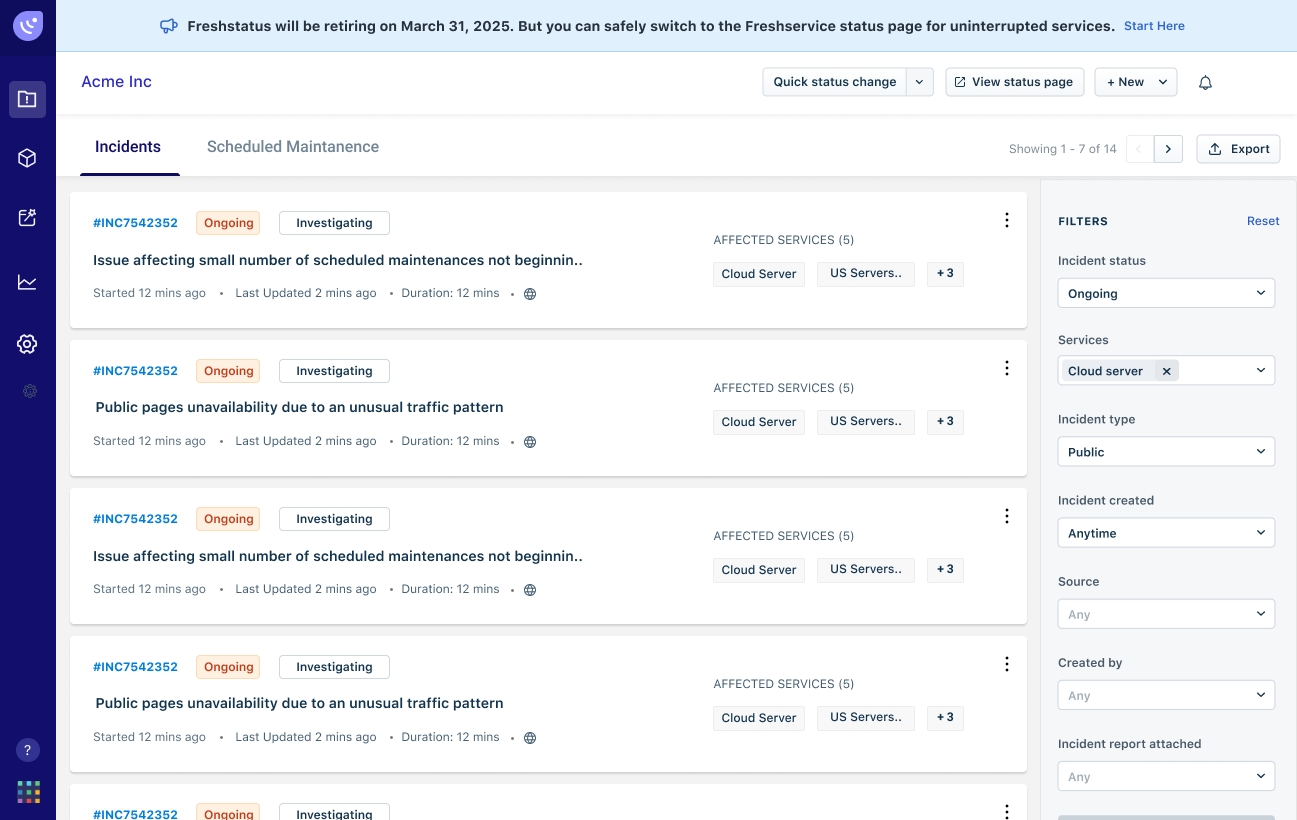
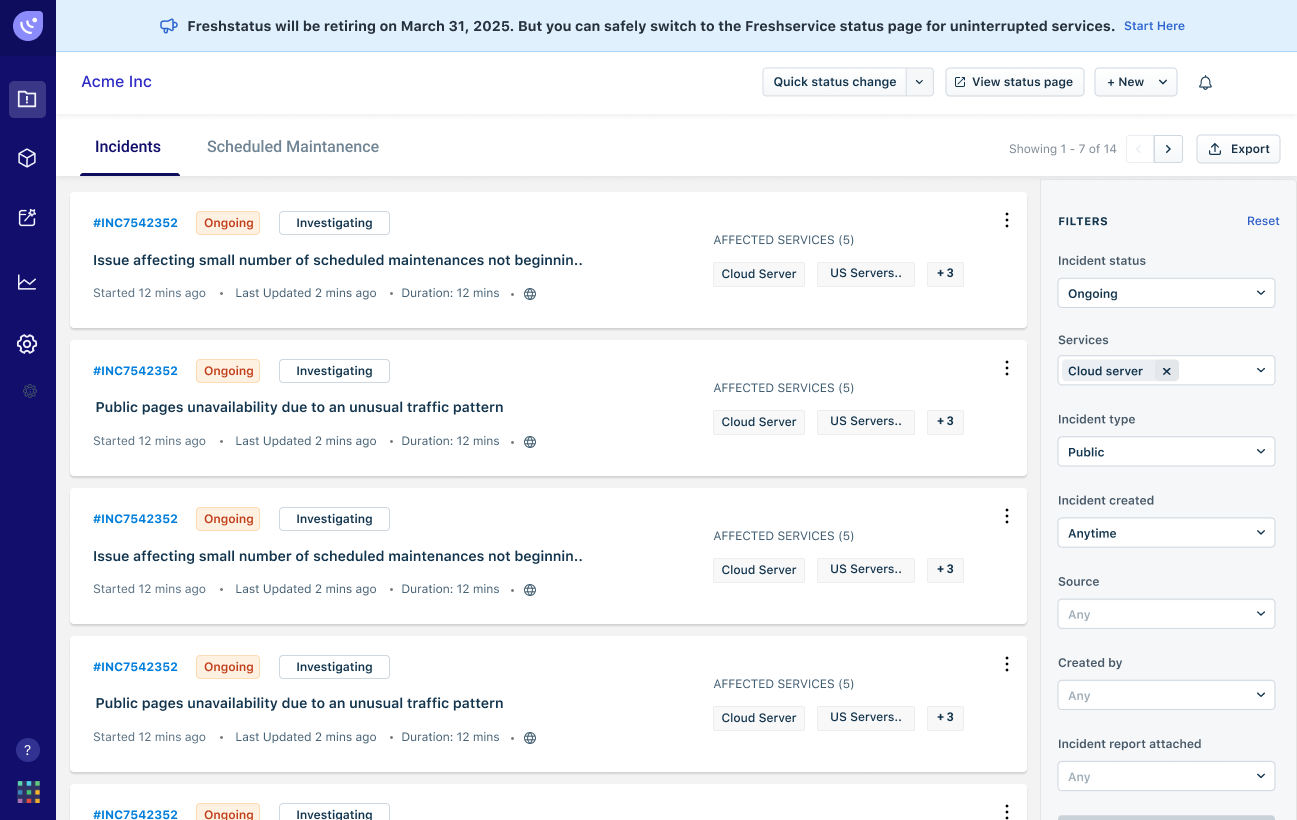
A banner is displayed with a link as shown in the following image:Click on Start Here link in the banner.
This link is also emailed to the account owners and admins of the Freshstatus accounts.
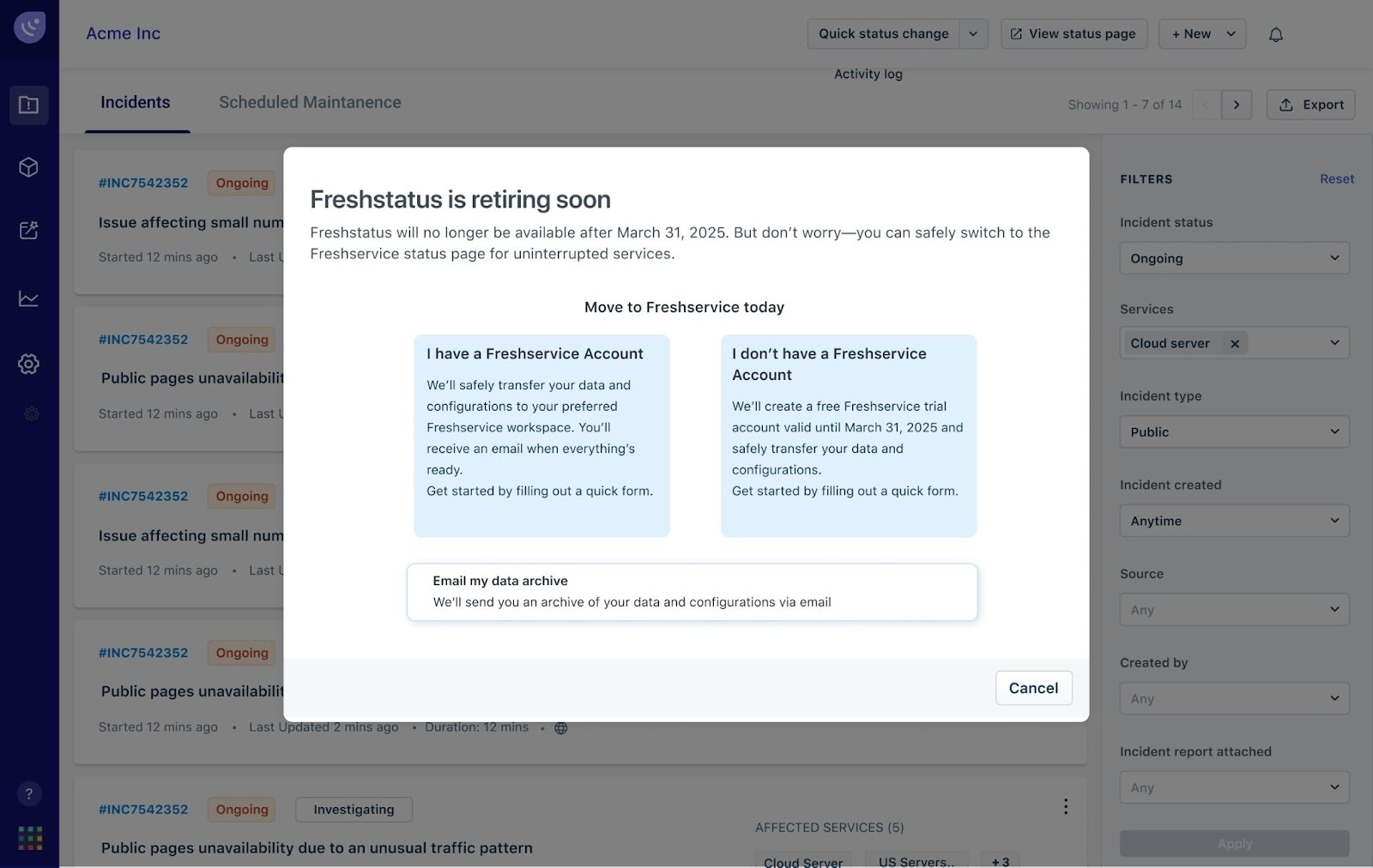
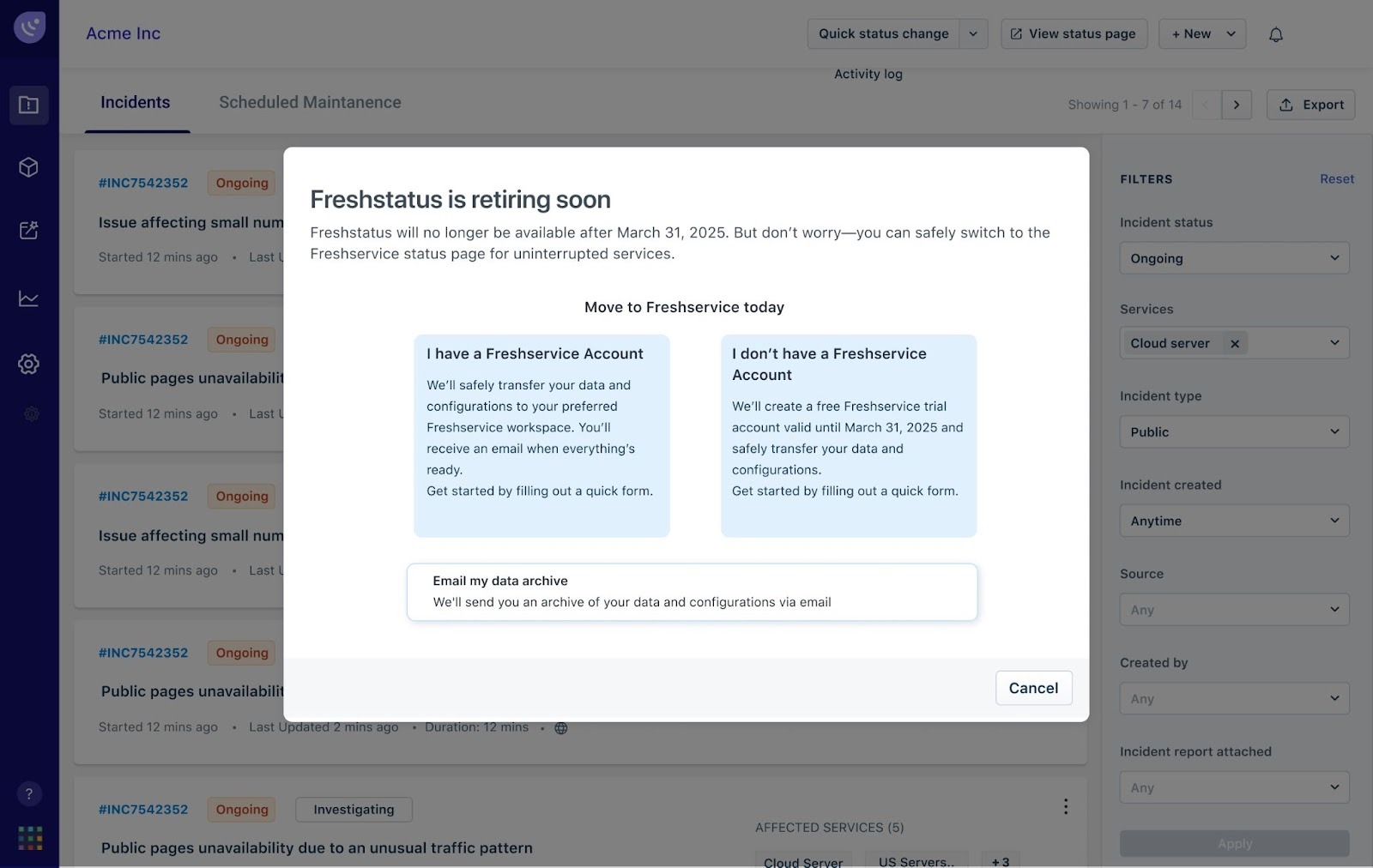
The following dialog box is displayed.Click I have a Freshservice account option.
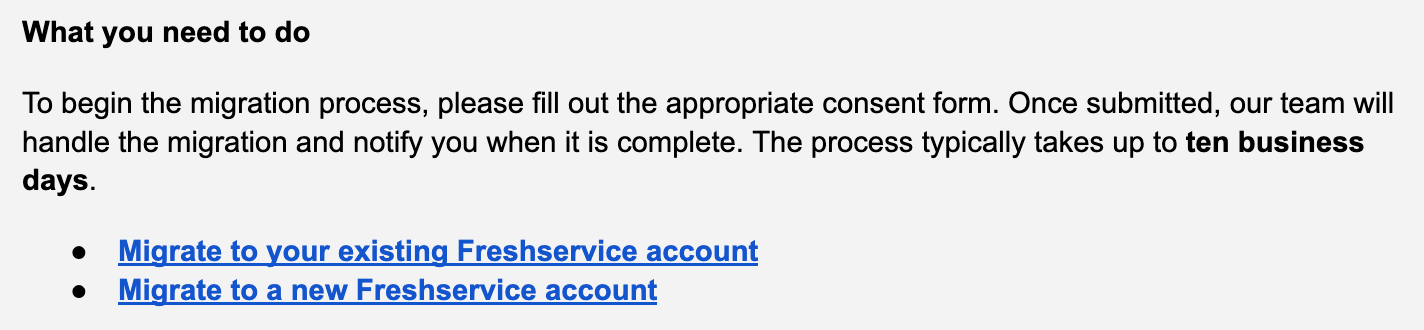
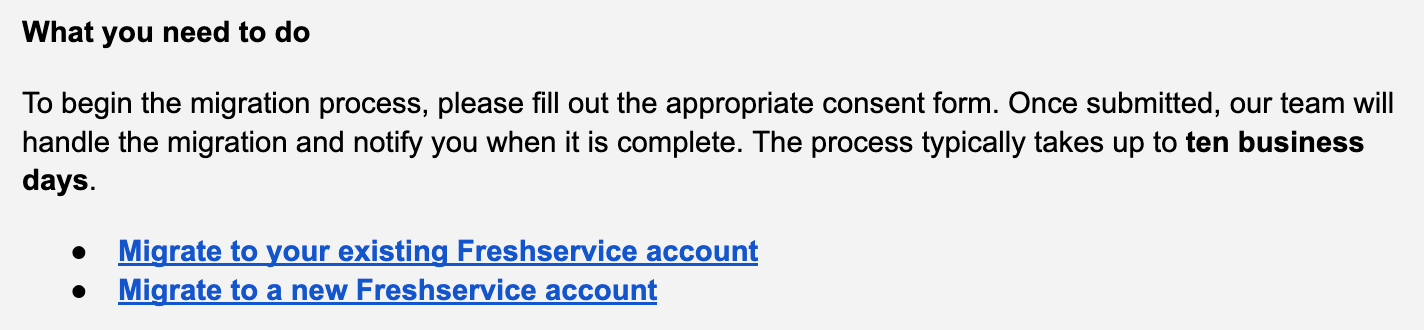
Or, you can directly click the required link from your email as shown in the following image:Enter your email ID in the Find my data archive field.
An archive of your data and configuration is sent to your email address.
If you are unable to select that option or access your data archive using the link provided in the email, write to support@freshworks.com with your details.
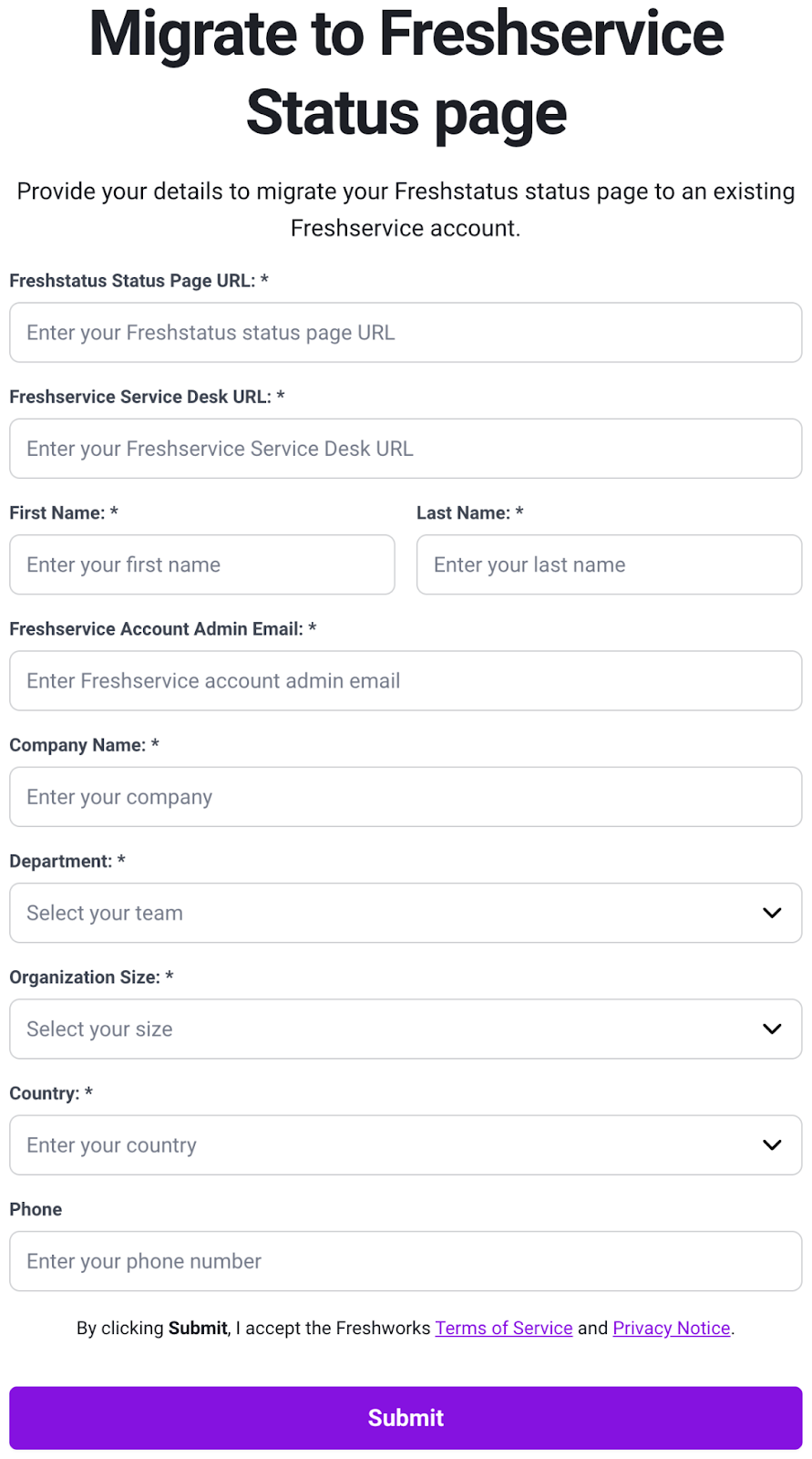
The Migrate to Freshservice Status page form is displayed as shown in the following image:
Enter your Freshstatus Status page URL in Freshstatus Status page URL field.
To find your Freshstatus Status page URL, go to Freshstatus > Status page customization > General > DOMAIN URL > Your status page’s URL.
The status page’s URL looks like <your subdomain>.freshstatus.io.Enter your Freshservice Service Desk URL in Freshservice Service Desk URL field.
To find your Freshservice Service Desk URL, go to Freshservice > Global settings > Service desk rebranding > Service desk settings > Service desk URL.
The Freshservice Service Desk URL looks like <your subdomain>.freshservice.com.Enter your first name and last name in First name and Last name fields.
Enter your Freshservice account admin email ID in Freshservice Account Admin email field.
To find you Freshservice Account Admin email ID, go to Freshservice > Global settings > Admin > Account > Email address.Enter your company details in the remaining fields such as Company name, Department, Organization size, Country, and Phone.
Read the Terms of Service and Privacy Notice, and select the checkbox.
Click Submit.
Note: The status page feature is included with the Freshservice Pro and Enterprise plans only. If you are a Freshservice Pro or Enterprise user, your data will be migrated upon submission of the form. If you are not currently on one of these plans, please upgrade to the Pro or Enterprise plan to access this feature.
Migrate Freshstatus page to Freshservice without an existing Freshservice account
Follow these steps to migrate Freshstatus page to Freshservice and continue publishing service status updates after Freshstatus is discontinued.
Go to your Freshstatus account.
A banner is displayed with a link as shown in the following image:Click on Start Here link in the banner.
This link is also emailed to the owners and admins of the Freshstatus accounts.
The following dialog box is displayed.Click I don’t have a Freshservice account option.
Or you can directly click the required link from your email as shown in the following image:Enter your email ID in the Find my data archive field.
An archive of your data and configuration is sent to your email ID.
If you are unable to select that option or access your data archive using the link provided in the email, please write to support@freshworks.com with your details.
The Migrate to Freshservice Status page form is displayed as shown in the following image.
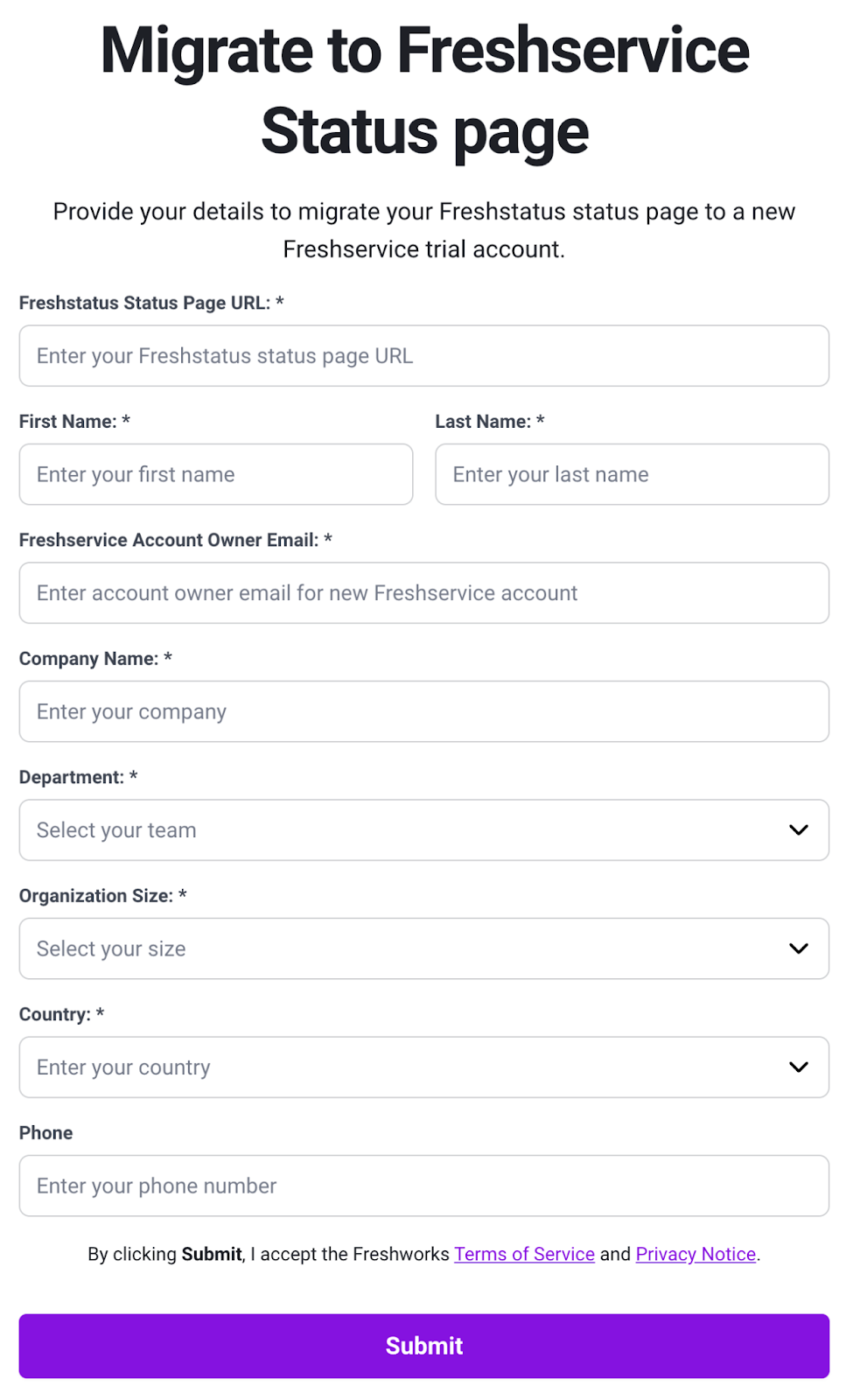
Enter your Freshstatus Status page URL in Freshstatus Status page URL field.
To find your Freshstatus Status page URL, you can go to Freshstatus > Status page customization > General > DOMAIN URL > Your status page’s URL.
The status page URL looks like <your subdomain>.freshstatus.io.Enter your first name and last name in First name and Last name fields.
Enter Freshstatus account owner email ID in Freshstatus Account Owner email field.
To find the Freshstatus account owner email ID, go to Freshstatus > Settings > Agents.Enter your company details in the remaining fields such as Company name, Department, Organization size, Country, and Phone.
Read the Terms of Service and Privacy Notice, and select the checkbox.
Click Submit..
Configure your status page in Freshservice after migration
After data migration is complete, follow these steps to configure your status page in Freshservice.
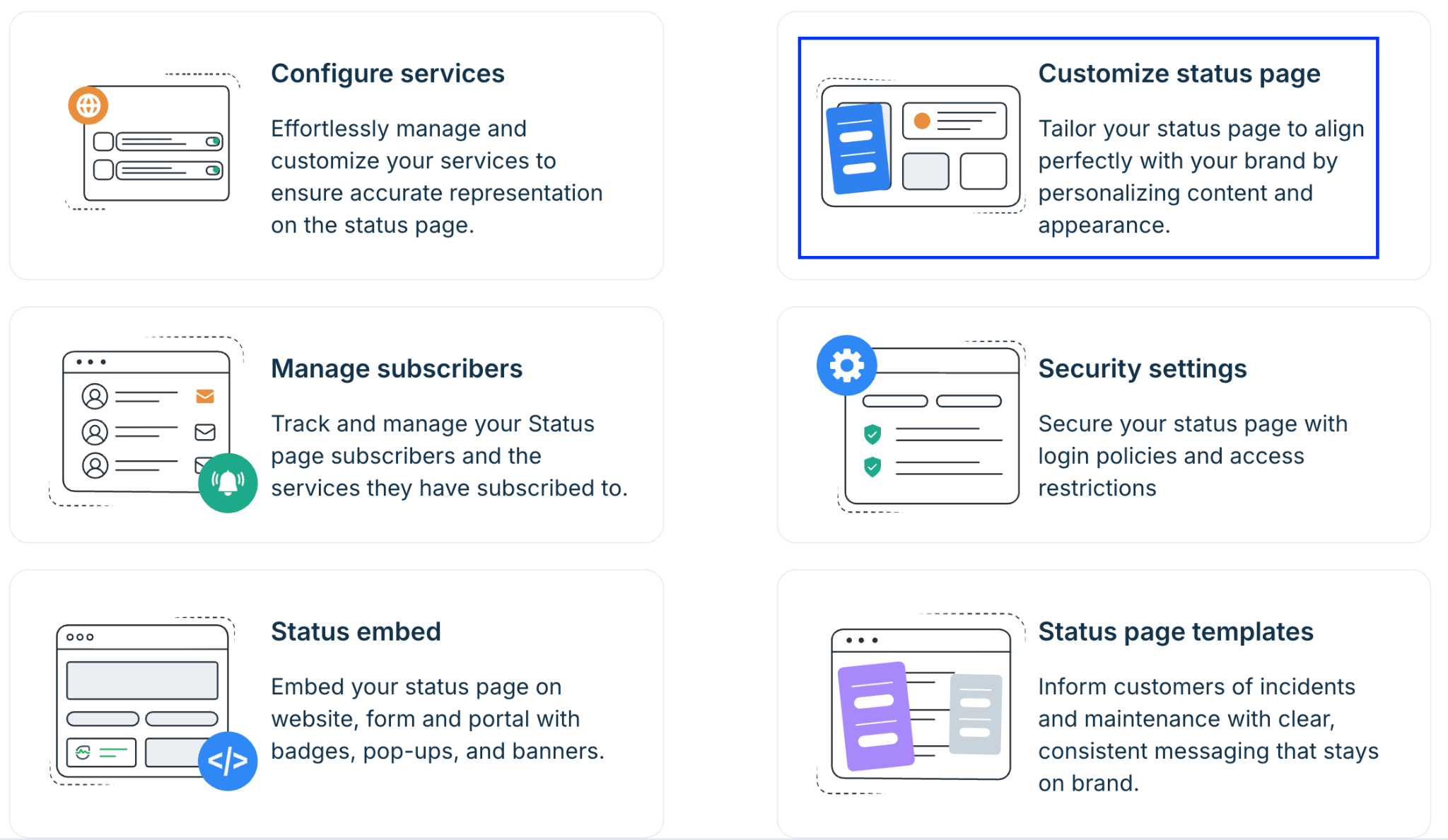
Go to your Freshservice account, and then go to Workspace settings > Status page > Customize status page.
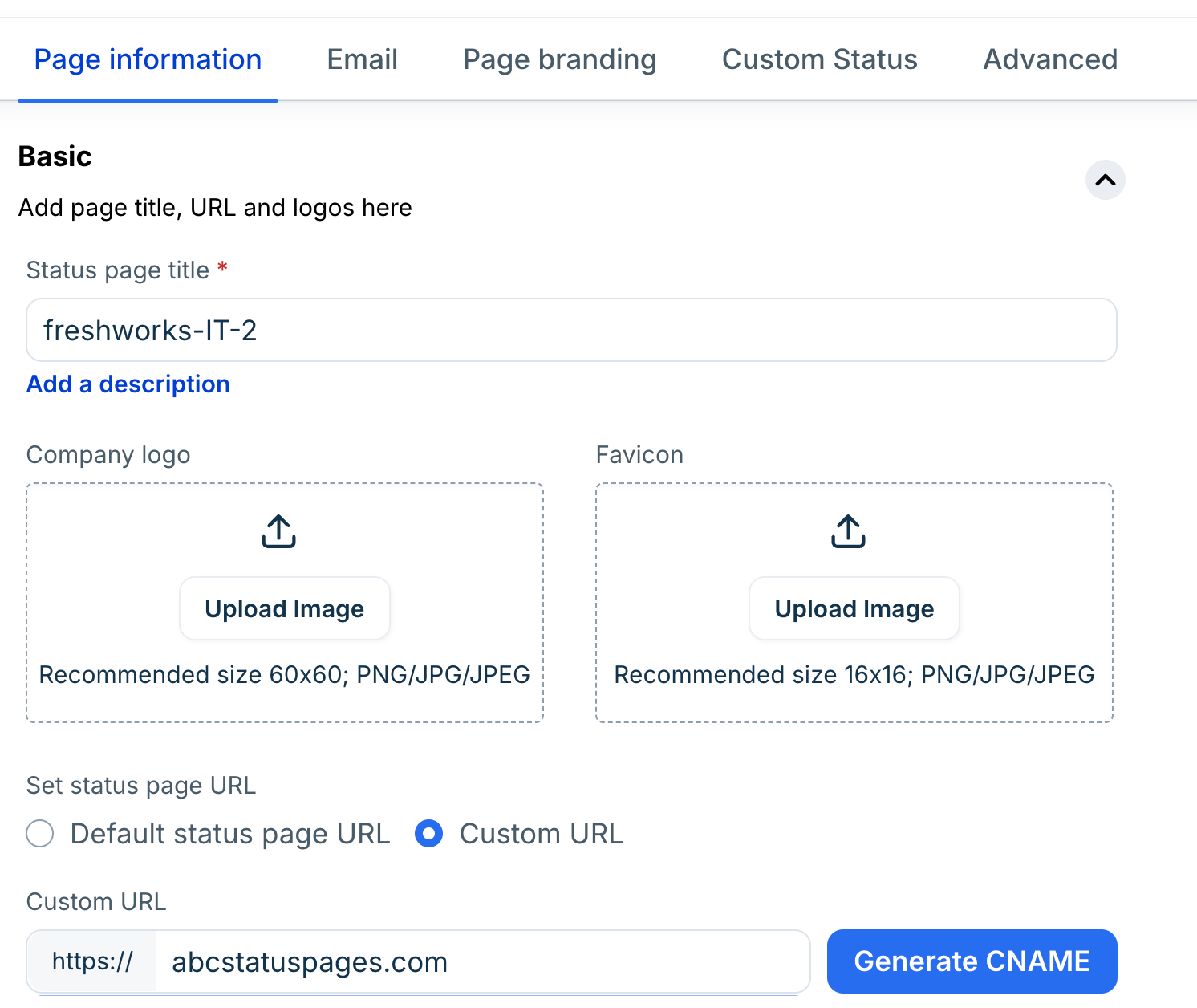
Under Page information, set the status page URL to Custom URL.
Review the custom domain migrated from Freshstatus.
Generate the CNAME key and CNAME value, and add them to your DNS settings.
Reload the page and wait a few minutes for SSL configuration to complete.
Go to Workspace settings > Email notifications > Status page.
Review the default email subject and body.
Update the email content and use available placeholders as required.
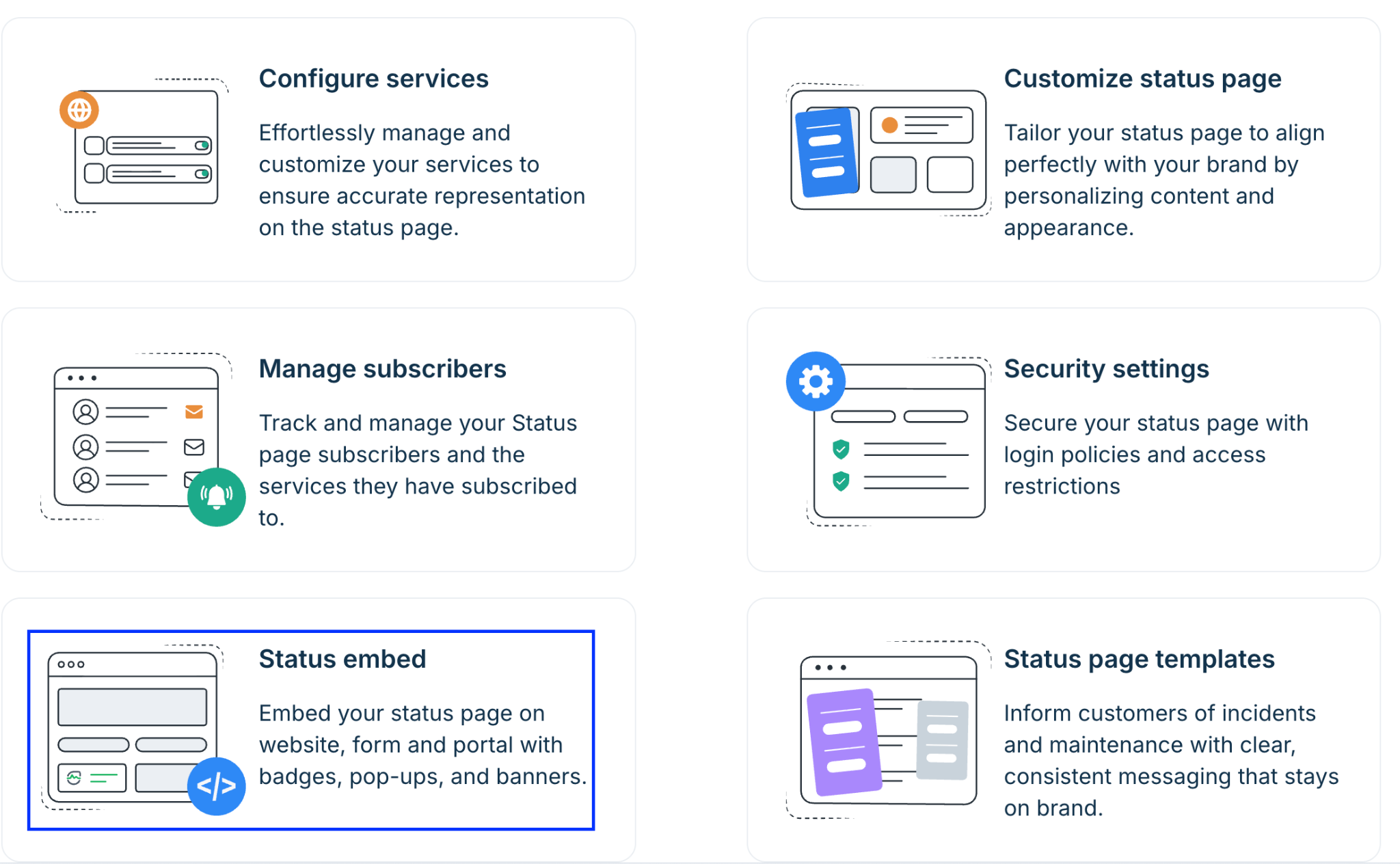
Go to Workspace settings > Status page > Status embed.
Select Badges or Widgets.
Copy the updated embed code.
Replace the existing badge or widget code on your website.
After you complete these steps, your Freshservice status page is available on the configured domain with updated notifications and embeds.
Additional questions?
For any questions, concerns, or further details regarding the migration process, please contact us at support@freshworks.com.