
 Community
 Video Library
 Agent Training
 Freshservice
 Freshdesk
 Freshchat
 Freshcaller
 Freshsales
 Freshteam
 Freshworks Neo
 Freshsurvey
 Freshservice for MSP
 TABLE OF CONTENTS
- Prerequisites
- Overview of the ticket field suggester
- Video walkthrough
- Ticket field prediction workflow
- Configure ticket field suggester
- Ticket field status
- View and apply ticket field suggestions
- Disable ticket field suggester
- Limitations
Ticket Field Suggester uses Freddy AI Copilot to predict ticket field values based on historical ticket data. It helps agents classify tickets faster by recommending values for supported fields, improving routing accuracy, and reducing manual effort.
Prerequisites
Before you configure Ticket Field Suggester, ensure the following:
You have administrator privileges.
Freddy AI Copilot is enabled for your account.
Freddy AI Copilot licenses are assigned to the required agents.
Your account contains at least 1,500 resolved tickets so that the machine learning (ML) model can begin training.
Overview of the ticket field suggester
Ticket Field Suggester uses an enhanced machine learning (ML) model to analyze previously resolved tickets and recommend values for incoming tickets. Instead of manually selecting ticket fields for every request, agents can review AI-generated suggestions and apply them where appropriate.
The model can predict values for the following ticket fields:
Category
Sub-category
Item
Group
Priority
Impact
Urgency
Suggestions are generated based on historical ticket patterns and are displayed only when the model has sufficient confidence in its prediction.
Video walkthrough
The following video explains how Ticket Field Suggester works:
Ticket field prediction workflow
The ML model learns from historical ticket data and periodically refreshes its predictions to improve accuracy.
For a field to be included in model training:
Your account must contain at least 1,500 resolved tickets.
Each field value must appear at least 100 times in the training data.
Each field must have at least two eligible values.
The prediction process works as follows:
After you enable the feature, the model refreshes every month using the previous month's ticket data. During the first week after enablement, the model refreshes more frequently to maximize available training data.
Predictions are generated using the ticket Subject and Description.
Suggestions are displayed only when the prediction confidence exceeds 60%.
If workflows or business rules update any supported ticket fields, Ticket Field Suggester does not display predictions because workflows and business rules take precedence.
Note: These conditions help improve the accuracy of ticket field predictions.
Configure ticket field suggester
To enable Ticket Field Suggester, follow these steps:
Go to Admin > Global Settings > Freddy AI > Freddy.
Under Freddy AI Copilot, enable the Ticket Field Suggester toggle.
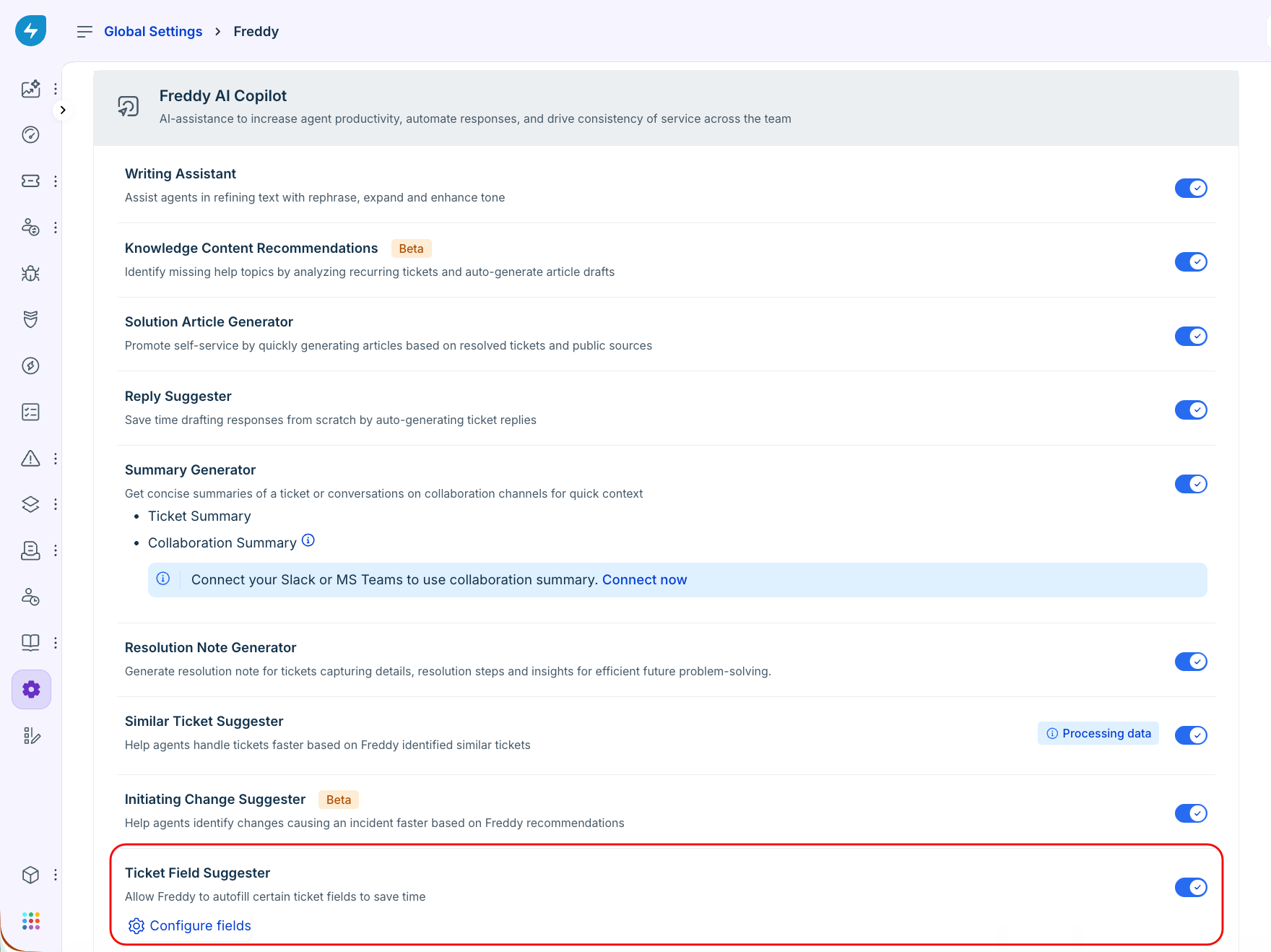
Under Ticket Field Suggester, click Configure fields to enable or disable the ticket fields for which you want Freddy AI Copilot to generate suggestions.
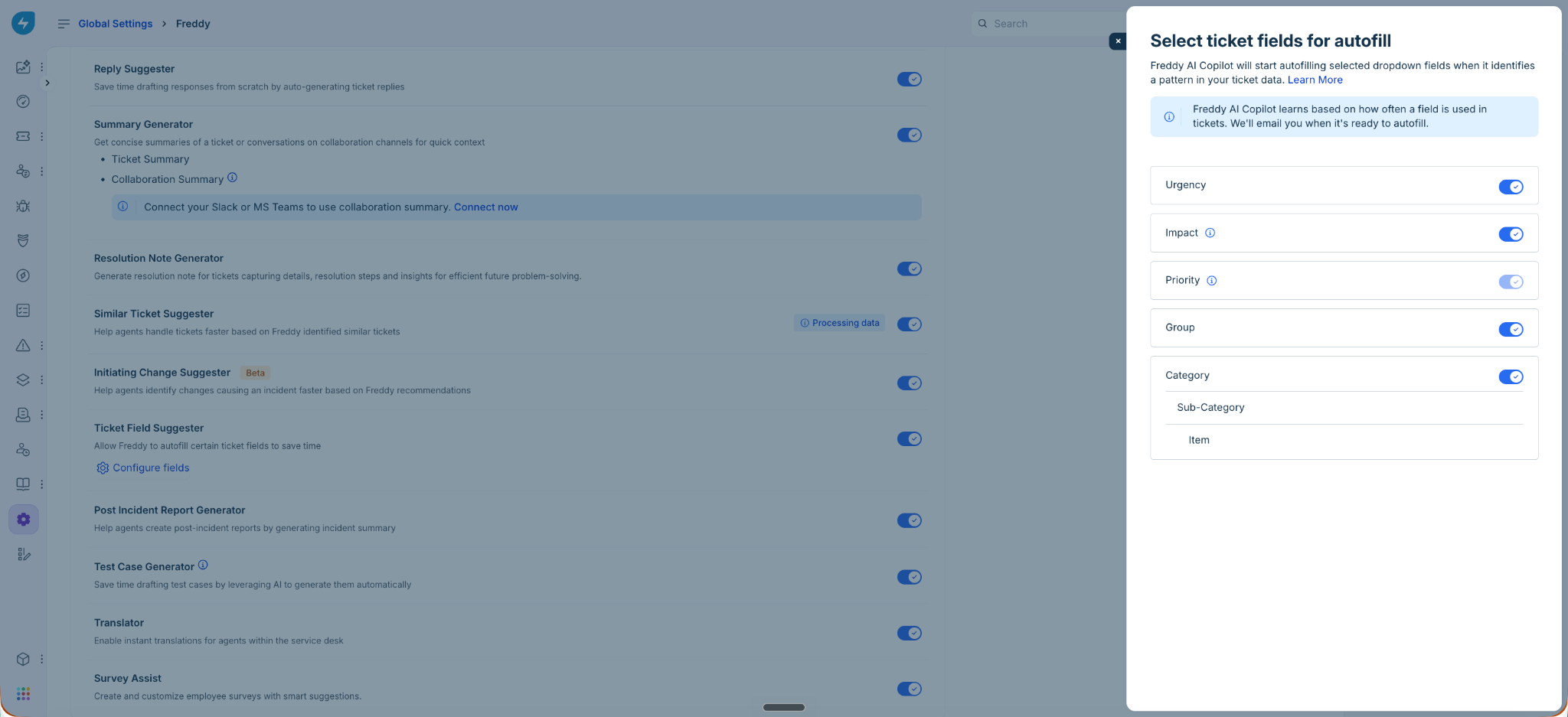
The Select ticket fields for autofill pane opens and displays all supported fields. By default, all supported fields are enabled for prediction.
If the ML model is still training, a notification banner appears above the field list indicating that predictions are not yet available.
If no fields are ready for prediction, your account administrator receives an email when the model becomes available for at least one field.
Note: Your account administrator also receives an email if predictions become available, but Ticket Field Suggester has not been enabled.
Ticket field status
Each supported field displays one of the following statuses:
If you do not want Freddy AI Copilot to predict a particular field, disable its toggle. Disabled fields are moved to the Disabled tab and are excluded from prediction. No training status is displayed for disabled fields.
View and apply ticket field suggestions
After the ML model is trained and Ticket Field Suggester is enabled, Freddy AI Copilot displays predictions for supported ticket fields.
To review and apply ticket field suggestions, follow these steps:
Open the required ticket.
Go to the Details tab.
In the Properties pane, click the Freddy suggestions banner to review the suggested field changes.
Ticket Field Suggester displays the current and suggested field values side by side. Review the suggestions and modify individual field values if required.
Click Update to save the selected field values to the ticket.
Notes:
Only agents assigned the Freddy AI Copilot role can view ticket field suggestions.
Suggested values are recommendations and are not saved unless you click Update.
If a suggestion is incorrect, you can manually select a different value before saving the ticket.
The ML model is periodically retrained using updated ticket data.
Disable ticket field suggester
To disable Ticket Field Suggester, follow these steps:
Go to Admin > Freddy AI > Freddy.
Under Freddy AI Copilot, disable the Ticket Field Suggester toggle.
Limitations
Keep the following limitations in mind when using Ticket Field Suggester:
If Priority Matrix is enabled in a workspace, Priority suggestions are not displayed for tickets in that workspace.
If the Impact field is enabled in Priority Matrix settings, Impact suggestions are not displayed for the affected tickets.